WordPress Plugins and Social Media: An Introduction
WordPress plugins extend a website’s capabilities. They let you add new features without coding. At www.seos7.com, we see the value in smooth connections, especially with social media.
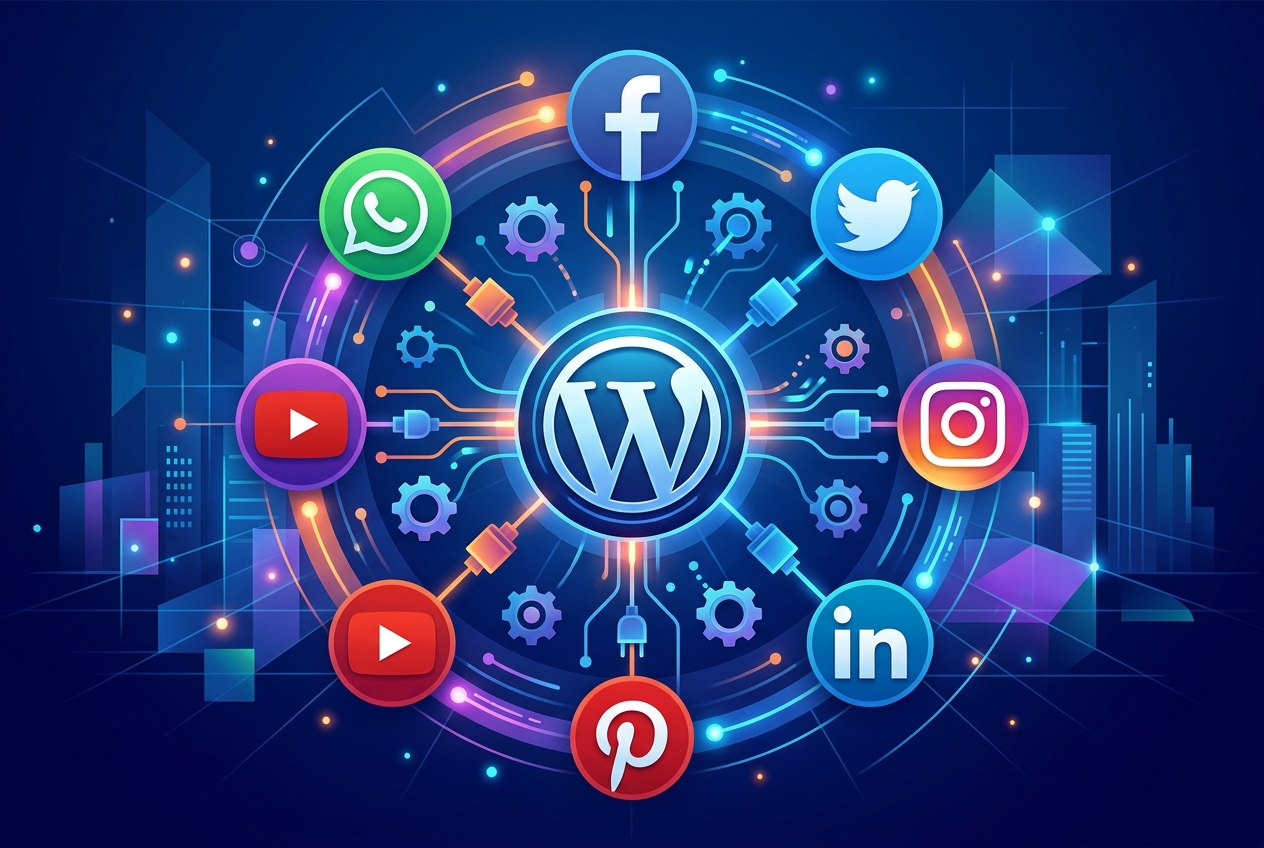
Social media integration plugins connect your WordPress site to platforms like Facebook and X. These tools automate content sharing, show social media feeds, and increase visitor interaction. You manage everything from your WordPress dashboard.
Here’s what social media plugins accomplish:
- Automate Sharing: Automatically post new content to your social media profiles.
- Display Social Feeds: Embed your social media feeds on your website to keep content fresh.
- Boost Engagement: Encourage visitors to share your content and follow your social media accounts.
The right plugins can improve your social media presence and bring more visitors to your website. We at www.seos7.com want to give you the best ways to reach these goals.
This table compares using social media plugins to not using them:
| Feature | With Social Media Plugins | Without Social Media Plugins |
|---|---|---|
| Content Sharing | Automated and efficient | Manual and time-consuming |
| Engagement | Increased through social feeds and sharing options | Limited, relying solely on website content |
| Traffic | Higher due to social media promotion | Lower, dependent on organic search and direct visits |
| Management | Centralized within WordPress | Requires managing multiple platforms separately |
Choosing WordPress plugins carefully matters because many choices exist, each with different features. At www.seos7.com, we guide you in selecting the best plugins for your specific needs.
A good social media plan can greatly affect your website’s success. WordPress plugins help you simplify your social media efforts for better results. We at www.seos7.com are dedicated to helping you use these tools well.
Consider these points when picking a social media plugin:
- Features: Does the plugin have automated sharing, social feeds, and social login?
- Ease of Use: Is the plugin easy to set up? A simple interface is important.
- Compatibility: Does the plugin work with your WordPress theme and other plugins?
- Support: Does the plugin developer offer support? Look for active forums and documentation.
- Reviews: What do users say? Check reviews before installing.
At www.seos7.com, we know managing SEO and social media can be hard. We offer AI tools to automate and improve your website. Our plugins assist with SEO checks, content improvement, internal linking, and image improvement.
Ready to improve your social media integration? Discover how WordPress plugins can enhance your website and boost your online presence. We at www.seos7.com are here to assist you.
The Importance of Social Media Integration
Social media integration is key for any WordPress website wanting to succeed. It involves more than just adding share buttons. It means building a connected online presence that spreads your message and produces real results.
At www.seos7.com, we see the strength of social media. We know it can change a website into a lively center of activity and expansion. That’s why we provide tools to automate your social media efforts.
Here’s why social media integration is so valuable:
- Expands Reach: Social media broadens your website’s reach beyond its initial audience. Sharing content on platforms exposes your brand to potential customers.
- Drives Traffic: Social media is a strong source of traffic. Engaging posts with links to your website can increase visitors.
- Improves User Engagement: Social media integration encourages interaction. Sharing buttons and embedded feeds help visitors engage with your content and brand.
- Boosts Brand Visibility: An active social media presence improves brand visibility. Regular posting helps build brand recognition.
Good social media integration simplifies content sharing. It removes the need to manually post on different platforms. This saves time and keeps your message consistent.
This table shows how social media integration affects website metrics:
| Metric | Without Social Media Integration | With Social Media Integration |
|---|---|---|
| Website Traffic | Relatively lower, dependent on organic search | Significantly higher, boosted by social referrals |
| User Engagement | Limited to on-site interactions | Increased through social sharing and comments |
| Brand Visibility | Restricted to website visitors | Expanded to social media audiences |
| Content Reach | Limited to direct website visitors | Amplified through social shares and reposts |
Social media integration builds a connected online presence. It makes a smooth experience for users. They can move easily between your website and social media.
Here’s how to integrate social media effectively:
- Use Social Sharing Buttons: Add social sharing buttons to your blog posts. Make it easy for visitors to share.
- Embed Social Media Feeds: Display your social media feeds on your website. Keep your content current.
- Implement Social Login: Let users log in with their social media accounts. Simplify registration.
- Automate Content Sharing: Use plugins to automatically share new content. Save time.
At www.seos7.com, we offer SEO solutions. Our tools work with social media plans. This makes sure your website is ready for search engines and social platforms.
We offer AI tools to automate your website’s SEO and social media. Our plugins help with SEO checks, content improvement, internal linking, and image improvement.
Our SEO Automation WordPress plugin provides the features to dominate SEO. Ten AI tools work together to audit, fix, improve, and grow your WordPress site automatically.
Here’s what our plugin provides:
- Site Audit: SEO health checks powered by AI.
- Content Optimizer: Analyze and improve articles for performance.
- A/B Testing: Test titles and descriptions to improve click-through rates.
- Image Optimizer: Auto-generate alt text and title tags for images.
Ready to see the benefits of social media integration? We at www.seos7.com are here to help. Automate Your SEO today!
Key Features of Social Media Plugins
Choosing the right social media plugin can greatly affect your website’s success. Select a plugin that fits your specific needs. Consider these features to make a smart choice.
Evaluate these essential features:
- Automated Sharing: Does the plugin automatically share new posts? This saves time and ensures consistent distribution.
- Social Media Feed Display: Can the plugin embed social media feeds? Displaying feeds keeps your site current and interesting.
- Customizable Buttons: Does the plugin offer customizable sharing buttons? Adjust the buttons to match your site’s design.
- Multiple Platform Integration: Does the plugin support various social platforms? Make sure it covers the platforms where your audience spends time.
- Performance Optimization: Is the plugin coded for speed? A poorly coded plugin can slow down your website.
- Analytics: Does the plugin track social media performance? Monitoring metrics helps you understand what’s effective.
A good social media plugin should combine these features. This ensures effective social media management.
Consider this table outlining each feature’s importance:
| Feature | Importance | Description |
|---|---|---|
| Automated Sharing | High | Saves time by automatically posting new content to social media. |
| Social Media Feed Display | Medium | Keeps your website dynamic by embedding social media feeds. |
| Customizable Buttons | Medium | Allows you to match social sharing buttons to your website’s branding. |
| Multiple Platform Integration | High | Ensures you can reach your audience on various social media platforms. |
| Performance Optimization | High | Prevents the plugin from slowing down your website’s loading speed. |
| Analytics | Medium | Provides data to track social media performance and optimize strategies. |
Prioritize plugins that balance function and performance. User-friendliness matters too.
Here are more factors to think about:
- Ease of Use: Is the plugin easy to set up? A simple interface is key.
- Customer Support: Does the developer offer support? Access to help can be valuable.
- Plugin Updates: Is the plugin updated regularly? Updates show ongoing maintenance and security.
- User Reviews: What do users say about the plugin? Reviews offer useful information.
Choosing the right plugin can greatly improve your website’s social media. Evaluate your choices and select a plugin that fits your needs.
Poorly coded plugins can hurt your site. They can slow loading and weaken security. Always choose plugins from trusted sources.
Consider these popular plugins:
- WPForms Lite: Great for building forms.
- Duplicator: Useful for backups and migration.
- SeedProd: Excellent for landing pages.
- All in One SEO: Helps with SEO.
Check reviews and compatibility before installing a plugin. This ensures a smooth process.
Selecting Free Social Media Plugins for WordPress
Many free WordPress plugins integrate social media into your website. These plugins provide features like social sharing buttons, feeds, and post scheduling.
The right plugin depends on your specific needs. Your goals will also shape your choice. Think about what you want to accomplish with social media.
Here are some popular free WordPress plugins for social media:
- Social Warfare: Offers attractive sharing buttons and frame busting.
- AddToAny Share Buttons: Supports many platforms. It is lightweight and customizable.
- Social Icons: Displays social media icons and links them to your profiles.
- WordPress to Buffer: Automatically shares new posts to Buffer. Schedule updates across platforms.
- Revive Social: Helps you re-share old posts on social media.
Each plugin has unique features. Evaluate them carefully to see which fits your website best.
Consider these factors when selecting a plugin:
- Features: Does the plugin offer the features you need, like sharing buttons, feeds, and scheduling?
- Ease of Use: Is the plugin easy to set up? A user-friendly interface matters.
- Customization: Can you change the plugin’s appearance to match your site?
- Performance: Does the plugin slow down your website? Choose a lightweight option.
- Support: Is there good documentation? This helps with troubleshooting.
Here’s a table comparing some top free plugins:
| Plugin | Key Features | Pros | Cons |
|---|---|---|---|
| Social Warfare | Sharing buttons, frame busting | Attractive design, easy to use | Limited free features |
| AddToAny Share Buttons | Many platforms, customizable | Lightweight, supports many services | Basic design |
| Social Icons | Social media icons, link to profiles | Simple, easy to set up | Limited functionality |
| WordPress to Buffer | Automatic sharing to Buffer | Saves time, schedules updates | Requires Buffer account |
| Revive Social | Revive old posts | Increases traffic, re-shares content | Can be repetitive |
Test different plugins to see what works best for your site. Watch their impact on performance. Choose the plugin that helps you meet your social media goals.
Keep your plugins updated for security and compatibility. Regular updates also bring new features.
Free plugins are a good starting point to explore social media integration. You can upgrade to premium versions later for more advanced features.
Consider using several plugins to broaden your social media impact. Use one plugin for sharing buttons and another for social feeds, for example.
By selecting and setting up your plugins carefully, you can build a strong social media presence. Bring more traffic to your website and engage your audience effectively.
Smash Balloon Social Photo Feed
Smash Balloon is a popular plugin for displaying Instagram feeds on your WordPress website. It offers a straightforward method for showcasing your Instagram content.
The plugin is highly customizable, allowing you to adjust the appearance of your feeds to match your website’s branding. Its responsive design ensures feeds look good on desktops, tablets, and smartphones.
Smash Balloon can increase user engagement by showcasing your Instagram content directly on your site. Visitors can easily view your latest posts and follow you on Instagram, potentially leading to more followers and interactions.
Key features of Smash Balloon include:
- Customizable Feeds: Adjust the look of your Instagram feeds.
- Responsive Design: Feeds look good on any device.
- Multiple Feeds: Display feeds from several Instagram accounts.
- Shoppable Feeds: Link your Instagram posts to product pages.
- Lazy Loading: Improves page load times.
Smash Balloon has both free and paid options. The free version offers basic features suitable for simple Instagram feed displays. The paid version provides more advanced features, including shoppable feeds and the ability to display multiple feeds.
The benefits of using Smash Balloon are outlined below:
| Benefit | Description |
|---|---|
| Increased Engagement | Showcase Instagram content directly on your website. |
| Improved User Experience | Responsive design ensures feeds look good on any device. |
| Enhanced Branding | Customize feeds to match your website’s branding. |
| More Followers | Encourage visitors to follow you on Instagram. |
Setting up Smash Balloon involves installing the plugin, connecting your Instagram account, customizing the feed settings, and embedding the feed on your desired page or post. The process is relatively simple.
Here’s how to get started:
- Install the Smash Balloon Social Photo Feed plugin.
- Activate the plugin.
- Connect your Instagram account.
- Customize the feed settings.
- Embed the feed on your page or post.
Smash Balloon can enhance your website’s social media presence by driving engagement and promoting your Instagram content. It’s a worthwhile addition for many sites.
To get the most out of your embedded feeds, be sure to use high-quality images and write engaging captions for your Instagram content.
Shared Counts
Shared Counts provides social sharing buttons and displays share counts. This encourages visitors to share your content, as seeing high share numbers can influence others to do the same.
The plugin supports several social networks, including Facebook, X, Pinterest, and LinkedIn. It is built for speed, so it won’t slow down your website.
Shared Counts is designed to be lightweight, focusing on essential features to ensure fast loading times. Website speed is important for both user experience and SEO.
Key features of Shared Counts include:
- Multiple Social Networks: Supports various social media platforms.
- Accurate Share Counts: Displays the number of shares for each network.
- Performance Optimized: Lightweight design ensures fast loading times.
- Customizable Buttons: Adjust the appearance of the sharing buttons.
- Shortcode Support: Easily embed sharing buttons on any page or post.
Shared Counts can help increase social engagement by providing social proof, which encourages more visitors to share your content. This, in turn, can increase your website’s visibility.
The table below outlines the benefits of using Shared Counts:
| Benefit | Description |
|---|---|
| Increased Social Sharing | Encourages visitors to share your content. |
| Improved Website Performance | Lightweight design ensures fast loading times. |
| Enhanced Social Proof | Displays share counts to build trust. |
| Greater Visibility | Helps increase your website’s reach on social media. |
Setting up Shared Counts is straightforward. Simply install the plugin, activate it, configure the settings, choose your preferred social networks, and customize the button appearance.
Here are the steps to get started:
- Install the Shared Counts plugin.
- Activate the plugin.
- Configure the settings.
- Choose your preferred social networks.
- Customize the button appearance.
Shared Counts can enhance your website’s social media presence by driving engagement and promoting your content. Many sites will find it a useful addition.
Keep an eye on your share counts to see which content performs best. Analyzing this data can help you create more engaging content and refine your social media strategy.
Better Click to Tweet
Better Click to Tweet simplifies creating tweetable quotes. The plugin embeds engaging quotes in your content, encouraging sharing on X.
Visitors can easily share snippets of your content, increasing its visibility on X. The plugin also offers customizable styles. You can match the tweetable quotes to your website’s design.
Here are some features of Better Click to Tweet:
- Easy Quote Creation: Quickly create tweetable quotes within your content.
- Customizable Styles: Match the appearance to your website’s design.
- Increased Engagement: Encourage visitors to share your content on X.
- Shortcode Support: Use shortcodes to embed quotes easily.
- Analytics Tracking: Track the performance of your tweetable quotes.
Better Click to Tweet boosts your content’s reach. It provides a simple way for visitors to share key takeaways, driving more traffic to your website.
Consider this table outlining the advantages of using Better Click to Tweet:
| Benefit | Description |
|---|---|
| Increased X Sharing | Encourages visitors to share quotes on X. |
| Improved Engagement | Makes it easy for visitors to interact with your content. |
| Enhanced Branding | Customizable styles match your website’s design. |
| Greater Visibility | Helps increase your website’s reach on X. |
Setting up Better Click to Tweet is straightforward. Install and activate the plugin. Then, use the shortcode to embed tweetable quotes in your content. Finally, customize the styles to match your website.
Here are the steps to get started:
- Install the Better Click to Tweet plugin.
- Activate the plugin.
- Use the shortcode to embed tweetable quotes.
- Customize the styles.
Better Click to Tweet enhances your website’s social media presence. It drives engagement and promotes your content on X.
Create compelling quotes to encourage sharing. Monitor the performance of your tweetable quotes. This helps you refine your content strategy.
Benefits of Premium Social Media Plugins
Premium plugins provide advanced features and dedicated support for social media integration. They often include enhanced customization options and detailed analytics. Priority assistance is another benefit.
A premium plugin offers a more complete solution, tailored to your specific needs. These plugins often make social media management easier and improve your online presence.
Here are some advantages of using premium social media plugins:
- Advanced Features: Access sophisticated tools that improve social media integration.
- Dedicated Support: Receive priority assistance from plugin developers when you need help.
- Enhanced Customization: Adjust the plugin to match your brand for a consistent user experience.
- Detailed Analytics: Track performance and gain insights into your social media efforts.
- Regular Updates: Ensure compatibility and benefit from new features and security improvements.
Choosing the right premium plugin depends on your specific requirements. Consider your budget and the features that matter most.
Consider these factors when selecting a premium plugin:
- Features: Does the plugin offer the advanced features you need, such as automation, analytics, and customization?
- Support: Is dedicated support available with responsive customer service?
- Pricing: Does the plugin fit your budget? Compare pricing plans and features.
- Reviews: What do other users say about the plugin? Read reviews and testimonials.
- Updates: Is the plugin updated regularly to ensure compatibility and security?
This table compares key aspects of premium and free plugins:
| Feature | Premium Plugins | Free Plugins |
|---|---|---|
| Features | Advanced, complete | Basic, limited |
| Support | Dedicated, priority | Limited or community-based |
| Customization | Enhanced, extensive options | Basic, limited options |
| Analytics | Detailed, in-depth reporting | Basic or non-existent |
| Updates | Regular, frequent | Less frequent |
| Pricing | Paid, subscription or one-time fee | Free |
A premium plugin can save you time and improve your social media results. Consider the long-term benefits against the cost.
Test different plugins to see which works best for your site. Monitor their impact on performance. Select the plugin that helps you meet your social media goals.
Keep your plugins updated for security and compatibility. Regular updates also provide new features and improvements.
Premium plugins offer a more complete solution and dedicated support. They can improve your social media integration if you’re serious about social media.
OptinMonster for Social Media Engagement
OptinMonster expands your email list and increases website traffic. It achieves this through focused campaigns that connect with social media. These campaigns showcase offers and encourage interaction.
The plugin provides various campaign formats, including popups, slide-ins, and floating bars. Each format is designed to capture leads and highlight content.
OptinMonster connects you with your audience by integrating with social media sites. You can promote offers on social channels, which brings more visitors to your site.
Here are some of OptinMonster’s main features:
- Multiple Campaign Types: Offers popups, slide-ins, and floating bars.
- Social Media Integration: Promotes offers on social channels.
- Targeted Campaigns: Displays campaigns to specific users.
- A/B Testing: Tests different campaign variations.
- Analytics: Tracks campaign performance.
OptinMonster helps you build your email list and increase website traffic. It also improves social media engagement. It’s a marketing solution for online businesses.
Consider the benefits of using OptinMonster:
| Benefit | Description |
|---|---|
| Increased Email Subscribers | Captures more leads through targeted campaigns. |
| Improved Website Traffic | Drives traffic from social media promotions. |
| Enhanced Engagement | Promotes offers and interacts with your audience. |
| Better Conversion Rates | Optimizes campaigns for maximum conversions. |
Setting up OptinMonster is simple. Install the plugin, connect your email marketing service, and create your first campaign. Then, adjust the settings to focus on your desired audience.
Here are the steps to get started:
- Install the OptinMonster plugin.
- Connect your email marketing service.
- Create your first campaign.
- Customize the settings.
- Target your audience.
OptinMonster is useful for improving your website’s marketing. It encourages engagement and promotes your content effectively.
Keep an eye on your campaign results. Analyze which campaigns perform best. This will help you refine your marketing and improve your conversion rates.
AffiliateWP for Referral Programs
AffiliateWP allows you to build and oversee an affiliate program on your WordPress site. The plugin offers tools to recruit, monitor, and compensate affiliates. A good affiliate program can significantly increase sales by rewarding people for promoting your products.
AffiliateWP works with social media platforms. This allows affiliates to easily share their referral links, expanding your reach and bringing more visitors to your website.
The plugin provides detailed reports. You can monitor affiliate performance to see which affiliates generate the most sales. You can also understand which marketing approaches are most successful.
AffiliateWP includes tools for managing commissions. You can set commission rates, automate payments, and manage affiliate accounts efficiently.
Here are some of AffiliateWP’s features:
- Affiliate Management: Recruit and manage affiliates easily.
- Social Media Integration: Promote affiliate links on social media.
- Detailed Reporting: Track affiliate performance and sales.
- Commission Management: Set commission rates and automate payments.
- Integration with E-commerce Platforms: Works with WooCommerce, Easy Digital Downloads, and more.
AffiliateWP can help your business grow through affiliate marketing. It gives you the tools to run a successful program.
Consider the benefits of using AffiliateWP:
| Benefit | Description |
|---|---|
| Increased Sales | Leverage affiliate marketing to drive more sales. |
| Expanded Reach | Reach a wider audience through affiliate promotions. |
| Improved Tracking | Track affiliate performance and sales accurately. |
| Efficient Management | Automate commission payments and manage affiliate accounts. |
Setting up AffiliateWP is straightforward. Install the plugin, configure the settings, and connect it to your e-commerce platform. Then, recruit affiliates and begin tracking their performance.
Here are the steps to get started:
- Install the AffiliateWP plugin.
- Configure the settings.
- Integrate with your e-commerce platform.
- Recruit affiliates.
- Track their performance.
AffiliateWP is a useful tool for improving your website’s marketing. It increases sales and promotes your products effectively.
Remember to stay in contact with your affiliates. Give them marketing materials and offer incentives to improve their performance. This will help you create a successful affiliate program.
LiveChat
LiveChat facilitates immediate communication, connecting you with website visitors in real time. This plugin offers instant customer support, answering questions as they arise.
LiveChat also connects to social media platforms, letting you oversee customer interactions and respond to inquiries from various sources through a single interface.
The plugin can improve customer satisfaction and increase sales through immediate engagement. Addressing customer concerns quickly builds trust and encourages conversions.
Key features of LiveChat include:
- Real-Time Chat: Connect with visitors instantly.
- Social Media Integration: Manage interactions from various channels.
- Customer Support: Provide immediate assistance.
- Sales Engagement: Increase sales through instant engagement.
- Analytics: Track chat performance and customer satisfaction.
LiveChat can foster customer loyalty and improve your website’s user experience. It gives visitors a simple method for obtaining assistance.
Consider the following benefits of using LiveChat:
| Benefit | Description |
|---|---|
| Improved Customer Satisfaction | Provides instant support and answers inquiries. |
| Increased Sales | Engages visitors and drives conversions. |
| Enhanced User Experience | Offers a simple way for visitors to get help. |
| Efficient Communication | Manages interactions from various channels in one place. |
Setting up LiveChat is simple. Install the plugin, adjust the settings, connect your social media accounts, and add the chat widget to your website.
To get started:
- Install the LiveChat plugin.
- Configure the settings.
- Integrate with your social media accounts.
- Add the chat widget to your website.
LiveChat can improve your website’s customer service, boost engagement, and encourage customer loyalty.
Train your support team to handle questions effectively. Track chat performance and analyze customer feedback to refine your support approach.
Selecting a Social Media Plugin for WordPress
Choosing the right social media plugin for your WordPress website demands careful thought. Your specific needs and objectives should inform your choice. A plugin that suits one website may not suit another. Assess several aspects to ensure you pick a plugin that effectively improves your social media integration.
Consider these points:
- Define Your Goals: What do you want to accomplish by connecting to social media? Do you want to increase social sharing, display social feeds, or automate content posting?
- Assess Your Needs: Which features do you require? Do you need customizable buttons, support for multiple platforms, or detailed analytics?
- Evaluate Ease of Use: How simple is the plugin to set up and use? A straightforward interface helps with social media management.
- Check Compatibility: Does the plugin work with your WordPress theme and other plugins? Ensure smooth integration to prevent issues.
- Read Reviews: What are other users saying about the plugin? Look for plugins with good reviews and ratings.
- Check Update History: Is the plugin updated regularly? Frequent updates suggest ongoing maintenance and security.
- Consider Support Options: Does the plugin developer offer customer support? Access to support can be helpful if you have problems.
- Test Plugin Performance: Will the plugin slow down your website? Choose a lightweight plugin to keep performance optimal.
A good social media plugin can greatly improve your website’s social media presence. It can also simplify your social media management. Evaluate your choices carefully. Select a plugin that addresses your specific needs and goals.
The table below outlines factors to consider when picking a social media plugin:
| Factor | Description | Importance |
|---|---|---|
| Goals | Define what you want to achieve with social media integration. | High |
| Features | Assess the features that are essential for your website. | High |
| Ease of Use | Evaluate how easy the plugin is to set up and manage. | High |
| Compatibility | Check if the plugin is compatible with your theme and other plugins. | High |
| Reviews | Read what other users say about the plugin. | Medium |
| Update History | Check if the plugin is regularly updated. | Medium |
| Support | Consider the availability of customer support. | Medium |
| Performance | Test the plugin’s impact on your website’s loading speed. | High |
Selecting the right plugin is an investment in your website’s social media strategy. Choose carefully to get the best results.
Here are a few more tips to help you select a plugin:
- Start with Free Options: Try free plugins to learn about different features and interfaces.
- Read Plugin Documentation: Learn how to use the plugin well.
- Test Before Committing: Try the plugin on a test site before using it on your live website.
- Monitor Performance: Track how the plugin affects your website’s speed and engagement.
By following these tips, you can pick a social media plugin that improves your website, simplifies your social media efforts, and helps you reach your online goals.
The best plugin aligns with your specific needs and helps you achieve your desired outcomes. Take your time, assess your options, and choose carefully.
Assessing Your Social Media Goals
Before exploring WordPress plugins for social media, define what you want to accomplish. What are your aims for integrating social media with your WordPress website?
Clearly defined goals will guide your plugin selection. They will ensure you choose tools that fit your specific needs. This focused approach increases the impact of your social media efforts.
Consider these common objectives:
- Attract more followers to your social media accounts.
- Increase website traffic from social media platforms.
- Encourage more likes, shares, and comments on your content.
- Capture leads through social media campaigns.
- Enhance brand visibility and recognition.
- Showcase your offerings on social media.
After identifying your goals, assess your current social media presence. What’s working? What needs improvement? This analysis will help you prioritize plugin features.
For example, if driving traffic is your main goal, you’ll want a plugin with prominent social sharing buttons. Automation for content posting would also be helpful.
If you want to increase followers, a plugin displaying social media feeds on your website might work better. Visitors could easily follow your accounts.
The table below shows how social media goals align with plugin features:
| Goal | Recommended Plugin Features |
|---|---|
| Increase Followers | Social media feed display, follow buttons |
| Drive Traffic | Social sharing buttons, automated content posting |
| Boost Engagement | Comment integration, like buttons |
| Generate Leads | Social media contests, lead capture forms |
| Improve Brand Awareness | Consistent branding across platforms, social media advertising |
| Promote Products/Services | Shoppable feeds, product showcases |
Knowing your needs helps you select a WordPress plugin that delivers results. This is a key step in increasing the impact of your social media integration.
Revisit your goals regularly. Adjust your plugin selection as your needs change. Social media is always changing, so your strategy should adapt.
By matching your plugin choice to your social media goals, you can build a strong online presence. You will also produce meaningful results for your WordPress website.
Evaluating Plugin Features and Compatibility
Before installing WordPress plugins, check their features. Do they support the social networks you use? Do they offer the functions you need to meet your social media goals?
Compatibility matters, too. Make sure the plugin works with your WordPress theme and other installed plugins. Plugin conflicts can cause errors or slow down your site.
Use this checklist to evaluate plugin features and compatibility:
- Does the plugin support Facebook, X, Instagram, LinkedIn, and other platforms you use?
- Does the plugin offer social sharing buttons, social media feed display, automated posting, and other features you need?
- Is the plugin compatible with your WordPress theme’s design and functionality?
- Does the plugin conflict with other plugins installed on your website?
- Does the plugin work well on different devices, including desktops, tablets, and smartphones?
- Does the plugin offer customization options to match your website’s branding?
Testing plugins in a staging environment is a good idea. A staging environment is a copy of your live website. You can test changes there without affecting visitors.
Here’s how to test a plugin in a staging environment:
- Create a staging environment for your WordPress website.
- Install the plugin in the staging environment.
- Activate the plugin and configure its settings.
- Test the plugin’s features and functionality.
- Check for any conflicts with your theme or other plugins.
- If everything works correctly, implement the plugin on your live website.
By testing in a staging environment, you can find and fix problems before they affect your live website. This ensures a smooth integration.
This table shows why feature evaluation and compatibility testing are important:
| Factor | Description | Importance |
|---|---|---|
| Feature Evaluation | Ensures the plugin offers the functionalities you need. | High |
| Social Network Support | Verifies the plugin supports the platforms you use. | High |
| Theme Compatibility | Confirms the plugin works seamlessly with your theme. | High |
| Plugin Compatibility | Prevents conflicts with other plugins. | High |
| Staging Environment Testing | Identifies and resolves issues before they affect your live website. | High |
Careful evaluation and testing are key. They ensure you choose WordPress plugins that improve your website. They also ensure the plugins don’t cause issues.
Prioritize plugins with the features you need. Choose those that work with your current setup. This will help you create an effective social media integration strategy.
Checking Plugin Reviews and Update History
User reviews offer insight into a plugin’s strengths and weaknesses. Reading reviews before installing any WordPress plugins is a good idea. Look for recurring themes in the feedback, both good and bad.
A plugin’s update history matters. Check that the plugin receives regular updates. These updates often patch security holes and maintain compatibility with the newest WordPress version. A well-maintained plugin offers reliability and performance.
Here’s what to consider when examining reviews and update logs:
- Recent Reviews: These provide the most current information.
- Recurring Themes: Look for common issues or praise mentioned by several users.
- Developer Responses: See if the plugin developer replies to reviews, which shows their support level.
- Update Frequency: Frequent updates suggest ongoing maintenance.
- Changelog: Read the changelog to see what has changed recently.
- Compatibility: Make sure the plugin works with your version of WordPress.
A plugin with many positive reviews and frequent updates is usually a safe bet. Still, consider your specific needs. A plugin that works for one site might not suit another.
The table below shows why checking reviews and update history matters:
| Factor | Description | Importance |
|---|---|---|
| Recent Reviews | Provide up-to-date information about the plugin’s performance. | High |
| Recurring Themes | Highlight common issues or praises. | High |
| Developer Responses | Indicate the level of support provided by the developer. | Medium |
| Update Frequency | Show ongoing maintenance and security. | High |
| Changelog | Detail the changes made in recent updates. | Medium |
| Compatibility | Ensure the plugin works with the latest version of WordPress. | High |
Checking reviews and update history is a key step. It helps you pick WordPress plugins that are reliable, secure, and well-kept. This makes for a better experience for you and your visitors.
Prioritize plugins with a good track record. They are more likely to offer lasting value. They also tend to have continued support and updates.
Carefully checking reviews and update history lets you make smart choices. You can select WordPress plugins that improve your site’s features. You also protect its security and stability.
Making Your Site Social Media Ready
Making your WordPress site ready for sharing on social media is important. It expands your content’s reach. It also brings more visitors to your site. Small changes can boost how often your content gets shared. This leads to more visibility and interaction.
Here are some ways to make your WordPress site social media ready:
- Use Clear and Engaging Headlines: Write headlines that grab attention and show what the content offers. Good headlines encourage clicks and shares.
- Implement Social Sharing Buttons: Put social sharing buttons where they are easy to see. Make sharing simple for visitors. Common spots are at the top and bottom of posts.
- Use High-Quality Images: Visuals draw people in. Use good images that relate to your content. Prepare images for sharing on social media.
- Write Compelling Descriptions: Create short, interesting descriptions. These appear when your content is shared. They should make people want to click and learn more.
- Optimize for Mobile: Ensure your site works well on phones. Many social media users browse on their phones. A responsive design is key.
- Use Open Graph Meta Tags: These tags control how your content looks when shared on social media, ensuring titles, descriptions, and images display correctly.
- Encourage Social Interaction: Ask questions and invite comments to build a community around your content.
Clear, interesting headlines are key. They are the first thing people see. They decide whether someone clicks.
Social sharing buttons should be easy to spot, look good, and work well.
Good images make your content look better. They also increase the chance of it being shared.
Interesting descriptions give context. They also make people want to click and learn more.
The table below shows the benefits of each approach:
| Strategy | Benefit |
|---|---|
| Clear and Engaging Headlines | Increased click-through rates and shares |
| Social Sharing Buttons | Easy content sharing for visitors |
| High-Quality Images | Enhanced visual appeal and engagement |
| Compelling Descriptions | Entice users to click and learn more |
| Mobile Optimization | Improved user experience on smartphones |
| Open Graph Meta Tags | Accurate display of content on social media |
| Encourage Social Interaction | Foster a sense of community and engagement |
Using these methods can greatly improve your WordPress site’s social media performance. You’ll also get more traffic, boost interaction, and improve your online presence.
Watch your social media data. See what works and what doesn’t. Adjust your plan as needed. This ensures constant improvement.
Here are more tips to prepare your WordPress site for social media sharing:
- Use Relevant Hashtags: Add hashtags to your posts to increase visibility.
- Schedule Social Media Posts: Use a scheduling tool to share content consistently.
- Engage with Your Audience: Reply to comments and messages to build relationships with followers.
- Run Social Media Contests: Host contests and giveaways to encourage interaction and gain followers.
Following these tips helps you create a social media plan. It will get results for your WordPress site. It will also help you reach your goals online.
Crafting Effective Social Media Headlines and Descriptions
Headlines are a first impression. They determine whether someone clicks to read more. A strong headline grabs attention while accurately representing the content that follows.
To write headlines that work:
- Use Numbers: Numerical lists attract eyeballs. They also suggest a structured, easily digestible format.
- Ask Questions: Questions spark curiosity. They make readers want to find the answer.
- Use Evocative Words: Words with emotional punch make headlines more persuasive.
- Keep it Short: Aim for brevity. Avoid confusing language.
- Highlight Benefits: Tell the reader what they’ll gain. Make the content sound appealing.
Descriptions give context. They summarize your content to encourage clicks, especially on social media where they appear when your content is shared.
To write effective descriptions:
- Be Brief: Keep descriptions concise, ideally around 150 characters.
- Highlight Key Points: Focus on the most unique and important takeaways.
- Use Keywords: Incorporate terms people search for to improve visibility.
- Include a Call to Action: Urge people to click with action-oriented language.
- Optimize for Social Media: Use Open Graph meta tags to control how titles and descriptions display.
Meta descriptions, HTML attributes summarizing a webpage’s content, often appear in search results and on social media when content is shared.
To optimize meta descriptions for social media:
- Use a Plugin: Install Yoast SEO or All in One SEO to simplify meta description management.
- Write Unique Descriptions: Avoid duplicates. Create original descriptions for each page and post.
- Include Keywords: Add relevant keywords to improve search rankings.
- Keep it Short: Aim for 150-160 characters.
- Test and Refine: Track performance and adjust descriptions to boost click-through rates.
The following table outlines elements of effective headlines and descriptions:
| Element | Description | Importance |
|---|---|---|
| Compelling Headlines | Attention-grabbing, concise, and benefit-driven | High |
| Concise Descriptions | Short, informative, and keyword-rich | High |
| Meta Description Optimization | Unique, keyword-rich, and optimized for social media | High |
Well-written headlines and descriptions can boost content visibility, increase engagement, and bring more visitors to your WordPress site.
Test different approaches to see what resonates with your audience. Watch your analytics and adjust your approach for continuous improvement.
Examples of effective headlines:
- “10 Proven Strategies to Boost Your Social Media Engagement”
- “The Ultimate Guide to WordPress SEO: Dominate Search Results”
- “How to Write Compelling Headlines That Get Clicks”
Examples of effective descriptions:
- “Learn 10 proven strategies to boost your social media engagement. Drive more traffic and increase your online presence.”
- “Dominate search results with our ultimate guide to WordPress SEO. Optimize your website and attract more organic traffic.”
- “Discover how to write compelling headlines that get clicks. Increase your website’s visibility and attract more readers.”
Strategic Placement of Social Sharing Buttons
Where you put social sharing buttons matters. Thoughtful placement encourages visitors to share your content, expanding your website’s reach and bringing in more traffic.
Consider these points for effective button implementation:
- Visible Placement: Put buttons where they’re easy to spot, like the top or bottom of blog posts.
- Clean Design: Use a consistent, professional look. Avoid anything cluttered or distracting.
- Mobile-Friendly: Make sharing easy on phones and tablets. Responsive design is key.
- Relevant Platforms: Focus on the social networks your audience uses.
- Button Size: Use a size that’s noticeable but not overwhelming.
- Placement Consistency: Keep button placement consistent across your site for a smooth user experience.
The top of your posts is a great spot. Visitors can share immediately, capturing their attention right away.
The bottom of your posts also works well. People can share after they’ve read and engaged with the content.
A clean, consistent design makes your site look professional and makes sharing more intuitive.
Mobile-friendliness is vital, allowing easy sharing on phones and tablets and catering to the growing mobile audience.
This table shows the advantages of strategic button placement:
| Placement | Benefit |
|---|---|
| Top of Post | Immediate visibility and sharing |
| Bottom of Post | Sharing after content engagement |
| Clean Design | Enhanced professionalism and user experience |
| Mobile-Friendliness | Easy sharing on all devices |
Strategic placement of social sharing buttons can greatly improve content shareability, bring in more traffic, and boost your online presence.
Experiment with different placements to see what performs best with your audience. Track your analytics and adjust your strategy for continuous improvement.
Additional tips for implementing social sharing buttons:
- Use a Plugin: A social sharing plugin simplifies the process.
- Customize Button Appearance: Match the buttons to your website’s branding.
- Track Button Performance: See which platforms are most effective by monitoring click-through rates.
- Speed Considerations: Choose a lightweight plugin to ensure fast loading times.
By following these tips, you can build a social sharing strategy that gets results for your WordPress site and helps you reach your online goals.
Using Effective Images on Social Media
Visually appealing images are vital for social media. They grab attention and boost engagement. Quality images make your content more shareable. They also bring more visitors to your WordPress site.
Here are key ways to use quality images well:
- Use Relevant Images: Pick images that relate to your content. They should support your message and improve understanding.
- Optimize Image Dimensions: Use the right sizes for each social media site. Each site has different needs, so adjust accordingly.
- Compress Image File Sizes: Make image files smaller. This speeds up your site. Faster loading improves the user experience.
- Add Alt Text: Write descriptive alt text for images. This helps people with disabilities. It also helps with SEO.
- Use Eye-Catching Visuals: Choose images that look good. They should catch the eye and create emotion.
- Maintain Consistent Branding: Use images that match your brand. This makes your visual identity consistent.
Relevant images improve your content. They make it more interesting. They also help get your point across.
Correct image sizes ensure they look right. This avoids distortion and keeps a professional appearance.
Smaller image files make your site faster. This is key for a good user experience. It also helps your search engine ranking.
Alt text gives descriptions for screen readers. It also helps search engines understand what the image is about.
Consider this table showing the benefits of each image improvement:
| Strategy | Benefit |
|---|---|
| Relevant Images | Enhanced content engagement and understanding |
| Optimized Dimensions | Correct display and professional look |
| Compressed File Sizes | Improved website speed and user experience |
| Descriptive Alt Text | Enhanced accessibility and SEO benefits |
By using quality images well, you can greatly improve how your content performs on social media. You will also get more traffic. Your online presence will grow, too.
Try out different images. See what your audience likes best. Watch your stats. Change your plan as needed. This ensures constant progress.
Here are some more tips for using images on social media:
- Use Stock Photos: Look at stock photo sites. They offer access to quality images.
- Create Custom Graphics: Make your own graphics. This strengthens your brand.
- Use Infographics: Share helpful infographics. This makes hard information easier to grasp.
- Optimize for Each Platform: Adjust your images for each social media site. This makes sure they look their best.
By following these tips, you can build a visual plan. It will get results for your WordPress site. It will also help you reach your online aims.
Fixing Common Social Media Plugin Problems
Social media plugins can sometimes cause issues. Broken social sharing buttons and wrong share counts are common. Fixing these quickly keeps the user experience smooth. It also keeps your social media connected correctly.
Here are typical social media plugin problems and how to fix them:
- Broken Social Sharing Buttons:
- Cause: Plugins clashing, old plugin versions, or theme issues.
- Solution: Turn off recently added plugins. Update the social media plugin. Try a compatible WordPress theme.
- Incorrect Share Counts:
- Cause: Caching problems, API changes on social media sites, or plugin errors.
- Solution: Clear your site’s cache. Update the social media plugin. Ask the plugin maker for help.
- Plugin Conflicts:
- Cause: Plugins that don’t work well together, messing up each other’s functions.
- Solution: Turn off plugins one by one. Find the plugin causing the problem. Find another plugin to use.
- Outdated Plugin Versions:
- Cause: Using an old version of the social media plugin.
- Solution: Update the plugin. This ensures it works right and is secure.
- Slow Website Loading Speed:
- Cause: Plugins with bad code slowing down your site.
- Solution: Pick simple plugins. Make images smaller. Use a caching plugin.
- Incorrect Display of Social Feeds:
- Cause: Wrong settings. API connection problems.
- Solution: Check the plugin settings. Reconnect your social media accounts. Look for API updates.
Plugins can clash often. This can mess up your social media setup. Finding and fixing these clashes is key. It keeps the user experience flowing.
Old plugin versions can create weaknesses. They can also cause problems with how things work. Updating your plugins regularly is important. It keeps things safe and running well.
Consider this table showing how to fix common problems:
| Issue | Troubleshooting Steps |
|---|---|
| Broken Social Sharing Buttons | Deactivate plugins, update plugin, switch theme |
| Incorrect Share Counts | Clear cache, update plugin, contact support |
| Plugin Conflicts | Deactivate plugins one by one, find alternative |
| Outdated Plugin Versions | Update plugin to latest version |
| Slow Website Loading Speed | Choose lightweight plugins, optimize images |
| Incorrect Display of Social Feeds | Verify settings, reconnect accounts, check API |
By following these steps, you can fix common social media plugin issues well. You will also keep things running smoothly. This will improve your site’s social media presence.
Remember to back up your site before making big changes. This protects your data. It also lets you restore your site if something goes wrong.
Here are some more tips for fixing social media plugin problems:
- Check Plugin Documentation: Read the plugin’s manual. It gives detailed instructions.
- Search Support Forums: Look at support forums. Find answers to common problems.
- Contact Plugin Developer: Talk to the plugin maker. Get help directly.
- Use a Staging Environment: Test changes in a safe place. This prevents problems on your live site.
By following these tips, you can solve social media plugin issues quickly. You will also keep users happy. Your site’s social media will run without a hitch.
Troubleshooting Social Sharing Issues
Broken social sharing buttons can limit how far your website’s content reaches on social media. If visitors can’t share your content, traffic and engagement may suffer.
Here’s how to fix broken social sharing buttons:
- Check Plugin Configuration: Make sure the plugin is set up correctly. Double-check all settings.
- Verify Social Media Connections: Be sure the plugin is linked to your social media accounts. Reconnect if needed.
- Check for Outages: See if the social media platforms are experiencing any problems. These can stop the buttons from working.
- Check for API Changes: Social media platforms often update their APIs. Make sure the plugin is compatible with the latest API.
- Contact Plugin Developer: Get in touch with the plugin developer for help. They can offer specific troubleshooting advice.
Correct configuration is key. It makes sure the plugin works as it should. If the settings are wrong, the buttons might not show up right.
Active social media connections are also a must. If accounts are disconnected, sharing won’t work. Reconnecting them should fix this.
Social media outages are usually temporary. They can interrupt how buttons work. Checking for these helps you figure out what’s going on.
API changes mean the plugin might need an update. Plugins that aren’t compatible can cause errors. Updating keeps things working smoothly.
Consider these steps for troubleshooting:
| Step | Description |
|---|---|
| Check Plugin Configuration | Verify that the plugin settings are correct. |
| Verify Social Media Connections | Confirm the plugin is connected to your accounts. |
| Check for Outages | Verify that social media platforms are not experiencing outages. |
| Check for API Changes | Ensure the plugin is compatible with the latest API. |
| Contact Plugin Developer | Get assistance from the plugin developer. |
By following these steps, you can fix broken social sharing buttons. Your website’s social media integration will run smoothly, boosting your online presence.
After making any changes, test your social sharing buttons. This confirms they’re working as expected.
Here are more tips for fixing broken buttons:
- Clear Your Browser Cache: Clear out your browser’s cache. This makes sure you’re seeing the newest version of the site.
- Try a Different Browser: Test the buttons in another browser. This helps find problems specific to one browser.
- Disable Browser Extensions: Turn off browser extensions. Some can get in the way of how the plugin works.
- Check Your Website’s Error Log: Look at your website’s error log. This can point to potential issues.
These guidelines can help you quickly resolve issues with broken buttons. You’ll also keep your site running smoothly and ensure a good user experience.
Fixing Inaccurate Share Counts
Inaccurate share counts can damage trust and make your content seem less valuable. Fixing this quickly is important for maintaining credibility and ensuring your social media numbers are correct.
Here’s how to fix incorrect share counts:
- Clear Website Cache: Caching can lead to outdated share counts. Clear your website’s cache to get the latest data.
- Check API Versions: Social media platforms often update their APIs. Make sure the plugin uses the newest versions. Old APIs can cause inaccurate counts.
- Use a Social Share Count Recovery Tool: Use a tool to get back lost data and ensure share counts are correct.
- Verify Plugin Settings: Make sure the plugin settings are right. Incorrect settings can lead to inaccurate counts.
- Contact Plugin Developer: Contact the plugin developer for help. They can offer specific troubleshooting advice.
Clearing your website’s cache is a simple first step. It fixes many common problems and ensures you’re showing the most current information.
API versions must be current. This ensures things work together properly and data is accurate.
A social share count recovery tool can bring back lost data and ensure accurate counts. This is helpful if you’ve moved your website or changed domain names.
Consider these steps for troubleshooting:
| Step | Description |
|---|---|
| Clear Website Cache | Force the system to retrieve the latest data. |
| Check API Versions | Ensure the plugin uses the latest API versions. |
| Use a Social Share Count Recovery Tool | Restore lost data and ensure accurate counts. |
| Verify Plugin Settings | Ensure the plugin settings are configured correctly. |
| Contact Plugin Developer | Get assistance from the plugin developer. |
By following these steps, you can fix incorrect share counts. Your website will show accurate social media numbers, which builds credibility and trust with your audience.
Check your share counts regularly. This helps you spot any problems and fix them quickly.
Here are more tips for fixing incorrect share counts:
- Use a Reliable Plugin: Pick a social sharing plugin known for being accurate.
- Test After Making Changes: Check your share counts after making any changes to your website.
- Monitor for Discrepancies: Keep an eye on your share counts. Look for any differences.
- Document Your Findings: Write down any problems you find. This helps with troubleshooting.
These guidelines can help you quickly resolve issues with incorrect share counts. You’ll also keep your social media numbers accurate and ensure your website is credible.
Handling Plugin Conflicts
Plugin conflicts can disrupt your social media integration, causing broken sharing buttons or incorrect share counts. Identifying and deactivating these conflicting plugins is important for smooth operation.
Here’s how to deactivate conflicting plugins:
- Identify Suspect Plugins: Look at recently installed or updated plugins, as they’re often the source of conflicts.
- Deactivate One by One: Deactivate the suspected plugins individually, testing your social media plugin after each deactivation.
- Check for Resolution: After deactivating a plugin, see if the issue disappears. If the social media plugin starts working, you’ve found the culprit.
- Find Alternatives: If a plugin is conflicting, find other plugins that offer similar features. Choose plugins with good reviews and proven compatibility.
- Contact Developers: Report the issue to the developers of the conflicting plugins. They might be able to provide a fix.
Deactivating plugins one at a time helps isolate the source of the conflict. This systematic approach simplifies troubleshooting.
Consider using alternative plugins that offer similar features without causing conflicts. This ensures you can keep the desired functionality without hurting your social media integration.
Contacting the plugin developers can lead to a permanent fix. They might update their plugins to resolve the conflict, which helps all users of those plugins.
Here’s a table outlining the steps to deactivate conflicting plugins:
| Step | Description |
|---|---|
| Identify Suspect Plugins | Look at recently installed or updated plugins. |
| Deactivate One by One | Deactivate suspected plugins one at a time. |
| Check for Resolution | Test your social media plugin after each deactivation. |
| Find Alternatives | Look for plugins that offer similar features. |
| Contact Developers | Report the issue to the plugin developers. |
By following these steps, you can effectively deactivate conflicting plugins and ensure your social media integration functions smoothly. This improves your website’s performance and the user experience.
Document your findings, noting which plugins are conflicting. This helps you avoid future issues and assists other users who may encounter the same problems.
Here are some additional tips for dealing with plugin conflicts:
- Use a Staging Environment: Test changes in a staging environment to prevent issues on your live website.
- Check Plugin Documentation: Consult the plugin’s documentation for troubleshooting tips.
- Search Support Forums: Explore support forums to find solutions to common problems.
- Keep Plugins Updated: Regularly update your plugins to ensure compatibility and security.
Following these guidelines will help you resolve plugin conflicts efficiently, maintain a positive user experience, and ensure your website’s social media integration works well.
Combining Social Media with SEO
Social media integration expands your reach and engages your audience. Search engine optimization (SEO) is also important. SEO brings visitors to your WordPress website through search engines like Google.
A strong SEO strategy helps your website rank high in search results. This makes it easier for potential customers to find you. Good SEO includes keyword research, content improvement, link building, and technical SEO.
Doing SEO manually can take a lot of time and be complicated. Automating SEO tasks can save you time and effort, letting you focus on other parts of your business. SEO automation tools can assist with site audits, content improvement, and link building.
Here are some benefits of automating your SEO:
- Saves Time: Automate repetitive tasks, freeing up time for other activities.
- Improves Efficiency: Make your SEO efforts more efficient and get better results faster.
- Reduces Errors: Reduce manual errors and ensure accuracy in your SEO tasks.
- Provides Insights: Get useful information about your website’s performance and track your SEO progress.
- Enhances Rankings: Improve your search engine rankings and bring in more visitors.
An SEO automation plugin for WordPress can audit, fix, improve, and grow your site. It can also put your site on complete autopilot. These plugins have features that make your SEO easier and improve your website’s visibility.
Consider this table outlining the key features of an SEO automation plugin:
| Feature | Description | Benefit |
|---|---|---|
| Site Audit | Analyzes your website for SEO issues. | Identifies areas for improvement. |
| Keyword Research | Helps you find relevant keywords. | Optimizes your content for search engines. |
| Content Optimization | Provides suggestions for improving your content. | Enhances readability and SEO performance. |
| Link Building | Helps you build high-quality backlinks. | Improves your website’s authority. |
| Rank Tracking | Monitors your search engine rankings. | Tracks your SEO progress. |
By automating your SEO, you can get better results with less work. You can also focus on creating good content and engaging with your audience.
Choose an SEO automation plugin that fits your specific needs and goals. Consider features, ease of use, and customer support.
Here are some additional tips for automating your SEO:
- Set Clear Goals: Define your SEO goals to guide your automation efforts.
- Choose the Right Plugin: Select a plugin that offers the features you need.
- Monitor Your Progress: Track your SEO performance and adjust your strategy as needed.
- Stay Updated: Keep up with the latest SEO trends and adapt your automation strategy.
Following these guidelines will help you automate your SEO effectively, bring more visitors to your WordPress website, and reach your online goals.
Features of SEOS7
SEOS7 automates and refines your WordPress website’s SEO with a suite of tools. These features aim to raise your search engine rankings and bring more unpaid traffic to your site.
- Site Audits: AI-driven SEO checks identify and resolve technical problems, improving your website’s SEO.
- Content Optimization: Analyze articles to improve readability, refine keyword targeting, and increase search engine rankings.
- AI Content Writing: Produce quality, SEO-friendly content, create engaging articles, and refine existing content. This saves time and energy.
- A/B Testing: Test titles and descriptions to raise your click-through rate and bring more traffic to your website.
- Internal Link Building: Automate internal links to improve site navigation, distribute link equity, and improve SEO.
- Image Optimization: Automatically generate alt text and title tags for images to improve accessibility, enhance SEO, and reduce image file sizes.
- IndexNow Integration: Submit content to search engines instantly, ensuring updates are indexed quickly and improving your website’s visibility.
- Annotations: Add annotations to content to provide context, improve user engagement, and improve SEO.
- Client Reports: Produce reports for clients to showcase SEO efforts and demonstrate value.
- AI-Generated SEO Recommendations: Get personalized SEO recommendations to improve your website’s performance and outpace competitors.
These features work in concert to automate and improve your SEO, bringing more unpaid traffic to your WordPress website.
Each feature provides distinct advantages:
| Feature | Benefit |
|---|---|
| Site Audits | Identify and fix technical SEO issues. |
| Content Optimization | Improve content readability and SEO performance. |
| AI Content Writing | Generate high-quality, SEO-friendly content quickly. |
| A/B Testing | Maximize click-through rates and drive more traffic. |
| Internal Link Building | Improve website navigation and distribute link equity. |
| Image Optimization | Enhance accessibility and SEO for images. |
| IndexNow Integration | Ensure your content is quickly indexed by search engines. |
| Annotations | Provide additional context and enhance user engagement. |
| Client Reports | Showcase your SEO efforts and demonstrate your value. |
| AI-Generated SEO Recommendations | Receive personalized recommendations to improve SEO. |
These features let you automate SEO, achieve better results with less effort, and focus on audience engagement and content creation.
Integrating SEOS7 with Social Media
SEOS7 can strengthen your social media strategy by refining your website’s SEO. This creates a combined effect, expanding your online presence.
Improved SEO helps you rank higher in search results, increasing visibility and bringing more unpaid traffic to your content.
Combining SEO automation with social media integration expands your online presence. It makes sure your content reaches more people and brings more traffic to your website.
Here’s how SEOS7 supports your social media efforts:
- Increased Visibility: Higher search engine rankings mean more people find your website, raising your brand’s visibility and bringing more traffic to your social media profiles.
- Enhanced Content Reach: Refined content is more likely to be shared on social media, expanding its reach and driving more engagement.
- Improved Authority: A well-refined website builds authority, making your social media content more believable and increasing user trust.
- Targeted Traffic: SEO brings visitors who are likely to be interested in your offerings, increasing the chance they will engage with your social media content.
SEOS7 helps you build a unified online strategy, integrating SEO and social media to make sure your website is optimized for both search engines and social platforms.
Combining SEO and social media provides several advantages:
| Benefit | Description |
|---|---|
| Increased Visibility | More people find your website and social media profiles. |
| Enhanced Content Reach | Your content reaches a wider audience. |
| Improved Authority | Your website and social media content are more credible. |
| Targeted Traffic | You attract visitors who are more likely to engage. |
SEOS7 helps you build a strong online presence, combining SEO and social media to produce results for your WordPress website.
Remember to track your SEO and social media performance, noting what’s working and what isn’t. Adjust your strategy to ensure ongoing improvement.
Consider these tips for integrating SEO and social media:
- Use Consistent Branding: Keep your branding consistent across your website and social media profiles.
- Share Your Content: Share your website content on social media to bring traffic and engagement.
- Engage with Your Audience: Respond to comments and messages, building relationships with your followers.
- Use Relevant Keywords: Add keywords to your social media content to improve search engine visibility.
Following these guidelines helps you build an online strategy that produces results for your WordPress website and helps you meet your goals.
Making the Most of Social Media Plugins for WordPress
Social media plugins are vital. They broaden your audience and encourage engagement. Selecting the right plugin and optimizing your site for sharing can significantly improve your online presence.
At www.seos7.com, we recognize the value of both social media and SEO. We provide AI-driven tools to automate and improve your website. Our plugins assist with SEO audits and content improvement.
Combining social media with strong SEO boosts your impact. A well-improved website draws more organic traffic and strengthens your social media performance.
Keep these points in mind:
- Choose the Right Plugin: Pick a social media plugin that matches your specific needs.
- Optimize for Sharing: Use methods to make your content easily shareable.
- Automate Your SEO: Use tools to automate SEO tasks, saving time.
- Monitor Your Performance: Watch your results and change your strategy as needed.
Social media integration and SEO complement each other, improving your online visibility. By using both, you can find more success.
Consider this table showing the advantages of combining social media and SEO:
| Area | Benefit |
|---|---|
| Visibility | Greater reach and brand awareness. |
| Traffic | Increased website visitors from social media and search engines. |
| Engagement | More interaction with your content. |
| Authority | Better credibility and trust with your audience. |
At www.seos7.com, we want to help you thrive online. Our SEO Automation WordPress plugin has the features you require to dominate SEO. Ten AI-driven tools work together to audit, fix, improve, and grow your WordPress site automatically.
Here’s what our plugin provides:
- Site Audit: AI-powered SEO health checks.
- Content Optimizer: Analyze and improve articles for top performance.
- A/B Testing: Test titles and descriptions to raise your click-through rate.
- Image Optimizer: Automatically create alt text and title tags for images.
Ready to improve your WordPress website? Explore social media plugins and how they can improve your online presence. Combine these efforts with our SEO tools for even greater results. Automate Your SEO today!