The Importance of Membership Plugins for WordPress
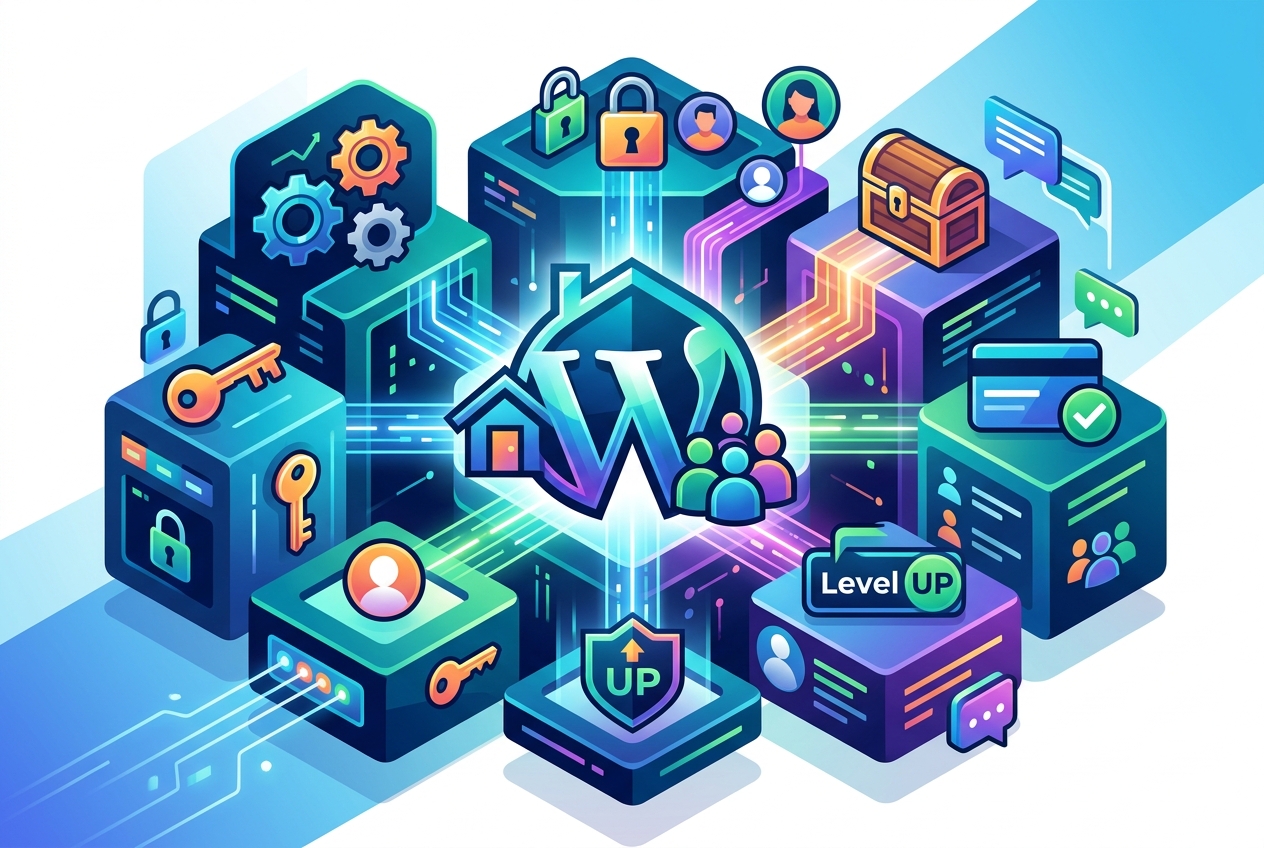
Membership plugins are transformative. They turn a regular WordPress website into a platform where you can offer exclusive content and services. Think of it as building a digital wall around your best work, accessible only to those who subscribe.
These plugins enable the creation of gated content, accessible only to paying members. Managing subscriptions becomes straightforward, simplifying the process of building a loyal community.
For businesses, membership plugins are valuable. They facilitate recurring revenue and cultivate deeper customer relationships. It’s a mutually beneficial arrangement.
At SEOS7, we recognize the value of a well-optimized website. We offer an SEO automation plugin that complements membership sites. Our plugin attracts more members by ensuring your content is easily found.
Key Benefits
Here’s a look at the main advantages of using membership plugins:
- Consistent Income: Generate recurring revenue through subscriptions.
- Exclusive Content: Offer premium content only available to members.
- Community Building: Foster a loyal community around your brand.
- Customer Engagement: Increase interaction and build stronger relationships.
- Data Collection: Gather audience insights.
Use Cases
Here are some specific examples of how membership plugins can be used:
- Online Courses: Sell access to educational content.
- Subscription Boxes: Manage recurring shipments of exclusive products.
- Premium Content: Offer exclusive articles, videos, and downloads.
- Community Forums: Create a private forum for members to connect.
- Software as a Service (SaaS): Provide access to software tools.
Choosing the Right Plugin
Selecting the right membership plugin is important. Consider these factors:
- Features: Does it offer the features you require?
- Ease of Use: Is it easy to set up?
- Integrations: Does it work with your existing tools?
- Pricing: Is it within your budget?
- Support: Is customer support reliable?
To aid your decision, here’s a comparison of some popular membership plugins:
| Plugin Name | Key Features | Pricing | Pros | Cons |
|---|---|---|---|---|
| MemberPress | Subscriptions, courses, content dripping | Starting at $179/year | Feature-rich, easy to use | Can be expensive for beginners |
| WooCommerce Memberships | Integrates with WooCommerce, product restrictions | $199/year | Excellent for e-commerce sites | Requires WooCommerce |
| Paid Memberships Pro | Free core plugin, flexible memberships | Starting at $247/year | Affordable, customizable | May need add-ons for advanced features |
A successful membership site requires more than just a plugin. You also need quality content, a strong community, and effective marketing. Our SEOS7 plugin helps optimize content for search engines, bringing more organic traffic to your membership site. Increased traffic translates to more potential members.
Here’s how SEOS7 can support the growth of your membership site:
- Site Audit: Find and fix SEO problems that may be hurting your site’s performance.
- Content Optimizer: Refine content for relevant keywords.
- Internal Links: Build contextual internal links to improve site navigation.
- Image Optimizer: Refine images for faster loading.
- A/B Testing: Test different titles to improve click-through rates.
Combining a membership plugin with SEO automation tools allows you to create a thriving online community and a steady revenue stream. Ready to improve your WordPress site? Automate Your SEO with SEOS7!
Core Functions of Membership Plugins
WordPress plugins for membership sites provide key functions. These functions are vital for managing members and controlling access to content.
A primary function is user registration. Plugins simplify how new members sign up. They often include customizable forms to collect needed information.
Membership level management is also a key feature. Plugins let you create different membership tiers. Each tier can offer different access and benefits. This allows for tiered pricing and content.
Content restriction is important. It makes sure only paying members access premium content. Plugins offer tools to limit access to pages, posts, and media. This protects your exclusive content.
Payment processing is also vital for collecting fees. Many plugins connect to payment gateways like PayPal and Stripe. This allows for secure and automated payments.
Most plugins handle subscription renewals automatically. This reduces administrative work. Members are billed regularly, ensuring continuous access to benefits.
Member communication is important for engagement. Plugins often include email features. These emails handle announcements, reminders, and updates.
A well-designed plugin provides a smooth experience. This applies to both administrators and members. The admin area should be easy to use. Members should easily access their benefits.
The following table shows these core functions:
| Functionality | Description |
|---|---|
| User Registration | Simplifies the process of new member sign-ups. |
| Membership Level Management | Creates different membership tiers with varying access. |
| Content Restriction | Limits access to premium content to paying members. |
| Payment Processing | Integrates with payment gateways for secure transactions. |
| Subscription Renewals | Automates recurring billing for continuous access. |
| Member Communication | Enables sending emails for announcements and updates. |
Keep these features in mind when choosing a plugin. They are fundamental to a successful membership site. They also make operations easier and improve member satisfaction.
Here are some points to consider when choosing a plugin:
- Does the plugin offer flexible membership level creation?
- Does it connect to your preferred payment gateway?
- How easy is it to limit content based on membership level?
- Does the plugin automate subscription renewals well?
- What communication tools are included for member interaction?
Choose plugins that provide a full set of features. This helps you manage your membership site effectively. It also helps you provide a good experience for your members.
Key Features of a WordPress Membership Plugin
Selecting the right WordPress plugin for your membership site is important. Your choice affects member management and user experience. Certain features are essential for a successful membership program.
Flexible membership levels are a must. Your plugin should allow you to create tiers with different benefits and access options. This accommodates varied member needs and budgets.
Payment gateway integration is also key. The plugin should connect with payment processors like Stripe and PayPal. This provides secure transactions.
Content access control protects premium content. The plugin should offer detailed control. Restrict access to specific pages, posts, or files. Only paying members then see exclusive material.
Email marketing integration is very helpful. Connect your membership plugin with services like Mailchimp or ConvertKit. Automate member communication with welcome emails, renewal reminders, and promotions.
Reporting dashboards offer data. Look for plugins with analytics to track membership growth, revenue, and member activity. Use this data to improve your program.
Responsive customer support is also needed. Choose a plugin with helpful support. This ensures quick help and optimal plugin use.
Here’s a list of features to consider:
- Flexible Membership Levels: Create tiers with unique benefits.
- Payment Gateway Integration: Connect with payment processors.
- Content Access Control: Restrict access to premium content.
- Email Marketing Integration: Automate member communication.
- Reporting Dashboards: Track membership growth and engagement.
- Excellent Customer Support: Get responsive assistance.
Consider these questions when choosing plugins:
- Can you easily create and manage membership levels?
- Does the plugin integrate with your payment gateway?
- How detailed is the content access control?
- Does it offer integration with email platforms?
- What reporting and analytics are included?
- How responsive is the customer support team?
Here’s a summary of each feature’s importance:
| Feature | Importance | Benefit |
|---|---|---|
| Flexible Membership Levels | High | Caters to diverse member needs and price points. |
| Payment Gateway Integration | High | Ensures secure and convenient transactions. |
| Content Access Control | High | Protects premium content and ensures exclusivity. |
| Email Marketing Integration | Medium | Automates member communication and engagement. |
| Reporting Dashboards | Medium | Provides data for program improvement. |
| Excellent Customer Support | High | Ensures quick help and optimal plugin use. |
Carefully consider these features when selecting a WordPress membership plugin. The right plugin will simplify membership management. It will also improve the member experience. This leads to a successful membership program.
Top WordPress Membership Plugins: A Detailed Comparison
Selecting the right WordPress membership plugin can feel overwhelming given the many options. Each plugin provides different features and benefits. This section offers a comparison of leading plugins. We examine their features, pricing, user-friendliness, and support options. This should empower you to make a well-informed decision.
Here’s a detailed comparison of popular membership plugins:
| Plugin Name | Key Features | Pricing | Ease of Use | Customer Support | Pros | Cons |
|---|---|---|---|---|---|---|
| MemberPress | Subscriptions, courses, content dripping, coupons, affiliate program integration. | Starting at $179/year | Relatively easy to set up. User-friendly interface. | Extensive documentation. Active support forum. | Features are substantial. It is easy to use. Good for selling online courses. | Can be expensive for those just starting. |
| WooCommerce Memberships | Integrates with WooCommerce. Product restrictions. Membership tiers. Content dripping. | $199/year | Requires WooCommerce knowledge. Moderate learning curve. | Good documentation. Limited direct support. | Excellent for e-commerce sites. Integrates well with WooCommerce. | Requires WooCommerce. Can be complex for sites not focused on e-commerce. |
| Paid Memberships Pro | Free core plugin. Flexible memberships. Recurring payments. Content restriction. | Starting at $247/year for Plus plan. | Easy to set up. Customizable. | Extensive documentation. Active community forum. | Affordable. Customizable. Good for basic membership sites. | Add-ons are required for more advanced features. |
| Restrict Content Pro | Simple content restriction. Membership levels. Discount codes. Payment gateway integration. | Starting at $99/year | Very easy to use. Simple interface. | Good documentation. Responsive support team. | Simple and straightforward. Easy to set up. | Has fewer features than some competitors. |
| LearnDash | Focuses on online courses. Course creation. Quizzes. Assignments. Membership features. | Starting at $199/year | Moderate learning curve. Course building tools are substantial. | Extensive documentation. Active support forum. | Superb for selling online courses. Features are plentiful. | May feel like too much for simple membership sites. |
Think about your specific requirements when choosing a plugin. Do you plan to sell online courses? LearnDash or MemberPress could be good fits. Are you running an e-commerce site? WooCommerce Memberships is a strong option. If you want a simple and affordable choice, Paid Memberships Pro or Restrict Content Pro might be ideal.
Here’s a summary of elements to keep in mind:
- Features: Does the plugin have the features you require?
- Pricing: Does it fit your budget?
- Ease of Use: Is setup and management straightforward?
- Customer Support: Is customer support reliable?
- Integrations: Does it connect with your current tools?
Before committing to a plugin, read reviews and try out demos. This helps ensure it meets your needs. The right plugin can greatly improve your membership site. It can also improve the experience for your members.
Consider these questions before choosing a plugin:
- What content will you offer?
- What’s your budget for a membership plugin?
- How comfortable are you with technical setup tasks?
- What level of customer support do you expect?
- Which payment gateways must the plugin integrate with?
Carefully weigh your needs and compare the available choices. This will allow you to pick the best WordPress membership plugin for your site. This will support the creation of a thriving online community.
MemberPress: A User-Friendly Option for Membership Management
MemberPress is a WordPress plugin designed for creating and managing membership sites. It pairs a range of features with an intuitive user interface.
Its ease of use is a key advantage. The setup is straightforward. Even users with limited technical skills can quickly create membership levels, restrict content, and manage subscriptions.
MemberPress includes course creation tools. Build and sell online courses directly from your membership site. Content dripping lets you release material gradually, keeping members engaged.
Coupon management lets you create and distribute discount codes, attracting new members and rewarding existing ones. The plugin also integrates with payment gateways like Stripe and PayPal for secure transactions.
Here’s a summary of MemberPress’s key features:
- Easy setup and user-friendly interface.
- Course creation and management tools.
- Content dripping for gradual content release.
- Coupon management for discounts and promotions.
- Integration with popular payment gateways.
MemberPress is a good choice for those seeking a solution with many features that is also easy to use. This makes it suitable for both beginners and experienced users.
Here’s a table highlighting the pros and cons of MemberPress:
| Pros | Cons |
|---|---|
| Features for membership management. | Can be more expensive than some alternatives. |
| Easy to use and set up. | Some advanced features may require additional configuration. |
| Excellent for selling online courses. | May be overkill for very simple membership sites. |
Consider MemberPress if you need a plugin with many features that is also relatively easy to manage. It’s suited for selling online courses and managing complex membership structures.
These are some scenarios where MemberPress excels:
- Selling online courses and educational content.
- Creating tiered membership levels with varying access.
- Offering exclusive content and resources to members.
- Managing recurring subscriptions and payments.
- Providing coupons and discounts to attract new members.
MemberPress provides tools to help you build and manage a membership site. Its ease of use and features make it a popular choice among WordPress users.
LearnDash: Ideal for Online Courses and Educational Content
LearnDash stands out as a leading WordPress plugin tailored for online courses. Educators and businesses can use it to deliver online learning programs.
Its strength lies in its course creation tools. Building structured courses with lessons, topics, and quizzes is straightforward. The drag-and-drop interface simplifies the process for users of all skill levels.
LearnDash includes features that improve the learning experience. Students can track their course progress. Quizzes and assignments measure understanding. Automated grading saves instructors time.
Membership options are integrated, too. Restrict course access to paying members to monetize educational content. Create different membership tiers. Each tier grants access to specific courses or bundles.
Here’s a summary of LearnDash’s features:
- Drag-and-drop course builder.
- Course progress tracking for students.
- Quizzes and assignments for assessment.
- Automated grading and feedback.
- Membership features for content restriction.
LearnDash is a solid choice for creating and selling online courses. Its features and interface make it a useful tool for educators and businesses.
Here’s a table highlighting the pros and cons of LearnDash:
| Pros | Cons |
|---|---|
| Excellent for creating and selling online courses. | Can be more complex than simple membership plugins. |
| Features for course management and assessment. | May require some technical expertise for advanced customization. |
| Integrates with membership plugins for content restriction. | Focuses primarily on courses, not general membership features. |
Consider LearnDash if your priority is online course creation. It is a good fit if you need assessment tools. It suits educators and businesses that offer structured online learning programs.
Here are some scenarios where LearnDash works well:
- Creating and selling online courses on various topics.
- Offering structured learning programs with lessons and quizzes.
- Tracking student progress and providing feedback.
- Restricting course access to paying members.
- Building an online learning platform.
LearnDash is built for creating and managing online courses. Its educational focus makes it a top choice. This is especially true for educators and businesses wanting to deliver online learning experiences.
Restrict Content Pro: A Lightweight and Developer-Friendly Plugin
Restrict Content Pro is a streamlined WordPress plugin, providing essential membership features without unnecessary complexity. Its lightweight design makes it an efficient option.
Its simplicity proves advantageous. The plugin is easy to set up and use, featuring an intuitive interface accessible to users with varying technical skills.
Despite its simple design, Restrict Content Pro offers core functionality. This includes membership levels, content restriction, discount codes, and payment gateway integration.
The plugin’s design caters to developers. It offers hooks and filters, allowing for customization. Developers can modify the plugin to meet specific needs.
Restrict Content Pro’s key features include:
- Simple and easy-to-use interface.
- Essential membership features without unnecessary bloat.
- Discount codes for promotions and incentives.
- Integration with popular payment gateways.
- Developer-friendly with extensive hooks and filters.
Restrict Content Pro suits those seeking a simple solution for membership management. It also works well for developers needing a customizable platform.
The pros and cons of Restrict Content Pro:
| Pros | Cons |
|---|---|
| Lightweight and efficient. | Fewer features than some more plugins. |
| Easy to use and set up. | May require custom coding for advanced functionality. |
| Developer-friendly with extensive customization options. | Not ideal for complex membership structures. |
Consider Restrict Content Pro if you value simplicity and efficiency. It works for basic membership sites. It also works for developers who want to customize the plugin.
Restrict Content Pro excels in these scenarios:
- Creating simple membership sites with basic content restriction.
- Offering discount codes to attract new members.
- Integrating with payment gateways for secure transactions.
- Modifying the plugin to meet specific requirements.
- Building a lightweight membership solution.
Restrict Content Pro offers a streamlined approach to membership management. Its simplicity and developer-friendliness make it a popular choice, especially for users needing a lightweight and customizable solution.
Paid Memberships Pro: A Free and Feature-Rich Plugin
Paid Memberships Pro stands out as a favored WordPress plugin, delivering a solid feature set without any initial cost. This makes it appealing to users watching their budget.
A key benefit is its free core plugin. It grants core membership functions, including unlimited membership tiers, content limitations, and connections to payment systems.
Even the free version has many features. Build different membership levels, limit who sees premium content, and handle subscriptions well.
For more specialized functions, Paid Memberships Pro provides add-ons that you can pay for. These extend what the plugin can do, adding things like email marketing links, better reports, and custom connections.
Here’s a summary of what Paid Memberships Pro offers:
- Free core plugin with essential membership features.
- Unlimited membership levels for diverse offerings.
- Content restriction to protect premium content.
- Payment gateway integrations for secure transactions.
- Premium add-ons for advanced functionality.
Paid Memberships Pro is worth considering, especially if you don’t want to spend money. It gives you many features and the option to grow what it can do with paid add-ons.
Here’s a table that shows the good and bad of Paid Memberships Pro:
| Pros | Cons |
|---|---|
| Free core plugin with essential features. | Advanced features require premium add-ons. |
| Unlimited membership levels. | The interface can be overwhelming for beginners. |
| Payment gateway integrations. | Some add-ons can be expensive. |
Think about Paid Memberships Pro if you want a free option, lots of features, and the ability to expand what it does through add-ons.
Here are a few situations where Paid Memberships Pro works well:
- Creating membership sites on a limited budget.
- Offering unlimited membership levels with varying access.
- Integrating with popular payment gateways for secure transactions.
- Extending functionality with premium add-ons as needed.
- Building a feature-rich membership solution without upfront costs.
Paid Memberships Pro is a platform made for managing memberships. Its free core plugin and flexible add-ons make it a common choice, especially for users wanting a budget-friendly and expandable option.
Integrating Memberships with WooCommerce
WooCommerce Memberships smoothly integrates membership features with your WooCommerce store, letting you provide special perks to members.
A major benefit is the ability to limit product purchases. You can make certain products available only to members. This creates exclusivity and encourages customers to subscribe.
Offering discounts on specific products is also possible. This incentivizes membership, rewards loyal customers, and encourages repeat business.
Content access can also be restricted. Articles and downloads can be limited to members, adding extra value.
Membership plans can be linked to product purchases. Buying a particular product can automatically grant membership, simplifying signup and boosting sales.
Key features include:
- Restricting product purchases to members.
- Offering product discounts to members.
- Restricting content access based on membership.
- Linking membership plans to product purchases.
WooCommerce Memberships suits businesses aiming to combine e-commerce with membership perks. It offers smooth integration and improves the customer experience.
Here’s a look at the advantages and disadvantages:
| Pros | Cons |
|---|---|
| Integrates with WooCommerce. | Requires WooCommerce. |
| Offers exclusive products and discounts. | Setup can be tricky for those new to e-commerce. |
| Boosts customer loyalty and engagement. | Advanced features might need extra extensions. |
If you run a WooCommerce store and want to add membership options, consider WooCommerce Memberships. It’s a strong option for blending e-commerce with membership features.
WooCommerce Memberships works well when:
- Offering special products to members.
- Giving product discounts to members.
- Limiting access to premium content for members.
- Creating membership plans tied to product purchases.
- Fostering customer loyalty through membership benefits.
WooCommerce Memberships is a solid option for adding membership functions to your online store. Its smooth integration and useful features make it a good choice for businesses looking to combine e-commerce and memberships.
Setting Up a Membership Plugin on WordPress
Installing a membership plugin on WordPress can feel intimidating initially. A step-by-step guide makes the process easier to handle. This section offers a detailed walkthrough, covering installation, configuration, and customization.
Selecting and Installing a Plugin
The first step involves picking the right plugin. Think about what you require and what you can afford. The previous section compares leading plugins.
After you pick a plugin, install it with these steps:
- Log in to your WordPress dashboard.
- Go to Plugins > Add New.
- Type the plugin’s name into the search bar.
- Click Install Now.
- Click Activate after installation.
You can also upload a plugin yourself:
- Download the plugin ZIP file from the developer’s site.
- In your WordPress dashboard, go to Plugins > Add New.
- Click Upload Plugin.
- Select the ZIP file and click Install Now.
- Activate the plugin once it’s installed.
Configuring Basic Settings
After turning it on, set up the plugin’s basic settings. This usually means establishing key parameters.
You’ll typically need to configure these:
- Currency: Select the currency for membership fees.
- Pages: Assign pages for membership tiers, accounts, and checkout.
- Email Settings: Adjust email alerts for new sign-ups, renewals, and cancellations.
- Security: Establish security protocols to safeguard member information.
Consult the plugin’s guide for detailed instructions. Every plugin uses its own settings panel.
Creating and Pricing Membership Tiers
Establishing membership tiers is key. Tiers dictate what content members can access. They also establish your pricing structure.
To create membership levels, follow these steps:
- Go to the plugin’s settings. Locate the membership levels section.
- Click Add New Level (or similar).
- Name the membership level. Good options include “Basic,” “Premium,” or “Gold.”
- Set a price.
- Establish a billing cycle, such as monthly, yearly, or one-time.
- Describe the benefits of the level.
- Save the level.
- Repeat to create more levels.
Consider a range of membership options. This accommodates different user needs and budgets.
Integrating Payment Systems
Payment systems are vital for collecting membership dues. Your plugin should connect to commonly used payment processors.
To set up payment systems:
- Go to the plugin’s settings and find the payment systems area.
- Select a payment system, such as Stripe, PayPal, or Authorize.net.
- Enter your API keys or credentials. Find these in your payment system account.
- Adjust any extra settings, like currency, fees, or security measures.
- Save the settings.
- Run a test transaction to confirm proper function.
A correctly configured payment system ensures secure transactions.
Restricting Content and Customizing Member Experience
Content restriction ensures only paying members can access premium content. This is a core function of membership plugins.
Here’s how to restrict content:
- Pages and Posts: Edit the page or post you want to restrict. Find the plugin’s content restriction settings. Select the membership levels that can access the content.
- Categories: Restrict entire categories of content. This is useful for organizing premium content.
- Custom Post Types: If you’re using custom post types, confirm the plugin supports restricting access to them.
Test your content restrictions. Log in as a non-member to ensure the content is properly restricted.
A customized member experience improves user satisfaction. It also encourages renewals.
Here are some ways to personalize the member experience:
- Branding: Personalize the plugin’s appearance. Make sure it matches your website’s branding.
- Member Dashboard: Create a personalized dashboard for members. This lets them manage their account and reach exclusive content.
- Email Templates: Personalize email templates. Ensure they are professional and engaging.
- Community Features: Add community features, like forums or chat rooms. This builds a sense of belonging.
A positive member experience is key. It encourages continued subscriptions.
Testing and Launching Your Membership Site
Before launching, testing is key. Make sure everything works as expected.
Focus on these areas:
- Registration: Confirm new members can sign up.
- Login: Verify members can log in.
- Payment: Check that transactions are processed correctly.
- Content Restriction: Ensure only paying members access premium content.
- Email Notifications: Confirm members get timely updates.
After testing, launch your site. Promote it to your intended audience. Watch its performance and adjust as needed. This helps ensure ongoing success.
By following these steps, you can set up a membership plugin on WordPress. You’ll be able to build an online community. You can also generate recurring income.
Installing Your Chosen Plugin
The first step involves installing the WordPress plugin you’ve selected. You can install directly from the WordPress plugin directory. Alternatively, you can upload the plugin file.
To install from the WordPress plugin directory:
- Log in to your WordPress dashboard.
- Go to Plugins > Add New.
- Search for your plugin by name.
- Click Install Now.
- Click Activate after installation.
To upload the plugin file:
- Download the plugin ZIP file from the developer’s website.
- In your WordPress dashboard, go to Plugins > Add New.
- Click Upload Plugin.
- Choose the ZIP file. Click Install Now.
- Click Activate after installation.
Activating the plugin adds its features to your WordPress dashboard. Now you can configure the plugin settings.
Here’s a table summarizing the installation methods:
| Method | Steps | Pros | Cons |
|---|---|---|---|
| WordPress Plugin Directory | Search, Install, Activate | Easy and convenient. Automatic updates. | Plugin must be in the directory. |
| Upload Plugin File | Upload ZIP, Install, Activate | Allows installing plugins not in the directory. | Requires downloading the plugin file. Manual updates. |
Choose the method that works best for you. Make sure the plugin is activated after installation. This turns on its functionality on your WordPress site.
Use this checklist for a smooth installation:
- Download the correct plugin file.
- Install the plugin using your preferred method.
- Activate the plugin after installation.
- Check your WordPress dashboard. Confirm the plugin’s features are present.
Following these steps allows you to install your WordPress plugin easily. Then you can configure its settings to create your membership site.
Configuring Membership Levels and Pricing
Configuring membership levels is a key step in structuring your membership program. It determines what members get for their subscription fees.
Start by defining tiers. Each tier should offer different access and benefits. This approach appeals to a broad audience and allows for varied price points.
Consider these factors when creating membership levels:
- Content Access: What content will members see?
- Features: Which features can members use?
- Support: What support level do members receive?
- Community Access: Can members access a private community?
- Discounts: Do members get discounts on products or services?
Here’s an example of membership levels:
| Membership Level | Price | Benefits |
|---|---|---|
| Basic | $10/month | Access to basic content. Standard support. |
| Premium | $25/month | Access to all content. Priority support. Community access. |
| VIP | $50/month | Access to all content. VIP support. Community access. Discounts on products. |
After defining membership levels, set prices for each tier. Think about your audience and the value you provide. Make sure your prices are competitive.
Consider these pricing strategies:
- Value-Based Pricing: Price based on the perceived value of the benefits.
- Competitive Pricing: Price based on competitor pricing.
- Cost-Plus Pricing: Price based on your costs plus a markup.
Clearly define the benefits and access for each tier. This helps members understand their purchase. It also reduces confusion.
Use this checklist to ensure correct configuration:
- Defined membership tiers.
- Set pricing for each tier.
- Defined benefits for each tier.
- Set access permissions for each tier.
- Reviewed your pricing strategy to ensure it’s competitive.
Careful configuration of membership levels and pricing helps create a successful program. It attracts and keeps members and generates recurring revenue.
Setting Up Payment Gateways
Collecting membership fees requires setting up payment gateways. This is a key step in earning money from your membership site.
Most WordPress membership plugins work with common payment processors like PayPal and Stripe. These services handle transactions securely. They also give your members several payment choices.
Here’s how to set up payment gateways:
- Pick a payment gateway. Think about transaction fees and ease of use.
- Create an account with your chosen gateway. Follow their setup instructions.
- Get your API keys or credentials. You’ll need these to link the payment gateway to your membership plugin.
- In WordPress, go to your membership plugin’s settings. Find the payment gateway area.
- Type in your API keys or credentials. Follow the plugin’s instructions to connect to the payment gateway.
- Adjust your payment settings. This might include choosing your currency and payment options.
- Test your payment gateway. Make a test payment to be sure it works.
The table below summarizes the setup for common payment gateways:
| Payment Gateway | Setup Steps |
|---|---|
| PayPal | Create a PayPal Business account. Obtain API credentials. Enter credentials in plugin settings. |
| Stripe | Create a Stripe account. Obtain API keys. Enter API keys in plugin settings. Configure webhooks. |
Make sure your payment gateway is set up correctly. This ensures transactions are processed securely and reliably. It also keeps your members’ financial details safe.
Use this checklist to ensure your payment gateway is properly configured:
- Choose your preferred payment gateway.
- Create an account with the payment gateway.
- Obtain your API keys or credentials.
- Enter your API keys or credentials in your membership plugin’s settings.
- Configure your payment settings.
- Test your payment gateway.
Setting up payment gateways allows you to easily collect membership fees. This lets you earn revenue from your site. It also gives your members a simple payment process.
Restricting Content and Managing Access
Content restriction is essential for any membership site. It makes sure only paying members can see premium content, protecting your investment and encouraging sign-ups.
WordPress membership plugins offer several ways to restrict content. These methods give you specific control over access, so you can customize the member experience.
Common methods for restricting content include:
- Page/Post Restriction: Limit access to specific pages and posts. This is useful for protecting articles, tutorials, and downloads.
- Category Restriction: Limit access to entire categories. This is ideal for grouping premium content.
- Custom Post Type Restriction: Limit access to custom post types. This is useful for protecting courses, videos, or other specialized content.
- Content Snippet Restriction: Limit access to specific parts of a page or post. This lets you offer previews to non-members.
The following table shows how content restriction works:
| Content Type | Restriction Method | Access Permissions |
|---|---|---|
| Page | Select membership levels that can access the page. | Only selected membership levels can view the page. |
| Category | Select membership levels that can access the category. | Only selected membership levels can view posts in the category. |
| Custom Post Type | Select membership levels that can access the custom post type. | Only selected membership levels can view the custom post type. |
When setting up content restriction, keep these tips in mind:
- Plan Your Content Structure: Organize your content logically using categories and tags to simplify restriction.
- Clearly Define Access Permissions: Be sure you know which membership levels can access which content.
- Use a Consistent Approach: Apply content restriction consistently across your site to avoid confusion.
- Test Your Restrictions: Log in as different membership levels to verify that content is restricted correctly.
- Provide Clear Messaging: Show clear messages to non-members about the benefits of joining.
Effective access management is important. It ensures members get the value they expect and protects your premium content. This is key to a successful membership site.
Use this checklist to ensure you’ve set up content restriction correctly:
- Identify your premium content.
- Choose a restriction method for each content type.
- Set access permissions for each membership level.
- Test your restrictions.
- Provide clear messaging to non-members.
By carefully restricting content and managing access, you can create a good membership experience. This will attract members, keep them engaged, and generate recurring revenue.
Customizing the Member Experience
Customizing the Member Experience
A good member experience is vital for keeping people subscribed. It begins when someone first visits your site. It continues as they use their membership. Tailoring the experience boosts satisfaction. It also builds loyalty.
Begin by designing the member registration page. Make sure it looks good. Ensure it matches your brand. Use simple language. Explain what members gain.
Here are some tips for the registration page:
- Use your brand colors and logo.
- Write a strong headline.
- Show the main membership benefits.
- Keep the form short.
- Give clear directions and error messages.
Next, design the login page. This is another key interaction. Make it easy to find and use. Include a clear instruction to log in.
Here are some tips for the login page:
- Use your brand colors and logo.
- Provide a clear instruction to log in.
- Offer a “Remember Me” option.
- Include a “Forgot Password” link.
- Make it work on phones.
The member profile page lets members manage their accounts. They can also find exclusive content there. Make it simple to use. Provide useful support.
Here are some tips for the profile page:
- Use a clean design.
- Let members change their information.
- Provide access to membership perks.
- Include support and FAQs.
- Offer a way to get in touch.
Improve the experience by giving simple directions. Offer support throughout the membership. This includes welcome emails, guides, and FAQs.
This table shows key parts of the member experience:
| Element | Customization Tips |
|---|---|
| Registration Page | Brand colors, strong headline, short form. |
| Login Page | Brand colors, clear call to action, “Forgot Password” link. |
| Profile Page | Clean layout, easy navigation, helpful resources. |
| Communication | Welcome emails, onboarding guides, FAQs. |
A good member experience helps keep people subscribed. By designing the registration, login, and profile pages. Also, by giving clear directions and support, you make membership worthwhile. This encourages members to continue their subscriptions.
Here’s a checklist for a good member experience:
- Design the registration page.
- Design the login page.
- Design the profile page.
- Give clear directions and support.
- Ask members for feedback. Use it to make things better.
By focusing on the member experience, you build a successful membership site. It will attract and keep members. It will also create regular income.
Making Your Membership Site Search-Engine Friendly
Making Your Membership Site Search-Engine Friendly
Search engine optimization is vital for your membership site. It brings in organic traffic. It also draws in prospective members. A site optimized for search engines achieves a higher ranking. This improves how visible it is. It also encourages more membership registrations.
This section details SEO methods. These methods improve your site’s visibility. They also raise its ranking and attract a larger audience.
Finding the Right Search Terms
Keyword research forms the base of any SEO effort. It means finding the words people enter. They use these words to find information. They also use them to find membership sites like yours.
Here’s how to do keyword research effectively:
- Brainstorming: Begin by brainstorming related topics. Consider what interests your target audience.
- Competitor Analysis: Study your competitors’ sites. Note the keywords they target.
- Keyword Research Tools: Use tools such as Google Keyword Planner, SEMrush, and Ahrefs. These tools uncover relevant keywords. They also give data on search volume and competition.
- Long-Tail Keywords: Give attention to long-tail keywords. These longer, more precise phrases often face less competition. They also bring in a more focused audience.
The table below shows keyword research tools:
| Tool | Features | Pricing |
|---|---|---|
| Google Keyword Planner | Keyword research, search volume data, competition analysis. | Free (requires a Google Ads account) |
| SEMrush | Keyword research, competitor analysis, site audit, rank tracking. | Paid (various subscription plans) |
| Ahrefs | Keyword research, backlink analysis, site audit, content explorer. | Paid (various subscription plans) |
After finding your target keywords, use them carefully. Add them to your website’s text. Also, put them in your title tags and meta descriptions.
Search Engine Optimization for Membership Sites
High-quality content is key for search engine optimization. It draws visitors and keeps them interested, encouraging them to become members. Refine your content for your target keywords. Make sure it offers something useful to your audience.
Consider these tips:
- Keyword Integration: Naturally include your target keywords in your content. Don’t stuff keywords.
- Readability: Write clearly and concisely. Use headings, subheadings, and bullet points to improve readability.
- Visuals: Add images, videos, and infographics to boost engagement.
- Internal Linking: Link to other relevant pages on your site to improve navigation. This also helps search engines understand your site’s structure.
- External Linking: Link to credible external websites to add weight to your content.
Use this checklist when refining your content:
- Incorporate target keywords naturally.
- Write clear, concise text.
- Use headings, subheadings, and bullet points.
- Include relevant visuals.
- Add internal links to other pages on your site.
- Add external links to authoritative websites.
Technical SEO involves refining the behind-the-scenes aspects of your website. This makes it easier for search engines to crawl and index your site. This step is important for improving how visible your site is.
Focus on these elements:
- Site Speed: Refine your website’s loading speed by using a caching plugin, refining images, and choosing a fast hosting provider.
- Mobile-Friendliness: Make sure your website works well on phones by using a responsive design.
- Site Architecture: Develop a clear, logical site structure. This helps search engines crawl and index your site.
- XML Sitemap: Submit an XML sitemap to search engines. This helps them find and index your content.
- HTTPS: Use HTTPS to secure your website. Search engines favor secure sites.
Here are some tools for technical SEO:
| Tool | Features | Pricing |
|---|---|---|
| Google PageSpeed Insights | Analyzes page speed and provides recommendations. | Free |
| Google Search Console | Provides data on site performance, crawl errors, and search queries. | Free |
| GTmetrix | Analyzes page speed and provides detailed performance reports. | Free and Paid options |
Implementing these strategies will help search engines find your website. This will improve its visibility and bring in more visitors from search results.
Check these items for technical SEO:
- Refine your website’s loading speed.
- Ensure your website is mobile-friendly.
- Develop a clear, logical site architecture.
- Submit an XML sitemap to search engines.
- Use HTTPS to secure your website.
Combining keyword research, content refinement, and technical SEO can greatly improve your membership site’s visibility. This will bring in more visitors from search engines. More sign-ups will follow, helping you build a thriving online community.
Keyword Research for Membership Content
Keyword research is crucial for membership content creation. It makes sure your content matches what potential members search for, boosting visibility and attracting sign-ups.
Start by brainstorming topics relevant to your membership site. What problems does your membership solve? What interests your ideal member?
Consider these questions:
- What are the main benefits of becoming a member?
- What specific skills or knowledge do members gain?
- What types of content do members find most valuable?
- What questions do potential members frequently ask?
Then, use keyword research tools. These tools uncover relevant keywords and provide data on search volume and competition.
Some well-known keyword research tools include:
| Tool | Description |
|---|---|
| Google Keyword Planner | A free tool from Google that suggests keyword ideas and search volume data. |
| SEMrush | An SEO tool offering keyword research, competitor analysis, and site auditing. |
| Ahrefs | Another SEO tool providing keyword research, backlink analysis, and content analysis. |
| Moz Keyword Explorer | A keyword research tool from Moz that helps you find relevant keywords and analyze their potential. |
Concentrate on both short-tail and long-tail keywords. Short-tail keywords are broad terms like “online courses” or “membership site.” Long-tail keywords are more specific, such as “best online courses for beginners” or “how to create a successful membership site.”
Here are keyword examples for different membership sites:
- Online Course Membership: online courses, e-learning, online education, skill development, professional development.
- Fitness Membership: workout routines, fitness tips, healthy recipes, weight loss programs, personal training.
- Creative Membership: art tutorials, writing prompts, photography tips, design resources, creative community.
- Business Membership: business coaching, marketing strategies, sales training, entrepreneurship tips, networking events.
Examine your competitors’ websites to see which keywords they target. This offers insights and helps you find new keyword opportunities.
After identifying target keywords, use them strategically. Add them to your content, titles, and descriptions. Doing so will raise your site’s visibility in search results.
To use keywords well, consider these tips:
- Use keywords naturally in your content. Avoid keyword stuffing.
- Incorporate keywords into your page titles and meta descriptions.
- Use keywords in your image alt tags.
- Use keywords in your headings and subheadings.
Routinely check your keyword rankings and track website traffic. This helps you judge the effectiveness of your keyword strategy and spot areas to improve.
Careful keyword research lets you create content that connects with your audience. It also boosts your site’s search result visibility, attracting more potential members.
Content Optimization for Search Engines
Content optimization draws organic traffic and keeps members interested. Create engaging, high-quality content. Make sure it speaks to your audience and is built for search engines.
Know your audience. What problems do they face? What information do they seek? Create content that meets those needs.
To create engaging content:
- Write clearly and concisely.
- Use headings and subheadings to break up the text.
- Add images, videos, and infographics.
- Share stories and examples.
- Ask questions and encourage interaction.
Find the keywords your audience uses to search for information. Then, include those terms naturally in your content.
To optimize content for keywords:
- Use keywords in page titles and meta descriptions.
- Incorporate keywords into headings and subheadings.
- Use keywords naturally in your content.
- Use keywords in image alt tags.
Offer tips, insights, and solutions. Give people reasons to stay on your site and return later.
Content optimization best practices:
| Element | Optimization Tips |
|---|---|
| Content Quality | Valuable, informative, engaging, actionable. |
| Keyword Optimization | Relevant keywords, natural integration, strategic placement. |
| Readability | Clear language, headings, subheadings, visuals. |
| User Experience | Easy navigation, mobile-friendly design, fast loading times. |
Make your content easy to read. Use clear language. Break up text with headings and images.
To improve readability:
- Use short sentences and paragraphs.
- Use active voice.
- Avoid jargon.
- Use bullet points and lists.
- Add images.
Ensure your website works on phones. Your website should adjust to fit different screen sizes.
To make your website mobile-friendly:
- Use a responsive design.
- Adjust images for mobile devices.
- Use a mobile-friendly font.
- Ensure easy navigation on mobile.
Site speed matters for search rankings and user experience. Make sure your website loads quickly.
To improve website speed:
- Use a caching plugin.
- Adjust image sizes.
- Use a content delivery network (CDN).
- Select a fast hosting provider.
Content built for search engines and readers attracts traffic and keeps members interested. High-quality content is key for SEO.
Technical SEO for Membership Sites
Technical SEO is vital for membership sites. It helps search engines find and categorize your content. It also improves the experience for your users. Better rankings and more members can follow.
Focus on these technical SEO elements:
- Site Speed: A quick website improves user experience and search engine rank.
- Mobile-Friendliness: Most people browse the internet on phones. A site that works well on mobile is key.
- Site Architecture: A site that is easy to navigate benefits both users and search engines.
- Crawlability: Make sure search engines can access and analyze your site’s content.
Improving Site Speed
Site speed affects your search ranking. Slow loading times can frustrate visitors, increasing bounce rates.
Consider these methods to improve your site’s speed:
- Caching Plugin: Caching plugins save static versions of pages, reducing server load and speeding up loading.
- Image Optimization: Compress images to reduce file size and use appropriate formats.
- Minify CSS and JavaScript: Removing unnecessary characters from CSS and JavaScript files reduces their size.
- Fast Hosting: A solid hosting provider ensures quick server response.
- Content Delivery Network (CDN): CDNs store website files on multiple servers, ensuring faster delivery to users globally.
Ensuring Mobile-Friendliness
A mobile-friendly website adjusts to fit different screen sizes, creating a good experience on any device.
Here’s how to make your site mobile-friendly:
- Responsive Theme: Themes that respond to screen size automatically adjust.
- Mobile-Optimized Images: Use smaller image files for mobile devices.
- Mobile-Friendly Font: Pick a font that is easy to read on smaller screens.
- Mobile Testing: Use Google’s Mobile-Friendly Test to find usability issues.
Improving Site Architecture
A well-structured site helps people and search engines find what they need. This improves the user experience and makes crawling easier.
Consider these steps to improve your site’s structure:
- Clear Navigation: A simple, intuitive menu helps users find what they want.
- Internal Linking: Link to related pages on your site to improve navigation and help search engines understand your site’s organization.
- XML Sitemap: An XML sitemap lists all site pages, helping search engines find and index content.
- Logical URL Structure: Use URLs that describe the page content and include relevant keywords.
Ensuring Crawlability
Crawlability is a search engine’s ability to access and index your site’s content. Making your site easily crawlable improves its visibility in search results.
Here’s how to improve it:
- Submit XML Sitemap: Submitting your sitemap to search engines helps them find and index your content.
- Robots.txt: This file tells search engines which pages to crawl and which to skip.
- Fix Crawl Errors: Use Google Search Console to find and fix any crawl errors.
- Avoid Duplicate Content: Duplicate content can confuse search engines and hurt your rankings.
Here’s a summary of technical SEO practices:
| Element | Optimization Tips |
|---|---|
| Site Speed | Caching, image optimization, minification, fast hosting, CDN. |
| Mobile-Friendliness | Responsive theme, mobile-optimized images, mobile-friendly font. |
| Site Architecture | Clear navigation, internal linking, XML sitemap, logical URLs. |
| Crawlability | Submit XML sitemap, use robots.txt, fix crawl errors, avoid duplicate content. |
These technical SEO steps can boost your membership site’s performance. Expect better rankings, more organic traffic, and a better user experience. These improvements help you build a strong online community.
Using SEOS7 to Improve Membership Site SEO
SEOS7 provides tools to automate and improve your WordPress site’s SEO. Membership sites especially benefit from this. It helps attract more members through search results.
The platform offers features that make SEO easier. It ensures your membership site is ready for search engines. This leads to more visibility and traffic.
Here’s how SEOS7 can help:
- Site Audits: Find and fix SEO problems that hurt your site’s performance. SEOS7 scans your website to identify technical errors, broken links, and other issues. Fixing these improves crawlability and the user experience.
- Content Optimization: Refine your content for relevant keywords and topics. SEOS7 analyzes your content. It suggests improvements to keyword use, readability, and SEO. This helps your content rank higher.
- Internal Linking Suggestions: Create internal links that provide context. This improves site navigation and SEO. SEOS7 analyzes your content and suggests relevant internal links. This helps search engines understand your site and improves user engagement.
SEOS7 simplifies optimizing your membership site for search engines. It automates tasks and provides insights. This lets you focus on creating content and engaging with members.
The following table summarizes SEOS7’s features for membership sites:
| Feature | Benefit |
|---|---|
| Site Audits | Identifies and fixes technical SEO issues. Improves crawlability and user experience. |
| Content Optimization | Optimizes content for relevant keywords. Improves search engine rankings. |
| Internal Linking Suggestions | Builds contextual internal links. Improves site navigation and SEO. |
Using SEOS7 can significantly improve your membership site’s search rankings. This attracts more traffic and increases membership sign-ups. Ultimately, this helps you build a thriving online community.
Consider these questions when using SEOS7:
- What are the most common SEO issues on my site?
- What keywords should I target in my content?
- How can I improve my site’s internal linking?
SEOS7 provides the tools and insights to answer these questions. It helps you prepare your membership site for success. By automating SEO tasks, SEOS7 lets you focus on creating content and connecting with your members.
Best Practices for Managing and Growing Your Membership Site
Best Practices for Managing and Growing Your Membership Site
Managing and expanding a membership site demands consistent work and a deliberate plan. Prioritizing member interaction, content creation, and responsive support is essential. These efforts cultivate a thriving online community and ensure lasting success.
Fostering a Strong Community Through Member Engagement
Engaged members are more likely to renew their subscriptions. They are also more inclined to recommend your site. A strong community is key to keeping members and encouraging them to actively participate.
Consider these practices to improve member engagement:
- Create a Community Forum: Offer a space for members to connect, share ideas, ask questions, and provide assistance.
- Host Regular Events: Schedule webinars, workshops, or Q&A sessions. These provide useful information and opportunities for members to interact with you and each other.
- Offer Exclusive Content: Give members access to exclusive articles, videos, and downloads. This reinforces the value of their membership.
- Recognize and Reward Members: Acknowledge active members and highlight their contributions. Offer rewards for participation to encourage continued engagement.
- Solicit Feedback: Regularly ask members for their opinions. Use their input to improve your site. This demonstrates that you value their perspectives.
Here’s a table summarizing strategies to improve member engagement:
| Strategy | Description | Benefit |
|---|---|---|
| Community Forum | A platform for members to connect and interact. | Fosters a sense of community. Encourages knowledge sharing. |
| Regular Events | Webinars, workshops, Q&A sessions. | Provides useful information. Allows for direct interaction. |
| Exclusive Content | Articles, videos, downloads available only to members. | Reinforces the value of membership. Provides unique benefits. |
| Recognition and Rewards | Acknowledge and reward active members. | Encourages continued participation. Boosts morale. |
| Solicit Feedback | Regularly ask for feedback from members. | Improves the membership site. Shows you value member opinions. |
By using these strategies, you can build a lively and involved membership community. Expect increased member retention and a better reputation for your site.
Attracting and Engaging Members
Attracting new members requires effective content marketing. Share content that informs and attracts potential subscribers. This also demonstrates your expertise and brings traffic to your site.
Consider these content marketing practices:
- Identify Your Target Audience: Know their needs. Address their specific problems with your content.
- Create a Content Calendar: Plan content ahead of time. Maintain a steady stream of information.
- Optimize Your Content for SEO: Use keywords in titles and descriptions. This helps your site rank higher in search results. SEOS7 offers tools to automate these tasks.
- Promote Your Content: Share posts on social media. Email subscribers. Interact with your audience.
- Guest Blogging: Write articles for other sites in your niche. This broadens your reach and shows your knowledge.
Use this checklist for content marketing:
- Identify your target audience.
- Create a content calendar.
- Optimize your content for SEO. SEOS7 can assist with this.
- Promote your content on social media.
- Explore guest blogging.
Content marketing takes time and consistent work. Providing useful content attracts members. It also positions you as an authority.
Providing Excellent Customer Service
Member satisfaction depends on excellent customer support. Quick, useful support builds trust and keeps members subscribed.
These practices can improve your customer support:
- Respond Promptly: Acknowledge messages quickly. Give an estimate for a full response.
- Be Helpful and Courteous: Stay polite and professional. Provide clear, short answers.
- Offer Multiple Support Channels: Let members contact you through email, phone, or live chat.
- Create a Knowledge Base: Build a resource of answers to common questions.
- Solicit Feedback: Ask members about their support experiences. Use their suggestions to improve.
The table below summarizes customer support practices:
| Strategy | Description | Benefit |
|---|---|---|
| Respond Promptly | Respond to inquiries quickly. | Shows you value their time. Reduces frustration. |
| Be Helpful and Courteous | Provide clear and concise answers. Be polite and professional. | Builds trust. Fosters loyalty. |
| Offer Multiple Support Channels | Email, phone, live chat. | Provides convenience. Caters to different preferences. |
| Create a Knowledge Base | Answers common questions. Provides helpful resources. | Reduces support requests. Empowers members to find solutions. |
| Solicit Feedback | Ask for feedback on their support experience. | Improves your service. Shows you value their opinions. |
Good customer support is an investment. Quick, helpful service strengthens member relationships. It also builds a good reputation for your site.
Member engagement, content marketing, and customer support help build a successful membership site. These factors attract new members, keep current ones, and create recurring revenue. SEOS7 provides tools to refine your site, improve SEO, and attract more members.
Engaging Your Members and Building a Community
A successful membership site offers more than just content; it fosters a community. Members who feel connected are more likely to remain subscribed and recommend your brand to others.
Consider these strategies to encourage community participation:
- Create a Forum: A forum allows members to connect, exchange ideas, ask questions, and offer assistance.
- Encourage Comments: Allowing comments on your content lets members share thoughts and participate in discussions. Respond to comments to show you value their input.
- Utilize Social Media: A private Facebook group or similar community lets you share exclusive content, host live Q&A sessions, and encourage members to connect.
- Host Regular Events: Webinars, workshops, or meetups give members chances to learn and network.
- Run Contests and Challenges: Contests with prizes and recognition motivate members to participate.
Here’s a summary of community engagement strategies:
| Strategy | Description | Benefit |
|---|---|---|
| Create a Forum | A dedicated online forum for members. | Facilitates discussions. Builds a sense of community. |
| Encourage Comments | Enable comments on your content. | Promotes interaction. Provides valuable feedback. |
| Utilize Social Media | Create a private social media group. | Offers a convenient platform for communication. |
| Host Regular Events | Webinars, workshops, meetups. | Provides learning opportunities. Fosters networking. |
| Run Contests and Challenges | Organize contests and challenges with prizes. | Boosts engagement. Motivates participation. |
Responding to member questions, acknowledging their contributions, and showing you appreciate their involvement builds a sense of belonging. This encourages continued participation.
Use this checklist to build a strong community:
- Create a forum or social media group.
- Encourage comments and discussions.
- Host regular events and activities.
- Recognize and reward active members.
- Solicit feedback and act on it.
Actively engaging your members creates a thriving community. Member retention increases, and your membership site gains a positive reputation.
Content Marketing Strategies for Membership Sites
Content marketing draws in new members and keeps current ones interested. It means making and sharing content that speaks to your audience and meets their needs.
Consider these content marketing ideas for membership sites:
- Blog Posts: Write helpful and interesting blog posts. Cover topics related to your membership. Share useful advice. Refine your blog posts for search engines to bring in visitors.
- Videos: Make videos that show what your membership offers. Create tutorials. Share behind-the-scenes content. Videos are interesting and help you connect with people.
- Ebooks and Guides: Give away free ebooks and guides. Offer detailed information. Address common problems. This proves your knowledge and attracts potential members.
- Webinars: Host webinars that cover relevant topics. Share practical tips. Webinars are interactive and help you connect with your audience live.
- Case Studies: Share stories of your members’ successes. Show how valuable your membership is. Build trust with these examples.
- Infographics: Design infographics that present data clearly. Make information easy to understand. Infographics are easy to share. They can help you reach more people.
- Podcasts: Start a podcast with interviews of experts. Share insights on important topics. Podcasts are convenient. They help you connect with your audience anywhere.
Here’s a table summarizing content marketing strategies:
| Strategy | Description | Benefit |
|---|---|---|
| Blog Posts | Informative and engaging articles. | Attracts organic traffic. Establishes expertise. |
| Videos | Showcases membership benefits. Provides tutorials. | Engaging and shareable. Connects with audience. |
| Ebooks and Guides | In-depth information on relevant topics. | Attracts potential members. Establishes authority. |
| Webinars | Interactive sessions with actionable tips. | Connects with audience in real-time. Provides value. |
| Case Studies | Highlights member success stories. | Demonstrates membership value. Builds credibility. |
| Infographics | Visually appealing data and information. | Shareable and easy to understand. Reaches wider audience. |
| Podcasts | Interviews and insights on relevant topics. | Convenient and engaging. Connects with audience on the go. |
Make a content calendar. This ensures a steady stream of helpful information. Share your content on social media. Talk to your audience. This will help you get new members and keep the ones you have.
Here’s a checklist for content marketing success:
- Identify your target audience.
- Create a content calendar.
- Create content that is both helpful and interesting.
- Refine your content for search engines.
- Share your content on social media.
Using these content marketing strategies, you can attract new members. You can also keep current ones interested. You will build a successful membership site.
Providing Excellent Customer Support
Providing Excellent Customer Support
Member support is vital. It addresses questions and resolves problems, building trust and loyalty.
Offering quick, helpful support shows members their time matters. It also ensures a positive experience.
Consider these best practices for member support:
- Respond Quickly: Acknowledge inquiries fast. Even a brief reply reassures members.
- Be Helpful and Courteous: Always be polite and professional. Give clear, concise answers.
- Understand the Issue: Take time to grasp the member’s problem. Ask questions for clarity.
- Provide Solutions: Offer practical solutions. Follow up to ensure satisfaction.
- Be Proactive: Anticipate issues. Offer resources to prevent problems.
Providing multiple support channels lets members pick their preferred method.
Common support channels include:
| Channel | Description | Best Use |
|---|---|---|
| A traditional method for submitting inquiries. | Complex issues. Detailed explanations. | |
| Chat | Real-time support through a chat interface. | Quick questions. Immediate assistance. |
| Phone | Direct verbal communication with a support representative. | Urgent issues. Complex troubleshooting. |
| Knowledge Base | A self-service resource with articles and FAQs. | Common questions. Self-help solutions. |
A good knowledge base lets members find answers independently. This also cuts down on support requests.
To create a knowledge base, consider these tips:
- Organize Content: Structure your knowledge base logically. Make it easy to use.
- Use Clear Language: Write plainly. Avoid technical terms.
- Include Visuals: Use images and videos to show concepts.
- Keep it Updated: Review and update your knowledge base often. Ensure accuracy.
Excellent support builds trust and keeps members subscribed. It also creates a good reputation for your site.
Use this checklist for providing excellent support:
- Respond to inquiries promptly.
- Be helpful and courteous.
- Provide multiple support channels.
- Create a knowledge base.
- Solicit feedback and act on it.
Prioritizing support creates a positive experience. This encourages retention and contributes to your site’s success.
Tracking and Improving Your Membership Site
Tracking and improving your membership site ensures continued growth and profit. This involves watching key numbers and using data to make smart choices, improving your site’s effectiveness.
Track these key metrics:
- Membership Growth Rate: How fast your membership is growing. This shows how well your marketing works.
- Retention Rate: The percentage of members who stay subscribed. This reflects member satisfaction and the value of your membership.
- Churn Rate: The rate at which members cancel. This highlights areas to improve retention.
- Average Revenue Per Member (ARPM): The average revenue from each member. This shows your membership program’s profit.
- Customer Lifetime Value (CLTV): The predicted revenue from a member over their membership. This helps you understand their long-term worth.
- Website Traffic: The number of website visitors. This indicates your marketing reach.
- Conversion Rate: The percentage of visitors who become members. This reflects how well your sales process works.
This table summarizes key metrics and their importance:
| Metric | Description | Importance |
|---|---|---|
| Membership Growth Rate | Rate of membership base expansion. | Indicates marketing effectiveness. |
| Retention Rate | Percentage of members who remain subscribed. | Reflects member satisfaction and value. |
| Churn Rate | Rate at which members cancel subscriptions. | Highlights areas for retention improvement. |
| Average Revenue Per Member (ARPM) | Average revenue generated per member. | Indicates profitability of membership program. |
| Customer Lifetime Value (CLTV) | Predicted revenue a member will generate. | Helps understand long-term member value. |
| Website Traffic | Number of visitors to your website. | Indicates the reach of marketing efforts. |
| Conversion Rate | Percentage of visitors who become members. | Reflects the effectiveness of the sales funnel. |
Use tools like Google Analytics to track these metrics and gain insights into user behavior.
Here’s how to use analytics to improve your site:
- Identify High-Performing Content: See which content is popular. Create more like it.
- Optimize Your Sales Funnel: Find where people leave your sales process. Improve those areas to get more members.
- Personalize the Member Experience: Use data to customize the member experience. This increases involvement.
- Improve Member Retention: Learn why members cancel. Then, use strategies to address those reasons.
- Test Different Strategies: Use A/B testing to see what works best.
Decisions based on data are vital for long-term success. Regularly check your site’s performance and use those insights to improve member engagement, increase revenue, and build a thriving community.
Use this checklist for tracking and improving your site:
- Track key metrics.
- Use analytics tools.
- Identify high-performing content.
- Optimize your sales funnel.
- Personalize the member experience.
- Improve member retention.
- Test different strategies.
By consistently tracking and improving your site, you ensure its long-term success. This helps you attract and keep members, generating recurring revenue.
Fixing Membership Plugin Problems
Even the best WordPress plugins can cause issues. Here are some common problems and how to fix them. These solutions should help you maintain a smooth membership experience.
Troubleshooting Payment and Content Access
Payment processing errors can interrupt revenue and frustrate members. These errors often stem from incorrect API keys, gateway outages, or outdated payment information.
To fix payment processing problems:
- Verify API Keys: Confirm your API keys are correctly entered in your plugin settings.
- Check Gateway Status: See if your payment gateway reports any outages or scheduled maintenance.
- Review Transaction Logs: Look at the transaction logs to find specific errors and their causes.
- Contact Support: If the issue is complex, contact your payment gateway’s support team.
- Test with Sandbox Mode: Use the payment gateway’s sandbox to test transactions and confirm proper function.
This table summarizes payment processing troubleshooting:
| Issue | Solution |
|---|---|
| Incorrect API Keys | Verify and update API keys in plugin settings. |
| Gateway Downtime | Check gateway status. Contact support if needed. |
| Transaction Errors | Review transaction logs. Identify specific errors. |
Members sometimes struggle to access content because of incorrect membership levels, plugin clashes, or caching issues.
Here’s how to resolve content access issues:
- Verify Membership Levels: Make sure members are assigned to the correct levels.
- Check Content Restriction Settings: Confirm the correct membership levels have access in your content restriction settings.
- Clear Cache: Clear both your website and browser cache, as outdated data can cause access problems.
- Deactivate Plugins: Turn off other plugins to identify any that conflict with the membership plugin.
- Check .htaccess File: Examine your .htaccess file for rules that might interfere with content access.
Follow this checklist to resolve content access problems:
- Verify member’s membership level.
- Check content restriction settings.
- Clear website and browser cache.
- Deactivate conflicting plugins.
- Review .htaccess file.
Troubleshooting Plugin and Email Problems
Plugin conflicts can break features and cause errors. Spotting and fixing these conflicts is key to a working website.
Here’s how to troubleshoot plugin conflicts:
- Deactivate All Plugins: Turn off every plugin except your membership plugin.
- Reactivate One by One: Turn plugins back on individually. Test your site each time. This will show you which plugin is causing the problem.
- Contact Plugin Developers: Tell the plugin creators about the conflict. Ask for their help to fix it.
- Use a Staging Environment: Try out plugin updates and other changes on a staging site first. That way, problems won’t affect your live site.
Here’s a table summarizing how to resolve plugin conflicts:
| Step | Action |
|---|---|
| Deactivate All Plugins | Turn off every plugin except your membership plugin. |
| Reactivate One by One | Turn plugins back on one at a time. Test your site each time. |
| Contact Plugin Developers | Report the issue. Ask for their help to fix it. |
Email problems can stop members from getting important messages. This includes welcome emails and renewal reminders. This can make the membership experience worse.
Here’s how to troubleshoot email delivery issues:
- Check Spam Folder: Have members check their spam folders. Sometimes, emails end up there by mistake.
- Configure SPF and DKIM Records: Set up SPF and DKIM records for your domain. This helps more emails get through.
- Use an SMTP Plugin: Use a plugin like WP Mail SMTP. This sends emails through a dependable SMTP server.
- Monitor Email Logs: Check your email logs. Look for any emails that didn’t go through.
- Contact Hosting Provider: Ask your hosting provider if there are problems with your email server.
Here’s a checklist for fixing email delivery problems:
- Check spam folder.
- Configure SPF and DKIM records.
- Use an SMTP plugin.
- Monitor email logs.
- Contact hosting provider.
Fixing these common issues helps keep your membership running smoothly. Members will be happier, and your site will have a better reputation. Good communication and a stable site are vital.
Troubleshooting Payment Processing Errors
Payment processing is critical for membership sites, ensuring a steady flow of income. Errors in this area can disrupt operations and frustrate members.
Common payment processing errors include:
- Incorrect API keys.
- Payment gateway downtime.
- Expired payment methods.
- Insufficient funds.
- Transaction limits exceeded.
Here’s how to address these payment processing issues:
- Verify Payment Gateway Settings: Double-check your API keys. Make sure they are correctly entered in your plugin settings.
- Check Payment Gateway Status: Look for any reported outages or maintenance affecting your payment gateway.
- Review Transaction Logs: Examine the transaction logs to pinpoint the cause of specific errors.
- Contact Payment Gateway Support: For complex issues, contact your payment gateway’s support team for assistance.
- Ensure Secure Transactions: Use SSL encryption to protect sensitive payment information.
The following table summarizes payment processing troubleshooting:
| Issue | Solution |
|---|---|
| Incorrect API Keys | Verify and update API keys in plugin settings. |
| Payment Gateway Downtime | Check gateway status. Contact support if needed. |
| Expired Payment Methods | Send automated reminders to update payment information. |
| Insufficient Funds | Provide clear instructions for members to update their payment details. |
| Transaction Limits Exceeded | Adjust transaction limits in your payment gateway settings. |
Clear instructions can help members update their payment information. This reduces failed payments and maintains continuous access to membership benefits.
Here’s a sample message for members whose payments have failed:
Subject: Important: Your Membership Payment Failed
Dear [Member Name],
We regret to inform you that your recent membership payment failed. This could be due to an expired card, insufficient funds, or another reason.
To ensure you continue to access your membership benefits, please update your payment information as soon as possible by clicking the link below:
[Link to Update Payment Information]
If you have questions or need help, please contact us.
Thank you for your understanding.
Sincerely,
[Your Membership Site Name]
Dependable payment processing is vital for a successful membership site. By verifying payment gateway settings, ensuring secure transactions, and addressing failed payments, you can maintain a steady income and provide a good experience for your members.
Troubleshooting Content Access and Plugin Conflicts
Problems accessing content can frustrate members and diminish the perceived value of a membership. Members expect access based on their subscription level. Addressing these issues quickly is key.
Common causes include:
- Incorrect membership level assignments.
- Incorrect content restriction settings.
- Caching issues.
- Plugin conflicts.
To troubleshoot, follow these steps:
- Verify Membership Levels: Ensure members are assigned correctly. Double-check profiles.
- Check Content Restriction Settings: Review these settings. Confirm the right membership levels can access the content.
- Clear Cache: Clear both website and browser caches. Old data can cause problems.
- Deactivate Plugins: Turn off other plugins to isolate conflicts.
- Check .htaccess File: Look for rules interfering with access.
The following table summarizes these steps:
| Issue | Solution |
|---|---|
| Incorrect Membership Level | Verify and correct the member’s level. |
| Incorrect Content Restriction Settings | Review and adjust settings. |
| Caching Issues | Clear website and browser cache. |
| Plugin Conflicts | Deactivate and reactivate plugins to find conflicts. |
| .htaccess File Issues | Review and modify the file if needed. |
Provide members with clear instructions for reporting access issues. This ensures quick solutions and a better experience.
Here’s a sample message:
Subject: Reporting a Content Access Issue
Dear [Member Name],
Thank you for contacting us. We apologize for any trouble.
To help us resolve this quickly, please provide:
- The URL of the content.
- Your membership level.
- Any error messages.
We will investigate and get back to you soon.
Sincerely,
[Your Membership Site Name]
Clear content access management is vital for member satisfaction. Verify levels, check settings, and troubleshoot problems. This provides a smooth experience and strengthens membership value.
Plugin conflicts can also disrupt a membership site, causing errors. Identifying and fixing these ensures stability.
Conflicts happen when plugins interfere, due to overlapping functions or incompatible code.
Here’s how to address plugin conflicts:
- Deactivate All Plugins: Turn off all except the membership plugin.
- Test Your Site: See if the problem remains with only the membership plugin active.
- Reactivate One by One: Turn plugins back on individually, testing after each. This pinpoints the conflict.
- Identify the Conflicting Plugin: The plugin that triggers the issue is likely the cause.
- Contact Plugin Developers: Report the problem to the developers of both plugins. Ask for help.
- Consider Alternatives: If the conflict persists, find similar plugins that work with your membership plugin.
The following table summarizes plugin conflict resolution:
| Step | Action |
|---|---|
| Deactivate All Plugins | Deactivate all except the membership plugin. |
| Test Your Site | Check if the issue persists. |
| Reactivate One by One | Reactivate plugins individually, testing each time. |
| Identify the Conflicting Plugin | Determine which plugin causes the issue. |
| Contact Plugin Developers | Report the conflict and ask for assistance. |
| Consider Alternatives | Find compatible plugins. |
Plugin compatibility is key to site stability. Before installing anything new, check if it works with your existing plugins. Read reviews for reported conflicts.
Use this checklist for plugin compatibility:
- Check compatibility with existing plugins.
- Read reviews and ratings.
- Test new plugins in a staging area.
- Keep plugins updated.
Careful plugin management minimizes conflicts. This ensures a stable membership site and a good member experience.
Choosing the Right Membership Plugin
Selecting the right WordPress membership plugin is a critical decision. Your choice affects member management and value delivery. Carefully consider your specific needs, budget, and technical skills.
Begin by defining what you want to achieve with your membership site. Will you sell online courses, offer exclusive content, or build a community?
Next, determine your budget. Some plugins are free, while others require a paid subscription. Account for long-term costs, including add-ons and extensions.
Then, assess your technical abilities. Some plugins are simple to set up, while others demand more expertise. Select a plugin you feel comfortable using.
Consider the features you require, such as membership levels, content restriction, payment gateway integration, and email marketing integration.
Read reviews and compare plugins. This research informs your decision. Try a few different plugins to find the best fit.
A successful membership site requires more than just a plugin. High-quality content, a strong community, and effective marketing are also essential.
At SEOS7, we recognize how important SEO is for membership sites. We offer an SEO automation plugin that works well with membership sites. Our plugin attracts more members and ensures your content is easily found.
Our SEOS7 plugin provides features to improve your membership site’s SEO. These include:
- Site Audit: Find and resolve SEO problems that may be hurting your site’s performance.
- Content Optimizer: Refine your content for relevant keywords and topics.
- Internal Links: Create contextual internal links to improve site navigation and SEO.
- Image Optimizer: Refine your images for faster loading times and better search visibility.
- A/B Testing: Experiment with different titles and descriptions to get more clicks.
Combining a solid membership plugin with our SEO automation tools lets you build a thriving online community and create a steady revenue stream. Ready to improve your WordPress site? Automate Your SEO with SEOS7 today!
Here’s a checklist to guide your membership plugin selection:
- Define your goals.
- Determine your budget and technical skills.
- Identify the features you need.
- Read reviews and compare plugins.
- Think about SEO.
With the right plugin and strategies, you can build a successful membership site. It will provide value to your members and generate recurring revenue for your business.