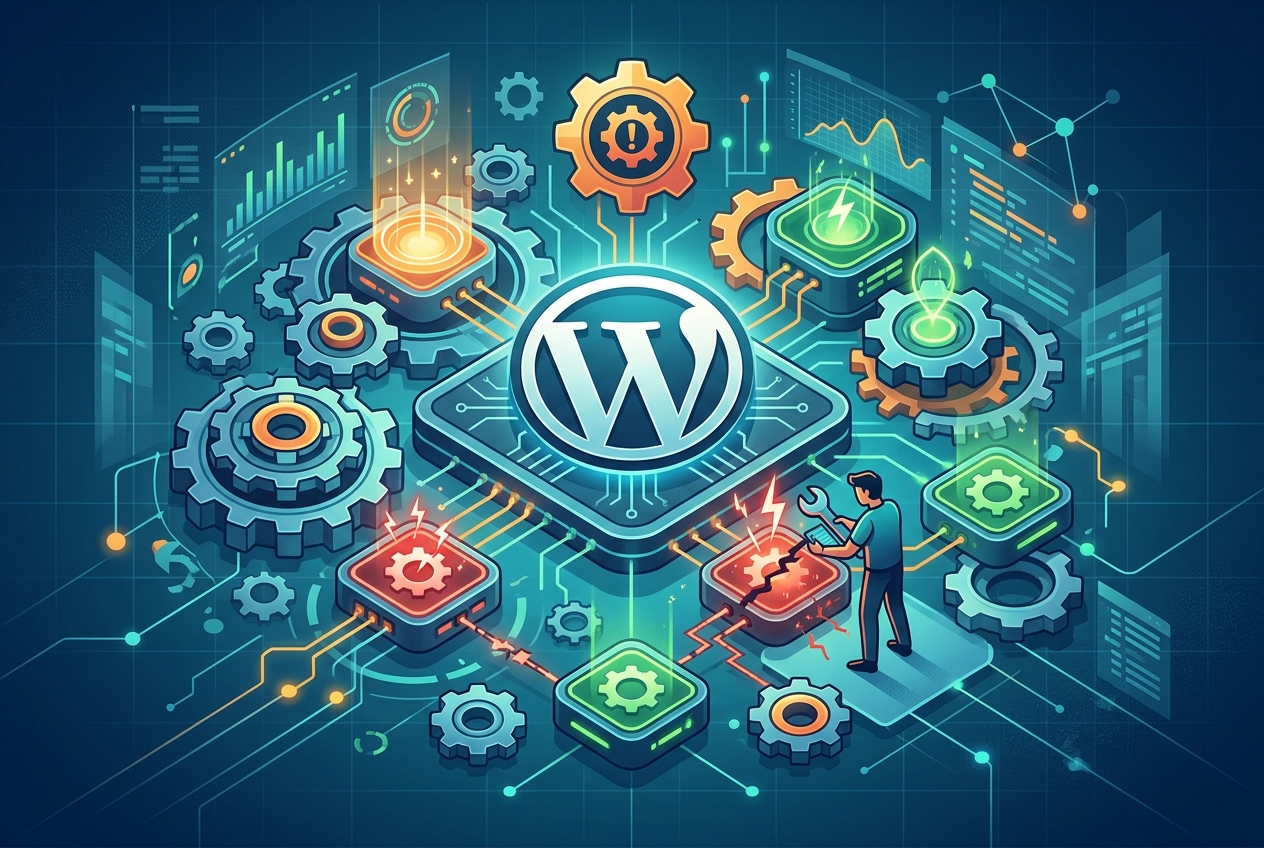
Troubleshooting WordPress Plugin Problems
WordPress plugins expand what your website can do. They let you include things like contact forms, online store functions, SEO tools, and much more. Sometimes, though, plugins cause website problems, from small glitches to major malfunctions.
At www.seos7.com, we know how important it is for a website to run smoothly. This guide helps you fix common WordPress plugin problems. Knowing these problems and how to solve them keeps your site working well and your users happy.
This guide walks you through typical issues with WordPress plugins. It also gives step-by-step fixes. Following this advice, you can quickly find and fix plugin problems, keeping your website running smoothly.
Common Causes of Plugin Issues
Several things can cause plugin problems. Here are some common ones:
- Plugin Conflicts: Plugins don’t always work well together. Conflicts happen when two or more plugins try to change the same thing on your website. This can cause unexpected problems or even crash your site.
- Outdated Plugins: Old plugins can create security holes. They might not work with the newest WordPress version or other plugins.
- Poorly Coded Plugins: Some plugins have bugs, slow down your website, or create security risks because of bad code.
- Resource Intensive Plugins: Some plugins use a lot of server resources. This can slow down your website, especially if you share hosting with others.
Common WordPress Plugin Issues
You might face some common problems with WordPress plugins. Knowing these issues helps in quick resolution.
- The White Screen of Death (WSOD): This error displays a blank white screen. A plugin conflict or a fatal error in a plugin’s code often causes it.
- Website Slowdown: Plugins introduce extra code and database queries. These additions can increase loading times.
- Plugin Conflicts: Conflicts between plugins cause broken layouts, malfunctioning features, and error messages. Identifying these early prevents bigger problems.
- Security Vulnerabilities: Outdated or poorly coded plugins create security holes. Hackers exploit these weaknesses to access websites.
- Error Messages: Plugins sometimes display error messages. These messages point to problems within the plugin or conflicts with others.
- Incompatibility with WordPress Version: A plugin might not work with the current WordPress version. This incompatibility leads to malfunctions or complete failure.
Troubleshooting Plugin Problems
Take these general steps before trying specific solutions. A systematic approach saves time.
- Back Up Your Website: Always back up your website before making changes. Restoring your site becomes easy if something goes wrong. Use a backup plugin or your hosting provider’s backup service.
- Enable Debug Mode: WordPress includes a debug mode to help pinpoint errors. Add
define( 'WP_DEBUG', true );to yourwp-config.phpfile to turn it on. Turn off debug mode after troubleshooting. - Check the WordPress Error Logs: WordPress creates error logs with information about plugin issues. Find these logs in the
wp-contentdirectory. - Update WordPress, Themes, and Plugins: Use the newest versions of WordPress, your theme, and all plugins. Updates often contain bug fixes and security improvements.
Troubleshooting WordPress Plugin Problems
Specific techniques can help when WordPress plugins misbehave.
Deactivating Plugins to Find the Source
Often, the first step is to deactivate all plugins, then reactivate them individually to pinpoint the problem. Here’s how:
- Go to the “Plugins” section in your WordPress dashboard.
- Select all plugins.
- Choose “Deactivate” from the bulk actions dropdown menu.
- Click “Apply.”
After deactivating, see if the issue disappears. If so, reactivate each plugin one at a time. After each activation, check your website. When the problem returns, the last activated plugin is likely the cause.
If you can’t reach your WordPress dashboard, you can deactivate plugins via FTP or your hosting provider’s file manager. Rename the plugins folder in wp-content to something like plugins_disabled. This deactivates all plugins. Then, rename it back to plugins and reactivate each plugin individually by renaming its folder within the plugins directory.
Resolving Plugin Conflicts
After identifying a problematic plugin, check if it’s clashing with another. Deactivate other plugins one by one, keeping the suspect plugin active. If deactivating a specific plugin fixes the issue, you’ve found a conflict.
When dealing with plugin conflicts, consider these options:
- Find an Alternative Plugin: If possible, locate a different plugin that does the same thing without causing problems.
- Contact the Plugin Developers: Contact the developers of both plugins. Explain the problem and ask if they have a solution.
- Hire a Developer: If you can’t fix the conflict, hire a WordPress developer. They can analyze the code and find a fix.
Fixing the White Screen of Death
The White Screen of Death (WSOD) can be alarming. Often, a plugin is to blame. Here’s how to troubleshoot it:
- Deactivate All Plugins: Use the steps above to deactivate all plugins.
- Switch to a Default Theme: Temporarily switch to a default WordPress theme like Twenty Twenty-Three. This helps determine if the theme is the problem.
- Increase PHP Memory Limit: Sometimes, the WSOD results from insufficient PHP memory. Increase the limit by adding this line to your
wp-config.phpfile:define( 'WP_MEMORY_LIMIT', '256M' );. - Check for Syntax Errors: If you’ve edited plugin files, check for typos. Even a small error can cause the WSOD.
Improving Website Speed Affected by Plugins
If plugins are slowing your site, these steps can improve performance:
- Use a Caching Plugin: Caching plugins like WP Rocket or Cache Enabler can boost website speed. They create static page versions, reducing server load.
- Optimize Images: Large images can bog down your site. Use an image compression plugin like Imagify to reduce image sizes without losing quality. Our www.seos7.com platform also includes image compression!
- Minimize HTTP Requests: Reduce HTTP requests by combining CSS and JavaScript files. Plugins like Autoptimize can help.
- Choose Lightweight Plugins: Select plugins that are well-coded and don’t use too many resources.
Website Security Best Practices for Plugins
To guard your website from plugin-related security holes, follow these practices:
- Keep Plugins Updated: Update all plugins to the newest versions regularly.
- Use a Security Plugin: Install a security plugin like Wordfence to scan for malware.
- Delete Inactive Plugins: Remove plugins you no longer use. Inactive plugins can still be a security risk.
- Choose Plugins Carefully: Install plugins only from trusted sources. Check the plugin’s ratings, reviews, and support history first.
How www.seos7.com Aids Plugin Management
At www.seos7.com, we provide tools to help you manage your WordPress website. Our platform can help you find and fix plugin issues. We furnish:
- Site Audit: Our site audit tool scans your website for problems, including plugin conflicts and performance bottlenecks.
- Performance Monitoring: We offer real-time performance monitoring to help you spot plugins that are slowing down your website.
- SEO Recommendations: Our AI generates SEO advice to help you improve your website for search engines. This includes suggestions for plugin settings.
Our goal is to give you the tools and information needed to keep a healthy WordPress website. By following the troubleshooting steps here and using www.seos7.com, you can reduce plugin problems and ensure a good user experience.
Here’s a quick reference table:
| Issue | Troubleshooting Steps | www.seos7.com Solution |
|---|---|---|
| White Screen of Death | Deactivate plugins, switch themes, increase PHP memory. | Site Audit can identify conflicting plugins. |
| Website Slowdown | Use caching, optimize images, minimize HTTP requests. | Performance Monitoring identifies resource-intensive plugins. Image Optimizer compresses images. |
| Plugin Conflicts | Deactivate plugins one by one. | Site Audit identifies plugin conflicts. |
| Security Vulnerabilities | Keep plugins updated, use a security plugin. | N/A (Use a dedicated security plugin alongside www.seos7.com) |
Ready to automate your SEO and plugin management? Automate Your SEO with a free trial of www.seos7.com!
Common WordPress Plugin Problems
WordPress plugins can sometimes cause problems. These issues can affect how well your website runs and what it can do. Spotting these problems early allows for quicker fixes. Addressing them quickly helps keep your site stable and prevents bigger problems later.
Conflicts Between Plugins
One common frustration for WordPress users is plugin conflicts. This happens when two or more plugins get in each other’s way. This interference can cause strange behavior or errors. In some cases, it might even break your site. Finding these conflicts isn’t always easy.</ A common method involves turning off plugins one by one. After each deactivation, reactivate the plugins to see if the problem goes away. This helps you find the plugin causing the issue.
The Dreaded White Screen and Website Slowdowns
The White Screen of Death (WSOD) is a frustrating error. It leaves your website displaying only a blank white screen. Often, a plugin exhausts the available memory or contains a fatal coding error. Fix this by deactivating plugins using FTP. You might also increase the PHP memory limit, or debug the code.
Plugins also affect your website’s loading speed. Some add extra code. Others make many database queries, slowing down your site. Adjust plugin settings to improve speed. Caching plugins also help. Select plugins that don’t use many resources. Check plugin performance regularly.
Plugin Security and Compatibility
Outdated or poorly coded plugins can create security holes. Hackers can exploit these weaknesses. They might then gain unauthorized access to your website. Keep plugins updated to reduce this risk. A security plugin can also help. Scan your site regularly for vulnerabilities. Only install plugins from trustworthy sources.
Plugins sometimes clash with the newest WordPress version. They might also conflict with your theme or other plugins. Malfunctions can occur. A plugin might simply fail to operate. Review the plugin’s compatibility details before installation. Test plugins on a staging site before activating them live.</
Troubleshooting Plugin Problems
Plugins sometimes display error messages. These messages can point to a problem with the plugin or a conflict with another plugin. Pay attention to them. They offer clues about the problem. Check the plugin’s documentation or support forums for help.
Consider these points when addressing plugin issues:
- Always back up your website before making changes.
- Enable debug mode to identify errors.
- Check the WordPress error logs.
- Update WordPress, themes, and plugins regularly.
According to a Reddit user, DiscoQuebrado, these plugins are useful:
- Wordfence for security.
- UpdraftPlus for backups.
- WPCode for code solutions.
- ACF for efficiency.
- WP Migrate for site migration.
- WPForms for form functionality.
- Redirection for managing dead links.
Another user, ska-dev, recommends these plugins:
- The SEO Framework for SEO.
- Webp express for next-gen images.
- Autoptimize for minifying output.
- Cache Enabler for static cache.
Common Plugin Issues and Solutions
Plugin conflicts frustrate WordPress users. They happen when two or more plugins interfere with each other. This interference can break website layouts. It can also cause features to stop working. In severe cases, it can even cause the White Screen of Death.
Understanding how plugin conflicts happen helps with troubleshooting. Each plugin has code that changes how WordPress works. When multiple plugins try to change the same things, conflicts can occur. These conflicts can come from similar functions or incompatible code. Finding these conflicts is the first step toward fixing them.
Here’s a table summarizing common plugin issues:
| Issue | Symptoms | Possible Solutions |
|---|---|---|
| Plugin Conflicts | Broken layouts, malfunctioning features, errors. | Deactivate plugins one by one. Identify the conflicting plugins. Find alternative plugins. |
| White Screen of Death | Blank white screen. | Deactivate plugins via FTP. Increase PHP memory limit. Debug the code. |
| Website Slowdown | Slow loading times. | Adjust plugin settings. Use caching plugins. Choose simple plugins. |
| Security Vulnerabilities | Malware infections, unauthorized access. | Keep plugins updated. Use a security plugin. Scan for vulnerabilities. |
| Compatibility Issues | Plugin malfunctions, errors. | Check plugin compatibility. Test in a staging environment. |
| Error Messages | Displayed error messages. | Read error messages carefully. Consult plugin documentation. Seek support. |
How to Identify Plugin Conflicts
Here’s a breakdown of common signs that point to a plugin conflict:
- Website Layout Issues: Your website’s design might look wrong. Elements might be misaligned or overlap.
- Broken Functionality: Features like contact forms or e-commerce elements may not work.
- Error Messages: You might see PHP or JavaScript errors on your website. These errors often point to a plugin conflict.
- Admin Panel Problems: The WordPress admin dashboard may become slow. Certain settings might not save.
- Intermittent Issues: The problem might appear and disappear. This can make it hard to diagnose.
Finding the specific plugins that are conflicting requires a careful approach. The most common method involves deactivating plugins one at a time. After each deactivation, check if the issue goes away. This helps you isolate the problem plugin. Once found, you can look for other plugins or contact the developers for help.
Consider this scenario: A user, Zanmato79, mentioned using Contact Form 7. If this plugin conflicts with another plugin altering form submissions, the contact form might fail to send messages. This would require troubleshooting to find the conflict.
Here’s a step-by-step guide to help you identify plugin conflicts:
- Back Up Your Website: Always create a full backup before making any changes. This ensures you can restore your site if something goes wrong.
- Deactivate All Plugins: Go to the “Plugins” section in your WordPress dashboard. Select all plugins and choose “Deactivate” from the bulk actions menu.
- Check Your Website: Visit your website to see if the issue is resolved. If it is, a plugin conflict was likely the cause.
- Reactivate Plugins One by One: Reactivate each plugin individually. After activating each plugin, check your website to see if the problem returns.
- Identify the Conflicting Plugin: The last plugin you activated before the issue reappeared is likely the source of the conflict.
- Repeat if Necessary: If the issue persists, there may be multiple plugin conflicts. Repeat the process to identify all conflicting plugins.
If you cannot access your WordPress dashboard, you can deactivate plugins via FTP or your hosting provider’s file manager. Rename the plugins folder in wp-content to plugins_disabled. This will deactivate all plugins. Then, rename the folder back to plugins and reactivate each plugin individually by renaming its folder within the plugins directory.
Once you’ve identified the conflicting plugins, you have several options:
- Find an Alternative Plugin: Search for a different plugin that does the same thing without causing conflicts.
- Contact the Plugin Developers: Reach out to the developers of both conflicting plugins. Explain the issue and ask if they can provide a solution.
- Hire a WordPress Developer: If you can’t fix the conflict yourself, hire a WordPress developer. They can analyze the code and find a solution.
- Use a Staging Environment: Before making changes to your live site, test them in a staging environment. This allows you to identify and resolve conflicts without affecting your visitors.
Here’s a table summarizing troubleshooting steps for plugin conflicts:
| Step | Description |
|---|---|
| Backup Website | Create a full backup of your website. |
| Deactivate All Plugins | Deactivate all plugins in the WordPress dashboard. |
| Check Website | Visit your website to see if the issue is resolved. |
| Reactivate Plugins One by One | Reactivate each plugin individually and check for the issue. |
| Identify Conflicting Plugin | The last plugin activated before the issue reappeared is the likely cause. |
| Find Alternative or Contact Developers | Find alternative plugins or contact developers for solutions. |
Remember, patience and a careful approach help resolve plugin conflicts. By following these steps, you can find and fix these issues. This will keep your website running smoothly.
Troubleshooting Plugin Installation and Functionality
A website crash immediately after installing a WordPress plugin is a serious problem. It requires immediate action. Often, the cause is incompatibility between the new plugin and existing plugins or the site’s theme. A poorly coded plugin can also cause a crash. Quick action minimizes downtime and prevents data loss.
If your site crashes after a plugin install, don’t panic. Take a systematic approach to find and fix the problem. First, understand the possible causes to guide your troubleshooting. Here are common reasons a plugin installation might crash a website:
- Plugin Incompatibility: The new plugin might not be compatible with your WordPress version, other plugins, or your theme.
- Code Conflicts: The plugin’s code might conflict with existing code, causing errors and instability.
- Resource Overload: The plugin might use too many server resources, overwhelming your hosting.
- Security Vulnerabilities: A poorly coded plugin can create security holes that hackers can exploit.
- Installation Errors: The plugin might not have installed correctly, leading to incomplete or corrupted files.
The immediate goal is to get your site working again. This usually means deactivating the new plugin. If you can access your WordPress dashboard, it’s simple. If the crash prevents login, use FTP or your hosting provider’s file manager.
Here’s how to restore your website after a plugin installation crash:
- Access Your Website Files: Use FTP or your hosting provider’s file manager.
- Locate the Plugins Folder: Go to the
wp-contentdirectory, then find thepluginsfolder. - Rename the Plugin Folder: Rename
pluginsto something likeplugins_disabled. This deactivates all plugins. - Check Your Website: See if your site is back online. If so, the new plugin likely caused the crash.
- Identify the Problematic Plugin: Rename
plugins_disabledback toplugins. Access the plugins folder and deactivate the new plugin by renaming its folder. - Reactivate Other Plugins: Reactivate your other plugins one at a time. Check your site after each to ensure everything works.
- Address the Plugin Issue: Find a different plugin, contact the plugin developer, or hire a WordPress developer to fix the problem.
If deactivating the new plugin fixes the issue, take these steps to prevent future crashes:
- Check Plugin Compatibility: Before installing, check if a plugin is compatible with your WordPress version, theme, and other plugins.
- Read Reviews and Ratings: Look for plugins with good reviews and ratings, indicating positive user experiences.
- Test in a Staging Environment: Test new plugins in a staging environment before using them on your live site.
- Keep Plugins Updated: Update all plugins regularly to get the latest bug fixes and security patches.
- Use Reputable Sources: Only install plugins from trusted sources like the WordPress Plugin Directory.
These steps summarize the troubleshooting process:
| Step | Description |
|---|---|
| Access Website Files | Use FTP or file manager to access your website’s files. |
| Rename Plugins Folder | Rename the plugins folder to plugins_disabled to deactivate all plugins. |
| Check Website | Visit your website to see if it’s back online. |
| Identify Problematic Plugin | Rename the plugins_disabled folder back to plugins. Then, access the plugins folder. Deactivate the newly installed plugin by renaming its folder. |
| Reactivate Other Plugins | Reactivate your other plugins one by one. Check your website after each activation to ensure everything is working correctly. |
| Address Plugin Issue | Find an alternative plugin, contact the developer, or hire a developer. |
Following these steps, you can fix website crashes caused by new WordPress plugins. This minimizes downtime and keeps your site stable.
Sometimes a WordPress plugin installs fine but doesn’t work as expected. This can be frustrating, leaving you wondering what went wrong. Several things can cause this. Incorrect settings are a common reason. Plugin conflicts and outdated versions can also cause problems.
If a plugin isn’t working, first check its settings. Many plugins have configuration options that control their behavior. A simple mistake can stop the plugin from working. Review each setting carefully. Make sure it matches how you want to use the plugin. Check the plugin’s documentation for help.
Consider these common settings issues:
- Incorrect API Keys: Some plugins need API keys to connect to external services. Make sure you’ve entered the correct keys.
- Missing Permissions: The plugin might need permission to access certain website features. Check that the plugin has the necessary permissions.
- Conflicting Options: Some plugin settings might conflict. Try different combinations to find any conflicts.
- Default Settings: Reset the plugin to its default settings. This can fix problems caused by misconfigurations.
If the settings look correct, check for plugin conflicts. Conflicts can stop plugins from working. Deactivate other plugins one by one to see if the problem plugin starts working. This helps you find any conflicting plugins.
Outdated plugins can also cause problems. Plugin developers release updates to fix bugs, improve performance, and increase security. Using an old plugin can make your site vulnerable. It can also cause compatibility issues with newer WordPress or plugin versions. Always use the latest version of your plugins.
Here’s how to update your plugins:
- Go to the “Plugins” section in your WordPress dashboard.
- Look for plugins with an “Update Available” notification.
- Click the “Update Now” button to update the plugin.
- Repeat for all plugins with available updates.
If updating doesn’t fix the problem, try these steps:
- Check the Plugin’s Documentation: The documentation might have troubleshooting tips or solutions.
- Search the WordPress Support Forums: The forums are a good place to find solutions. Search for discussions about your plugin.
- Contact the Plugin Developer: If you can’t find a solution, contact the developer for help. They might offer specific guidance or bug fixes.
- Consider an Alternative Plugin: If nothing else works, use a different plugin that does the same thing.
Here’s a summary of the troubleshooting steps:
| Step | Description |
|---|---|
| Investigate Plugin Settings | Thoroughly review the plugin’s settings and configuration options. |
| Check for Plugin Conflicts | Deactivate other plugins one by one to identify any conflicts. |
| Update the Plugin | Ensure that you’re using the latest version of the plugin. |
| Check Plugin Documentation | Consult the plugin’s documentation for troubleshooting tips. |
| Search WordPress Forums | Search the WordPress support forums for solutions. |
| Contact Plugin Developer | Contact the plugin developer for support. |
| Consider Alternative Plugin | If all else fails, consider using an alternative plugin. |
By checking the plugin settings, looking for conflicts, and using the latest version, you can often fix WordPress plugins that don’t work as expected. This helps you keep your website working well.
Plugin-Related Performance and Security Issues
Impact on Website Speed
Slow website speed is a critical issue. It can stem from various factors. One of the most common culprits is inefficient WordPress plugins. Too many plugins, or poorly coded ones, can bog down your site. This results in a sluggish user experience.
Slow loading times frustrate visitors. They also negatively affect how high your site ranks in search engine results. Website speed is a ranking signal for search engines like Google. A slow website can mean less visibility. Users are also more likely to leave a website that takes too long to load. This increases bounce rates and reduces conversions. Keeping your plugins lean is key to a fast, efficient website.
The first step in addressing slow website speed involves finding plugins that use a lot of resources. Some plugins consume more server resources than others. This can be due to poorly written code or excessive database queries. Monitoring your website’s performance can help you pinpoint the plugins causing the biggest slowdown.
Here are some tools and techniques for identifying resource-intensive plugins:
- Query Monitor: This free plugin provides information about database queries, hooks, and HTTP requests. It helps you identify plugins that make excessive database calls.
- New Relic: This performance monitoring tool provides insights into your website’s performance. It identifies slow transactions and resource-intensive plugins.
- GTmetrix: This website speed testing tool provides performance reports. It highlights areas for improvement and identifies plugins contributing to slow loading times.
- Google PageSpeed Insights: This tool analyzes your website’s performance. It provides recommendations for improving speed and user experience.
Once you’ve identified the resource-intensive plugins, you can adjust their settings. Many plugins offer options to improve performance. These include caching, lazy loading, and code minification. Experiment to find the best setup for your website.
Here are some common plugin optimization techniques:
- Caching: Use a caching plugin like WP Rocket or Cache Enabler to create static versions of your pages. This reduces the load on your server.
- Image Optimization: Compress and optimize images to reduce their file size. Use an image optimization plugin like Imagify or ShortPixel.
- Lazy Loading: Defer the loading of images and other media until they are visible. This improves initial page load time.
- Code Minification: Shorten CSS and JavaScript files to reduce their file size. Use a plugin like Autoptimize or WP Rocket.
- Database Optimization: Remove unnecessary data from your WordPress database to improve performance. Use a plugin like WP-Optimize.
Sometimes, the best solution involves replacing a resource-intensive plugin with a lighter one. Look for plugins that provide the same functionality with less overhead. Read reviews to find well-coded and efficient plugins.
Here’s a table summarizing the troubleshooting steps:
| Step | Description |
|---|---|
| Identify Resource-Intensive Plugins | Use tools like Query Monitor, New Relic, or GTmetrix to identify slow plugins. |
| Optimize Plugin Settings | Adjust plugin settings to improve performance. Enable caching, lazy loading, and code minification. |
| Replace Resource-Intensive Plugins | Consider replacing slow plugins with lighter alternatives. |
| Optimize Images | Compress and optimize images to reduce file size. |
| Minify Code | Shorten CSS and JavaScript files to reduce file size. |
| Optimize Database | Remove unnecessary data from your WordPress database. |
By finding and adjusting resource-intensive WordPress plugins, you can improve your website’s speed. This will enhance user experience and improve your search engine rankings.
Addressing Security Risks
Outdated or poorly maintained WordPress plugins can create security risks for your website. These weaknesses can be exploited. Hackers can use them to access your site without permission. They can also inject malicious code. This can compromise data and damage your website’s reputation.
Think of your WordPress plugins as doors and windows. If they aren’t secured, intruders can enter easily. Outdated plugins often have known security flaws. Hackers actively search for websites using these plugins. They use tools to exploit the flaws. Keeping your plugins updated is a basic part of website security.
Here are some potential consequences of using vulnerable plugins:
- Data Breaches: Hackers can steal customer information, financial details, and personal data.
- Website Defacement: Hackers can change your website’s content. They can display malicious messages or redirect visitors to harmful websites.
- Malware Infections: Hackers can inject malicious code into your website. This can infect visitors’ computers and damage your website’s reputation.
- SEO Spam: Hackers can inject spam links into your website. This can harm your search engine rankings and your website’s credibility.
- Complete Website Takeover: In severe cases, hackers can gain complete control of your website and use it for malicious purposes.
Updating your WordPress plugins regularly is key. It ensures you have the latest security patches. Plugin developers release updates to fix known vulnerabilities. These updates often include critical security fixes. Ignoring updates can leave your website open to attacks.
Here’s how to update your plugins:
- Log in to your WordPress dashboard.
- Go to the “Plugins” section.
- Look for plugins with an “Update Available” notification.
- Click the “Update Now” button to update the plugin.
- Repeat for all plugins with available updates.
Besides keeping your plugins updated, use reputable sources. Only install plugins from trusted developers or the official WordPress Plugin Directory. Avoid downloading plugins from other websites. They might contain malicious code.
Here are some tips for choosing reputable plugins:
- Check the Plugin’s Ratings and Reviews: Look for plugins with positive ratings and reviews from other users.
- Check the Plugin’s Support History: Make sure the plugin developer provides regular updates and support.
- Check the Plugin’s Last Updated Date: Avoid plugins that haven’t been updated recently.
- Read the Plugin’s Description Carefully: Pay attention to the plugin’s description and features. Make sure it does what you need.
A security plugin can also protect your website from plugin-related vulnerabilities. Security plugins scan your website for malware. They also monitor for suspicious activity. They can also provide firewalls and intrusion detection systems.
Here’s a table summarizing the key steps for securing your website from plugin vulnerabilities:
| Step | Description |
|---|---|
| Update Plugins Regularly | Keep all your WordPress plugins updated. |
| Use Reputable Sources | Only install plugins from trusted developers or the WordPress Plugin Directory. |
| Check Ratings and Reviews | Look for plugins with positive ratings and reviews. |
| Use a Security Plugin | Install a security plugin to scan for malware and monitor for suspicious activity. |
Taking these steps can reduce the risk of plugin-related security problems. This will protect your website from attacks. It will also ensure the safety of your visitors’ data.
General Troubleshooting Steps
Before addressing specific issues, some general steps can help locate and fix problems with WordPress plugins. These steps offer a methodical way to diagnose problems and apply solutions. Following them can save time and effort.
These steps are designed to isolate the source of the trouble and gather information. This information is key to finding the right fix. A structured approach helps avoid unnecessary changes and prevent further issues.
Here’s a breakdown of general troubleshooting steps:
- Back Up Your Website: This is the most important step. Always back up your entire website before making changes. This ensures you can restore your site if something goes wrong. Use a backup plugin or your hosting provider’s service.
- Enable Debug Mode: WordPress has a built-in debug mode that helps identify errors. To enable it, add this line to your
wp-config.phpfile:define( 'WP_DEBUG', true );. Error messages will then appear on your website, and errors will be logged in a file. Disable debug mode after troubleshooting. - Check the WordPress Error Logs: WordPress creates error logs that contain information about plugin issues. These logs are usually in the
wp-contentdirectory. Look for files nameddebug.logorerror.log. These files contain error messages and warnings that can help you pinpoint the source of the problem. - Update WordPress, Themes, and Plugins: Use the latest versions of WordPress, your theme, and all your WordPress plugins. Updates often include bug fixes and security patches. They can also resolve compatibility issues. Old software can cause problems.
- Deactivate All Plugins: Deactivating all plugins helps determine if a plugin is causing the issue. If deactivating them solves the problem, a plugin conflict is likely. Reactivate plugins one by one to identify the specific culprit.
- Switch to a Default Theme: Temporarily switch to a default WordPress theme like Twenty Twenty-Three. This helps determine if the issue is theme-related. If switching themes fixes the problem, your current theme may conflict with a plugin.
- Clear Your Browser Cache: Sometimes, cached data in your browser can cause issues. Clear your browser cache to ensure you’re seeing the latest version of your website.
- Check Your Website’s Resource Usage: Some plugins consume too many server resources, slowing down your website. Monitor your website’s resource usage to identify plugins causing performance problems.
Here’s a table summarizing the general troubleshooting steps:
| Step | Description |
|---|---|
| Back Up Your Website | Create a full backup of your website before making any changes. |
| Enable Debug Mode | Enable WordPress debug mode to display error messages. |
| Check Error Logs | Check the WordPress error logs for plugin-related issues. |
| Update Software | Update WordPress, themes, and WordPress plugins to the latest versions. |
| Deactivate All Plugins | Deactivate all plugins to see if the issue is resolved. |
| Switch to Default Theme | Switch to a default WordPress theme to rule out theme conflicts. |
| Clear Browser Cache | Clear your browser cache to ensure you are seeing the latest version of your website. |
| Check Resource Usage | Monitor your website’s resource usage to identify performance problems. |
By following these steps, you can systematically diagnose and resolve plugin issues. This helps maintain a healthy, well-performing website.
Website Backups: A First Step
Before any troubleshooting of WordPress plugins, create a recent website backup. This protects your data and content from loss or corruption. Unexpected issues can occur during plugin updates, deactivations, or conflict resolution. A backup lets you revert to a stable version of your site, minimizing downtime and preventing permanent damage.
A website backup is like insurance for your online presence, safeguarding your work. A complete backup includes your WordPress database, themes, plugins, and media files. This allows you to restore your site to its previous state, including all content, settings, and configurations.
Several methods exist for backing up your WordPress website. Choose the one that fits your skills and budget. Here are some common options:
- Backup Plugins: Many WordPress plugins are designed for creating backups. UpdraftPlus, BackWPup, and Duplicator are popular. These plugins automate the backup process and offer scheduled backups, cloud storage integration, and one-click restoration.
- Hosting Provider Backups: Many web hosting providers offer built-in backup services that automatically back up your website regularly. Check your hosting account settings or contact your provider for details.
- Manual Backups: Advanced users can perform manual backups. This involves manually copying your WordPress database and website files to a secure location. This method requires technical skills and can be time-consuming.
Store your backups in a secure location. Cloud storage services like Google Drive, Dropbox, or Amazon S3 are good choices, offering redundancy and accessibility. Storing backups on an external hard drive or USB drive provides extra protection.
Here’s how to create a backup using UpdraftPlus:
- Install and activate the UpdraftPlus plugin.
- Go to “Settings” > “UpdraftPlus Backups” in your WordPress dashboard.
- Click the “Backup Now” button.
- Choose your backup options (files, database, etc.).
- Select your storage destination (Google Drive, Dropbox, etc.).
- Click the “Backup Now” button again to start the backup process.
Regular backups are a best practice for website maintenance. Schedule them regularly to ensure you always have a recent copy of your site. The frequency depends on how often you update your website. Daily backups are good for frequently updated sites. Weekly or monthly backups may suffice for less frequent updates.
This table summarizes key considerations for website backups:
| Consideration | Description |
|---|---|
| Backup Method | Choose a method that suits your technical skills and budget (plugin, hosting provider, manual). |
| Backup Frequency | Schedule backups regularly based on how often you update your website (daily, weekly, monthly). |
| Storage Location | Store backups in a safe and secure location (cloud storage, external hard drive). |
| Backup Scope | Ensure that your backups include all essential components of your website (database, themes, plugins, media). |
Backing up your website protects your data and ensures you can recover from unforeseen issues. This proactive approach is for maintaining a stable online presence.
Isolating Plugin Problems
Deactivate Plugins
Deactivating all WordPress plugins is a key troubleshooting step. It helps determine if a plugin is the source of a problem by isolating the issue. If the problem disappears after deactivation, a plugin conflict is likely. This narrows the search.
Think of this as a process of elimination. Disabling all plugins temporarily creates a clean slate. If your site works correctly with all plugins off, one or more plugins are the cause. You can then focus on which specific plugin(s) creates the problem.
Here’s how to deactivate all plugins:
- Log in to your WordPress dashboard.
- Go to the “Plugins” section.
- Select all plugins by checking the box at the top of the plugin list.
- In the “Bulk actions” dropdown menu, select “Deactivate.”
- Click the “Apply” button.
After deactivating, check your website. If the problem is gone, proceed to reactivate plugins one by one. If the issue remains, your theme or WordPress core files may be the cause.
If you cannot reach your WordPress dashboard, you can deactivate plugins via FTP or your hosting provider’s file manager. This involves renaming the plugins folder in your wp-content directory. Here’s how:
- Access your website files using FTP or your hosting provider’s file manager.
- Go to the
wp-contentdirectory. - Find the
pluginsfolder. - Rename the
pluginsfolder to something likeplugins_disabled. This deactivates all plugins.
After renaming the plugins folder, check your website. If the issue is resolved, rename the folder back to plugins. Then, reactivate your plugins individually to find the problematic one.
These steps deactivate all plugins:
| Step | Description |
|---|---|
| Log in to WordPress | Access your WordPress dashboard. |
| Go to Plugins Section | Go to the “Plugins” section in the dashboard. |
| Select All Plugins | Check the box to select all plugins in the list. |
| Deactivate Plugins | Choose “Deactivate” from the “Bulk actions” menu and click “Apply.” |
| Check Website | Visit your website to see if the issue is resolved. |
Deactivating all WordPress plugins is a simple, effective technique to narrow the source of a problem. It prepares for more targeted steps to identify the plugin causing the issue.
Reactivate Plugins Individually
After deactivating all WordPress plugins, reactivate them one at a time. This helps pinpoint the plugin causing the conflict. Reactivating plugins one by one, while testing your website, lets you isolate the problematic plugin. This saves time and prevents troubleshooting unrelated plugins.
This process is like a controlled experiment. You systematically reintroduce each plugin, observing the effects on your site. By monitoring your site after each activation, you can quickly see when the problem returns. The plugin activated immediately before the problem reappears is likely the cause.
Here’s how to reactivate plugins one by one:
- Log in to your WordPress dashboard.
- Go to the “Plugins” section.
- Activate the first plugin on the list by clicking the “Activate” link.
- Visit your website and test its functionality. Check all pages and features to ensure everything works.
- If your website functions correctly, return to the “Plugins” section and activate the next plugin.
- Repeat steps 4 and 5 for each plugin.
- If the issue reappears after activating a plugin, that plugin is likely the problem. Deactivate it immediately.
- Once you’ve found the problematic plugin, take action. Find an alternative plugin or contact the plugin developer for support.
Thoroughly test your website after each plugin activation. Don’t just check the homepage. Test all critical pages and features, including contact forms and e-commerce functions. This ensures you catch issues early.
If you have many plugins, this can take time. However, it’s the most reliable way to identify plugin conflicts. Break the process into smaller chunks. Activate a few plugins, then test your website. This makes the process easier.
These steps reactivate plugins one by one:
| Step | Description |
|---|---|
| Log in to WordPress | Access your WordPress dashboard. |
| Go to Plugins Section | Go to the “Plugins” section in the dashboard. |
| Activate One Plugin | Activate the first plugin on the list. |
| Test Website Thoroughly | Visit your website and test all pages and features. |
| Repeat Activation and Testing | Repeat the activation and testing process for each plugin. |
| Identify Problematic Plugin | If the issue reappears after activating a plugin, deactivate that plugin. |
By following this approach, you can identify the problematic plugin and take action. This ensures your website functions smoothly.
Keep Plugins Updated
Keeping all WordPress plugins current is a basic part of website care. Plugins that are not up-to-date can cause many problems. These include issues with how well they work with other software, security weaknesses, and slower performance. Plugin updates often fix small errors, make the plugin work better, and sometimes add new abilities. For a website that is steady, safe, and works well, keeping plugins updated is key.
Think of updating plugins as giving your website parts regular check-ups. A car needs regular servicing to run smoothly. Similarly, your plugins need updates to work their best. Plugin creators are always trying to make their code better. They fix errors, improve security, and add new things. By updating, you get the benefit of these improvements. You also protect your site from possible dangers.
Here’s why it’s a good idea to keep your plugins updated:
- Security: Updates often include security fixes that close known weaknesses. This helps keep your website safe from hackers and attacks.
- Compatibility: Updates make sure your plugins work with the newest WordPress version and other plugins. This stops conflicts and keeps everything running smoothly.
- Bug Fixes: Updates often fix small errors that cause problems and make the plugin more reliable.
- Performance Improvements: Updates can make plugins faster and use resources better.
- New Features: Updates might add new abilities and features to the plugin.
Checking for plugin updates is easy. You can do it right from your WordPress dashboard. WordPress will tell you when updates are ready. This makes it simple to keep your plugins in good shape.
Here’s how to check for plugin updates:
- Sign in to your WordPress dashboard.
- Look for a notice at the top of the screen that says updates are available. It usually shows a number for how many updates there are.
- Click the “Updates” link. This will take you to the “WordPress Updates” page.
- On this page, you’ll see a list of updates for WordPress itself, themes, and plugins.
- Go down to the “Plugins” area. Look at the list of plugins that have updates.
- For each plugin, click the “Update Now” link.
- Wait for the update to finish. WordPress will download and set up the update automatically.
- Do steps 6 and 7 for all plugins that need updating.
You can also update plugins from the “Plugins” area of your WordPress dashboard. Here’s how:
- Sign in to your WordPress dashboard.
- Go to the “Plugins” area.
- Find plugins that say “Update Available.” This message is below the plugin’s name.
- Click the “Update Now” link below the plugin’s name.
- Wait for the update to finish. WordPress will download and set up the update automatically.
- Do steps 4 and 5 for all plugins that need updating.
Think about turning on automatic updates for your plugins. This makes sure they are always current. It also lowers the chance of security problems. WordPress lets you turn on automatic updates for each plugin. You can also use a plugin to handle automatic updates for all of them.
Here’s how to turn on automatic updates for a plugin:
- Sign in to your WordPress dashboard.
- Go to the “Plugins” area.
- Find the plugin you want to update automatically.
- Click the “Enable auto-updates” link below the plugin’s name.
Here’s a summary of how to check and update plugins:
| Step | Description |
|---|---|
| Check for Updates | Look for update notices at the top of the screen or in the “Plugins” area. |
| Update Plugins | Click the “Update Now” link for each plugin that has an update. |
| Enable Auto-Updates | Turn on automatic updates to make sure plugins are always current. |
By checking for and installing plugin updates regularly, you help your website stay safe, reliable, and efficient. This is important for keeping a healthy, well-performing website.
Consult Plugin Resources
When fixing problems with WordPress plugins, looking at the plugin’s official help documents and support forums is very helpful. These places often have detailed directions, tips for fixing problems, and answers to common questions. Plugin creators spend time making good help documents. This information walks people through the plugin’s features and how to use them. Support forums let people share what they’ve learned. They can also ask questions and get help from the creator and other users.
Think of plugin help documents as a user’s guide for your plugin. It gives a full view of the plugin’s features, settings, and how to use it. The documents often have step-by-step guides, FAQs, and tips for fixing problems. Looking at the documents can help you understand how the plugin should work. It can also help you find any mistakes or problems.
Support forums are online groups where people can ask questions, share what they’ve learned, and get help from the plugin creator and other users. These forums are useful for finding answers to common problems. They also give ideas on how other users have fixed similar issues. Searching the forums can often lead to a fast and good answer.
Here’s why it’s a good idea to look at plugin help documents and support forums:
- Detailed Instructions: Documents give clear directions on how to use the plugin’s features and settings.
- Troubleshooting Tips: Documents often have tips for fixing common problems.
- Solutions to Common Problems: Support forums let people share answers to common problems.
- Community Support: Support forums offer a place where people can ask questions and get help from others.
- Developer Insights: Plugin creators often take part in support forums. They give advice and help to users.
Finding plugin help documents and support forums is usually easy. Here’s how to find them:
- Plugin Description Page: The plugin’s page in the WordPress Plugin Directory often has links to the plugin’s documents and support forum.
- Plugin Settings Page: The plugin’s settings in your WordPress dashboard might have links to the plugin’s documents and support forum.
- Plugin Creator’s Website: The plugin creator’s website often has the plugin’s documents and support forum.
- Google Search: Searching Google for “[plugin name] documentation” or “[plugin name] support forum” can often take you to what you need.
When searching support forums, be clear about what you’re looking for. Give as much information as you can about the problem you’re having. This will help you find helpful talks and answers. Before asking a new question, search the forums to see if it’s already been answered. This can save you time.
Here’s a summary of how to look at plugin documents and support forums:
| Step | Description |
|---|---|
| Find Documents and Forums | Look for links to the plugin’s documents and support forum on the plugin’s page, settings, or the creator’s website. |
| Read Documents | Read the plugin’s documents to learn about its features, settings, and how to use it. |
| Search Support Forums | Search the support forums for answers to common problems. |
| Ask Questions (If Needed) | If you can’t find an answer, ask a clear question in the support forum. |
By carefully looking at plugin documents and support forums, you can often find the information you need to fix plugin problems quickly. These places give helpful ideas and advice. They can also help you avoid common mistakes. This will help your WordPress plugins work smoothly.
Troubleshooting Plugin Problems
Fixing plugin issues requires focused methods. These methods target the exact problem. They address frequent plugin errors. Applying these fixes can bring back plugin functions. Website speed can also get a boost.
Fixing Plugin Conflicts
Plugin conflicts appear in different forms. They might break layouts. Features might stop working. Error messages could pop up. Finding and fixing these conflicts keeps a website running smoothly. The best way is to turn off plugins one after another. This helps find the conflict’s origin.
Here’s how to fix plugin conflicts, step by step:
- Deactivate All Plugins: Turn off every plugin in your WordPress dashboard.
- Reactivate Plugins One by One: Turn each plugin back on, one at a time. After each activation, check your site. See if the problem returns.
- Identify the Conflicting Plugin: The last plugin activated before the problem came back is likely the cause.
- Find an Alternative Plugin: If you can, find another plugin that does the same thing. Make sure it doesn’t cause conflicts.
- Contact the Plugin Developers: Tell the developers of both plugins about the problem. Ask if they have a fix or a workaround.
- Hire a Developer: If you can’t fix it yourself, get a WordPress developer. They can check the code and find a solution.
Test plugin changes on a staging site first. This avoids problems on your live website. Our www.seos7.com platform has site audit tools. These tools can spot possible plugin conflicts.
Fixing the White Screen of Death (WSOD)
The White Screen of Death (WSOD) can be alarming. Often, a plugin is the culprit. Here’s a troubleshooting approach:
- Deactivate All Plugins: Deactivate all plugins using the method described earlier.
- Switch to a Default Theme: Temporarily activate a default WordPress theme such as Twenty Twenty-Three. This step determines if the problem stems from your current theme.
- Increase PHP Memory Limit: A PHP memory shortage sometimes triggers the WSOD. Increase the memory by adding this line to your
wp-config.phpfile:define( 'WP_MEMORY_LIMIT', '256M' );. - Check for Syntax Errors: If you’ve modified plugin files recently, verify the code for errors. Even a minor typo can trigger the WSOD.
If the WSOD persists, turn on debug mode. This reveals more specific error messages. The www.seos7.com platform can pinpoint problematic plugins. It also helps refine website performance.
Speeding Up Your Website
Plugins can sometimes degrade your site’s speed. Here are actions to boost performance:
- Use a Caching Plugin: Caching plugins, such as WP Rocket or Cache Enabler, can substantially increase website speed. They generate static copies of your pages. This lessens the burden on your server.
- Optimize Images: Large image files can reduce site speed. Use an image refinement plugin like Imagify to compress images without impacting quality. The www.seos7.com platform includes image refinement capabilities.
- Minimize HTTP Requests: Lower the number of HTTP requests by merging CSS and JavaScript files. Plugins like Autoptimize can assist.
- Choose Lightweight Plugins: Select plugins with clean code. Select plugins that don’t drain resources.
The www.seos7.com platform provides performance tracking. This identifies plugins that are slowing your site. We also give SEO advice. This advice helps refine your site for search engines.
Addressing Security and Compatibility Issues
To safeguard your website from plugin-related security weaknesses, consider these guidelines:
- Keep Plugins Updated: Regularly update all your plugins to the newest versions.
- Use a Security Plugin: Install a security plugin like Wordfence to scan for malware.
- Delete Inactive Plugins: Remove plugins you no longer use. Inactive plugins can still be a security risk.
- Choose Plugins Carefully: Install plugins only from trusted sources. Check the plugin’s ratings, reviews, and support history before installation.
Our www.seos7.com platform offers site audit features that identify potential security problems. We also give advice for improving your website’s security.
Sometimes a plugin isn’t compatible with the current version of WordPress. Other times, a plugin isn’t compatible with your theme or other plugins. Here’s how to fix these issues:
- Check Plugin Compatibility: Before installing, check if a plugin works with your WordPress version, theme, and other plugins.
- Test in a Staging Environment: First, test new plugins in a staging environment before activating them on your live site.
- Update WordPress, Themes, and Plugins: Use the latest versions of WordPress, your theme, and all plugins.
- Contact the Plugin Developer: If you have a compatibility issue, contact the plugin developer for help.
Our www.seos7.com platform helps you manage your WordPress website. It can also assist in finding and fixing plugin problems.
Troubleshooting Plugin Errors and Conflicts
Plugins sometimes display error messages. These messages can point to a problem with the plugin or a conflict with another plugin. Here’s how to address them.
- Read Error Messages Carefully: Pay close attention. Error messages offer clues about the problem.
- Consult Plugin Documentation: Look in the plugin’s documentation for information about the error.
- Search Support Forums: Search the WordPress support forums for discussions about the error.
- Contact the Plugin Developer: If you can’t resolve the error, contact the plugin developer for support.
Our www.seos7.com platform provides real-time performance monitoring. This helps you spot plugins causing error messages. We also offer SEO recommendations to improve your website’s search engine ranking.
Here’s a quick reference table:
| Issue | Troubleshooting Steps | www.seos7.com Solution |
|---|---|---|
| Plugin Conflicts | Deactivate plugins one by one. | Site Audit identifies conflicting plugins. |
| White Screen of Death | Deactivate plugins, switch themes, increase PHP memory. | Site Audit can identify problematic plugins. |
| Website Slowdown | Use caching, compress images, minimize HTTP requests. | Performance Monitoring identifies resource-intensive plugins. Image Optimizer compresses images. |
| Security Vulnerabilities | Keep plugins updated, use a security plugin. | N/A (Use a dedicated security plugin alongside www.seos7.com) |
| Compatibility Issues | Check plugin compatibility, test in staging environment. | N/A |
| Error Messages | Read error messages, consult documentation, search forums. | Performance Monitoring identifies plugins causing errors. |
Ready to automate your SEO and plugin management? Automate Your SEO with a free trial of www.seos7.com!
Plugin conflicts are common in WordPress. They happen when two or more plugins interfere with each other. This interference can cause broken layouts, malfunctioning features, and error messages. Fixing these conflicts is key to a stable website.
The main way to fix plugin conflicts is to deactivate plugins one by one, then reactivate them individually. This helps you find the plugin(s) causing the problem. Once you know which plugins are conflicting, you can find alternatives or ask the developers for a fix.
Here’s a step-by-step guide:
- Deactivate All Plugins: Go to the “Plugins” section in your WordPress dashboard. Select all plugins and choose “Deactivate” from the bulk actions menu. This disables all plugins.
- Check Your Website: Visit your website to see if the issue is gone. If so, a plugin conflict was likely the cause. If not, the problem is elsewhere.
- Reactivate Plugins One by One: Reactivate each plugin individually. After activating each one, check your website to see if the problem returns. Check all pages and features carefully.
- Identify the Conflicting Plugin: The last plugin you activated before the issue reappeared is likely the culprit. Deactivate it right away.
- Explore Solutions: Now that you’ve found the conflicting plugin, you have options:
- Find an Alternative Plugin: Look for a different plugin that does the same thing without causing conflicts. Choose plugins with good reviews and support.
- Contact the Plugin Developers: Contact the developers of both conflicting plugins. Explain the issue and ask for a solution. They might know about the conflict and offer advice.
- Hire a WordPress Developer: If you can’t fix it yourself, hire a WordPress developer. They can analyze the code and find a solution. This is more expensive but may be needed for complex conflicts.
- Test Your Website: After trying a solution, test your website thoroughly. Check all pages and features to be sure everything works.
This table summarizes the steps for fixing plugin conflicts:
| Step | Description |
|---|---|
| Deactivate All Plugins | Disable all plugins on your website. |
| Check Your Website | Visit your website to see if the issue is resolved. |
| Reactivate Plugins One by One | Reactivate each plugin individually and check for the issue. |
| Identify the Conflicting Plugin | Determine which plugin causes the issue to reappear. |
| Explore Solutions | Find an alternative plugin, contact the developers, or hire a developer. |
| Test Your Website | Thoroughly test your website to ensure the conflict is resolved. |
Fixing plugin conflicts keeps your WordPress website running smoothly. By following these steps, you can find and fix conflicts and keep your website stable.
Fixing Plugin-Related Website Issues
A website crash immediately after a WordPress plugin installation is a serious problem. It needs immediate attention. Often, the cause is an unforeseen incompatibility. This could be between the new plugin and existing plugins. It could also be between the new plugin and the website’s theme. A poorly coded plugin is another potential cause. Quick action can minimize downtime and prevent data loss.
If your website crashes after installing a plugin, don’t panic. Instead, use a systematic approach to find and fix the problem. Start by considering the possible causes. This will focus your troubleshooting. Here are some common reasons for plugin installation failures:
- Plugin Incompatibility: The new plugin might not be compatible with your WordPress version, other plugins, or your theme.
- Code Conflicts: The plugin’s code might conflict with existing website code, causing errors and instability.
- Resource Overload: The plugin might use too many server resources, overwhelming your hosting.
- Security Vulnerabilities: A poorly coded plugin can create security holes that hackers can exploit.
- Installation Errors: The plugin might not have installed correctly, leading to incomplete files or corrupted data.
The immediate goal is to get your website working again. This usually means deactivating the new plugin. If you can access your WordPress dashboard, this is simple. If the crash prevents login, use FTP or your hosting provider’s file manager.
Here’s how to restore your website after a plugin installation crash:
- Access Your Website Files: Use FTP or your hosting provider’s file manager.
- Locate the Plugins Folder: Go to the
wp-contentdirectory, then find thepluginsfolder. - Rename the Plugin Folder: Rename the
pluginsfolder to something likeplugins_disabled. This deactivates all plugins. - Check Your Website: See if your website is online. If it is, the new plugin likely caused the crash.
- Identify the Problematic Plugin: Rename
plugins_disabledback toplugins. Then, go to the plugins folder and deactivate the new plugin by renaming its folder. - Reactivate Other Plugins: Reactivate your other plugins one at a time. After each activation, check your website to confirm it works.
- Address the Plugin Issue: You have options once you identify the problem plugin. Find a different plugin, ask the plugin developer for help, or hire a WordPress developer to fix it.
If deactivating the new plugin fixes the problem, take these steps to avoid future crashes:
- Check Plugin Compatibility: Before installing, check if a plugin is compatible with your WordPress version, theme, and other plugins.
- Read Reviews and Ratings: Choose plugins with good reviews and ratings. This shows other users had positive experiences.
- Test in a Staging Environment: Use a staging environment to test plugins before activating them on your live site.
- Keep Plugins Updated: Update your plugins regularly to get the latest bug fixes and security improvements.
- Use Reputable Sources: Only install plugins from trusted sources like the WordPress Plugin Directory.
These steps can help you troubleshoot and fix website crashes from new WordPress plugin installations. This will reduce downtime and keep your website stable.
| Step | Description |
|---|---|
| Access Website Files | Use FTP or file manager to access your website’s files. |
| Rename Plugins Folder | Rename the plugins folder to plugins_disabled to deactivate all plugins. |
| Check Website | Visit your website to see if it’s back online. |
| Identify Problematic Plugin | Rename the plugins_disabled folder back to plugins. Then, access the plugins folder. Deactivate the newly installed plugin by renaming its folder. |
| Reactivate Other Plugins | Reactivate your other plugins one by one. Check your website after each activation to ensure everything is working correctly. |
| Address Plugin Issue | Find a different plugin, contact the developer, or hire a developer. |
Troubleshooting a Malfunctioning Plugin
It can be frustrating when a WordPress plugin doesn’t work correctly. A systematic approach can often solve the problem. Start by checking the plugin’s settings. Then, read the plugin’s documentation and support forums. If these don’t help, contact the plugin developer.
First, check the plugin’s settings carefully. Many plugins have many options. A simple mistake can stop the plugin from working. Check each setting to be sure it matches what you want. Read the plugin’s documentation for information on each setting.
Here’s a checklist of common settings problems:
- API Keys: If the plugin needs API keys, check that they are correct.
- Permissions: Make sure the plugin has permission to access the resources it needs.
- Conflicting Options: Look for settings that might conflict.
- Default Settings: Try resetting the plugin to its default settings to eliminate misconfigurations.
Next, read the plugin’s documentation. It often has detailed instructions, troubleshooting tips, and solutions to common problems. It might have specific advice for your issue. If not, check the plugin’s support forums.
Support forums are online communities where users share experiences, ask questions, and get help from the plugin developer and other users. They can help you find solutions and understand how others fixed similar problems.
If the documentation and support forums don’t help, contact the plugin developer. Most developers offer support on their website or by email. Give as much detail as possible about your problem. Include your WordPress version, the plugin version, and any error messages.
These steps can often fix problems with WordPress plugins. This will help you keep your website working well.
| Step | Description |
|---|---|
| Check Plugin Settings | Verify that all plugin settings are configured correctly. |
| Review Documentation | Consult the plugin’s official documentation for guidance. |
| Search Support Forums | Search the plugin’s support forums for solutions to common problems. |
| Contact Developer | If all else fails, contact the plugin developer for assistance. |
Addressing Plugin-Related Performance and Security Issues
Improving Website Speed Affected by Plugins
Plugins can affect how quickly your website loads. Inefficient plugins can slow down your site, creating a poor user experience. Visitors get frustrated by slow loading times, and search engine rankings can suffer.
Website speed influences search engine rankings. A slow website may appear lower in search results, reducing organic traffic. Users often abandon websites that take too long to load, which increases bounce rates and lowers conversions. Plugin performance is therefore important.
The first step in speeding up your website involves identifying plugins that use a lot of resources. Some plugins require more server resources due to inefficient code or excessive database queries. Track your website’s performance to pinpoint the plugins causing the biggest slowdown.
Tools like Google PageSpeed Insights can help identify slow-loading plugins. This tool analyzes your website’s performance and suggests ways to improve speed and user experience. It also highlights plugins that contribute to slow loading times.
Once you know which plugins are slowing things down, adjust their settings. Many plugins offer performance-enhancing options like caching, lazy loading, and code minification. Experiment with these settings to find the best setup for your site.
Here are some common plugin adjustments:
- Caching: Use a caching plugin like WP Rocket or Cache Enabler to create static versions of your pages, reducing server load.
- Image Optimization: Compress images to reduce their file size. Use a plugin like Imagify or ShortPixel.
- Lazy Loading: Defer the loading of images until they are visible. This improves initial page load time.
- Code Minification: Shorten CSS and JavaScript files to reduce their size. Use Autoptimize or WP Rocket.
- Database Maintenance: Remove unnecessary data from your WordPress database to improve performance. Use WP-Optimize.
Sometimes, replacing a resource-heavy plugin with a lighter one works best. Find plugins that offer the same features but with less overhead. Check reviews and ratings to find well-coded, efficient plugins.
Here’s a summary of the troubleshooting steps:
| Step | Description |
|---|---|
| Identify Resource-Intensive Plugins | Use tools like Google PageSpeed Insights to find slow plugins. |
| Adjust Plugin Settings | Adjust plugin settings to improve performance. Enable caching, lazy loading, and code minification. |
| Replace Resource-Intensive Plugins | Consider replacing slow plugins with lighter alternatives. |
| Optimize Images | Compress images to reduce file size. |
| Minify Code | Shorten CSS and JavaScript files to reduce file size. |
| Optimize Database | Remove unnecessary data from your WordPress database. |
Regularly check your website speed to ensure it’s running well. Use tools like Google PageSpeed Insights to monitor loading times. Watch for new plugins that cause slowdowns. Take action to keep your website fast.
By identifying and adjusting resource-intensive plugins, you can significantly improve your website’s speed. This improves the experience for visitors and can help your search engine rankings.
Securing Your Website from Plugin Vulnerabilities
Protecting your website from plugin weaknesses is very important. It protects your online presence and prevents security problems. Outdated or poorly coded plugins can create security holes that hackers can exploit to gain access to your website. Strong security measures can reduce these risks.
Think of your website as a fortress, with plugins as gates and walls. Weak or poorly maintained gates and walls are vulnerable to attack. Updating plugins regularly reinforces your defenses. This ensures that known vulnerabilities are fixed, making it harder for hackers to enter.
Here are some ways to protect your website from plugin vulnerabilities:
- Keep Plugins Updated: Update all plugins to the newest versions. Updates often include security patches that fix known vulnerabilities. Turn on automatic updates to keep plugins current.
- Use Trusted Plugins: Install plugins from reliable sources. The WordPress Plugin Directory is a good place to start. Look for plugins with good reviews and high ratings. Check the plugin’s support history to ensure it is actively maintained.
- Install a Security Plugin: Security plugins like Wordfence offer extra protection. They scan your website for malware, monitor suspicious activity, and provide firewall protection.
- Scan Your Website Regularly: Regularly scan your website for malware and security issues. Security plugins can automate this, or you can perform manual scans to identify and address potential threats.
Here’s a closer look at each strategy:
Keep All Plugins Updated
Plugin updates patch security vulnerabilities. Developers release updates to fix known security flaws. These updates often include critical fixes. Ignoring updates can leave your website open to attacks. Enable automatic updates to ensure your plugins are always current.
Use Reputable Plugins
Only install plugins from trusted sources like the WordPress Plugin Directory. Look for plugins with positive reviews and high ratings. Check the plugin’s support history to ensure it is actively maintained. Avoid downloading plugins from unofficial websites, as they may contain malicious code.
Implement a Security Plugin
Install a security plugin for extra protection. Security plugins like Wordfence scan for malware, monitor suspicious activity, and provide firewall protection. Configure the plugin settings to maximize its effectiveness.
Regularly Scan Your Website
Regularly scan your website for malware and security issues. Security plugins can automate this, or you can perform manual scans. Schedule regular scans to ensure your website remains protected.
Here’s a summary of how to secure your website from plugin vulnerabilities:
| Step | Description |
|---|---|
| Update Plugins Regularly | Keep all plugins updated to the latest versions. |
| Use Reputable Sources | Only install plugins from trusted developers or the WordPress Plugin Directory. |
| Implement Security Plugin | Install a security plugin for extra protection. |
| Regularly Scan Website | Scan your website for malware and security issues. |
These steps can significantly reduce the risk of plugin-related security vulnerabilities. This will protect your website from attacks and ensure the safety of your visitors’ data.
Preventing WordPress Plugin Problems
Taking precautions can cut down on wordpress plugins issues and keep your website running smoothly. These steps help keep your site stable and prevent problems before they start. A little preparation goes a long way toward a more secure website experience.
Thinking ahead is key to avoiding plugin-related headaches. A preventative approach reduces the chances of conflicts, security holes, or performance drops. Your website will thank you with stability, security, and speed.
Here are some ways to avoid plugin issues:
- Choose Plugins Wisely: Pick plugins from trusted sources. Look for good reviews and ratings. Check how responsive the plugin support is and how often it’s updated.
- Check Plugin Compatibility: Make sure the plugin works with your WordPress version, theme, and other plugins before you install it.
- Test Plugins in a Staging Environment: Try out new plugins in a safe space, away from your live site. This lets you find any problems without affecting visitors.
- Keep Plugins Updated: Update your wordpress plugins regularly. Updates often fix bugs and patch security issues.
- Use a Security Plugin: Add a security plugin to scan for malware and watch for anything suspicious. It’s an extra layer of protection.
- Limit the Number of Plugins: Don’t install plugins you don’t need. Each one adds code, which can cause conflicts and slow things down.
- Regularly Review and Remove Inactive Plugins: Get rid of plugins you’re not using. Even inactive ones can be a security risk.
- Back Up Your Website Regularly: Backups let you restore your site if something goes wrong.
Here’s a closer look at each of these preventative measures:
Choose Plugins Wisely
Picking plugins from reliable sources is important. Look for positive reviews and high ratings. Check the plugin’s support history. Make sure it’s actively maintained. The WordPress Plugin Directory is a good place to start. It has many plugins, along with user reviews and ratings.
Check Plugin Compatibility
Before you install a plugin, confirm that it works with your WordPress version, theme, and other plugins. The plugin description page in the WordPress Plugin Directory often has this information. If you’re not sure, ask the plugin developer.
Test Plugins in a Staging Environment
Set up a staging environment to test new plugins before putting them on your live site. This helps you find problems without affecting your visitors. A staging environment is a copy of your website. You can experiment with changes there without risking your live site.
Keep Plugins Updated
Update your wordpress plugins regularly. Updates often include bug fixes and security patches. Turn on automatic updates to keep your plugins current.
Use a Security Plugin
Install a security plugin to scan for malware and monitor for suspicious activity. This adds extra protection. Security plugins can also include firewalls and intrusion detection.
Limit the Number of Plugins
Avoid installing plugins you don’t need. Each plugin adds code to your website, which can increase the risk of conflicts and slow performance. Only install plugins that are essential.
Regularly Review and Remove Inactive Plugins
Remove plugins you’re no longer using. Inactive plugins can still be a security risk. Check your plugin list regularly and remove any that aren’t needed.
Back Up Your Website Regularly
Create regular backups of your website. This ensures you can restore your site if something goes wrong. Use a good backup plugin. Schedule regular backups. Store your backups safely.
Here’s a summary of the key preventative measures:
| Preventative Measure | Description |
|---|---|
| Choose Plugins Wisely | Select plugins from reputable sources. |
| Check Compatibility | Check plugin compatibility before installing. |
| Use Staging Environment | Test plugins in a staging environment. |
| Keep Plugins Updated | Regularly update all plugins. |
| Use Security Plugin | Install a security plugin. |
| Limit Plugin Number | Avoid installing unnecessary plugins. |
| Remove Inactive Plugins | Regularly review and remove inactive plugins. |
| Back Up Website | Create regular website backups. |
Taking these steps can greatly reduce the risk of wordpress plugins issues. Your website will be more stable, secure, and efficient. Your visitors will have a better experience.
Keeping WordPress Plugins and Themes Up-to-Date
Updating your wordpress plugins and themes is a key part of keeping your website in good shape. Updates ensure things work together. They also provide security and improve speed. Ignoring updates can cause plugin conflicts, security problems, and a slower website.
Think of updates as regular maintenance for your website’s parts. A car needs servicing to run well. Your plugins and themes need updates to work their best. Plugin and theme developers are always improving their code. They fix bugs, improve security, and add features. By updating, you get these improvements and protect your website.
Here’s what you gain by updating plugins and themes regularly:
- Security: Updates often include security fixes for known weaknesses. This protects your website from hackers and attacks.
- Compatibility: Updates make sure your plugins and themes work with the newest WordPress version and other plugins. This avoids conflicts and keeps things running smoothly.
- Bug Fixes: Updates often fix bugs, making plugins and themes more stable.
- Performance Improvements: Updates can make plugins and themes faster and more efficient.
- New Features: Updates might add new features to plugins and themes.
Checking for updates is easy from your WordPress dashboard. WordPress alerts you when updates are available, so you can easily keep up with maintenance.
Here’s how to check for plugin and theme updates:
- Log in to your WordPress dashboard.
- Look for a notification in the WordPress admin bar showing how many updates are available.
- Click the “Updates” link in the WordPress admin bar to go to the “WordPress Updates” page.
- See the list of available updates for WordPress, themes, and plugins.
- Review the list of themes and plugins with updates.
- Click “Update Now” for each theme and plugin.
- Wait for the update to finish. WordPress will download and install it.
- Repeat for all themes and plugins with updates.
You can also update themes and plugins from the “Themes” and “Plugins” sections of your dashboard. Here’s how:
- Log in to your WordPress dashboard.
- Go to the “Themes” or “Plugins” section.
- Look for themes and plugins with an “Update Available” notification.
- Click “Update Now” below the theme or plugin name.
- Wait for the update to finish.
- Repeat for all themes and plugins with updates.
Consider turning on automatic updates for your plugins and themes. This keeps them up to date and reduces security risks. WordPress lets you enable automatic updates for each plugin and theme. You can also use a plugin to manage automatic updates for everything.
Here’s how to enable automatic updates:
- Log in to your WordPress dashboard.
- Go to the “Plugins” or “Appearance” > “Themes” section.
- Find the plugin or theme.
- Click “Enable auto-updates” below the name.
Here’s a summary of how to check and update plugins and themes:
| Step | Description |
|---|---|
| Check for Updates | Look for notifications in the WordPress admin bar or the “Themes” and “Plugins” sections. |
| Update Themes and Plugins | Click “Update Now” for each theme and plugin. |
| Enable Auto-Updates | Turn on automatic updates to keep everything current. |
By regularly checking for and installing updates, you keep your website secure, stable, and fast. This proactive approach is key to a healthy online presence.
Choosing Safe WordPress Plugins
Selecting WordPress plugins from dependable sources is a key step in keeping your website secure and stable. Where your plugins come from affects your site’s security and how well it runs. Picking plugins from trusted sources lowers the chance of installing plugins with bad code or poor construction. This protects your website and makes sure visitors have a better experience.
Think of your WordPress plugins like apps on your phone. You wouldn’t download apps from just anywhere. Use the same caution with WordPress plugins. Sticking to well-known sources reduces the risk of adding harmful code. It also means the plugin is likely well-maintained and has good support.
Here’s what to consider when choosing plugins:
- WordPress Plugin Directory: This is the official place to find WordPress plugins. It’s a good place to start. Plugins here have been checked and follow WordPress coding rules.
- Reputable Developers: Some developers are known for making quality plugins. Look for developers with a history of good work. Check their website, read reviews, and make sure they offer support.
- Reviews and Ratings: Look at reviews and ratings before installing a plugin. They give you feedback from other users. Pay attention to both good and bad reviews to help you decide.
- Support History: See how well the plugin is supported. A developer who answers questions and fixes problems is a good sign. A plugin with good support is more likely to be updated regularly.
- Last Updated Date: Check when the plugin was last updated. If it hasn’t been updated in a while, it might be old or abandoned. Choose plugins that are actively updated.
This table shows the main things to consider when choosing plugins:
| Factor | Description |
|---|---|
| Source | Choose plugins from the WordPress Plugin Directory or reputable developers. |
| Reviews and Ratings | Check the plugin’s reviews and ratings for user feedback. |
| Support History | Ensure the developer provides responsive support. |
| Last Updated Date | Choose plugins that are actively maintained and recently updated. |
Choosing plugins carefully from reliable sources lowers the risk of plugin problems. This helps you keep your website secure, stable, and working well. Visitors will have a better experience too.
Using a Staging Environment to Test Plugins
Always test WordPress plugins in a staging environment before using them on your live website. This is like a safety check. It helps find possible conflicts, performance issues, or security problems. Testing this way keeps these issues from affecting your live site. Your visitors will have a smooth experience.
A staging environment is like a practice area. It copies your live website’s setup. You can try out new plugins, themes, or code changes without risking your live site. This separate area lets you fully check how a plugin works. You can also find any problems before they affect visitors.
Here’s why testing plugins in a staging environment is helpful:
- Identify Conflicts: Testing lets you find conflicts between the new plugin and what you already have.
- Assess Performance: You can see how the plugin affects your website’s speed and resource use.
- Detect Security Vulnerabilities: Testing can show if the plugin has any security weaknesses.
- Ensure Compatibility: You can make sure the plugin works with your WordPress version, theme, and other plugins.
- Prevent Downtime: Fixing problems in the staging environment prevents your live website from going down.
To create a staging environment, you usually make a copy of your website on a separate server or in a subdirectory. Many web hosting companies offer simple ways to create these environments. You can also use a WordPress plugin like Duplicator or WP Staging.
Here’s how to test plugins in a staging environment:
- Create a Staging Environment: Copy your website to a separate server or subdirectory.
- Install the Plugin: Install the plugin you want to test in the staging area.
- Configure the Plugin: Set up the plugin’s settings to match what you need.
- Test the Plugin Thoroughly: Try out all the plugin’s features. Look for problems with other plugins or your theme.
- Assess Performance: Watch how your website performs. Pay attention to loading speed and resource use.
- Address Any Issues: If you find any problems, fix them in the staging environment. This might mean changing plugin settings or finding a different plugin.
- Deploy to Live Site: When you’re sure the plugin works well in the staging area, you can use it on your live website.
This table shows the steps for testing plugins in a staging environment:
| Step | Description |
|---|---|
| Create Staging Environment | Create a copy of your website on a separate server or subdirectory. |
| Install Plugin | Install the plugin you want to test. |
| Configure Plugin | Configure the plugin’s settings. |
| Test Plugin Thoroughly | Test all features and functionality. |
| Assess Performance | Monitor website performance. |
| Address Issues | Resolve any identified issues. |
| Deploy to Live Site | Deploy the plugin to your live website. |
Testing WordPress plugins in a staging environment lowers the chance of problems on your live website. This helps you keep your site stable, secure, and working well. It also makes things better for your visitors.
Limit Installed Plugins to Only What’s Necessary
Too many WordPress plugins can hurt your site. Expect performance issues and security holes. Each plugin adds code. This increases conflict risks and slows loading speeds. Keeping the number of plugins low helps your website stay efficient.
Think of your website like an engine. Every plugin adds weight. Too much weight strains the engine, reducing performance. Similarly, extra plugins strain your website’s resources. This leads to slower loading and a bad user experience.
Here’s a look at problems from installing too many plugins:
- Performance: Each plugin adds code, increasing loading time and slowing your site.
- Plugin Conflicts: More plugins increase conflict risk. Conflicts break layouts and cause features to fail.
- Security: Old or poorly coded plugins create security risks. Hackers can exploit these weaknesses.
- Maintenance: Managing many plugins takes time. You must update and watch for problems.
To reduce these risks, choose plugins carefully. Only install what your website needs. Skip plugins with unnecessary features. Check your plugin list often. Remove plugins you no longer use.
Here are tips for limiting plugins:
- Identify Key Plugins: Decide which plugins are vital for your website’s main functions. Examples include contact forms, SEO tools, or e-commerce.
- Combine Functions: Find plugins that do multiple things. This reduces the number you need.
- Remove Old Plugins: Review your list regularly. Delete plugins you don’t use.
- Consider Alternatives: Before installing a new plugin, see if you can do the same thing another way. You might use custom code or change your theme.
Here’s a table summarizing how to limit plugins:
| Step | Description |
|---|---|
| Identify Essential Plugins | Determine which plugins are essential for your website’s core functionality. |
| Consolidate Functionality | Look for plugins that offer multiple features in one package. |
| Remove Unused Plugins | Regularly review your plugin list and remove any plugins that are no longer in use. |
| Evaluate Alternatives | Before installing a new plugin, evaluate whether there are alternative ways to achieve the same functionality. |
By limiting plugins, you improve website performance. You also lower conflict risks and improve security. This helps keep your site stable, secure, and efficient. Visitors will have a better experience.
Why Website Backups are a Must
Backing up your website regularly is a must. It protects against losing data. Backups let you restore your site if something goes wrong. Regular backups are a key part of website care and getting your site back online after a problem.
Think of website backups as a safety net. They protect you from unexpected issues. These could be plugin conflicts, security problems, or accidentally deleting data. A recent backup helps you recover quickly. You reduce downtime and avoid losing data for good.
Here’s why regular backups matter:
- Data Protection: Backups protect your website’s content, database, and media files. This keeps you safe from accidental deletion or damage.
- Disaster Recovery: If a server crashes, you suffer a hacking attack, or another disaster strikes, a backup lets you restore your website fast.
- Plugin and Theme Problems: If a plugin or theme update causes issues, you can restore your website to how it was before.
- Peace of Mind: Knowing you have a recent backup gives you confidence. You know you can recover from unexpected problems.
There are several ways to back up a WordPress website:
- Backup Plugins: Use a WordPress backup plugin. Plugins like UpdraftPlus or BackWPup can automate backups and store them in the cloud.
- Hosting Backups: Many hosting companies offer automatic backups. Check with your provider to see if they do.
- Manual Backups: You can back up your website yourself. This means copying your WordPress files and database. This is more technical and requires more skill.
Here’s a table summarizing backup methods:
| Method | Description | Pros | Cons |
|---|---|---|---|
| Backup Plugins | Use a WordPress plugin to automate backups. | Easy to use, automated, cloud storage options. | May require a paid subscription for advanced features. |
| Hosting Provider Backups | Rely on your hosting provider to create backups. | Convenient, often included in hosting plans. | Limited control over backup frequency and storage location. |
| Manual Backups | Manually copy your WordPress files and database. | Free, full control over the backup process. | Requires technical expertise, time-consuming. |
Schedule backups regularly. How often depends on how often you update your site. If you update often, back up daily. If you update less often, weekly backups may be enough. Store backups in a safe place. Cloud storage is a good choice.
By backing up your website regularly, you protect your important data. You also make sure you can recover from any problems. This careful approach helps keep your site stable and reliable.
Using SEOS7 for SEO Automation
At SEOS7, we recognize the value of a healthy WordPress site. A well-maintained site supports strong SEO. It promotes optimal performance and reduces plugin problems.
Our platform provides SEO automation, assisting you to review, repair, and improve your site. We offer instruments to pinpoint plugin conflicts, accelerate website speed, and strengthen security.
With our AI-driven features, you can keep your wordpress plugins and website running smoothly. Our platform provides:
- Site Audits: Find plugin conflicts, performance limits, and security weaknesses.
- Performance Monitoring: Track website speed, resource use, and plugin performance.
- SEO Optimization: Refine your website for search engines, raise its visibility, and attract more organic traffic.
Our aim is to equip you with the features and data you require to manage a healthy, fast WordPress website. By using SEOS7, you can decrease plugin-related problems, assure a fluid user experience, and boost your website’s SEO.
Here’s a quick reference table:
| Feature | Description | Benefit |
|---|---|---|
| Site Audits | Identify plugin conflicts, performance bottlenecks, and security vulnerabilities. | Ensure website stability and security. |
| Performance Monitoring | Track website speed, resource usage, and plugin performance. | Improve website loading times and user experience. |
| SEO Optimization | Optimize your website for search engines. | Improve search engine rankings and drive more organic traffic. |
By using SEOS7, you can automate many WordPress website management tasks. This frees your time to concentrate on other business matters. You can also be confident your website is well-managed.
Performing a Site Audit with SEOS7
Maintaining a healthy WordPress website is key for solid SEO. A complete site audit is the initial step in spotting and fixing possible issues. These issues can hurt your search engine rankings. SEOS7’s Site Audit feature gives a detailed analysis of your website, helping you find and fix problems quickly.
Our Site Audit scans your WordPress site for over 16 SEO issue types. This scan covers possible problems that can affect your website’s search result visibility. The feature examines technical SEO, on-page optimization, content quality, and wordpress plugins.
Key features include:
- Comprehensive Scanning: Our feature scans your website for over 16 SEO issue types, ensuring you find all potential problems.
- Real-Time Health Score: Our feature gives a real-time health score, offering an immediate view of your website’s SEO health.
- Auto-Fixes: Our feature provides auto-fixes for common problems, allowing you to resolve issues quickly.
- Plugin Issue Detection: Our feature helps ensure your plugins aren’t causing SEO issues, identifying plugin conflicts and performance limits.
- Actionable Recommendations: Our feature gives actionable recommendations, guiding you to resolve identified issues.
The Site Audit helps confirm your wordpress plugins aren’t causing SEO issues. It identifies plugin conflicts that can negatively affect your website’s performance. It also spots plugins slowing down your website’s loading speed, a critical ranking factor.
Here’s how our Site Audit helps you improve your plugins for SEO:
- Identify Plugin Conflicts: The feature finds plugin conflicts that can disrupt your website’s functionality and SEO.
- Detect Performance Bottlenecks: The feature detects plugins slowing down your website’s loading speed, so you can improve or replace them.
- Ensure Plugin Compatibility: The feature helps confirm your plugins are compatible with the latest WordPress version and your theme.
- Check for Security Vulnerabilities: The feature checks for security vulnerabilities in your plugins, protecting your website from attacks.
Here’s a table summarizing the benefits of our Site Audit:
| Benefit | Description |
|---|---|
| Comprehensive Analysis | Scans your website for over 16 SEO issue types. |
| Real-Time Health Score | Provides an immediate overview of your website’s SEO health. |
| Auto-Fixes | Offers auto-fixes for common problems. |
| Plugin Issue Detection | Helps ensure your plugins are not causing SEO issues. |
| Actionable Recommendations | Provides actionable recommendations for resolving identified issues. |
By using SEOS7’s Site Audit, you can proactively find and fix potential issues. This confirms your wordpress plugins aren’t hurting your website’s SEO. This helps you manage a healthy, fast website, improves your search engine rankings, and attracts more organic traffic.
SEOS7 Content and Image Optimization
Creating high-quality, SEO-friendly content is key for attracting organic traffic and engaging your audience. SEOS7 offers tools to improve your content and images. These tools ensure your site performs well.
SEOS7’s Content Optimizer analyzes and improves your articles. It makes sure they are optimized for search engines and resonate with your target audience. The tool provides recommendations based on competitor analysis. This helps your content stand out and rank high, no matter which WordPress plugins you use.
The Content Optimizer analyzes keyword use, readability, and structure. It pinpoints areas for improvement and suggests ways to optimize your content. This leads to better search engine rankings and more engaged readers.
Content Optimizer Features
Here’s a look at the Content Optimizer’s main features:
- Keyword Analysis: It finds relevant keywords in your content and suggests related ones.
- Readability Analysis: It checks how easy your content is to read and suggests improvements for clarity.
- Competitor Analysis: It analyzes top-ranking content for your keywords to identify successful strategies.
- Actionable Recommendations: It provides guidance for optimizing your content.
- Real-Time Feedback: It gives feedback as you write, so you can make adjustments immediately.
The Content Optimizer helps ensure your content is optimized for search engines. It provides insights to help you create content that ranks well and engages your audience.
Here’s how the Content Optimizer helps you create better content:
- Identify Relevant Keywords: Find the best keywords to target, aligning your content with what people are searching for.
- Improve Readability: Make your content easy to understand and engaging.
- Outrank Competitors: Analyze competitor content and find opportunities to rank higher.
- Optimize Content Structure: Organize your content for easy navigation.
| Benefit | Description |
|---|---|
| Keyword Optimization | Identifies relevant keywords and suggests related keywords. |
| Readability Improvement | Assesses readability and provides suggestions for improvement. |
| Competitor Analysis | Analyzes top-ranking content and identifies key strategies. |
| Actionable Recommendations | Provides actionable recommendations for optimizing your content. |
| Real-Time Feedback | Offers real-time feedback as you write. |
Using SEOS7’s Content Optimizer, you can create high-quality, SEO-friendly content. This attracts organic traffic and engages your audience, helping you reach your business objectives.
Image Optimizer Features
Images often slow down websites. Large image files hurt user experience and search engine rankings. SEOS7’s Image Optimizer automatically optimizes your images. It ensures they are web-friendly and contribute to a faster website.
The Image Optimizer compresses images, reducing file size without losing quality. It also creates alt text and title tags, which are important for SEO and accessibility.
Here’s a look at the Image Optimizer’s features:
- Automatic Compression: Compresses images to reduce file size while keeping visual quality.
- Alt Text Generation: Creates alt text for images, improving SEO and accessibility.
- Title Tag Generation: Generates title tags for images, providing more context to search engines.
- WebP Conversion: Converts images to WebP format, a modern format with better compression and quality than JPEG and PNG.
- Lazy Loading: Implements lazy loading, delaying image loading until they are visible. This speeds up initial page load time.
Optimizing images improves site speed and reduces issues from image-heavy WordPress plugins. Reducing image file sizes lightens the load on your server and improves website loading time. This leads to a better user experience and higher search engine rankings.
Here’s how the Image Optimizer improves your website’s performance:
- Reduce Image File Sizes: Compresses images to improve loading times.
- Improve SEO: Generates alt text and title tags for better SEO and accessibility.
- Enhance User Experience: Faster loading times keep visitors on your site longer.
- Reduce Server Load: Smaller image files reduce the load on your server, improving overall performance.
| Benefit | Description |
|---|---|
| Automatic Compression | Reduces image file sizes while maintaining quality. |
| Alt Text Generation | Auto-generates alt text for improved SEO and accessibility. |
| Title Tag Generation | Auto-generates title tags for additional SEO context. |
| WebP Conversion | Converts images to WebP format for superior compression. |
| Lazy Loading | Implements lazy loading to improve initial page load time. |
Using SEOS7’s Image Optimizer, you can automatically optimize images for performance and SEO. This improves website loading speed, enhances user experience, and boosts search engine rankings.
Maintaining a Healthy WordPress Plugin Ecosystem
Troubleshooting WordPress plugin problems is vital for a healthy, functional website. By using the steps and solutions described here, you can fix common plugin issues. Regular maintenance prevents future problems and ensures a smooth user experience.
At www.seos7.com, we know managing WordPress plugins can be hard. We provide tools to audit, fix, and refine your website. Our platform simplifies plugin management. It also helps you keep a stable, secure online presence.
Here’s a review of the main points:
- Identify Common Plugin Issues: Knowing the common problems that arise with plugins is the first step in fixing them.
- Follow General Troubleshooting Steps: Back up your website, enable debug mode, and check error logs to diagnose plugin-related issues.
- Implement Specific Solutions: Address plugin conflicts, the White Screen of Death, website slowdowns, and security holes with focused fixes.
- Take Preventative Measures: Choose plugins carefully, test in a staging environment, and keep plugins updated to avoid future issues.
- Employ SEO Automation: Use tools like www.seos7.com to automate plugin management and refine your website for SEO.
A proactive approach is needed to maintain a healthy WordPress plugin setup. Review your plugins regularly. Remove any you no longer need. Keep all plugins updated. Put security measures in place to guard your website from weaknesses. These practices minimize plugin-related issues. They also ensure your website works smoothly and efficiently.
We encourage you to use our platform. It can make your plugin management easier and improve your website’s performance. Our AI-driven tools automate many tasks involved in maintaining a healthy WordPress website. This gives you more time to focus on other parts of your work.
Ready to automate your SEO and plugin management? Automate Your SEO with a free trial of www.seos7.com!