Understanding WordPress Plugin Conflicts
WordPress plugins are excellent for adding features to your site. However, they can also cause problems.
Plugin conflicts are a frequent issue. They can cause errors, crashes, slow performance, and even the white screen of death. At www.seos7.com, we understand this frustration. This guide will help you resolve and prevent these issues.
A plugin conflict occurs when two or more plugins, a plugin and your theme, or a plugin and your WordPress version don’t work well together. This can happen because different developers write plugins, and their code may clash.
The result can be visual glitches, broken features, or an unusable website. It’s not ideal.
This guide covers:
- What plugin conflicts are and why they happen
- How to recognize the signs of a plugin conflict
- How to fix plugin conflicts when you can still access your admin panel
- What to do when a plugin conflict crashes your site
- Proactive tips to prevent plugin conflicts
At www.seos7.com, our goal is to simplify SEO. This includes helping you avoid common WordPress problems like plugin conflicts. Our SEO Automation plugin is built to integrate smoothly with your site, reducing the risk of these issues.
Causes of Plugin Conflicts
What causes WordPress plugin conflicts? Think of it as a digital disagreement.
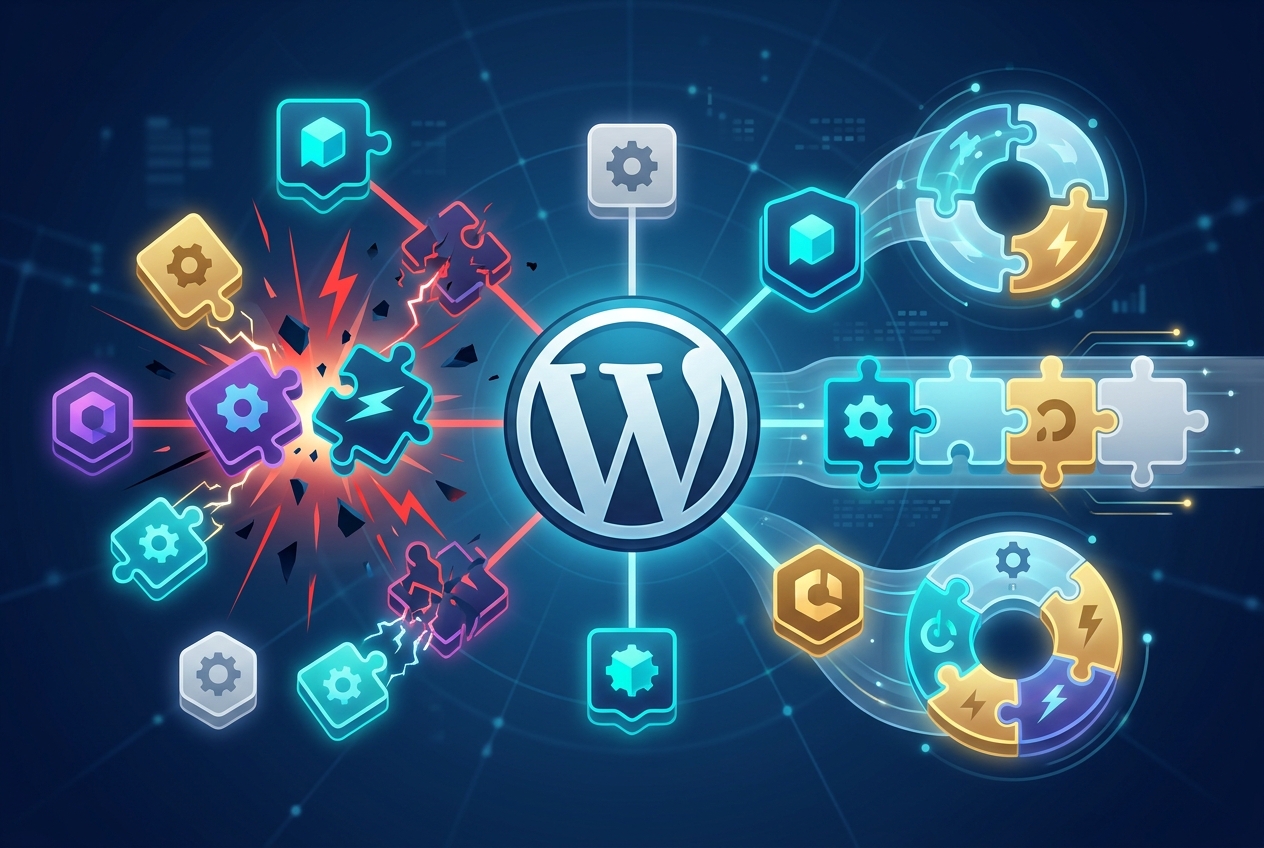
Conflicts arise when two or more plugins, your theme, or your WordPress version compete for resources or functionality. The result is a broken website.
This happens because different developers write plugins, and their code doesn’t always align. It’s like trying to combine puzzle pieces from different sets.
Here’s a breakdown of common conflict scenarios:
- Code Clashes: Plugins attempt to modify the same part of your website in incompatible ways.
- Resource Conflicts: Two plugins demand too much of your server’s resources, leading to slowdowns or crashes.
- Outdated Code: An old plugin is not compatible with the latest version of WordPress or your theme.
At www.seos7.com, we understand this. Our SEO Automation plugin is built with compatibility in mind. We ensure our plugin works with many themes and other plugins.
Consider this:
| Conflict Type | Cause | Result |
|---|---|---|
| Plugin vs. Plugin | Conflicting code or resource usage | Broken features, errors, slow performance |
| Plugin vs. Theme | Incompatible code or styling | Visual glitches, layout issues |
| Plugin vs. WordPress Version | Outdated plugin code | Errors, security vulnerabilities |
This can be frustrating. Imagine spending hours building your website, only to have a plugin conflict ruin it. We’re here to help you understand and resolve these issues.
Our SEO Automation plugin minimizes the risk of conflicts. We test and update our plugin to ensure compatibility with the latest WordPress versions and popular themes.
Next, we’ll show you how to recognize the signs of a plugin conflict.
Understanding Resource Conflicts
Resource conflicts are a frequent source of frustration. They arise when plugins compete for the same server resources, such as memory or processing power.
Think of two programs competing for limited resources. That’s similar to plugins battling for server capacity.
Here’s why these conflicts happen:
- Complex Plugins: Plugins with many features, such as those for e-commerce or membership sites, often need considerable resources.
- Poorly Written Code: Inefficient code can monopolize resources, leaving little for other plugins.
- Plugin Updates: An update might bring new resource requirements that clash with existing plugins or your theme.
Let’s examine the details:
- Memory Overload: Plugins use memory to store data and run code. If several plugins require too much memory, your site might crash.
- CPU Bottleneck: Plugins use CPU to complete tasks. If several plugins are running demanding processes at the same time, your site’s speed can suffer.
- Database Strain: Plugins interact with your database to store and retrieve information. Too many database requests can overwhelm your server.
What can you do? Here are a few tips:
- Choose Plugins Carefully: Select well-coded plugins from trusted developers.
- Monitor Resource Use: Use a plugin or server monitoring tool to track how resources are being used.
- Site Improvements: Use caching and other improvements to lessen resource demands.
Resource conflicts can be hard to pinpoint, but knowing the reasons is the initial step toward fixing them. Read on to discover more about resolving plugin conflicts!
Functionality Wars
Did a feature ever break after a plugin update? You might be seeing a functionality war!
These wars often erupt after automatic updates. Two or more plugins simultaneously try to control the same website function, resulting in chaos.
Picture two chefs trying to make the same dish, but with different recipes. The result is a culinary disaster.
Why do these battles occur?
- Conflicting Code: Plugins might use similar code structures that clash when activated together.
- Overlapping Features: Two plugins might offer similar functionality, leading to conflicts over which one takes precedence.
- Update Issues: A plugin update might introduce new code that conflicts with existing plugins.
Here’s how a functionality war could unfold:
- Auto-Update Trigger: WordPress automatically updates several plugins at once.
- Code Collision: Two plugins try to modify the same website element.
- Feature Breakdown: The intended functionality breaks, resulting in errors or unexpected behavior.
Regular updates are vital for security. Vulnerabilities are constantly being discovered, and updates often patch these holes.
Updates can also trigger conflicts. What can you do?
- Stagger Updates: Update plugins one at a time to identify the culprit if a conflict arises.
- Test Updates: Use a staging environment to test updates before applying them to your live site.
- Monitor Your Site: Keep a close eye on your website after updates to detect any issues early.
Functionality wars can be frustrating. Knowing the causes and taking preventative measures can help you keep the peace on your WordPress site.
Recognizing WordPress Plugin Conflicts
Your WordPress site is acting up. How can you tell if a plugin conflict is the cause?
Plugin conflicts are often subtle. They can trigger issues ranging from minor annoyances to complete website failures.
Instead of focusing only on the error message, consider your access level.
Here’s a list of common symptoms:
- Visual Glitches: Elements are misaligned, images are broken, or formatting appears strange.
- Broken Features: Contact forms stop working, shopping carts malfunction, or sliders fail to load.
- Slow Performance: The website loads slowly, frustrating visitors.
- Error Messages: PHP errors, database connection errors, or other obscure messages appear.
- The White Screen of Death (WSOD): A blank white screen appears without an error message. This is the worst-case scenario.
The key question: Can you still access the WordPress admin panel?
Here’s why that’s important:
- Admin Access: If you can log in, the conflict is probably less severe. You can troubleshoot from within WordPress.
- No Admin Access: If you’re locked out, the conflict is more serious. You’ll need to use FTP or your hosting provider’s tools to resolve it.
Consider this:
| Symptom | Possible Conflict Severity | Admin Access? |
|---|---|---|
| Visual Glitches, Broken Features | Low to Medium | Yes |
| Slow Performance | Medium | Yes |
| Error Messages | Medium to High | Potentially |
| White Screen of Death | High | No |
These are general guidelines. Other issues can cause similar symptoms. If you experience any of these problems, a plugin conflict is likely.
We’ll cover how to fix plugin conflicts when you can access your admin panel in the next section.
Troubleshooting Errors With Admin Access
Your site is acting strangely, but you can still log in. This means you can likely fix the problem from within WordPress.
The situation is manageable. You can still run tests and apply fixes.
What errors might appear with admin access?
- Layout Problems: Elements look misaligned, fonts are incorrect, or sections are out of place.
- Feature Failures: Contact forms don’t submit, buttons don’t work, or sliders freeze.
- JavaScript Errors: Error messages might appear in the browser’s console, indicating a JavaScript code problem.
- Partial Content Loss: Some images or text might be missing from pages or posts.
These errors can be frustrating, but they’re usually not critical. You have the tools to diagnose and resolve the issue.
How can you confirm it’s a plugin conflict and not something else?
Here’s a quick checklist:
- Recent Changes: Did you recently install or update a plugin or theme?
- Error Consistency: Does the error appear on multiple pages, or just one?
- Basic Troubleshooting: Have you cleared your browser’s cache and cookies?
If you answered “yes” to the first question and the error is consistent, a plugin conflict is probable. If basic troubleshooting doesn’t help, it’s even more likely.
Other issues can resemble plugin conflicts. Outdated plugins, theme incompatibilities, and even server problems can cause similar symptoms.
If you’ve ruled out these other possibilities, it’s time to investigate your plugins.
We’ll guide you through identifying and resolving plugin conflicts when you have admin access in the next section.
Fixing WordPress Plugin Conflicts with Admin Access
If you can access your WordPress dashboard, fixing plugin conflicts becomes simpler.
It’s like having the keys to the car, allowing you to troubleshoot under the hood.
Here’s a plan to restore your site:
- Clear Your Browser Cache: Old files sometimes cause display problems.
- Update Everything: Update your plugins, theme, and WordPress core.
- Confirm the Conflict: Eliminate theme or WordPress version problems.
- Identify the Culprit(s): Deactivate plugins individually to locate the source.
Here’s a closer look at each step:
Clear Your Browser Cache
Browsers save website files to speed up page loading. These cached files sometimes clash with updated code.
How to do it:
- Chrome: Press Ctrl+Shift+Delete (Windows) or Cmd+Shift+Delete (Mac). Select “Cached images and files” and click “Clear data.”
- Firefox: Press Ctrl+Shift+Delete (Windows) or Cmd+Shift+Delete (Mac). Select “Cache” and click “Clear Now.”
- Safari: Go to Safari > Preferences > Advanced. Check “Show Develop menu in menu bar.” Then, go to Develop > Empty Caches.
After clearing your cache, refresh your website to see if the problem disappears.
Keep Software Current
Outdated plugins, themes, or WordPress versions sometimes clash. Updates frequently patch bugs and improve compatibility.
How to update:
- WordPress Core: Go to Dashboard > Updates and click “Update Now” if a new version is available.
- Plugins: Go to Plugins > Installed Plugins. Look for plugins with update notices and click “Update Now.”
- Theme: Go to Appearance > Themes. If your theme has an update, you’ll see a notification. Click “Update Now.”
Important: Back up your website before updating anything. You can then restore your site if problems arise.
Isolate the Source of the Issue
Before troubleshooting plugins, eliminate your theme or WordPress version as potential causes.
A. Verify WordPress Version Compatibility:
- Use a plugin like “Better Plugin Compatibility Control” to check plugin compatibility.
- Manually check each plugin’s compatibility in the WordPress plugin directory.
B. Test with a Default Theme:
- Go to Appearance > Themes.
- Activate a default WordPress theme like “Twenty Twenty-Three.”
- Check your website. If the problem vanishes, your theme causes the issue.
Pinpointing the Problem Plugin
Time for some detective work. Find the source of the conflict by deactivating plugins individually.
Here’s how:
- Navigate to Plugins > Installed Plugins.
- Deactivate every plugin.
- Inspect your website. If the problem disappears, a plugin caused it.
- Activate plugins incrementally, checking your website after each activation.
- When the problem returns, the last plugin you activated is the source.
After you isolate the conflicting plugin, consider these options:
- Replace the Plugin: Locate another plugin providing similar features.
- Contact the Developer: Inform the plugin developer about the conflict. A future update might resolve it.
- Deactivate Temporarily: If the plugin is critical, you might need to disable it until a solution emerges.
Be sure to clear your browser cache after each step. This ensures you view the most current version of your website.
These steps help you troubleshoot and resolve plugin conflicts when you can access your WordPress admin area.
Browser Cache Matters
Clear Your Browser Cache
Sometimes your browser’s cache causes problems. It saves older code, which can stop new code from displaying correctly, particularly after plugin updates.
Your browser might be holding onto old data, even after you’ve updated a plugin. Clearing the cache ensures you see the latest version of your site.
To clear it in Chrome:
- Press Ctrl+Shift+Delete (Windows) or Cmd+Shift+Delete (Mac).
- Select Cached images and files.
- Click Clear data.
Refresh your site to see if that fixed the issue.
Update Your Plugins
Keep Plugins Current
A stable, secure WordPress site relies on current plugins. Plugins that haven’t been updated often cause conflicts and introduce weaknesses.
Think of plugin updates as routine maintenance for your website’s features.
To update your plugins:
- Log in to your WordPress admin area.
- Go to Dashboard > Updates.
- Scroll down to the Plugins section.
- Select the plugins you want to update or click Select All.
- Click the Update Plugins button.
Back up your website before updating plugins. If something goes wrong, you can restore your site quickly.
Why update plugins?
- Bug Fixes: Updates frequently contain solutions for known bugs that can trigger conflicts.
- Compatibility Improvements: Developers revise their plugins to guarantee proper operation with the newest WordPress versions and other plugins.
- Security Patches: Plugins that are not up-to-date can expose your site. Updates frequently include fixes for these vulnerabilities.
Don’t ignore plugin updates. They’re a straightforward way to maintain a smoothly running, secure WordPress site.
WordPress Version Compatibility
WordPress Version Compatibility
Is your WordPress version causing problems? Let’s investigate.
A plugin might function flawlessly until a WordPress update. Then, issues arise. This often stems from the plugin’s incompatibility with the updated WordPress version.
Here’s how to check for these conflicts:
- Go to your WordPress dashboard.
- Navigate to the “Plugins” section.
- Examine each plugin individually. Look for compatibility details. Some plugins show this information on the plugins page.
- Check the plugin’s details page. Click the plugin’s name to see more information. Find a “Tested with WordPress” section or its equivalent.
What if you discover an incompatible plugin?
- Deactivate the plugin. Return to the “Plugins” page and click “Deactivate” under the plugin’s name.
- Check your website. See if the problem disappears. If it does, the deactivated plugin caused it!
What if deactivating the plugin resolves the issue, but you still require the plugin’s functionality?
- Search for a newer version. The plugin creator might have issued an update that works with your WordPress version.
- Contact the plugin creator. Inform them of the compatibility problem. They might be developing a solution.
- Locate a different plugin. Another plugin might provide comparable features and work with your WordPress version.
Address WordPress version conflicts. They can trigger significant issues on your website. Checking for compatibility and deactivating problematic plugins helps maintain a smoothly running site.
Investigating Theme-Related Conflicts
Could your theme be the source of the problem? Let’s find out.
Sometimes, what appears to be a plugin conflict is actually a conflict between a plugin and your theme.
Here’s how to check:
- Back up your website. This is critical before making any changes.
- Switch to a default WordPress theme. Navigate to Appearance > Themes and activate a default theme such as Twenty Twenty-One, Twenty Twenty-Two, or Twenty Twenty-Three.
- Check your website. Does the issue disappear? If it does, your theme is the source.
Why does this method work?
Default WordPress themes are generally well-coded and compatible with most plugins. If a plugin functions correctly with a default theme but not with your regular one, the problem likely stems from a conflict between the plugin and your theme’s code.
What if changing themes resolves the issue?
- Contact the theme developer. Inform them of the conflict. They might address it in a future update.
- Consider a different theme. If the theme developer cannot or will not resolve the conflict, you might need to choose a different theme that offers better plugin compatibility.
Important: After changing themes, you might need to reconfigure some website settings. Themes often manage elements like layout, colors, and fonts.
Do not dismiss the possibility of a theme conflict. By switching to a default theme, you can quickly identify if your theme is causing the problems.
Plugin vs. Plugin Conflicts
Isolating Plugin Conflicts
Time to get down to specifics. You’ve ruled out theme and WordPress version issues. Now, investigate plugin versus plugin conflicts.
This investigation requires a process of elimination. First, deactivate all your plugins. Then, reactivate them one by one to see which one causes the problem.
Here’s a step-by-step guide:
- Deactivate all plugins:
- Go to Plugins > Installed Plugins in your WordPress dashboard.
- Select all plugins by checking the box next to “Plugin”.
- From the “Bulk actions” dropdown menu, select “Deactivate” and click “Apply”.
- Check your website: After deactivating all plugins, visit your website to see if the issue is resolved.
- If the error disappears, you’ve confirmed that a plugin conflict is the cause.
- If the error persists, none of your plugins are at fault. Check for .htaccess errors or contact your hosting provider.
- Reactivate plugins one by one:
- Go back to Plugins > Installed Plugins.
- Activate each plugin individually, checking your website after each one.
- Pay close attention to your site after each activation.
- Identify the conflicting plugin:
- When the issue reappears, the last plugin you activated is the one causing the conflict. Note it.
After identifying the conflicting plugin, what’s next?
- Replace the plugin: Find an alternative plugin that offers similar functionality but doesn’t cause conflicts.
- Contact the plugin developer: Report the conflict to the plugin developer. They might fix it in a future update.
- Consider a staging site: Test updates and plugin changes on a staging site before applying them to your live site.
Finding the conflicting plugin can be a tedious process. However, it’s important for restoring your website to full functionality. Be patient and follow the steps carefully.
Using SEOS7 for a Healthy Site and Conflict Prevention
A healthy WordPress website is important for SEO. Plugin conflicts can hurt your site’s performance and search engine rankings.
A stable site is more easily indexed by search engines.
Here’s how a platform like SEOS7 can help maintain SEO health and prevent conflicts:
- SEO Health Checks: SEOS7 regularly scans for SEO issues, including those from plugin conflicts. These checks can find problems before they get worse.
- AI Analysis: SEOS7 uses algorithms to detect conflicts and their SEO impact.
- Real-Time Health Score: SEOS7 provides a metric showing your site’s SEO health, offering insights into potential issues.
- Auto-Fixing: SEOS7 provides automated fixes for common SEO problems, including plugin conflicts, ensuring site stability.
By watching for and fixing potential conflicts, you can keep your WordPress site healthy and optimized. This leads to better search engine visibility and organic traffic.
Think of it as preventative care for your website. Regular checkups can keep your site running smoothly and avoid problems later.
Prioritize a healthy WordPress site; your SEO depends on it.
Site Audit
Consider a site audit a health check for your website. It’s a scan that identifies issues affecting SEO and the experience for visitors.
A detailed site audit can reveal problems stemming from plugin clashes, theme mismatches, or old content.
A good site audit should check for the following:
- Broken Links: Find and fix broken internal and external links. These links frustrate users and hurt your SEO.
- Missing Meta Descriptions: Make sure each page has a unique meta description to improve click-through rates.
- Duplicate Content: Find and fix duplicate content, which confuses search engines and weakens your SEO.
- Slow Page Speed: Find and improve slow-loading pages. Slow speed hurts user experience and search engine rankings.
- Mobile Friendliness: Make sure your website is responsive and works well on all devices.
A site audit shows your website’s health and points out areas needing improvement.
Fixing the issues a site audit uncovers improves your website’s SEO, user experience, and performance.
Regular site audits are important for keeping a WordPress website healthy and successful.
Annotations
Want to see the *real* impact of your changes? The Annotations feature visualizes the effect of every adjustment you make to your WordPress site.
Here’s how it functions:
- Automatic Tracking: Plugin actions are tracked automatically, including audits, fixes, and content updates.
- GSC Overlay: These actions are overlaid on your Google Search Console (GSC) performance chart.
- See the Needle Move: See how your changes affect your site’s performance in search results.
It’s like having an SEO crystal ball. Stop guessing whether a plugin update helped or hurt your rankings.
Here’s what you can learn:
- Did that plugin update improve your organic traffic?
- Did fixing those broken links boost your rankings?
- Did content improvements lead to more clicks?
With Annotations, you can make data-driven decisions and improve your WordPress site for better SEO.
Stop guessing. Start knowing. See the impact of your plugin actions with Annotations.
Using the Health Check and Troubleshooting Plugin
The Health Check & Troubleshooting plugin is useful when things go wrong with your WordPress site. It helps you diagnose and fix problems before they cause serious damage.
This free plugin, available in the WordPress repository, offers a safe way to troubleshoot conflicts without impacting your visitors’ experience.
Here’s what makes it helpful:
- Checks: It runs tests to identify common issues, such as plugin conflicts, theme problems, and PHP errors.
- Troubleshooting Mode: This feature lets you test your site with all plugins disabled and a default theme activated, but only for *your* session. Visitors see the normal site.
- Information Gathering: It provides details about your WordPress environment, which can be helpful when seeking support from plugin or theme developers.
Here’s how to use the Health Check & Troubleshooting plugin:
- Install and Activate: Go to Plugins > Add New, search for “Health Check & Troubleshooting,” and install the plugin. Then activate it.
- Run Site Health Checks: Navigate to Tools > Site Health to view the results. Follow the recommendations to address any issues.
- Enable Troubleshooting Mode: Go to the Troubleshooting tab and click “Enable Troubleshooting Mode.” This will temporarily disable all plugins and switch to a default theme for *your* session.
- Reactivate and Test: Reactivate your plugins and theme one by one, testing your site after each activation to identify the source of the problem.
By using the Health Check & Troubleshooting plugin, you can diagnose plugin conflicts and other WordPress issues. Your website will run smoothly.
It’s a tool for any WordPress user who wants to manage their website’s health.
How to Use the Health Check Plugin
The Health Check & Troubleshooting plugin helps diagnose WordPress problems. Here’s how to use it:
- Install and Activate:
- Go to Plugins > Add New in your WordPress dashboard.
- Search for “Health Check & Troubleshooting”.
- Click Install Now and then Activate.
- Run Site Diagnostics:
- Navigate to Tools > Site Health.
- Review the results. The plugin identifies issues and suggests solutions.
- Follow the recommendations to fix any problems.
- Enable Troubleshooting Mode:
- Go to the Troubleshooting tab within the Site Health screen.
- Click Enable Troubleshooting Mode. This temporarily turns off all plugins and switches to a default theme, but only for your session. Visitors won’t see these changes.
- Identify the Conflicting Plugin/Theme:
- In Troubleshooting Mode, reactivate your plugins one at a time. After each activation, check your website to see if the issue returns.
- If the problem reappears after activating a specific plugin, that plugin is likely the cause.
- Repeat this process for your theme. Deactivate troubleshooting mode, reactivate your theme, and see if the issue returns.
Key Benefits:
- Safe Testing: Troubleshooting Mode doesn’t affect the live site for visitors.
- Easy Diagnosis: Quickly find the source of conflicts.
- Detailed Information: It provides details about your WordPress setup.
The Health Check plugin is useful for any WordPress user experiencing website issues. Use it to quickly diagnose and resolve conflicts, ensuring a stable online experience.
Achieving a Conflict-Free WordPress Site
Fixing WordPress plugin conflicts can feel like detective work, but a systematic approach helps.
Keep these points in mind:
- Start with the basics: Clear your cache, update everything, and check for theme issues.
- Find the problem: Deactivate plugins one by one to identify the cause.
- Use the right tools: The Health Check & Troubleshooting plugin is very helpful.
- Back up your site: Always back up before making changes.
At www.seos7.com, we know a stable website is vital. Our SEO Automation plugin aims to reduce the risk of conflicts and help you maintain a healthy site.
Our platform checks SEO health, uses AI for analysis, and provides real-time health scores. This helps you find and fix potential problems before they get worse.
We aim to make SEO simple. That’s why we’ve built tools that automate the process and help you reach your goals.
Ready to improve your SEO? Automate Your SEO with www.seos7.com!