Why Plugin Troubleshooting Matters
WordPress plugins are excellent tools. They allow you to add almost any feature to your website. However, they can also cause problems.
Plugin conflicts can result in frustrating errors, site crashes, and even the white screen of death. This is when your site disappears.
Many guides focus on selecting the right plugins and keeping them updated. This is important. But what if problems arise? What if your plugins start conflicting?
That’s where advanced troubleshooting is helpful. At www.seos7.com, we advocate being proactive. Knowing how to spot and fix plugin conflicts is key for a healthy WordPress site.
Consider it preventative maintenance. Knowing how to troubleshoot plugin issues will save you time, money, and stress. Our SEO Automation plugin can help you manage many aspects of your site’s health. Still, understanding the basics of plugin troubleshooting is vital.
Let’s equip you with the skills to tackle those plugin problems.
Understanding and Addressing Plugin Conflicts
What is a plugin conflict? Simply, it’s when two or more plugins don’t work well together.
Conflicts can also occur between a plugin and your theme, or even between a plugin and your WordPress version.
Why do these conflicts happen? It comes down to code. When plugins or themes try to run code that clashes, problems develop.
Consider these scenarios:
- Resource Conflict: Two plugins both require the same resources, leading to a conflict.
- Bad Code: One plugin has poorly written code that interferes with others.
- Incompatibility: An updated plugin no longer works with your theme.
The severity of the conflict depends on the plugins involved. A conflict with a core plugin or your main theme can cause major problems.
Plugin conflicts are common. Knowing their causes is the first step to fixing them.
Here’s a table summarizing common causes:
| Cause | Description |
|---|---|
| Resource Conflict | Plugins compete for the same resources. |
| Poorly Written Code | One plugin’s code interferes with others. |
| Incompatibility | Plugins don’t work with the theme or WordPress version. |
Recognizing and Categorizing Plugin Conflicts
How do you know if a plugin conflict is the source of your website’s woes? Conflicts manifest in various ways.
Your site might display strange behavior. Features could break, or the layout might become distorted. Some users encounter the dreaded “white screen of death.”
Rather than fixating on a specific error message, consider your level of access to the site.
Plugin conflicts typically affect a site in one of two ways:
- Errors with Admin Access: The site has problems, but you can still log in to the WordPress dashboard.
- Total Crash (WSOD): The site crashes, and you’re locked out of the admin area.
Other issues can cause similar problems. An outdated theme or a server malfunction could be responsible.
If basic troubleshooting doesn’t fix the issue, suspect a plugin conflict.
Here’s a checklist to help spot a potential plugin conflict:
- Have you updated any plugins recently?
- Did the problem begin after installing a new plugin?
- Are you seeing unusual errors or site behavior?
- Does the problem continue after clearing your browser cache?
If you answered “yes” to one or more of these questions, investigate further. The following sections provide guidance through the troubleshooting process.
Stay calm. This guide offers step-by-step instructions.
Troubleshooting Plugin Conflicts with Admin Access
If you can access your WordPress admin panel, you can likely manage the situation. The following steps will help identify, isolate, and resolve the plugin conflict.
Here’s an overview:
- Clear your browser cache.
- Update your plugins.
- Check for WordPress version issues.
- Check for theme issues.
- Identify plugin conflicts.
Clear Browser Cache
Browsers sometimes store old code, which can stop you from seeing the newest version of a site. Clearing your browser’s cache guarantees you see the most current version.
To clear the cache in Chrome:
- Press
Ctrl+Shift+Del(Windows) orCmd+Shift+Del(Mac). - Select “Cached images and files.”
- Click “Clear data.”
The process is similar for other browsers. Find instructions online specific to the browser you use.
Update Plugins
Old plugins often cause conflicts. Updating all plugins to the newest versions can resolve these issues.
To update plugins:
- Log in to your WordPress admin panel.
- Go to “Dashboard” > “Updates.”
- Select the plugins you want to update and click “Update Plugins.”
Keeping plugins updated improves both security and site stability.
WordPress Version and Theme Conflicts
A plugin might not work correctly with your WordPress version. Compatibility problems can cause errors. Check if your plugins are up-to-date.
The “Better Plugin Compatibility Control” plugin can identify potential incompatibilities. It’s one way to spot problematic plugins.
You can also visit the WordPress plugin repository. Manually check each plugin’s compatibility details there.
If you discover an incompatible plugin, deactivate it. Then, see if your issue goes away.
Your WordPress theme could also be the source of trouble. Try switching to a default WordPress theme like “Twenty Twenty-Three” to test this.
Here’s how to change themes:
- Navigate to “Appearance” > “Themes.”
- Activate a default WordPress theme from the list.
If the problem vanishes after changing themes, your original theme is likely the culprit. Reach out to the theme developer for assistance.
Isolating Plugin Conflicts
If the problem remains after verifying your WordPress version and theme, a plugin conflict is likely the cause.
Here’s a standard method for finding the trouble:
- Deactivate all plugins.
- See if that fixes the problem.
- If it does, reactivate plugins individually, checking after each one to see if the problem reappears.
- The plugin that makes the problem come back is the one causing the conflict.
This process takes time, but it’s a dependable way to pinpoint the conflicting plugin.
Once you know which plugin is causing the issue, consider these solutions:
- Find a different plugin that does the same thing.
- Ask the plugin’s creator for help.
- Turn off the plugin and do without its features.
Always create a backup of your site before making changes!
Address Browser Cache Issues
Browsers sometimes save old code. This can stop new code from showing correctly after plugin updates.
Clearing your browser’s saved files makes sure you see the newest version of your site. This easy action can fix display problems caused by old, saved files.
To clear your cache in Chrome:
- Press Ctrl + Shift + Delete on Windows or Cmd + Shift + Delete on Mac.
- Check the box next to “Cached images and files.”
- Click “Clear data.”
The steps are similar for other browsers. Look up specific instructions if you use something different.
Pro Tip: For the best outcome, close and reopen your browser after clearing the cache.
Keep Plugins Current
Outdated plugins often cause conflicts and security problems. Keeping your plugins current is a key step in maintaining a healthy WordPress site.
To update plugins:
- Log in to your WordPress admin area.
- Go to Dashboard > Updates.
- Select the plugins you want to update.
- Click the Update Plugins button.
Important: Always back up your website before updating. This protects you if an update causes unexpected problems.
Updating plugins regularly ensures:
- They work with the newest WordPress version.
- They include security fixes against known weaknesses.
- They offer better performance and bug fixes.
Updating plugins minimizes the risk of conflicts and keeps your website secure and stable.
Confirm WordPress Version Compatibility
Verifying that your plugins work with your current WordPress version is important. Incompatibility can cause unexpected errors and conflicts.
The Better Plugin Compatibility Control plugin can help. It simplifies finding compatibility problems.
To use it:
- Install and activate the Better Plugin Compatibility Control plugin.
- Go to the plugin’s settings page (usually under the “Plugins” menu).
- The plugin will scan your installed plugins and point out any compatibility issues.
The plugin will show you plugins with known compatibility issues and those with important pending updates.
If the plugin finds any incompatible plugins, deactivate them.
To deactivate a plugin:
- Go to the “Plugins” page in your WordPress admin area.
- Find the plugin you want to deactivate.
- Click the “Deactivate” link.
After deactivating the incompatible plugin, check your website to see if the issues are resolved. If so, the conflict likely stemmed from the plugin’s incompatibility with your WordPress version.
Important: Find another plugin that does the same thing and is compatible with your WordPress version.
Checking for WordPress version conflicts proactively can prevent many plugin problems and ensure a better website experience.
Troubleshooting Theme and Plugin Conflicts
Sometimes, a WordPress theme can cause problems with plugins. To check, switch to a default WordPress theme like Twenty TwentyOne temporarily.
Here’s how to switch themes:
- In your WordPress dashboard, go to Appearance > Themes.
- Find the Twenty TwentyOne theme (or another default WordPress theme).
- Click Activate.
Check your website. If the problem goes away after switching to Twenty TwentyOne, your original theme is the source. If the issues persist, the theme is likely not the cause.
If your theme is the problem, try these steps:
- Reactivate your previous theme.
- Deactivate your plugins one at a time, testing your site after each deactivation.
- When the issue disappears, the last plugin you deactivated probably conflicts with your theme.
After finding the conflicting plugin, you have options:
- Contact the plugin’s developer for help.
- Contact the theme’s developer for help.
- Find a different plugin that works with your theme.
For this process, use a staging site. You can test changes without affecting your live website.
If the theme isn’t the problem, the issue may stem from a conflict between plugins. Deactivating all plugins is the surest way to check for this.
Here’s how to deactivate plugins in bulk:
- Go to the Plugins page in your WordPress admin area.
- Select all plugins by checking the box next to Plugin.
- From the Bulk actions dropdown menu, select Deactivate.
- Click Apply.
Check your website. If the error disappears, a plugin conflict is the cause. The next step is to find the specific plugin creating the problem.
Reactivate plugins one at a time, watching for the error to reappear. Here’s how:
- Reactivate your plugins individually.
- After each activation, check your website.
- Watch your site’s behavior.
- The plugin that makes the error reappear is the one causing the conflict.
This can take time, but it’s the most precise way to find the source.
If you find a conflicting plugin, consider these actions:
- Find another plugin: Look for one that does the same thing without causing problems.
- Contact the plugin developer: Tell them about the conflict. They might fix it in an update.
- Disable the plugin: If you can’t find another option or get support, you might need to turn it off.
Before making changes to your plugins, back up your website. Test plugin changes in a staging environment before applying them to your live site.
Using WordPress Debug Mode
WordPress debug mode can uncover PHP errors that point to plugin problems.
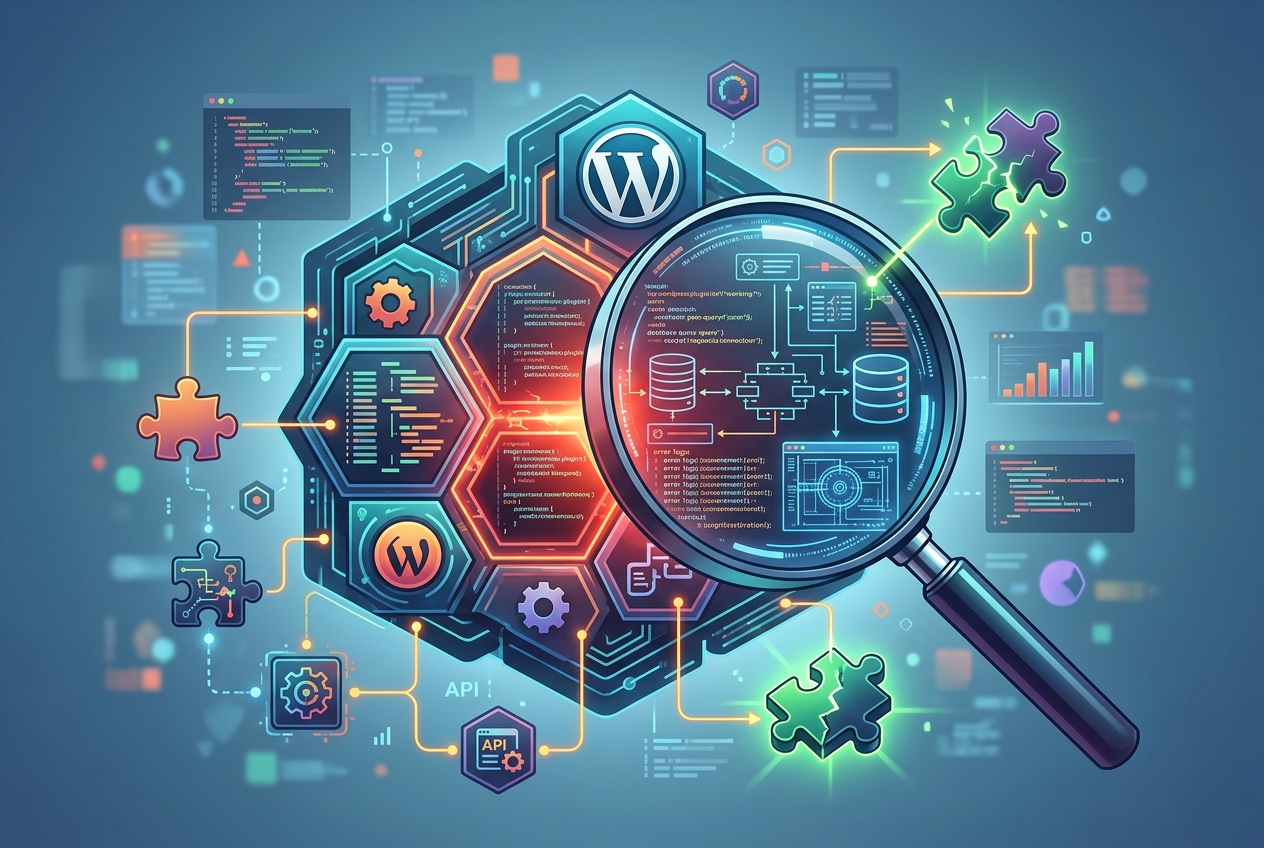
Consider it a detective, revealing clues to solve the mystery of a malfunctioning plugin.
To enable debug mode:
- Access your website’s files using FTP or your hosting provider’s file manager.
- Locate the
wp-config.phpfile in your WordPress root directory. - Open the file for editing.
- Find the line that says
define('WP_DEBUG', false); - Change
falsetotrue:define('WP_DEBUG', true); - Save the file.
Important: Only enable debug mode for troubleshooting. It can expose sensitive information to visitors, so disable it when finished.
With debug mode active, visit your website. Look for PHP errors on the page.
Note the file paths in the error messages. A path that includes /wp-content/plugins/ indicates a plugin-related error.
For example:
Parse error: syntax error, unexpected '}' in /home/html/wp-content/plugins/my-plugin/my-plugin.php on line 50This error message shows a syntax error in the my-plugin.php file of the my-plugin plugin.
If you see no errors on your website, check your server’s error logs. Your hosting provider can assist with accessing these logs.
Once you’ve found the plugin causing the error, take action:
- Disable the plugin.
- Contact the plugin developer for support.
- Fix the error yourself if you’re familiar with PHP code.
Debug mode helps quickly identify plugin errors and resolve them. Remember to disable debug mode after troubleshooting!
In short, debug mode:
- Exposes otherwise hidden PHP errors.
- Pinpoints the file and line of code causing the error.
- Provides information for troubleshooting plugin conflicts.
Debug mode is a useful tool for WordPress troubleshooting. Use it carefully.
Examine Error Logs
Sometimes, errors aren’t visible on your website. Server error logs then become extremely useful.
These logs record PHP errors and other issues. They can point to plugin problems.
If errors don’t appear on your site, here’s how to access error logs:
- Linux Hosting (cPanel): Look for “Error Log” or “Logs” in your cPanel interface.
- Windows Hosting (Plesk): Check “Logs” or “Event Viewer” in your Plesk control panel.
Your hosting provider’s documentation may offer more specific guidance.
Once you access the error logs, look for PHP errors. These errors often include file paths. These paths indicate the plugin causing the problem.
For example, an error message might resemble this:
[12-Oct-2023 10:00:00 UTC] PHP Parse error: syntax error, unexpected '{' in /wp-content/plugins/faulty-plugin/faulty-plugin.php on line 42This tells you that there’s a syntax error in the faulty-plugin.php file of the faulty-plugin plugin.
Armed with this information, you can:
- Deactivate the plugin.
- Contact the plugin developer.
- Attempt to fix the error yourself (if you have coding knowledge).
Error logs are an important resource for troubleshooting WordPress plugin issues. Don’t disregard them!
Key takeaway: If website errors are hard to find, your server’s error logs are your next best resource.
Isolate Problematic Plugins Through Systematic Deactivation
Can’t find the source of the issue? Don’t worry! A systematic approach can help isolate the problematic plugin.
The key is to disable all plugins, then reactivate them one by one.
- Disable all plugins: Go to your WordPress admin panel, navigate to “Plugins,” and deactivate all active plugins.
- Check your site: After deactivating all plugins, check if the issue is resolved. If it is, a plugin conflict was the cause.
- Reactivate one by one: Reactivate each plugin individually. After activating each one, check your site again.
- Identify the culprit: The plugin that causes the issue to reappear is the one causing the conflict.
This method can take time. However, it’s a reliable way to pinpoint the source of the problem.
After identifying the conflicting plugin, consider these options:
- Search for an alternative: Find another plugin that offers similar functionality.
- Contact the developer: Report the conflict to the plugin’s developer.
- Disable the plugin: If no other solution is available, disable the plugin and find a different way to achieve the desired functionality.
Important: Always back up your site before making any changes to your plugins!
Consider it a process of elimination. By systematically deactivating and reactivating plugins, you can isolate the source of the conflict. You can then restore your website’s functionality.
Prevention: Minimizing Future Conflicts
The best way to handle plugin conflicts is to stop them before they start. While you can’t eliminate the risk, you can reduce it by following a few practices.
Keep Plugins Updated
Outdated plugins often cause conflicts. Updates frequently include bug fixes and compatibility improvements that address potential issues.
Check for plugin updates regularly. WordPress notifies you when updates are available in your admin dashboard.
You might also enable automatic updates for plugins. This ensures your plugins run the latest versions, reducing the risk of conflicts and security problems.
Testing in a Staging Area
A staging environment mirrors your live website. Use it to test changes without disrupting your visitors.
Before updating or installing plugins, test them in this safe space. Spot and fix conflicts there, before they affect the live site.
Many hosting providers offer simple staging setups. Use this feature to safeguard your website.
Selecting Quality Plugins
Plugin quality varies. Poorly coded plugins raise the chance of conflicts.
Research before installing anything. Read reviews, note the rating, and favor plugins with active developer support.
Confirm plugin compatibility with your WordPress version. An outdated plugin might clash with the newest WordPress, creating problems.</
Reduce Plugin Clutter and Monitor Performance
The more plugins installed, the higher the likelihood of conflicts. Install only truly necessary plugins.
Before adding a new plugin, consider alternative solutions for achieving the desired functionality. A few lines of code or a built-in WordPress feature might suffice.
Even with preventative measures, plugin conflicts can happen. Consistent website monitoring helps catch issues early.
Examine website error logs and note any unusual behavior. Early identification simplifies resolution.
Prevention Checklist
- Regularly update plugins.
- Use a staging environment for testing.
- Choose well-coded plugins.
- Minimize the number of plugins.
- Monitor your website regularly.
Following these steps can greatly lower the chance of plugin conflicts. They also help ensure your WordPress website remains stable and dependable.
Maintaining a Healthy WordPress Site with SEOS7
A sound WordPress site is vital for online success. Performance, search engine optimization, and user experience all depend on it, not just appearance.
SEOS7 recognizes these challenges. We provide resources to assist you in maintaining your WordPress site’s peak condition.
Consider it a routine checkup for your website. We assist in pinpointing and resolving possible issues before they affect your site’s operation.
Here’s how SEOS7 can be of assistance:
- Site Audits: Automatically scan your site for SEO issues.
- Actionable Insights: Receive straightforward advice on improving your site’s health.
A healthy site leads to improved search engine rankings and increased visitor traffic. It also creates a better experience for your audience. Allow SEOS7 to support you in reaching your objectives.
Keeping a WordPress site in good condition doesn’t need to be difficult. You can maintain a smoothly running site and meet your online targets with the appropriate resources and strategies.
Proactive Plugin Management
Troubleshooting WordPress plugin issues can feel like detective work. A systematic approach, however, helps conquer those conflicts.
From clearing your cache to using debug mode, you now have methods to spot and fix plugin problems.
Remember these points:
- Understand the causes: Know why plugin conflicts happen.
- Recognize the signs: Be aware of the symptoms.
- Implement preventive measures: Take steps to minimize future conflicts.
At www.seos7.com, we emphasize proactive management. Our SEO Automation plugin is built to help you keep a healthy WordPress site, automating many SEO tasks.
Our plugin provides:
- Site Audits: Identify potential issues before they become problems.
- Content Optimization: Ensure your content is performing at its best.
- Automated Fixes: Resolve common SEO issues with a single click.
We offer 10 AI-driven tools working together to audit, fix, refine, and expand your WordPress site on autopilot. Start your free trial today!
Combining your troubleshooting skills with our automation, you ensure a stable, functional, and high-performing WordPress site. Let us help you master SEO!
Don’t wait for problems. Control your WordPress site’s health now.