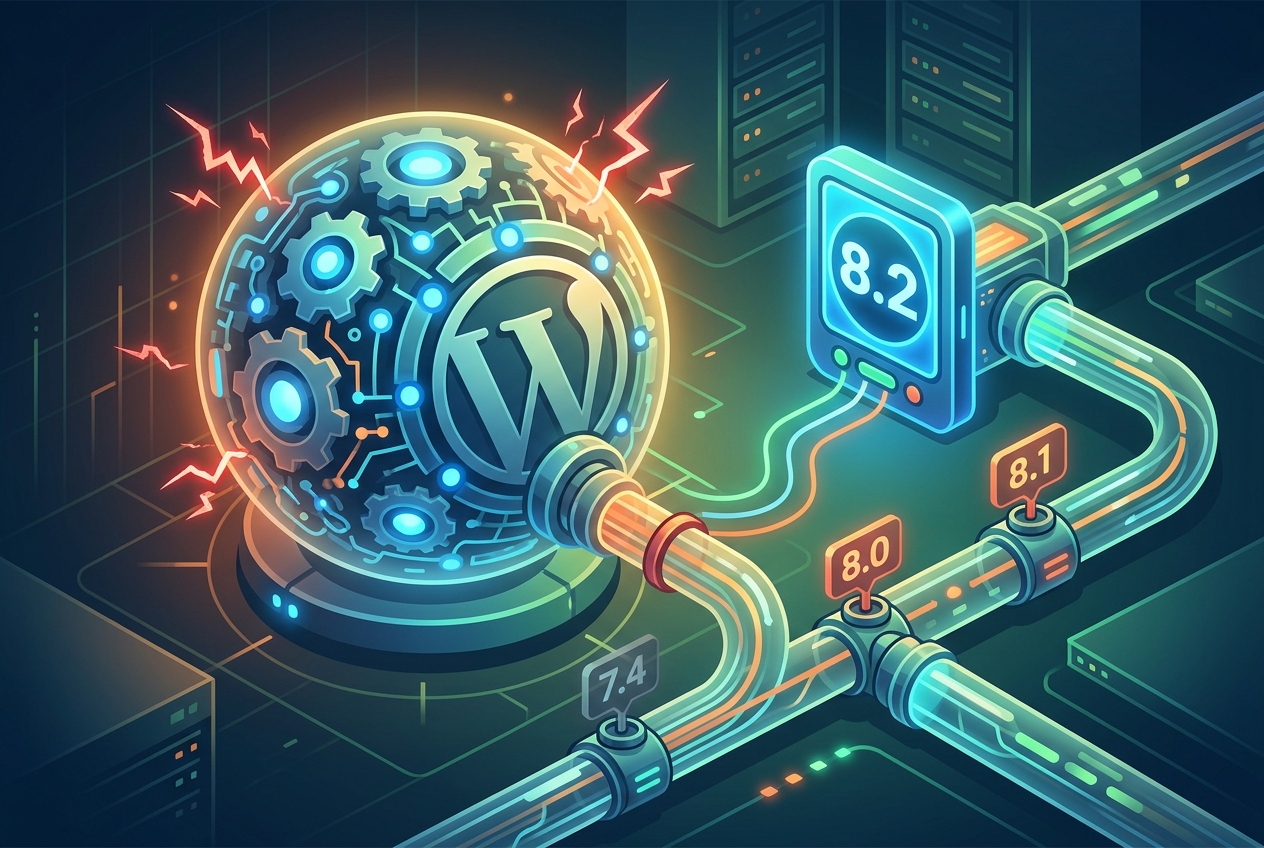
Why Your WordPress Plugin Stopped Working: Check Your PHP Version
Plugins expand WordPress, adding features. But what if a plugin stops working? Don’t worry! The problem is often a mismatch between the plugin’s PHP version requirement and your server’s PHP version.
A plugin built for PHP 8.0+ might struggle on PHP 7.4. Here’s how to diagnose and fix this issue.
Signs of a PHP Version Problem
How can you tell if a PHP version issue is causing your plugin problems? Watch for these indicators:
- White Screen of Death (WSOD): Your site shows a blank white page.
- PHP Error Messages: You see error messages on your site, mentioning “syntax error” or “unexpected…”.
- Plugin Settings Won’t Save: Changes in the plugin’s settings don’t save.
- Specific Plugin Features Fail: Only some parts of the plugin are broken.
Finding Your PHP Version
First, determine the PHP version your WordPress site uses. Here’s how:
- WordPress Site Health: Go to Tools > Site Health in your WordPress dashboard. Find the “Server” section; it lists your PHP version.
- Hosting Control Panel: Log in to your hosting account (e.g., cPanel, Plesk). Look for PHP settings to view and change the version.
- Ask Your Host: If unsure, contact your hosting provider’s support. They can quickly tell you your PHP version.
Confirm Plugin Compatibility
Next, confirm that the plugin causing issues is compatible with your PHP version. Here’s how to check:
- Plugin Description: On the WordPress plugin directory, find the plugin’s page. Look for a “Requires PHP” or “Tested up to PHP” section.
- Plugin Developer’s Website: Visit the plugin developer’s website for detailed compatibility information.
- Changelog: Review the plugin’s changelog (usually on its WordPress.org page) for notes about PHP version updates or compatibility fixes.
Adjusting Your PHP Version
If your PHP version and the plugin’s requirements are incompatible, adjust your PHP version. Always back up your site before making changes!
- Upgrading PHP: If your PHP version is outdated, move to a newer, compatible version using your hosting control panel. This is usually the best approach.
- Downgrading PHP (Use with Caution): Only reduce your PHP version if absolutely required, as this might create security problems. Ask your host for help.
Important: After changing your PHP version, clear your browser cache and any WordPress caching plugins.
Other Causes and Solutions
If the PHP version is correct, yet your plugin still malfunctions, try these troubleshooting steps:
- Plugin Conflict: Turn off all other plugins and turn them back on individually to find a possible conflict.
- Theme Conflict: Briefly change to a standard WordPress theme (like Twenty Twenty-Three) to see if your theme is the cause.
- Reinstall the Plugin: A new installation sometimes fixes corrupted files.
- Check WordPress Settings: Make sure your WordPress address and site address are correct (Settings > General). A wrong address might cause plugin loading problems.
Still Stuck? Enable Debug Mode
For more specific error details, turn on WordPress debug mode. Add these lines to your wp-config.php file:
define( 'WP_DEBUG', true );
define( 'WP_DEBUG_LOG', true );
define( 'WP_DEBUG_DISPLAY', false );
This action will record errors to a wp-content/debug.log file. Review this file for clues about what’s going wrong.
By systematically checking your PHP version and working through these steps, you can often restore your WordPress plugins and keep your site running.
Back Up Your Site Before Troubleshooting
Before attempting any fixes, create a full copy of your WordPress website. Consider this your safety net.
Why is a backup so vital?
- Data Loss Prevention: Mistakes happen. A backup lets you return to a working version if something goes wrong during the repair process.
- Peace of Mind: A recent backup allows you to try different troubleshooting steps without worry.
- Time Saver: Often, restoring from a backup is faster than manually repairing a broken site.
What should you include in the backup?
- WordPress Files: Include all files in your WordPress directory (
wp-content,wp-includes, etc.). - Database: Include your WordPress database, which holds your posts, pages, and settings.
How do you create a backup?
- Hosting Provider Tools: Many hosting companies provide built-in backup utilities. Check your hosting control panel for these.
- WordPress Backup Plugins: Plugins such as UpdraftPlus, BackupBuddy, and BlogVault can automate backups.
- Manual Backup: You can copy your files using FTP and export your database using phpMyAdmin.
Store your backups in a separate location from your web server, such as cloud storage or an external hard drive. This protects your backups if the server fails.
With a current backup ready, you can address plugin issues with confidence, knowing your site is protected from damage.
Checking and Updating Your PHP Version
A frequent cause of plugin problems is an outdated PHP version. WordPress and its plugins require a specific PHP version to function correctly.
Let’s determine your current PHP version and update it if necessary.
The Importance of PHP Version
PHP acts as the engine for your WordPress site. Like any engine, it requires updates to run efficiently and support current software, like your plugins.
An old PHP version can cause plugin incompatibility, security vulnerabilities, and slower website performance.
Finding Your Current PHP Version
Here are a few ways to determine your current PHP version:
- WordPress Site Health Tool: Go to Tools > Site Health in your WordPress dashboard. Find the “Server” section.
- Hosting Account: Log in to your hosting control panel (like cPanel or Plesk). Look for a PHP settings area.
- Contact Your Host: If you’re unsure, your hosting provider can quickly tell you your PHP version.
The Site Health tool is the simplest method for most users.
Recommended PHP Versions for WordPress
WordPress suggests using PHP 7.4 or higher as of late 2024. Versions 8.0 and above offer faster performance.
Here’s a quick guide to PHP compatibility:
| PHP Version | Status |
|---|---|
| 7.4 or Higher | Recommended |
| 7.3 or Lower | Outdated (Upgrade!) |
Always confirm a plugin’s specific PHP needs by checking its documentation.
Updating PHP and What to Do If You Can’t
If your PHP version is outdated, here’s how to update it:
- Log in to your hosting control panel.
- Find the PHP settings section. This might be labeled “PHP Version Manager,” “PHP Selector,” or something similar.
- Select a newer PHP version (7.4 or higher).
- Save your changes.
The exact steps depend on your hosting provider. If you need assistance, reach out to their support team.
Important: Back up your site before changing your PHP version. Though uncommon, updates can sometimes lead to compatibility problems.
What if your hosting provider doesn’t offer a newer PHP version? Then consider switching to a better host. An outdated PHP version creates security vulnerabilities. It also restricts your ability to use current WordPress features and plugins.
Keeping your WordPress site secure and fast requires updating your PHP version. It also ensures compatibility with your plugins.
Finding Your Current PHP Version
The first step in fixing plugin issues involves checking your PHP version. Here’s how:
- Hosting Control Panel: Your hosting provider’s control panel, such as cPanel or Plesk, typically shows the PHP version. Look for a section labeled “PHP Settings,” “PHP Version Manager,” or something similar.
- WordPress Site Health: In your WordPress dashboard, go to Tools > Site Health. Click the “Info” tab, and then expand the “Server” section. The PHP version appears there.
- Display PHP Version Plugin: Install a simple plugin like “Display PHP Version.” This plugin shows your PHP version in the WordPress dashboard. Remember to deactivate or delete it after you finish.
The Site Health tool offers a quick and easy method.
Note your PHP version. You’ll need it to verify plugin compatibility.
Updating Your PHP Version
Is your PHP version out of date? Then it’s time to upgrade. Most hosting providers simplify this process.
Here’s the general process:
- Log in to your hosting control panel. This is typically cPanel, Plesk, or a custom dashboard from your host.
- Find the PHP configuration section. Look for “PHP Settings,” “PHP Version Manager,” or “MultiPHP Manager.” The name may vary.
- Select a compatible PHP version. Pick a version that meets the plugin’s requirements and remains stable. WordPress often suggests a specific version. Aim for that or the latest stable release.
- Save the changes. Apply the new PHP version to your website.
Important Considerations:
- Back Up First! Always back up your website before changing your PHP version.
- Check Plugin Compatibility: Confirm that the PHP version you’re upgrading to works with all your plugins.
- Test Thoroughly: After the update, test your entire website to confirm everything functions correctly. Pay close attention to the plugin that caused problems.
What if you can’t locate the PHP settings?
Contact your hosting provider’s support team. They can walk you through the process or update the PHP version for you.
After updating, clear your browser cache and any WordPress caching plugins. Then, check your site to see if the plugin issue disappeared.
If the problem continues, try other troubleshooting steps.
Enable Debug Mode to Uncover Errors
Still scratching your head? WordPress debug mode is a useful tool. It reveals hidden errors that can pinpoint plugin problems.
It’s like a doctor using an X-ray. Debug mode shows what’s happening under the surface, exposing issues you might otherwise miss.
How Debug Mode Works
Debug mode displays PHP errors, warnings, and notices. These messages often explain what’s going wrong with your plugin.
Without debug mode, these errors are often hidden. You’re left guessing about the cause of the problem.
Enabling Debug Mode and Locating the Debug Log
To diagnose plugin issues, turn on WordPress debug mode. You’ll need to edit your wp-config.php file, which sits in the root directory of your WordPress installation.
Important: Back up your wp-config.php file before making changes!
- Access your server: Use FTP or your hosting provider’s file manager.
- Locate
wp-config.php: It’s usually in the same directory aswp-adminandwp-content. - Edit the file: Open
wp-config.phpin a text editor. - Add the following lines:
define( 'WP_DEBUG', true ); define( 'WP_DEBUG_LOG', true ); define( 'WP_DEBUG_DISPLAY', false ); - Save the file: Upload the modified
wp-config.phpback to your server.
Those lines perform specific actions:
define( 'WP_DEBUG', true );: This activates debug mode.define( 'WP_DEBUG_LOG', true );: This saves errors to adebug.logfile in yourwp-contentdirectory.define( 'WP_DEBUG_DISPLAY', false );: This prevents errors from appearing on your website, improving security.
The debug.log file contains the error messages you need. You’ll find it within the wp-content directory.
Understanding Error Messages
Error messages might seem intimidating, but they usually offer helpful information.
Pay attention to these details:
- Plugin names: Which plugin is triggering the error?
- File paths: Which file inside the plugin is causing the problem?
- Error types: Is it a syntax problem, a missing function, or something different?
Copy and paste the error message into a search engine. You can often find answers or clarifications.
Turn Off Debugging After Troubleshooting
After you identify the source of the problem, turn off debugging. Keeping it on could show private details to visitors.
To turn off debugging, change true to false in the wp-config.php file:
define( 'WP_DEBUG', false );
Debugging is a useful way to troubleshoot WordPress plugin issues. Use it carefully.
How to Enable Debug Mode
WordPress debug mode can be helpful when plugins misbehave. It reveals hidden errors, offering clues for fixing the problem.
Consider it a peek behind the curtain of your website’s operation.
To activate it:
- Access your server. Use FTP or your hosting provider’s file manager.
- Find
wp-config.php. It’s in your WordPress root directory. - Edit
wp-config.php. Open it with a text editor. - Add this line:
define( 'WP_DEBUG', true ); - Save the file. Upload it back to your server.
Now, WordPress will display PHP errors on your site.
Important: These errors are visible to all visitors. Only enable debug mode on a staging site or when you’re the only one viewing the live site.
To save errors to a file instead of showing them on the screen, add these lines:
define( 'WP_DEBUG', true );
define( 'WP_DEBUG_LOG', true );
define( 'WP_DEBUG_DISPLAY', false );
This saves errors to a debug.log file in your wp-content directory.
Remember to turn off debug mode after troubleshooting. Change true to false in the wp-config.php file.
Debug mode is a useful feature, so use it carefully!
Examine Error Messages for Plugin Issues
With debug mode on, search for clues. Go to the page on your website where the plugin isn’t working.
Watch for any error messages. They can point you to the source of the problem.
Identifying Common Errors
- PHP Errors: These often start with “Warning,” “Notice,” or “Fatal error.”
- File Paths: Pay close attention to file paths mentioned in the errors.
- Plugin Directory: Does the file path include
wp-content/plugins/? If so, that’s your prime suspect! - Line Numbers: The error message usually indicates the specific line of code causing the problem.
Here’s an example of a plugin-related error:
Warning: Undefined variable $my_variable in /home/your-site/wp-content/plugins/my-plugin/my-plugin.php on line 25
In this example, the error occurs in the my-plugin.php file of the my-plugin plugin, on line 25.
Finding Hidden Errors
If errors aren’t showing on the page, examine your server’s error logs. Your hosting provider can assist in locating them.
The error log records all PHP errors on your site. It provides a detailed account of issues.
Understanding Error Information
After pinpointing the problematic plugin and the specific error, consider these steps:
- Search Online: Copy the error message into a search engine. Others may have faced the same issue and discovered a fix.
- Contact the Plugin Developer: Get in touch with the plugin’s creator for assistance. Share the error message and details about your WordPress setup.
- Examine the Code: If you know PHP, you could attempt to correct the error. Proceed with caution.
Turn off debug mode once you’re done troubleshooting.
Deactivate and Reactivate Plugins
A basic reset can often work. Turning a plugin off and then on again can fix small issues and remove short-term conflicts.
Think of it as rebooting your computer. It’s a fast, simple solution before more involved troubleshooting.
Deactivating and Reactivating Plugins
Deactivating and reactivating a plugin can resolve issues by:
- Clearing cached data the plugin uses.
- Resetting the plugin’s settings to their defaults.
- Resolving conflicts with other plugins or your theme.
This is a low-risk, high-reward step. Try it early in your troubleshooting process.
Here’s how to deactivate and reactivate a WordPress plugin:
- Go to Plugins > Installed Plugins in your WordPress dashboard.
- Find the plugin causing problems in the list.
- Click the Deactivate link below the plugin’s name.
- After deactivation, the Activate link will appear. Click it.
The process is straightforward.
After Reactivation
Once you reactivate the plugin:
- Confirm the problem is gone.
- Check the plugin’s settings to be sure they are right.
- Empty your browser cache and any WordPress caching plugins.
If the problem remains, other solutions may be needed.
Reactivation can be surprisingly effective.
Deactivate All Plugins to Isolate Issues
If you can’t pinpoint the cause, try turning off all plugins. This can help identify conflicts.
Consider this a process of elimination. Deactivate everything, then reactivate each plugin individually.
Resolving Plugin Conflicts
Plugins sometimes clash, where one plugin’s code interferes with another, leading to unexpected behavior.
Deactivating all plugins creates a clean slate. This allows you to isolate the source of the problem.
Deactivating Plugins in WordPress
- Go to Plugins > Installed Plugins in your WordPress dashboard.
- Select all plugins using the checkbox at the top of the list.
- In the “Bulk actions” dropdown, choose “Deactivate.”
- Click “Apply.”
With these steps, all your plugins should be deactivated.
Reactivating Plugins to Isolate the Problem
Reactivate your plugins individually to find the source of the issue.
- Activate the first plugin on your list.
- Check your website to see if the problem returns.
- If the issue remains absent, activate the next plugin.
- Continue this process until the error reappears.
The plugin activated just before the problem returned is the likely cause.
Resolving Plugin Conflicts
After pinpointing the conflicting plugin:
- Contact the plugin developer. Explain the conflict and provide specifics about your WordPress setup.
- Find a substitute plugin. Another plugin might offer similar features without causing problems.
- Think about removing the plugin. If the conflict persists and no simple fix exists, removing the plugin might be necessary.
Deactivating and reactivating each plugin provides a methodical way to uncover conflicts. This process requires patience, but it often proves the most dependable.
Check for Theme Conflicts
A WordPress theme, while less likely than a plugin, can still cause problems.
Consider the theme the framework of your website. A poorly constructed framework interferes with plugin function.
Reasons for Theme Conflicts
Themes conflict with plugins for several reasons.
- Poor coding practices: Badly written theme code introduces unexpected errors.
- Outdated code: An unmaintained theme becomes incompatible with newer plugins.
- Conflicting JavaScript or CSS: Themes and plugins sometimes share JavaScript libraries or CSS classes, causing conflicts.
Troubleshooting with Theme Switching
The simplest test for plugin issues involves temporarily switching to a default WordPress theme.
WordPress includes several default themes, such as Twenty Twenty-Three and Twenty Twenty-Two.
Steps to Change Your Theme
- Go to Appearance > Themes in your WordPress dashboard.
- Find a default WordPress theme (e.g., Twenty Twenty-Three).
- Click the Activate button.
Your website will now use the default theme. If the plugin functions correctly with a default theme active, the issue likely stems from a conflict with your previous theme.
Test the Plugin After Switching Themes
Once you’ve switched themes, test the plugin that was causing problems. Does the plugin now work correctly? Are the errors gone?
If the plugin works with the default theme, the issue is likely within your original theme. Here’s how to address it:
- Contact the theme developer: Report the conflict, providing specific details about the problem you encountered.
- Update the theme: Ensure you’re running the most recent version. Bug fixes often resolve compatibility issues.
- Consider a different theme: If the problem continues and the theme developer can’t offer a solution, explore alternative themes.
If the Plugin Still Doesn’t Work
If the plugin malfunctions even with the default theme activated, the issue probably isn’t your theme.
Explore other troubleshooting steps. Examine your PHP version or try deactivating other plugins.
Checking for theme conflicts is a straightforward but vital step when diagnosing plugin problems. Don’t skip it!
Reinstalling the Plugin
Corrupted plugin files sometimes cause unexpected errors. Deleting and reinstalling the plugin guarantees a fresh set of files.
Consider this a clean start for the plugin. This simple action often fixes persistent problems.
Why Reinstall a Plugin?
- Corrupted Files: Sometimes, plugin files can become corrupted during updates or due to server issues.
- Incomplete Installation: The initial installation might not have completed properly.
- Missing Files: Some files might be missing from the plugin’s directory.
Reinstalling replaces all the plugin files with fresh, uncorrupted versions. This often resolves issues stemming from faulty or incomplete installations.
Reinstalling Your Plugin: A Step-by-Step Guide
- Deactivate the Plugin: Go to Plugins > Installed Plugins, find the plugin, and click “Deactivate.”
- Delete the Plugin: After deactivating, the “Delete” link will appear. Click it to remove the plugin from your server.
- Download the Plugin: Download the latest version of the plugin from the WordPress repository (wordpress.org) or the developer’s website.
- Install the Plugin: Go to Plugins > Add New, click “Upload Plugin,” and select the ZIP file you downloaded.
- Activate the Plugin: After installation, click “Activate Plugin.”
Deleting the plugin will remove its files. Note that it might not remove its settings from the database. Some plugins offer an option to completely remove all data during uninstallation.
After Reinstallation
Once you reinstall the plugin:
- Configure the Settings: You might need to set up the plugin’s options again.
- Test the Plugin: Confirm the plugin functions correctly.
- Clear Your Cache: Empty your browser cache and any WordPress caches.
If this fixes the problem, great! If not, continue troubleshooting.
Reinstalling quickly eliminates corrupted files as a potential cause.
Downgrading the Plugin
Did the plugin stop working right after an update? The latest version could be the source of the issue. Returning to an earlier, reliable version often resolves the problem.
Updates sometimes contain bugs or compatibility problems that didn’t exist before.
Reasons to Downgrade a Plugin
- New Bugs: Updates sometimes contain unforeseen bugs.
- Compatibility Issues: The new version might not be fully compatible with your theme or other plugins.
- Unwanted Changes: The update might have changed features you relied on.
Sometimes, a plugin update introduces problems. New bugs can appear. The updated plugin might clash with your theme or other plugins. Perhaps the update removed or altered a feature you used regularly.
Downgrading Your Plugin
Here are a couple of ways to revert to an earlier plugin version:
- Manual Downgrade (If Available):
- Check the plugin developer’s website. They might offer downloads of older versions.
- If you find an older version, download it.
- Deactivate and delete the current plugin from your WordPress site.
- Upload and install the older version you downloaded.
- Using a Plugin (Recommended):
- Install a plugin like “WP Rollback.”
- Go to the plugin’s page in your WordPress dashboard.
- Click the “Rollback” button.
- Choose a previous version from the list.
- Follow the prompts to downgrade the plugin.
The WP Rollback plugin makes the process much easier. It handles the technical aspects of finding and installing older versions.
Important Considerations
- Backup First: Always back up your website before downgrading any plugin.
- Security Risks: Older versions might have security vulnerabilities. Be aware of the risks.
- Contact the Developer: Report the issue to the plugin developer. They might be working on a fix.
After downgrading, test the plugin thoroughly. Make sure it’s working as expected.
Downgrading provides a short-term fix. Watch for updates from the plugin developer that resolve the problems you’re seeing.
Examine WordPress Settings
Sometimes the simplest solutions work best. Incorrect WordPress settings can disrupt plugin operations.
Double-check those settings. Eliminate any misconfigurations as the cause.
Confirm Your Website Address
A frequent cause of plugin malfunctions is an incorrect site URL. Plugins might not work correctly if your WordPress address and site address don’t align with your actual website URL.
To verify your URLs:
- Navigate to Settings > General in your WordPress dashboard.
- Examine the “WordPress Address (URL)” and “Site Address (URL)” fields.
- Confirm that both URLs are accurate and correspond to your website’s address, including
https://if you’re using SSL.
Correct any inaccurate URLs, then save your adjustments.
Set the Correct Timezone
Plugins that depend on scheduling or time-related features can be impacted by an incorrect timezone.
To check your timezone:
- Go to Settings > General in your WordPress dashboard.
- Locate the “Timezone” setting.
- Choose the appropriate timezone for your area.
- Save your adjustments.
Reviewing General Settings
The General Settings screen contains several options worth a quick look:
- Site Title: Ensure it’s accurate.
- Tagline: Make sure it’s appropriate.
- Date Format: Choose a format you prefer.
- Time Format: Select a time format you like.
These settings might not directly cause plugin malfunctions. Still, verifying their accuracy is a good practice.
WordPress plugins frequently use these basic settings. When settings are off, several problems can arise:
- Broken links
- Incorrect dates and times
- Plugin errors
Checking these WordPress settings quickly eliminates simple configuration errors. Consider it a first step before more complex troubleshooting.
Get Expert Assistance
Still struggling? Don’t despair! Sometimes, the best solution is to seek expert help. If you’ve tried all the troubleshooting steps above, contact the plugin developer or the WordPress community.
Contacting the Plugin Developer
The plugin developer knows their plugin best. They can offer specific advice and might already know about the issue.
Here’s how to reach them:
- Check the Plugin’s Page: Go to the plugin’s page on the WordPress plugin directory. Look for a “Support” tab or a link to the developer’s website.
- Visit the Developer’s Website: The developer’s website often has a contact form or support email address.
- Use the Plugin’s Support Forum: Some plugins have their own dedicated support forums.
When you contact the developer, provide:
- A detailed description of the problem.
- The troubleshooting steps you’ve already tried.
- Any error messages you’ve seen.
- Your WordPress, PHP, and plugin versions.
The more details you give, the better they can help.
Seeking Assistance
The WordPress community is large and supportive. If the plugin developer doesn’t respond, turn to the WordPress support forums.
Here’s how to get started:
- Visit the WordPress.org Forums: Go to wordpress.org/support/.
- Search for Existing Topics: First, search the forums. See if others have faced the same problem.
- Create a New Topic: If no solution exists, start a new thread. Describe the issue in detail.
When posting, remember to:
- Select the right forum category.
- Create a subject line that is easy to understand.
- Include specific details about the problem.
- Maintain a polite and patient tone.
When to Hire a WordPress Expert
If troubleshooting feels daunting, or if time is of the essence, think about hiring a WordPress expert.
You can find one in these places:
- Codeable: This platform connects you with screened WordPress professionals.
- Upwork: Many WordPress developers can be found on this freelance site.
- Your Hosting Provider: Some hosting companies provide WordPress support.
Engaging a professional can be a smart move for complicated or pressing problems.
You have options. The WordPress community stands ready to assist. Don’t hesitate to ask for help when needed.
How SEOS7 Can Help Fix Plugin Issues
A healthy, functioning website is the bedrock of successful SEO. If WordPress plugins are causing chaos, SEO efforts will suffer.
SEOS7 specializes in SEO automation, and we know a stable website matters. We offer tools to diagnose and improve your site.
AI-Driven SEO Site Audits
Our platform uses AI to conduct thorough SEO health checks. These checks pinpoint issues that might affect plugin performance.
Here’s how SEOS7 assists:
- Site Audit Tools: Find technical SEO problems that could cause plugin conflicts or errors.
- AI-Powered Recommendations: Receive actionable advice on improving site performance and stability.
- Performance Monitoring: Track website speed and uptime for a smooth user experience.
A healthy website is key for effective SEO. SEOS7 gives you the tools to keep your WordPress site running smoothly and performing well.