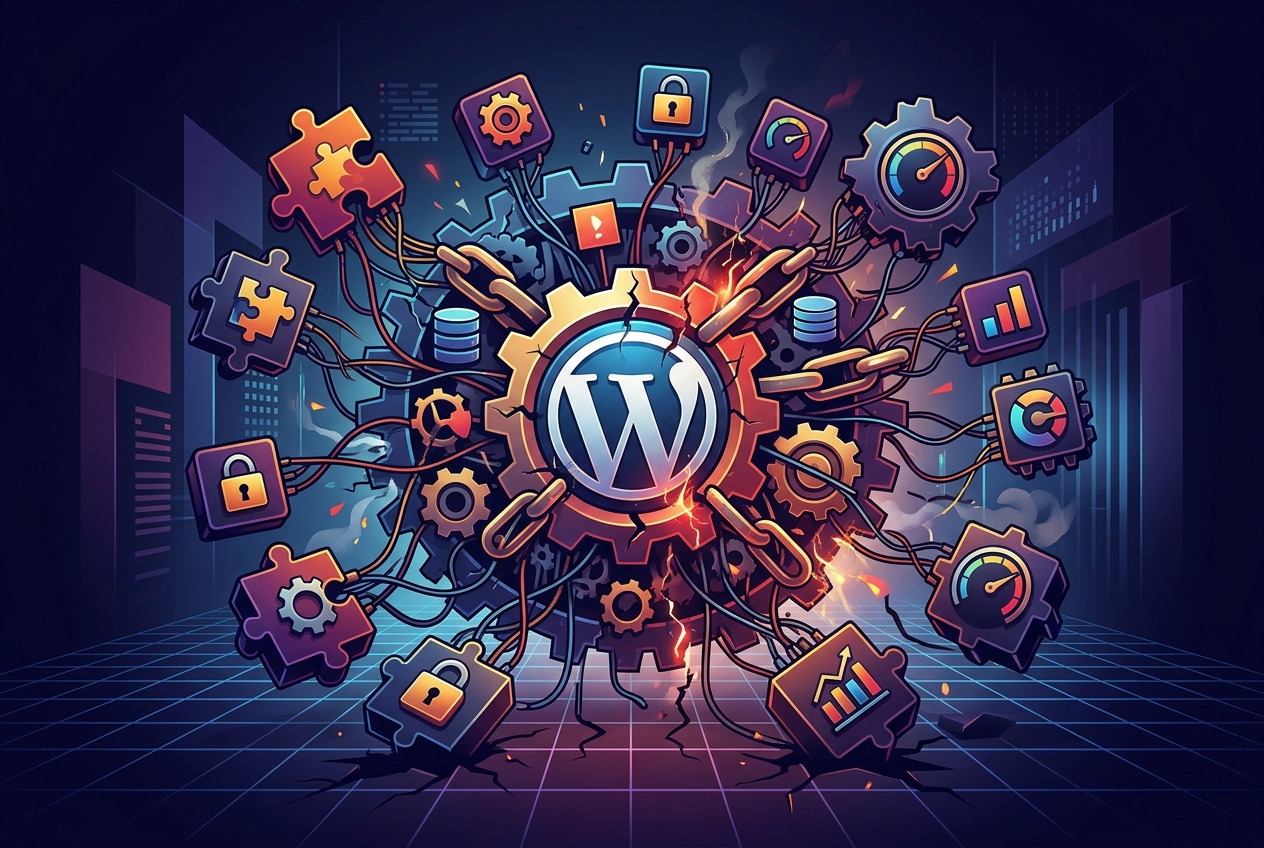
The Plugin Problem: Introduction
WordPress plugins are useful. They allow you to add almost any feature to your website. Need contact forms or e-commerce stores? Plugins handle it. However, too many plugins can cause problems.
Have you noticed your site slowing down or displaying errors? Too many plugins might be the reason. At www.seos7.com, we understand the balance between features and site speed. We’re examining the hidden costs of excessive WordPress plugins and how to address a malfunctioning plugin.
Consider your WordPress site a well-tuned engine. Each plugin is another part. Some additions improve performance, but too many create friction, which results in:
- Slow loading times: More plugins equal more code, which can slow your site.
- Security vulnerabilities: Poorly coded plugins can expose your site to hackers.
- Plugin conflicts: Plugins can clash, causing errors and broken features.
- Maintenance headaches: Updating and ensuring compatibility for many plugins can be difficult.
Do not worry! We can help you diagnose and resolve plugin issues. We’ll guide you through steps to troubleshoot problems and maintain a smoothly running WordPress site.
Here’s a checklist of common issues and solutions:
- Plugin Activation: Is the plugin activated? Check your WordPress dashboard.
- Conflicts: Are plugins conflicting? We’ll show you how to find and fix conflicts.
- Updates: Is the plugin current? Outdated plugins often cause problems.
- Expectations: Does the plugin function as expected? Understand its features and limitations.
At www.seos7.com, we aim to help you fine-tune your WordPress site for top performance. Our SEO plugin provides tools to audit, fix, and fine-tune your site while reducing the chance of plugin conflicts. With our site audit tool, you can quickly find and fix problems from too many plugins.
Ready to manage your WordPress plugins for a healthy, fast website? Let’s begin!
Plugin Impact on Site Speed and User Experience
Each WordPress plugin adds code to your website. More code increases loading times.
Slow loading times are more than an annoyance. They affect your website’s success. How long will you wait for a page to load?
Here’s why speed is important:
- User Frustration: Visitors leave slow sites quickly.
- SEO Ranking: Google lowers the ranking of slow websites.
- Conversion Rates: Slow sites reduce sales and conversions.
A poor user experience from slow loading times can be damaging. It can cause:
- Lower engagement
- Less time on site
- Higher bounce rate
How do you know if your plugins are slowing down your site?
Use these tools to check your website’s speed:
- Google PageSpeed Insights: Provides performance analysis and suggestions.
- GTmetrix: Offers detailed speed testing and performance data.
- Pingdom Website Speed Test: A simple speed testing tool.
After identifying speed problems, take action. Speed improvements keep visitors and boost your SEO.
Here’s how to improve your website’s speed:
- Deactivate Unneeded Plugins: Remove plugins you don’t use.
- Optimize Images: Compress images to reduce file size without losing quality.
- Enable Caching: Use a caching plugin to store content and reduce server load.
- Choose a Fast Hosting Provider: A reliable host is important for good performance.
By fixing these issues, you can greatly improve your website’s speed and the experience for your visitors. Do not let plugin overload slow you down!
Security Risks and Plugin Vulnerabilities
Every WordPress plugin is a piece of software. Like any software, plugins can have security flaws.
These flaws, called vulnerabilities, can be exploited by hackers to access your website. They’re like unlocked doors in your online defenses.
Why are plugins such frequent targets?
- Popularity: WordPress has a large user base, making it a tempting target.
- Third-Party Code: Plugins often come from individual developers or small teams, not large companies with dedicated security staff.
- Outdated Code: Plugins that are no longer maintained can become full of vulnerabilities.
What could happen if a plugin has a vulnerability?
- Malware Injection: Hackers could inject malicious code into your website, infecting visitors and hurting your reputation.
- Data Theft: Sensitive data, like customer information and passwords, could be stolen.
- Website Defacement: Hackers could change your website’s content, showing offensive messages or sending visitors to harmful sites.
- Complete Takeover: Hackers could gain total control of your website. This is the worst-case scenario.
How can you protect your website from plugin vulnerabilities?
Follow this security checklist:
- Keep Plugins Updated: Install the latest updates for your plugins. Updates often include security patches that fix known vulnerabilities.
- Delete Unused Plugins: Remove plugins you don’t use. The fewer plugins, the smaller the risk.
- Choose Plugins Carefully: Research plugins before installing them. Look for plugins with good reviews, active support, and a history of security updates.
- Use a Security Plugin: Install a security plugin to scan your website for vulnerabilities and provide extra protection.
Think of security as ongoing, not a one-time task. Check your plugins and security settings regularly to keep your website protected.
Here’s a table that shows the risks and what you can do:
| Risk | Solution |
|---|---|
| Outdated Plugins | Keep plugins updated |
| Unused Plugins | Delete unused plugins |
| Poorly Coded Plugins | Choose plugins carefully |
| Website Vulnerabilities | Use a security plugin |
Taking these steps can greatly lower the risk of security problems from plugins and keep your website safe from hackers.
Resolving Plugin Conflicts
Plugins should improve your WordPress site, but they sometimes conflict. This can cause errors, broken features, or even a blank white screen.
Why do plugin conflicts happen? Often, it’s because of code that doesn’t work together or features that overlap. It’s like trying to fit the wrong puzzle pieces together.
Here’s what can happen:
- Errors: Error messages pop up on your site.
- Broken Layout: Your website’s design gets messed up.
- Feature Malfunctions: Important features stop working right.
- “White Screen of Death”: A blank white screen appears, and you can’t access your site.
Finding plugin conflicts can be hard. It takes a careful approach. Here’s a step-by-step guide:
- Backup Your Site: Always back up your site before making changes.
- Deactivate All Plugins: Turn off all your plugins to see if that fixes the problem.
- Reactivate One by One: Turn each plugin back on, one at a time, checking your site each time.
- Identify the Culprit: When the error shows up again, the last plugin you turned on is probably the cause.
If you can’t get into your WordPress dashboard, you can turn off plugins using FTP or your hosting provider’s file manager.
Here’s how to turn off plugins using FTP:
- Connect to your server using an FTP client.
- Go to the
wp-content/pluginsdirectory. - Rename the plugin’s folder (for example, change
plugin-nametoplugin-name-deactivated).
Once you know which plugin is causing the problem, you have some choices:
- Find an Alternative: Look for a different plugin that does the same thing without causing a conflict.
- Contact the Developer: Ask the plugin developer for help. They might have a fix or a workaround.
- Hire a Developer: If you’re comfortable with code, you can pay a developer to fix the conflict.
Plugin conflicts can be a big problem, but you can find and fix them if you’re careful. Always back up your site before you make any changes.
Here’s a table to help you troubleshoot:
| Symptom | Possible Cause | Solution |
|---|---|---|
| Errors on Site | Plugin Conflict | Deactivate plugins one by one |
| Broken Layout | Plugin Conflict | Deactivate plugins one by one |
| “White Screen of Death” | Plugin Conflict | Deactivate plugins via FTP |
Troubleshooting Plugin Issues
A WordPress plugin not working can be frustrating. However, most plugin issues are easily fixed with some basic troubleshooting. Here’s a checklist to get your plugin functioning again.
Check Plugin Activation Status
This might seem obvious, but it’s a frequent oversight. Confirm the plugin is activated in your WordPress dashboard.
- Go to Plugins > Installed Plugins.
- Find the plugin in the list.
- If it says “Activate,” click it!
Troubleshooting Plugin Conflicts and Theme Compatibility
Plugins don’t always play nice together. They can clash with each other, or even with your WordPress theme. Here’s a process for finding the source of these conflicts:
- Back up your site! This is critical before making any changes.
- Deactivate all plugins.
- Check if the problem goes away.
- Reactivate plugins one at a time, checking your site after each activation.
- The plugin that causes the problem to reappear is likely the cause.
If you can’t reach your dashboard, use FTP to rename the plugin’s folder. This will deactivate the plugin.
The issue may not always be the plugin itself. Its interaction with your theme could be the source. Try temporarily switching to a default WordPress theme, such as Twenty Twenty-Four. If the problem disappears, your theme is likely the cause.
Keeping Your WordPress Plugins Updated and Documented
Outdated plugins, themes, and WordPress versions invite trouble. Keep everything current.
- Go to Dashboard > Updates.
- Install any available updates.
Most plugins include documentation. This explains their functionality and how to fix typical issues. Search for a “Help” or “Documentation” link on the plugin’s settings screen.
Troubleshooting Plugin Issues with Error Logs and Support Forums
WordPress error logs offer clues to diagnose problems. To activate debugging, modify your wp-config.php file:
- Connect to your server using FTP or your hosting provider’s file manager.
- Open the
wp-config.phpfile for editing. - Insert these lines before the
/* That's all, stop editing! Happy publishing. */line:
define( 'WP_DEBUG', true );
define( 'WP_DEBUG_DISPLAY', false );
define( 'WP_DEBUG_LOG', true );
This generates a debug.log file within your wp-content directory. Examine this file for error messages associated with the plugin.
Also, investigate the plugin’s support forum or website for reported bugs. Other users might have experienced the same issue and discovered a fix.
Reinstall or Troubleshoot Plugins
A fresh installation sometimes fixes corrupted files. Delete the plugin, then reinstall it from the WordPress repository.
The Health Check & Troubleshooting plugin diagnoses WordPress issues. It identifies plugin conflicts and other problems that might slow down your site.
Seeking Support and Checking Activation Status
If troubleshooting fails, contact the plugin developer. Provide detailed information about the problem, including any error messages.
Following these steps should resolve most WordPress plugin issues. Stay calm, be systematic, and ask for assistance if needed.
A common oversight: is the plugin actually running? WordPress requires manual activation after installation.
To check:
- Go to Plugins > Installed Plugins in your WordPress dashboard.
- Find the plugin in the list.
- If it says “Activate,” click it! If it says “Deactivate,” the plugin is active.
Some premium plugins, such as Yoast SEO Premium, need an extra activation. Connecting the plugin to your account on the developer’s website might be necessary to access all capabilities.
Consult the plugin developer’s instructions for connecting and activating your premium plugin. This often means entering a license key or connecting to your account via API.
Skipping this step could mean missing features and support.
Troubleshooting Plugin and Theme Conflicts
Sometimes, a plugin’s problem isn’t the code itself. Instead, it’s how the plugin interacts with other plugins or your WordPress theme. Imagine a crowded room where everyone speaks at once. Code from different sources can clash, stopping your plugin from working right.
Conflicts can show up in odd ways. You might see errors, broken layouts, or features that simply don’t work. Finding these conflicts calls for a step-by-step approach.
Here’s how to check for plugin and theme clashes:
- Backup Your Website: Back up your entire site before changing anything. This way, you can restore everything if something goes wrong.
- Deactivate All Plugins: Go to Plugins > Installed Plugins and turn off every plugin except the one you’re fixing.
- Switch to a Default Theme: For now, use a default WordPress theme like Twenty Twenty-Four. This takes your current theme out of the equation.
- Test the Plugin: See if the plugin now works as it should.
- Reactivate Plugins One by One: If the plugin works with all other plugins off and a default theme on, turn your plugins back on one at a time. After each one, check if the problem comes back.
- Identify the Culprit: The plugin that makes the problem reappear is probably clashing with the original plugin.
What to do if you find a conflict:
- Search for Alternatives: Find other plugins that do the same thing but don’t cause conflicts.
- Contact the Developers: Get in touch with the developers of both plugins that conflict. They might have a fix or a workaround.
- Hire a Developer: If you’re okay with code, think about hiring a WordPress developer to fix the conflict.
Can’t Access Your Dashboard?
If a plugin conflict keeps you from getting to your WordPress dashboard, you can turn off plugins using FTP or your hosting provider’s file manager.
- Connect to your server using FTP or file manager.
- Go to the
wp-content/pluginsdirectory. - Rename the plugin’s folder (e.g.,
plugin-nametoplugin-name-deactivated). This turns off the plugin.
By checking for conflicts carefully, you can find the source of the problem. Then, you can find a fix to make your WordPress plugin work again.
Consult the Plugin’s Changelog
Has a feature changed suddenly? Don’t worry. The plugin might have been updated.
Updates often include improvements. However, sometimes features are moved, renamed, or even removed completely.
Before you think something is broken, check the plugin’s changelog or release notes.
Where to find them:
- WordPress.org Plugin Page: Look for a “Development” tab. Many plugins keep a changelog here.
- Plugin Website: The plugin developer’s website often has a blog or news section with release announcements.
- Within the Plugin: Some plugins show release notes right in the WordPress dashboard after an update.
The changelog will tell you:
- What’s new in the latest version.
- What’s been fixed.
- If any features have been changed or removed.
By reading the changelog, you can quickly see if the problem is from a recent update. Then, you can adjust as needed.
This simple step can save you time and trouble.
Matching Expectations with WordPress Plugins
Before you declare “my WordPress plugin isn’t working,” pause. Are you certain it should function as you expect?
It’s easy to misunderstand what a plugin can do. Reading the description is essential before installation.
For instance, installing a contact form plugin doesn’t automatically produce a beautiful form that converts visitors. You still must configure the fields, design the layout, and connect it to your email service.
Installing Yoast SEO won’t instantly catapult you to the top of Google either. It’s a useful tool, but it demands setup and consistent work. You’ll need to refine your content, build backlinks, and fix technical SEO problems.
Consider these points:
- Read the plugin description carefully. Understand its features and limitations.
- Check the screenshots and demos. See the plugin in action.
- Read reviews. Get insights from other users.
- Consult the documentation. Learn how to configure and use the plugin properly.
Don’t blame the plugin if you haven’t learned how it operates. Reasonable expectations are key to a good WordPress experience.
Troubleshooting Known Plugin Bugs
Does your plugin seem to be malfunctioning? It might be a known problem developers are addressing.
Before you spend hours trying to fix it, see if others have reported the same issue.
Here’s where to investigate:
- Plugin Support Forum: The official support forum on WordPress.org is a good place to find bug reports and discussions.
- Plugin Website: The developer’s website might have a bug tracker or FAQ.
- GitHub Repository: Many plugins, especially open-source ones, use GitHub to manage their code and track issues.
GitHub is useful because it offers publicly tracked issues where you can see if others have reported the same bug. Developers often respond to these reports and provide updates. Bug reports frequently include technical details that can help you understand the issue.
To find a plugin’s GitHub repository, check the plugin’s website or WordPress.org page for a link. You can also search on GitHub using the plugin’s name.
If you’re technically inclined and can’t find an existing report, create a new bug report on GitHub. Include a clear description of the problem, steps to reproduce it, your WordPress version, plugin version, theme, and any relevant error messages. Your contribution can help developers fix the bug and improve the plugin.
Troubleshooting Plugin Problems
Sometimes, basic checks aren’t enough. More detailed troubleshooting might be needed. These steps use WordPress tools and methods to find the problem plugin and get your site working again.
Turn on WordPress Debug Mode
WordPress includes a debug mode that shows errors. This is very helpful for finding plugin problems.
- Use FTP or your hosting provider’s file manager to access your website’s files.
- Find the
wp-config.phpfile in your WordPress root directory. - Open the file and add these lines before the line that says
/* That's all, stop editing! Happy publishing. */:
define( 'WP_DEBUG', true );
define( 'WP_DEBUG_DISPLAY', false );
define( 'WP_DEBUG_LOG', true );
This will save errors to a file called debug.log in your wp-content directory. Check this file for information about the plugin causing issues.
Important: Remember to change WP_DEBUG back to false after you finish troubleshooting. Showing errors on your live site could reveal private details.
Diagnosing Plugin Conflicts with Health Check
The Health Check & Troubleshooting plugin diagnoses WordPress problems. It tests your site with all plugins off and a default theme on. This helps you find conflicts.
- Install the Health Check & Troubleshooting plugin from the WordPress repository.
- Go to Tools > Site Health.
- Click on the Troubleshooting tab.
- Turn on Troubleshooting Mode. This turns off all plugins and switches to a default theme for your session.
- Turn plugins back on one at a time. Test your site after each one to see if the problem comes back.
Manual Plugin Deactivation via FTP
Sometimes a plugin conflict locks you out of your WordPress dashboard. In that case, deactivate plugins manually using FTP or your hosting provider’s file manager.
- Connect to your server using FTP or file manager.
- Go to the
wp-content/pluginsdirectory. - Rename the folder of the plugin you think is causing the problem (for example, change
plugin-nametoplugin-name-deactivated). This turns the plugin off. - Check your website to see if the problem is fixed.
Troubleshooting Plugin Issues: Database and PHP
Sometimes, plugin problems arise from database corruption or inconsistencies. This is uncommon, but worth investigating if other solutions don’t work.
Important: Always back up your database before making any changes.
Use a plugin such as WP-Optimize to clean your database. It can remove unneeded data and possibly fix database-related plugin errors.
Also, confirm your PHP version is compatible with the plugin. Old PHP versions can lead to problems.
- Look at the plugin documentation for the required PHP version.
- If needed, ask your hosting provider to update your PHP version.
Working through these steps helps you find and fix most WordPress plugin issues.
Back Up Your Site Before Plugin Changes
Before making any changes to plugins, create a complete backup of your WordPress site.
This step is essential. It acts as a safety net.
Troubleshooting can sometimes cause problems. A backup allows a quick return to the site’s previous, functional state.
Here’s how to back up a site:
- Check with Your Hosting Provider: Many hosting companies provide automatic daily or weekly backups. Learn about their offerings and how to restore from a backup.
- Use a Backup Plugin: Plugins such as UpdraftPlus or BackupBuddy can create full backups of the site, including files and the database.
- Manual Backup (Advanced): Manually back up the site by downloading all files via FTP and exporting the database via phpMyAdmin. This method requires more technical skill but provides complete control.
What should be backed up?
- WordPress Files: All files in the WordPress installation directory (usually
public_htmlorwww). - Database: The database stores all posts, pages, settings, and other key data.
After creating a backup, store it securely, such as in cloud storage or on an external hard drive.
With a recent backup, plugin troubleshooting can be done confidently, knowing the site can always be reverted to a working version.
Use a Staging Site for Plugin Testing
Consider a live website a performance stage. Rehearsing a play during the show is not ideal. A staging site offers a solution.
A staging site mirrors the live website but exists in a secure, separate area. Plugins, themes, and updates can be tested without affecting the actual website.
Why use a staging site for plugin troubleshooting?
- Safe Testing: New plugins or updates can be tested without impacting the live site’s operation.
- Conflict Resolution: Plugin conflicts can be found and fixed in a safe space.
- No Downtime: Errors and downtime on the live site are avoided during troubleshooting.
Here’s how to set up a staging site:
- Staging Plugin: Use a plugin like “Duplicator” or “WP Staging” to easily clone the site.
- Hosting Provider Feature: Many hosting providers include one-click staging environments. Check the hosting account dashboard.
- Manual Setup (Advanced): Copy the WordPress files and database to a local environment using tools like DevKinsta or WordPress Playground. This requires more technical knowledge.
Local Development with DevKinsta or WordPress Playground:
These tools create a WordPress environment on a personal computer, perfect for testing and development.
Once the staging site is ready, plugin issues can be safely troubleshooted without harming the live website. This is a recommended practice for all WordPress users.
Investigate Error Logs
Error logs act as silent witnesses for your website. They record errors, offering clues about plugin misbehavior.
Consider them a doctor’s notes, detailing symptoms and potential causes of your website’s issues.
You can enable error logging in WordPress in two primary ways:
- Debugging Plugin: This is often the easiest option. Install a debugging plugin to handle the technical details.
- Manual Editing (wp-config.php): Those with technical experience can directly modify the
wp-config.phpfile.
Using a Debugging Plugin:
Search the WordPress plugin repository for terms like “debug,” “error log,” or “debugging.” Install and activate a plugin that fits your needs. Most debugging plugins activate error logging automatically and provide an easy way to view the logs.
Manually Editing wp-config.php:
This method involves accessing your website’s files via FTP or your hosting provider’s file manager. Exercise caution when editing this file.
- Connect to your server using FTP or a file manager.
- Locate the
wp-config.phpfile in your WordPress root directory (usuallypublic_htmlorwww). - Edit the file and add the following lines *before* the line that says
/* That's all, stop editing! Happy publishing. */:
define( 'WP_DEBUG', true );
define( 'WP_DEBUG_DISPLAY', false );
define( 'WP_DEBUG_LOG', true );
Here’s what each line does:
define( 'WP_DEBUG', true );: Activates WordPress debugging mode.define( 'WP_DEBUG_DISPLAY', false );: Prevents errors from appearing on your website, improving security.define( 'WP_DEBUG_LOG', true );: Records errors in a file nameddebug.login yourwp-contentdirectory.
After adding these lines, save the wp-config.php file and visit your website. Any errors will be recorded in the debug.log file.
Analyzing the Error Log:
Open the debug.log file and examine error messages related to the plugin. Pay attention to these details:
- The type of error (e.g., “Fatal error,” “Warning,” “Notice”).
- The file and line number where the error occurred.
- The error message itself, which often suggests the cause of the problem.
The error log can point to problematic code, missing files, or other issues preventing your plugin from working. Share error messages with the plugin developer or a WordPress expert for help.
Remember to disable debugging mode (set WP_DEBUG to false) after troubleshooting. Leaving it enabled can expose sensitive information and degrade your website’s performance.
Rule Out Theme Conflicts
Sometimes, a conflict with your WordPress theme causes the problem, not the plugin itself. Themes dictate the visual design and layout of your site. Incompatibilities can cause plugins to misbehave.
The easiest way to check for theme issues involves temporarily switching to a default WordPress theme. Themes like Twenty Twenty-Four are designed for simplicity and compatibility with most plugins.
If Your WordPress Dashboard Is Accessible:
- Go to Appearance > Themes in your WordPress dashboard.
- Find a default WordPress theme (e.g., Twenty Twenty-Four, Twenty Twenty-Three, etc.). If you don’t have one installed, click “Add New” and search for it.
- Click Activate to switch to the default theme.
- Test the plugin that was causing problems. Does it now work correctly?
If Your WordPress Dashboard Is NOT Accessible:
If a theme conflict prevents you from accessing your dashboard, use FTP or your hosting provider’s file manager to switch themes.
- Obtain your FTP credentials (username, password, host address) from your hosting provider.
- Download and install an FTP client like FileZilla.
- Connect to your server using the FTP client.
- Go to the
wp-content/themesdirectory. - Find the folder for your current active theme.
- Rename the folder (e.g., add “-old” to the end of the folder name, like
active-theme-old). This deactivates the theme.
WordPress will automatically use a default theme if one is installed. If not, you may need to upload a default theme folder via FTP.
Interpreting the Results:
- If the plugin works with a default theme: The issue likely stems from a conflict with your original theme. Contact the theme developer for support or consider switching themes.
- If the plugin still doesn’t work with a default theme: The issue probably lies within the plugin itself. Continue troubleshooting the plugin.
Switching to a default theme provides a quick way to rule out theme conflicts and identify the source of your plugin problems.
Troubleshooting Plugin Issues
Plugins expand what WordPress can do. However, they can also clash with each other. The automatic rollback feature only works during plugin updates. If a plugin already installed causes problems without an update, the rollback won’t be available.
Here’s how to check for plugin issues, depending on whether you can access your WordPress dashboard.
Dashboard Accessible: Plugin Conflict Test
- Go to Plugins > Installed Plugins.
- Select all plugins by ticking the checkbox next to “Plugin”.
- Choose “Deactivate” from the “Bulk Actions” menu and click “Apply”.
- Reactivate plugins one at a time. After activating each plugin, check your site.
- When the error reappears, the last plugin activated is the likely cause. Note it.
- If you don’t need the plugin, delete it. If you need it, check its documentation or support forum.
Dashboard Inaccessible: Plugin Deactivation via FTP
- Access your site via FTP or File Manager.
- Locate the
wp-content/pluginsfolder. - Find the folder of the plugin causing the issue.
- Rename the folder (e.g., add “-old” to the end, like
plugin-name-old). This deactivates the plugin.
If deactivating the plugin fixes the issue, your dashboard should be accessible again. Reactivate plugins one at a time to confirm the problematic plugin. If reactivating it makes the error reappear, deactivate or delete it via FTP. Contact the plugin’s support team for assistance if needed.
Using the Health Check & Troubleshooting Plugin
The Health Check & Troubleshooting plugin acts as a WordPress diagnostic tool. WordPress.org offers this free tool to help you diagnose and fix common problems.
Consider it a thorough checkup for your website.
Plugin Features
- Performs checks: It runs tests to identify common issues. These include PHP version compatibility, database connection problems, and plugin conflicts.
- Provides recommendations: Based on the test results, it suggests how to resolve the identified problems.
- Includes Troubleshooting Mode: This feature lets you test your site with all plugins deactivated and a default theme active, without affecting what visitors see.
Step-by-Step Instructions
- Install and Activate: Go to Plugins > Add New and search for “Health Check & Troubleshooting.” Install and activate the plugin.
- Run Site Diagnostics: Navigate to Tools > Site Health.
- Review Results: Check the “Status” and “Info” tabs for any issues or recommendations.
- Enable Troubleshooting Mode: Go to the “Troubleshooting” tab and click “Enable Troubleshooting Mode.”
- Test and Reactivate: With Troubleshooting Mode enabled, only you see the changes. Reactivate plugins and themes one by one to identify the source of the problem.
As you enable each plugin or theme, refresh the browser where you’re viewing your site. If an error appears, the last plugin or theme you enabled is the culprit.
The Health Check & Troubleshooting plugin simplifies diagnosing and resolving common issues. It helps you maintain a smoothly running website.
Streamlining Your Plugin Usage
Often, less is more for WordPress plugins. A smaller plugin list means a faster, more secure website that’s easier to manage.
Excessive plugins can cause:
- Slow loading times: Each plugin adds code for your server to process.
- Security vulnerabilities: More plugins create more potential entry points for hackers.
- Maintenance headaches: Updating and ensuring compatibility for many plugins can be difficult.
Here’s how to reduce your plugin usage:
Audit Plugins Regularly
Review your installed plugins periodically. Ask yourself these questions:
- Do I need this plugin?
- Is it actively maintained and updated?
- Does it perform the same function as another plugin?
If you answer “no” to any of these, remove the plugin.
Prune Redundant Plugins
Be ruthless. Delete any plugins that you’re not actively using or that provide features you don’t need. Deactivating a plugin isn’t enough. You need to completely remove it to eliminate its code from your website.
Opt for Multifunctional Plugins
Instead of using several single-purpose plugins, look for multifunctional plugins that consolidate features. A full-featured SEO plugin, for example, might include tools for keyword research, on-page optimization, site audits, and schema markup.
A single, well-coded multifunctional plugin can be more efficient than several smaller plugins. It reduces the overall load on your site.
Replace Plugins with Code
Those comfortable with code might replace some plugins with custom code. This can be a lighter solution.
Simple changes, like adding Google Analytics tracking or editing a website’s footer, are often possible with code instead of plugins.
Refining plugin use is ongoing. Review plugins regularly and adjust as needed. A smaller plugin list makes for a faster, more secure, and easier-to-manage WordPress website.
Consolidate SEO Tasks
Juggling many plugins to manage SEO can be frustrating. There are better options.
Imagine one tool automating essential SEO tasks. This is consolidation.
Reducing reliance on many plugins brings benefits:
- Improved Site Speed: Less code means faster loading.
- Enhanced Security: Fewer plugins mean fewer vulnerabilities.
- Simplified Management: One plugin is easier to update than many.
Consolidating SEO efforts refines workflow and frees time to create content and build a brand.
A refined SEO plugin provides:
- Automated Site Audits: Find and fix technical SEO issues quickly.
- Content Optimization: Refine content for search engines and readers.
- Internal Linking: Improve site structure and crawlability.
- Image Optimization: Compress and refine images for faster loading.
Stop wasting time managing too many plugins. Simplify your SEO.
Prioritizing Plugin Quality
WordPress plugins provide great flexibility. However, too many can cause performance problems, security risks, and conflicts.
The key is balance. Weigh functionality against efficiency.
Here’s a review of important points:
- Speed Matters: Slow sites lose visitors and get lower rankings.
- Security First: Hackers target outdated plugins.
- Conflicts Happen: Test plugins to prevent errors.
- Quality Over Quantity: Select well-coded plugins that are actively updated.
Careful selection and maintenance of your plugins will keep your WordPress website healthy, efficient, and secure.
At www.seos7.com, we know the difficulties of WordPress SEO management. We built an all-in-one solution to simplify your work and reduce plugin overload.
Our plugin includes AI-driven tools, such as:
- Site Audit: Automatically check your site for SEO problems.
- Content Optimizer: Analyze your content and improve its ranking.
- Internal Linking: Create internal links using AI.
- Image Optimizer: Automatically generate alt text and title tags.
We simplify SEO. Our aim is to give you what you need to rank high in search results, without the trouble of managing many plugins.
Ready for simpler SEO? Automate Your SEO with www.seos7.com today!