Understanding WordPress Plugin Errors
Why WordPress Plugins Cause Errors
WordPress plugins are great for adding features and expanding what your site can do.
Occasionally, problems arise. Plugins may conflict with each other, or their code might be outdated. These situations can generate errors that disrupt your website’s functionality.
Common errors include:
- White Screen of Death: A completely blank page.
- PHP Errors: Code-related issues that cause malfunctions.
- Broken Features: Elements that simply fail to operate correctly.
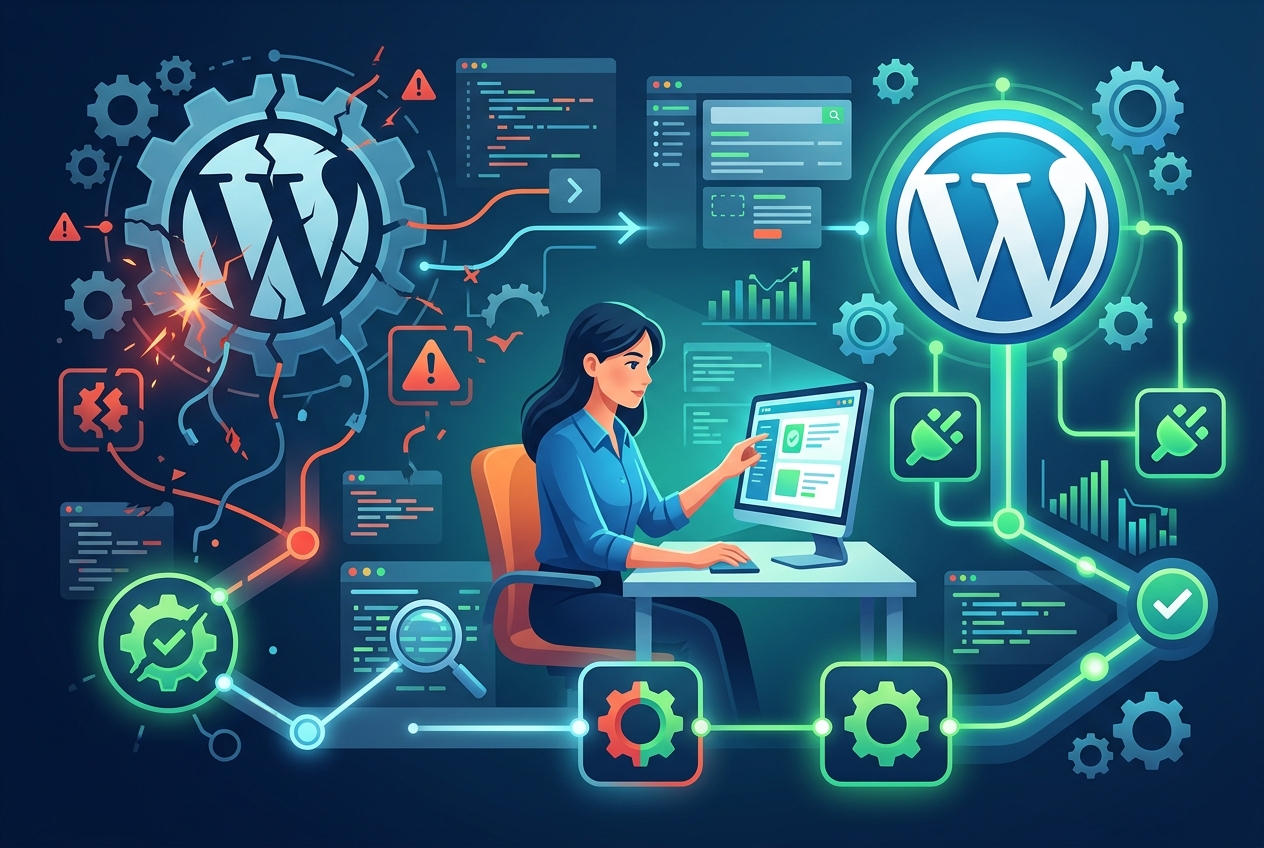
Remain calm. Pinpointing the source of the error is the initial step. After identifying the problem, you can resolve it and restore your site to its proper working order.
Here’s a simplified process:
- Identify the Problem: Determine the specific malfunction.
- Find the Cause: Determine if a plugin is responsible, and if so, which one.
- Fix It: Deactivate the plugin, update it, or locate a substitute.
Let’s begin the troubleshooting process.
Preparing Your WordPress Site for Troubleshooting
Get Ready to Troubleshoot
Before tackling plugin problems, prepare your WordPress site. This preparation acts as a safety net.
Back Up Your Website
Backing up your website is the most vital step. A backup lets you restore your site if something goes wrong during troubleshooting.
Here’s how to back up your site:
- Use a Plugin: Plugins such as UpdraftPlus or BackupBuddy simplify the process.
- Hosting Provider: Some hosting companies provide automatic backups. Check your account.
- Manual Backup: If you’re comfortable with code, you can back up your files and database yourself.
Keep your backup in a separate, secure location.
Clear Your Cache
Caching plugins store static page versions to increase site speed. While good for performance, this can obscure plugin errors during troubleshooting.
Disable caching to see changes in real time.
Here’s how to clear your cache:
- Plugin Settings: Open your caching plugin’s settings and clear the cache. Then, turn off the plugin.
- Server-Side Caching: Your hosting provider might use server-side caching. Look in your hosting account for clearing options.
Disable WP_CACHE (If Applicable)
Some WordPress installations use `WP_CACHE` in the `wp-config.php` file for persistent object caching. If you use this, turn it off temporarily.
Here’s how to disable it:
- Access your site’s files using FTP or your hosting provider’s file manager.
- Find the `wp-config.php` file in your WordPress root directory.
- Open the file and locate the line defining `WP_CACHE`.
- Change `define(‘WP_CACHE’, true);` to `define(‘WP_CACHE’, false);` or comment out the line by adding `//` at the beginning: `//define(‘WP_CACHE’, true);`.
- Save the file.
Now you can troubleshoot plugin issues with less risk and a clearer view of the results.
Back Up Your WordPress Site
Before troubleshooting, create a full backup of your WordPress site. Think of it as your safety net.
Why is a backup so important?
- Everyone makes mistakes. Backups allow you to correct them.
- Plugin conflicts can damage your site. A restore gets you back to a working version.
- Backups are simply good practice, offering invaluable peace of mind.
You have several backup options:
- WordPress Backup Plugins: User-friendly choices such as UpdraftPlus and BlogVault automate the process.
- Hosting Provider Backups: Many providers supply daily or weekly backups. Review your hosting account details.
- Manual Backup: Suitable for those with technical skills. It involves backing up your files and database independently.
Store your backup files in a secure location separate from your website files, such as cloud storage or an external hard drive.
Consider these points when selecting a backup method:
| Method | Pros | Cons |
|---|---|---|
| Plugin | Simple to use, automated. | May consume resources, requires plugin maintenance. |
| Hosting Provider | Handy, often part of your hosting package. | Limited customization, restoration steps might differ. |
| Manual | Complete control, no reliance on external tools. | Demands technical expertise, takes time. |
With a recent, dependable backup in place, you can troubleshoot with confidence, knowing your work is protected.
Disable Caching to Reveal Errors
Caching plugins boost site speed. However, they can mask plugin errors while you’re trying to fix them.
Disabling caching helps in several ways:
- You’ll see changes instantly.
- You’ll sidestep confusion from old data.
- You’ll gain a clear picture of the problem.
Here’s how to turn off caching:
- Caching Plugins: Open your plugin settings. Empty the cache. Then, deactivate the plugin.
- WP_CACHE (if used): This setting lives in your
wp-config.phpfile.
To disable WP_CACHE:
- Access your website files using FTP or your hosting’s file manager.
- Find
wp-config.phpin your main WordPress directory. - Open the file. Search for a line similar to:
define('WP_CACHE', true); - Change
truetofalse:define('WP_CACHE', false);Or, comment it out://define('WP_CACHE', true); - Save the file.
Now you’re viewing the live website, not a saved copy. This lets you accurately find plugin issues.
Identifying Plugin-Related Errors
Pinpointing the Source of Plugin Problems
You’ve backed up your site and cleared the cache. Now, find the plugin causing trouble.
Enable WordPress Debug Mode
Debug mode is a built-in WordPress tool. It displays PHP errors on your website, revealing hidden issues.
To enable it:
- Access your website’s files using FTP or your hosting provider’s file manager.
- Find the
wp-config.phpfile in your WordPress root directory. - Open the file and add these lines *before* the line that says
/* That's all, stop editing! Happy publishing. */:define( 'WP_DEBUG', true ); define( 'WP_DEBUG_DISPLAY', true ); define( 'WP_DEBUG_LOG', true ); - Save the file.
Visit your website and watch for error messages. If a plugin is the source, an error message including the plugin’s name in the file path will appear. An example:
Parse error: syntax error, unexpected '}' in /home/yourusername/public_html/wp-content/plugins/faulty-plugin/faulty-plugin.php on line 50
This indicates the error is within the faulty-plugin plugin.
Check Your Server Error Logs
Sometimes, errors remain hidden even with debug mode active. In this case, examine your server’s error logs.
Here’s how to find them:
- cPanel Hosting: Find “Errors” or “Error Logs” in your cPanel dashboard.
- Plesk Hosting: Look for “Logs” or “Error Logs,” similar to cPanel.
- Other Hosting: Contact your hosting provider’s support team for guidance.
Open the error logs and search for PHP errors linked to your plugins. The logs display the file path, helping you identify the problematic plugin.
What to do After Spotting an Error
Once you’ve found an error, take action.
- Write down the plugin’s name and the error type.
- Attempt to deactivate the plugin (explained next).
- Search the internet for solutions specific to that plugin and error.
After troubleshooting, disable debug mode by setting WP_DEBUG to false in your wp-config.php file. This prevents sensitive information from appearing on your live site.
Enable WordPress Debug Mode
WordPress debug mode reveals the errors occurring behind the scenes. Think of it as a diagnostic tool.
Why activate debug mode?
- View PHP errors directly on your site.
- Identify the specific file causing the issue.
- Expedite the troubleshooting process.
To enable it:
- Access your website’s files via FTP or your hosting provider’s file manager.
- Locate the
wp-config.phpfile in your WordPress root directory. - Open
wp-config.php. - Insert these lines *before* the line that reads
/* That's all, stop editing! Happy publishing. */:
define( 'WP_DEBUG', true );
define( 'WP_DEBUG_DISPLAY', true );
define( 'WP_DEBUG_LOG', true );What do these lines accomplish?
WP_DEBUG: Activates debugging.WP_DEBUG_DISPLAY: Displays errors on your website.WP_DEBUG_LOG: Stores errors in a file (wp-content/debug.log).
Save the wp-config.php file, then visit your website. Watch for error messages. They often indicate which plugin is at fault.
Important: Deactivate debug mode after troubleshooting! Change true to false in the wp-config.php file. This prevents sensitive details from showing to visitors.
For example:
define( 'WP_DEBUG', false );
define( 'WP_DEBUG_DISPLAY', false );
define( 'WP_DEBUG_LOG', false );
Debug mode is a useful feature. Use it carefully.
Examine Error Logs
Sometimes, WordPress debug mode doesn’t provide enough information. A deeper look into your server’s error logs may be necessary.
Why check error logs?
- They offer more detailed error information.
- They reveal errors that aren’t displayed on your website.
- They pinpoint the precise cause of the plugin issue.
Where are these logs located?
- cPanel: Find “Errors” or “Error Logs” in your cPanel dashboard.
- Plesk: Look for “Logs” or “Error Logs.”
- Other Hosting: Your hosting provider can provide guidance.
What to look for:
- PHP errors.
- File paths that include plugin names.
- Messages related to your problem.
For example:
[Mon Oct 23 14:30:00 2023] [php7:error] [pid 12345] [client 123.45.67.89] PHP Fatal error: Uncaught Error: Call to undefined function some_function() in /home/yourusername/public_html/wp-content/plugins/problem-plugin/problem-plugin.php:25
This indicates an error in problem-plugin/problem-plugin.php.
Note the plugin’s name and the error message. This information is useful when seeking a solution or contacting the plugin developer for support.
Isolating Plugin Errors by Deactivation
Deactivating Plugins to Isolate the Issue
No error messages? Don’t worry! We’ll use a process of elimination to find the problem plugin.
The strategy: Deactivate *all* plugins. Then, reactivate them one by one until the error reappears.
Deactivate All Plugins
There are two ways to do this:
- From the WordPress Dashboard (if accessible):
- Go to “Plugins” > “Installed Plugins.”
- Select all plugins.
- Choose “Deactivate” from the “Bulk actions” dropdown.
- Click “Apply.”
- Via FTP or File Manager (if the dashboard is inaccessible):
- Connect to your website’s files using FTP or your hosting provider’s file manager.
- Go to the
wp-contentfolder. - Rename the
pluginsfolder to something likeplugins_deactivated. This disables all plugins.
Check if the Problem is Resolved
After deactivating all plugins, check your website. Is the error gone? If so, a plugin was the cause!
Reactivate Plugins One by One
Now, the detective work begins!
- If you renamed the
pluginsfolder: Rename it back toplugins. This reactivates all plugins at once. Then, rename each plugin folder insideplugins, one at a time, to something likeplugin-name_disabled. After renaming each folder, check your website to see if the error appears. - If you deactivated from the dashboard: Reactivate each plugin individually. After activating each plugin, check your website to see if the error appears.
Important: After activating each plugin, refresh your website and check if the error reappears. Note which plugin causes the error.
What to Do When You Find the Problem Plugin
Congratulations! You’ve found the troublemaker.
Now you have a few options:
- Update the Plugin: An update might fix the bug.
- Replace the Plugin: Find a similar plugin that does the same thing.
- Contact the Plugin Developer: They might be able to help you fix the issue.
- Deactivate and Delete: If you don’t need the plugin, simply remove it.
By systematically deactivating and reactivating plugins, you can pinpoint the source of many WordPress errors. This is a key troubleshooting skill.
Deactivating All Plugins to Isolate Errors
Deactivating all plugins can help pinpoint the source of an error. Consider it a troubleshooting reset.
Why take this approach?
- It eliminates potential conflicts between plugins.
- It provides a clean environment for troubleshooting.
- It quickly reveals if a plugin is the source of the problem.
Here’s how to deactivate all plugins:
- If your WordPress dashboard is accessible:
- Go to Plugins > Installed Plugins.
- Select all plugins by checking the box next to “Plugin”.
- Choose “Deactivate” from the “Bulk actions” dropdown.
- Click “Apply”.
- If your dashboard is inaccessible (White Screen of Death, for example):
- Use FTP or your hosting provider’s file manager to access your website’s files.
- Go to the
wp-contentdirectory. - Rename the
pluginsfolder to something likeplugins_oldorplugins_disabled. This deactivates all plugins.
What to do after deactivation?
Check your website. If the problem disappears, a plugin caused it! Reactivate plugins individually to identify the specific culprit.
Important: Use the same method to reactivate plugins that you used to deactivate them.
Reactivating Plugins to Find the Error
After deactivating all plugins, the next step is to identify the one causing trouble. Reactivate each plugin individually, with care.
This methodical approach offers several benefits:
- It precisely identifies the conflicting plugin.
- It removes any guesswork from the process.
- It ultimately saves time.
Here’s how to do it through the WordPress dashboard:
- Navigate to Plugins > Installed Plugins in your WordPress dashboard.
- Activate a single plugin.
- Visit your website and check carefully for the error. Does it show up again?
- If the error remains absent, deactivate that plugin and activate the next. Repeat the check.
- If the error returns, the last activated plugin is likely the cause. Make a note of it.
What if you can’t access your dashboard?
- Using FTP or your hosting file manager, rename the plugin folders to their original names, one by one.
- After each rename, check your website.
- If the error reappears, the last renamed plugin is the problem.
Once you’ve pinpointed the source, consider these solutions:
- Update the plugin: A newer version could contain a fix.
- Replace the plugin: Search for another plugin that does the same thing.
- Contact the plugin creator: They may provide assistance.
- Deactivate and delete: If the plugin isn’t needed, get rid of it.
Reactivating plugins in a step-by-step manner allows you to isolate and fix WordPress errors with confidence.
Fixing Plugin Issues
Troubleshooting Steps After Identifying the Problem Plugin
You’ve pinpointed the plugin causing trouble. What’s next? Several methods can restore proper function.
Consult the Plugin’s Documentation
Most plugins include documentation explaining usage and common problems. Look for a “Help” or “FAQ” section on the plugin’s website or within the WordPress dashboard. These resources often provide quick answers.
Contact the Plugin Developer
If the documentation doesn’t offer a solution, contact the plugin developer for direct assistance. You can typically find their contact information on the plugin’s page in the WordPress plugin directory.
Clearly describe the problem. Include the exact error message, the steps to reproduce the error, your WordPress version, the plugin version, and any other relevant details.
Update the Plugin
An outdated plugin might not be compatible with newer WordPress versions or other plugins. Check for available updates and install them.
To update a plugin, go to “Plugins” > “Installed Plugins” in your WordPress dashboard. Look for a notification indicating an available update, then click “Update Now.”
Find an Alternative Plugin
If a plugin is no longer maintained or you can’t fix the problem, consider using a different plugin with similar features.
Search the WordPress plugin directory for plugins that meet your requirements. Before installing, read reviews and verify compatibility with your WordPress version.
Reinstall the Plugin
Reinstalling can sometimes correct corrupted files or other issues.
To reinstall, first deactivate the plugin. Then, delete it. Search for the plugin in the WordPress plugin directory, and install and activate it again.
Downgrade the Plugin (Use Caution)
If the issue began after a plugin update, reverting to a previous version might help. However, older versions could have security flaws, so proceed carefully.
If you decide to downgrade, back up your website first. Download the older version from a reliable source.
These solutions can often resolve plugin problems and restore your WordPress site’s functionality.
Consult Plugin Resources
Encountering a snag? Plugin documentation and support forums offer assistance.
These resources provide:
- Answers to frequent issues.
- Guidance on effective plugin use.
- Opportunities to engage with users and developers.
Where to search:
- Plugin Website: Many plugins feature websites that include documentation, FAQs, and tutorials.
- WordPress Plugin Directory: A plugin’s page often provides links to its website and support forum.
- Support Forums: Look for the plugin’s name on WordPress.org support forums or other communities.
What to search:
- The specific error message you received.
- Terms related to the issue.
- Guides that troubleshoot the plugin.
For example, if a contact form plugin is malfunctioning, search the plugin’s documentation for “form not submitting” or “error sending email.”
Before posting a new question, review existing threads. The solution might already be available.
Plugin documentation and support forums can reduce frustration. Use them.
Contacting the Plugin Developer for Support
Still stuck after checking documentation and forums? It might be time to contact the plugin developer directly.
Why reach out to the developer?
- They possess intimate knowledge of their plugin.
- They can offer personalized assistance.
- They might already be addressing the issue.
Find their contact information in these places:
- WordPress Plugin Directory: Find a “Support” or “Contact” link on the plugin’s page.
- Plugin Website: Look for a contact form or email address on the plugin’s official site.
- Within the Plugin: Some plugins include a “Support” tab in their settings.
When you write, include these details:
- A precise description of the problem. Explain what’s happening and what you’re trying to do.
- The complete error message (if any). Copy and paste the entire error text.
- Steps to reproduce the error. Explain how the developer can recreate the error.
- Your WordPress version. (e.g., 6.3.1)
- The plugin version. (e.g., 2.5.0)
- Other plugins you’re using. List any other plugins that might be connected to the problem.
- Your website URL (optional). This lets the developer see the problem firsthand.
Remember to be courteous and patient. Developers are often busy, but they generally want to assist you.
For example:
“Hi [Developer Name],
I’m experiencing a problem with [Plugin Name] on my WordPress site. When I attempt to [Action], I receive this error: [Error Message].
I’m running WordPress [Version] and [Plugin Name] version [Version]. I’ve already tried [Troubleshooting Steps], but the issue remains.
Could you please assist me in resolving this? Thank you for your time.”
Reaching out to the plugin developer is an effective way to get specialized help and resolve plugin problems efficiently.
Consider Alternative Plugins
A plugin that constantly causes problems might not be worth keeping. Even after troubleshooting, consider switching to a different one.
Why look for alternatives?
- Unstable plugins can break your site.
- Poorly coded plugins can slow down your website.
- Abandoned plugins may have security vulnerabilities.
Here’s how to find a good substitute:
- Identify the plugin’s function: What does it do for your site?
- Search the WordPress plugin directory: Use keywords related to the plugin’s function.
- Read reviews: See what other users are saying about the plugin.
- Check compatibility: Make sure the plugin is compatible with your WordPress version.
- Look for recent updates: A recently updated plugin is more likely to be well-maintained.
For example, if you’re having trouble with an image gallery plugin, search for “WordPress image gallery plugin” and see what other options are available.
Before switching, test the new plugin on a staging site. This ensures it works correctly without affecting your live website.
Try different plugins until you find one that meets your needs and works reliably.
Using the Health Check & Troubleshooting Plugin
How to Use the Health Check & Troubleshooting Plugin
The Health Check & Troubleshooting plugin acts as a site physician for WordPress. It helps pinpoint problems without disrupting the visitor experience.
Here’s why it’s useful:
- It allows safe testing for plugin and theme conflicts.
- It runs diagnostics to find common issues.
- It troubleshoots problems without affecting the live site.
Installing the Plugin
- Navigate to Plugins > Add New in your WordPress dashboard.
- Search for “Health Check & Troubleshooting”.
- Click Install Now, then Activate.
Running Diagnostics
- Go to Tools > Site Health.
- Examine the “Status” and “Info” tabs.
- Address any suggested improvements.
The “Status” tab flags critical issues. The “Info” tab gives detailed server and WordPress configuration data.
Enabling Troubleshooting Mode
Here’s where the process becomes interesting. Troubleshooting mode deactivates all plugins and switches to a default theme, but only for the administrator. Site visitors won’t notice these changes.
- Go to Tools > Site Health.
- Click the Troubleshooting tab.
- Click Enable Troubleshooting Mode.
Identifying the Problem
With troubleshooting mode active:
- Reactivate plugins individually.
- After each activation, check your website for the error.
- When the error returns, the problematic plugin is found.
Different themes can also be tested by activating them in troubleshooting mode.
Exiting Troubleshooting Mode
After identifying the problem, click Disable Troubleshooting Mode at the top of the screen. This action restores the normal website settings.
The Health Check & Troubleshooting plugin is a helpful tool for WordPress users. It offers a secure and efficient method to diagnose and resolve plugin and theme conflicts.
Troubleshooting WordPress: Running Site Diagnostics
The Health Check & Troubleshooting plugin acts as your site’s health inspector. It scans for common problems and suggests fixes.
Why run diagnostics?
- Identify potential security risks.
- Improve website performance.
- Find compatibility issues before they cause problems.
Here’s how to run a check:
- Go to Tools > Site Health in your WordPress dashboard.
- Review the Status tab for an overview.
- Pay attention to Critical issues and Recommended improvements.
- Click on each item for details and instructions.
The plugin examines several aspects of your WordPress installation.
- PHP version: Is your PHP current? Older versions present security risks.
- WordPress version: The latest version is vital for security.
- Inactive plugins: Remove plugins you don’t use.
- Security headers: Are security measures in place?
- Background updates: Are automatic updates working?
Follow the plugin’s advice to fix any problems. A healthy site performs well.
Using Troubleshooting Mode
Ready to investigate? The Health Check & Troubleshooting plugin’s “Troubleshooting Mode” can be a great tool.
Here’s what it does:
- Deactivates every plugin.
- Switches to a default WordPress theme (like Twenty Twenty-Three).
- These changes are only visible to you. Visitors see the regular site.
This mode is helpful because it:
- Isolates conflicts between plugins or themes.
- Creates a clean space for testing.
- Helps identify the source of the problem.
To enable Troubleshooting Mode:
- Navigate to Tools > Site Health in your WordPress dashboard.
- Select the Troubleshooting tab.
- Click the Enable Troubleshooting Mode button.
Your site’s appearance will change, but only for you. Begin reactivating plugins individually to locate the problem plugin.
After testing, disable Troubleshooting Mode. An exit button will be displayed at the top.
Using SEOS7 for SEO
Fixing plugin errors keeps your website running. Search engine optimization (SEO) is also crucial. A site optimized for search attracts more visitors.
SEO acts as the engine that brings traffic to your content.
Here’s how to maintain strong SEO:
- Site Audits: Check your site regularly for technical SEO problems.
- Content Optimization: Ensure your content is relevant and interesting.
- Keyword Research: Locate the best keywords to target.
A strong SEO approach, along with a reliable website, prepares you for achievement!
Think about these SEO elements:
- Page Speed: Quick loading times improve the user experience and SEO rankings.
- Mobile-Friendliness: Make sure your site displays well on phones and tablets.
- High-Quality Content: Develop useful and informative content.
By concentrating on both site stability and SEO methods, you can improve your website’s visibility.
Automated Site Audits for WordPress SEO
Maintain strong SEO for your WordPress site with automated audits.
Site audits matter because they identify technical SEO problems, boost search engine rankings, and improve user experience.
Our Site Audit tool scans your entire WordPress site automatically. It checks for more than 16 kinds of SEO issues. For example, it finds missing meta descriptions and broken links.
The tool provides a real-time health score for your website. It also offers AI-powered auto-fixing for common problems, helping you keep your site in good condition.
Using AI to Refine Content
Want your content to stand out? Effective writing involves more than just putting words on a page. It also means making it appealing to search engines and readers.
AI-driven content refinement can assist in creating articles that achieve high rankings and draw substantial organic traffic.
How does it work?
- Competitor Analysis: See what top-ranking articles are doing right.
- Entity Coverage: Ensure you’re covering all the important topics.
- Topic Depth: Explore subjects in sufficient detail.
- Keyword Relevance: Use the right keywords naturally.
By comparing your content with top-performing competitors, AI offers practical suggestions to raise your content score. Consider it like having an SEO expert advise you during content creation.
Here are some key advantages:
- Improved Rankings: Higher content scores lead to better search engine positions.
- Increased Traffic: More organic traffic means more potential customers.
- Enhanced Readability: AI helps you create content that’s engaging and easy to understand.
Avoid guesswork and begin refining your content. Allow AI to improve your writing.
Wrapping Up Plugin Troubleshooting
Fixing WordPress plugin errors might seem hard. However, a step-by-step method helps resolve these issues.
Keep these points in mind:
- Always **back up your site** before making changes.
- Use the **Health Check & Troubleshooting plugin** to safely diagnose problems.
- Deactivate and reactivate plugins one by one to **isolate the culprit**.
- Consult plugin **documentation and support forums**.
Search engine optimization matters too! A stable, error-free site is a start. Content and technical setup should draw more visitors.
**SEOS7** can assist you. Our all-in-one SEO automation plugin has these features:
- Comprehensive **site audits** to find technical problems.
- Content improvements using **AI-powered suggestions**.
- Automated **internal linking and image optimization**.
Effective troubleshooting plus a strong SEO plan keeps your WordPress site stable and successful. Want better SEO? Automate Your SEO with SEOS7 today!