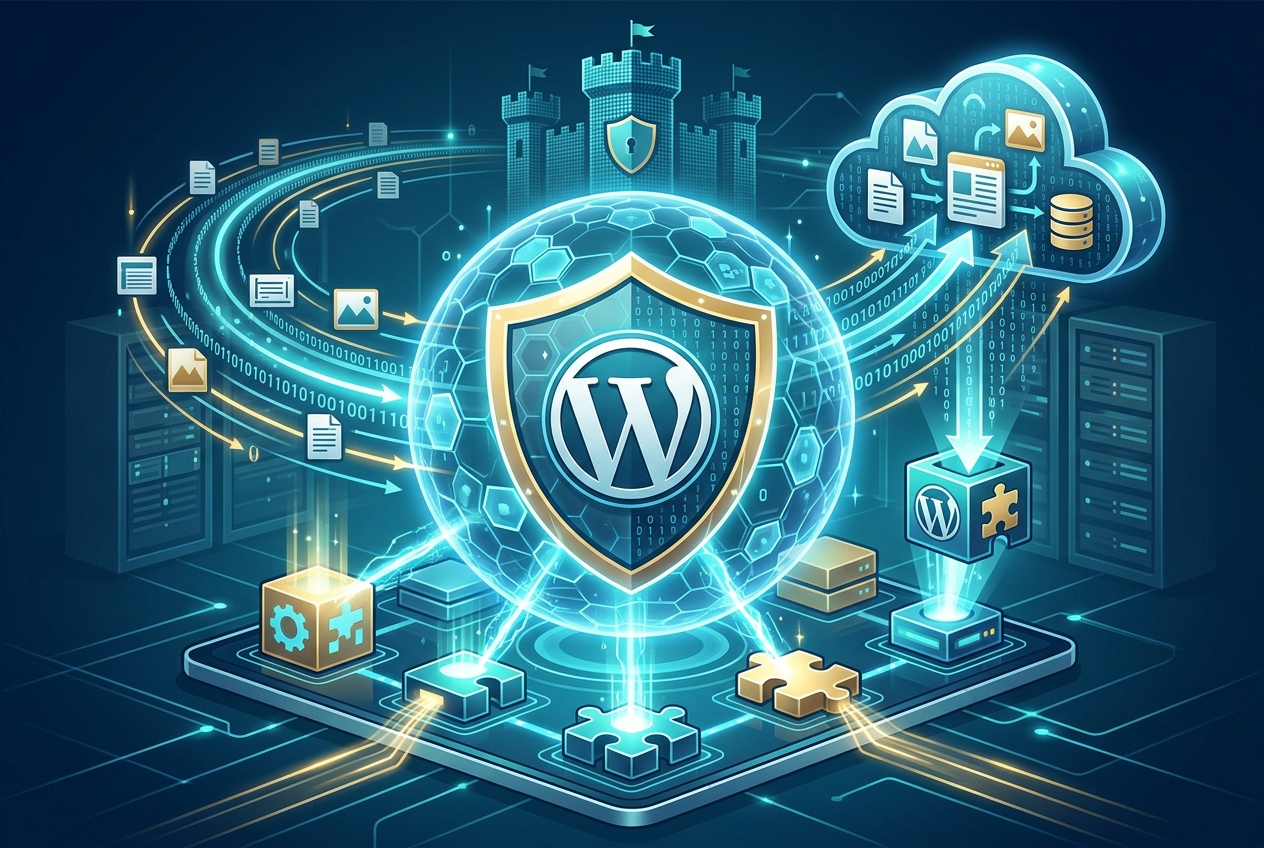
Why WordPress Backups Matter
WordPress backups are a necessity. They shield your website’s information from unforeseen issues.
These issues range from hacking attempts to server malfunctions and plugin incompatibilities. Consistent backups allow for a swift site recovery.
This reduces downtime and prevents data disappearance. We at seos7.com know how vital it is to secure your content.
This guide examines top WordPress plugins for building and handling backups. These plugins will aid in protecting your content and business.
Benefits of Backup Plugins
WordPress plugins make backing up your site easier. They provide automated options and simple interfaces.
Backing up a site can be difficult and lengthy without plugins. Plugins simplify this, making it available to all.
Here’s why you should consider WordPress plugins for backups:
- Automation: Set automatic backups to occur every day, week, or month.
- Ease of Use: Simple interfaces make backup management straightforward.
- Cloud Storage: Keep backups on safe cloud services like Google Drive or Dropbox.
- Quick Restoration: Recover your site rapidly with a few clicks.
- Comprehensive Protection: Defend your site from different dangers, including hacking and data loss.
Selecting a Backup Plugin: Essential Features
Picking the right backup plugin is vital. Keep these features in mind:
- Automated Backups: The plugin should offer scheduled backups.
- Cloud Storage Integration: Check if it works with your cloud storage service.
- One Click Restore: Find a plugin that simplifies restoration.
- Incremental Backups: This saves time by only backing up what’s new.
- Database Backups: Make sure your WordPress database is backed up.
Recommended WordPress Backup Plugins
Here are some top WordPress plugins for creating backups.
| Plugin Name | Key Features | Pricing |
|---|---|---|
| Duplicator | Automated backups, cloud storage, one click restore. | Free plan available; paid plans start at $49.50/year. |
| UpdraftPlus | Scheduled backups, cloud storage, incremental backups. | Free plan available; paid plans offer more features. |
| BlogVault | Automated backups, one click restore, staging environment. | Paid plans only, starting at $89/year. |
Why Use a WordPress Backup Plugin
Relying only on your hosting provider for backups carries risk. Their backup procedures might not fully address your specific requirements. A WordPress backup plugin gives you more direct management.
A plugin lets you set your own backup schedule. You pick where to keep the backup files. You also gain more choices for bringing your site back online if problems arise.
Think of a backup plugin as protection against data loss and site failures. Here’s why it’s so important:
- Complete Control: You determine the timing and method of your site backups.
- Custom Storage: Keep your backups in a location you trust, such as Google Drive or Dropbox.
- Flexible Restoration: Quickly restore your site using a variety of methods.
- Peace of Mind: Know your data is protected, even if your hosting provider experiences difficulties.
We at seos7.com recognize the value of keeping your data secure. We suggest using a WordPress backup plugin alongside our search engine tools.
Consider this table to see the differences:
| Feature | Hosting Provider Backups | WordPress Backup Plugin |
|---|---|---|
| Control Over Backup Frequency | Limited | Full Control |
| Storage Location Choice | Limited | Full Choice |
| Restoration Options | Limited | Flexible |
| Data Security | Dependent on Provider | You Manage Security |
While you’re securing your data, remember to also work on your site’s visibility in search results. We at seos7.com provide tools for that, too.
- Site Audit: Discover and resolve search engine optimization issues using our AI-driven audit tool.
- Content Optimizer: Strengthen your content’s ranking potential with AI-generated advice.
- A/B Testing: Experiment with titles and descriptions to increase your click-through rate.
- IndexNow: Submit URLs for immediate indexing by Google.
Using a dependable backup plugin alongside our search engine tools means your website is both secure and successful. Begin your free trial with us today!
How seos7.com Complements Backup Plugins
Backup plugins safeguard your data. At seos7.com, we specialize in boosting your website’s search engine optimization. Our plugin provides a set of resources for raising your search engine rankings.
Here’s how we contribute:
- Site Audit: Locate and correct search engine optimization problems using our detailed site audit tool.
- Content Optimizer: Refine your content for higher rankings using AI-supported suggestions.
- Internal Linking: Create relevant internal links using AI semantic matching.
- Image Optimizer: Automatically produce alt text and title tags for each image.
Pairing a solid backup plugin with our search engine optimization tools ensures your website is both safe and performs well. Launch your free trial now and see the difference we deliver!
Key Features of a WordPress Backup Plugin
Selecting the right WordPress backup plugin is important for your site’s security and your peace of mind. Prioritize features that offer both convenience and reliability.
- Automated Backups: Scheduled backups run automatically, ensuring consistent data protection without needing you to do anything.
- Cloud Storage Integration: Make sure the plugin works with your preferred cloud service for secure, offsite storage. Popular services include Google Drive, Dropbox, and Amazon S3.
- One Click Restores: This feature simplifies the recovery process, allowing you to quickly restore your site and reduce downtime if something goes wrong.
- Incremental Backups: These backups save time and resources by only backing up changes made since the last backup, making the process faster.
- Database Backups: The plugin should back up your WordPress database, which stores posts, pages, user data, and other critical site information.
- File Backups: The plugin should back up all website files, including themes, plugins, and media uploads. Complete file backups are needed for a full restoration.
- Scheduling Options: Flexible scheduling is important. The plugin should allow daily, weekly, or monthly backups, depending on how often your website is updated.
- Email Notifications: The plugin should send notifications when a backup is successful, and alert you to any errors.
Compare these features using this table:
| Feature | Description | Benefit |
|---|---|---|
| Automated Backups | Scheduled, automatic backup creation. | Ensures consistent data protection. |
| Cloud Storage | Integration with cloud storage services. | Provides secure, offsite backup storage. |
| One Click Restore | Simple, one click website restoration. | Minimizes downtime during recovery. |
| Incremental Backups | Backs up only changes since the last backup. | Saves time and resources. |
| Database Backup | Backs up the WordPress database. | Protects critical site data. |
Choosing a plugin with these features ensures your WordPress site is well protected. The backup and restoration process will also be easier.
Popular Backup Plugins for WordPress
Several WordPress plugins supply backup solutions. Each has different strengths. They simplify scheduling, storage, and restoration.
Picking the right plugin depends on your needs, budget, and technical skills. Here’s a look at some leading options:
UpdraftPlus
UpdraftPlus is a well-liked WordPress backup option. It provides automated, scheduled backups and works with several cloud storage services, including Google Drive, Dropbox, and Amazon S3.
The free version has core backup functions. A paid version adds more, like incremental backups and faster support.
UpdraftPlus includes:
- Automated backups.
- Cloud storage integration.
- One click restore.
- Incremental backups (premium).
- Database encryption (premium).
Duplicator
Duplicator is great for moving and copying sites, but it also backs them up. The plugin creates a package of your entire website, including plugins, themes, and the database.
Use this package to restore your site or move it to a different host. People find Duplicator easy to use and effective.
Duplicator features:
- Site migration.
- Site cloning.
- Manual backups.
- Easy site restoration.
- Developer friendly.
BlogVault
BlogVault is a premium WordPress backup plugin, providing automated backups and one-click restores. A staging environment is included, so you can test changes before they go live.
BlogVault uses incremental backups. This keeps server load low and speeds up backup times. It’s a dependable option for companies.
BlogVault features:
- Automated backups.
- Incremental backups.
- Staging environment.
- One click restore.
- Real time monitoring.
Jetpack Backup
Jetpack Backup, previously VaultPress, delivers automated, real-time backups as a premium service. Ease of use and dependability are central to its design. Jetpack Backup works smoothly with WordPress.
It furnishes thorough protection. Malware scanning and security tools are included. Users needing strong security may find it a suitable choice.
Jetpack Backup features:
- Real time backups.
- One click restore.
- Malware scanning.
- Automated threat resolution.
- Security features.
BackupBuddy
BackupBuddy is a WordPress backup plugin with a long history. It provides options for scheduled backups and storage on cloud services. You can also download your backup files directly.
BackupBuddy aims to provide complete backup coverage. Many users find it a dependable choice for their website needs.
BackupBuddy’s main features:
- Automated backups.
- Cloud storage integration.
- Downloadable backup files.
- Site restoration.
- Database backups.
Here’s a comparison of these plugins:
| Plugin | Key Features | Pricing |
|---|---|---|
| UpdraftPlus | Automated backups, cloud storage, one click restore. | Free plan available; paid plans offer more features. |
| Duplicator | Site migration, site cloning, manual backups. | Free plan available; paid plans offer more features. |
| BlogVault | Automated backups, incremental backups, staging environment. | Paid plans only. |
| Jetpack Backup | Real time backups, malware scanning, security features. | Paid plans only. |
| BackupBuddy | Automated backups, cloud storage, downloadable backup files. | Paid plans only. |
Selecting the right WordPress backup plugin is important. Think about what you need and what you can spend. Pick a plugin that has the features that matter to you. Backups are a basic precaution. They keep your website safe from losing data.
Duplicator: Simplifying Backups and Site Transfers
Duplicator is a WordPress plugin that simplifies backing up and moving websites. It’s built to be easy to use, no matter your technical skill.
The plugin makes website backups simple. It also makes moving a WordPress site easier. You can move your site to a different host or domain without trouble.
Duplicator’s features help keep your data secure and easy to move.
- Manual Backups: Back up your entire website, including the database, themes, and plugins.
- Scheduled Backups: Set backups to happen automatically on a schedule (daily, weekly, or monthly).
- Cloud Storage: Save backups to popular cloud services like Google Drive, Dropbox, and Amazon S3.
- Site Migration: Transfer your website to a new host with a simplified process.
- Site Cloning: Make a copy of your website for testing or development, without affecting the live version.
Duplicator creates a package containing your website’s files and database. This package can then be used to restore your site or move it elsewhere.
The transfer process uses two files: an archive and an installer. The archive holds your website’s data. The installer automates putting everything back in place.
Duplicator makes complex tasks more manageable. It’s a helpful plugin for anyone with a website.
Here’s a summary of Duplicator’s features:
| Feature | Description |
|---|---|
| Manual Backups | Create complete site backups on demand. |
| Scheduled Backups | Automate backups for consistent data protection. |
| Cloud Storage | Store backups on Google Drive, Dropbox, or Amazon S3. |
| Site Migration | Move your site to a new host or domain easily. |
| Site Cloning | Create a duplicate of your site for testing. |
Duplicator comes in both free and paid versions. The free version has the core backup and migration tools. The paid version adds more, like scheduled backups and cloud storage.
Whether backing up or moving your site, Duplicator offers a solid option. It simplifies the process and helps keep your data protected.
Secure Backups with Duplicator
Duplicator is a great choice for WordPress backups. The plugin simplifies creating and managing backups, securing your website’s data efficiently.
Duplicator automates the backup process. Schedule backups to run automatically, ensuring your site is regularly protected.
- Automated Backups: Duplicator creates automatic backups of your WordPress site.
- Scheduling Options: Set backups to run daily, weekly, or monthly. Customize the schedule to fit your needs.
- Complete Site Backup: Back up your entire WordPress site. This includes your database, themes, and plugins.
Cloud storage integration is a key feature. Duplicator lets you store backups on various cloud platforms, providing secure, offsite storage for your data.
- Cloud Storage: Store backups on a cloud solution of your choice.
- Supported Platforms: Google Drive, Dropbox, and Amazon S3 are supported. Choose the platform that works best for you.
- Offsite Storage: Cloud storage ensures your backups are safe, protected from server failures and other issues.
Restoring your site is easy with Duplicator’s one-click restore feature. This simplifies the recovery process, minimizing downtime if an issue arises.
- 1 Click Restore: Easily restore your backups with a single click.
- Simplified Recovery: The one-click restore feature makes recovery quick and easy.
- Minimize Downtime: Restore your site quickly to minimize any potential downtime.
Duplicator provides a reliable and user-friendly backup. It ensures your WordPress site is protected and simplifies the backup and restoration process.
Here’s a table summarizing Duplicator’s key backup features:
| Feature | Description | Benefit |
|---|---|---|
| Automated Backups | Scheduled, automatic backup creation. | Ensures consistent data protection. |
| Cloud Storage | Integration with cloud storage services. | Provides secure, offsite backup storage. |
| 1 Click Restore | Simple, one-click website restoration. | Minimizes downtime during recovery. |
Using Duplicator helps protect your website data. It also gives you confidence, knowing your site can be quickly restored if needed.
UpdraftPlus: Backup with Automation and Cloud Integration
UpdraftPlus is a leading WordPress backup plugin. It’s known for its features and ease of use. We at seos7.com understand the value of dependable backups, and UpdraftPlus is a solid option.
The plugin simplifies the backup process with automated backups, ensuring your data is always protected. UpdraftPlus supports various cloud storage options, giving you flexibility in storing your backups.
- Automated Backups: Schedule backups to run automatically. Set the frequency to daily, weekly, or monthly.
- Cloud Storage Integration: Store backups on Google Drive, Dropbox, Amazon S3, and more. Choose the service that best fits your needs.
- One Click Restores: Restore your site quickly with just a single click. This minimizes downtime in case of an issue.
UpdraftPlus offers incremental backups. This feature improves performance and storage usage. Incremental backups only back up changes made since the last backup.
This saves time and resources, making the backup process efficient.
Consider this table to understand UpdraftPlus’s features:
| Feature | Description | Benefit |
|---|---|---|
| Automated Backups | Scheduled, automatic backup creation. | Ensures consistent data protection without manual effort. |
| Cloud Storage | Integration with multiple cloud storage services. | Provides flexibility and secure offsite storage. |
| One Click Restore | Simple, one-click website restoration process. | Minimizes downtime and simplifies recovery. |
| Incremental Backups | Backs up only the changes made since the last backup. | Improves performance and reduces storage usage. |
UpdraftPlus comes in free and premium versions. The free version provides core backup features. The premium version adds features, including incremental backups, database encryption, and priority support.
While UpdraftPlus secures your data, we at seos7.com focus on improving your website’s SEO. Our plugin provides tools to improve your search engine rankings.
- Site Audit: Identify and fix SEO issues with our site audit tool.
- Content Optimizer: Refine your content for better rankings with AI suggestions.
- Internal Linking: Build contextual internal links with AI semantic matching.
- Image Optimizer: Auto generate alt text and title tags for every image.
Pairing a backup plugin like UpdraftPlus with our SEO tools ensures your website is protected and performing well. Start your free trial with us today!
All in One SEO: Content Optimization for Better Backups
All in One SEO (AIOSEO) is a WordPress plugin designed to boost your website’s search engine ranking. It helps your site appear higher in search results.
While AIOSEO is mainly an SEO tool, some of its features support your backup efforts. When your content and site are well-organized, your backups hold more useful data.
Here’s how AIOSEO helps improve your backups:
- Content Optimization: AIOSEO helps you develop relevant, high-quality content. This makes the information in your backups more useful.
- Site Structure: AIOSEO cleans up your site’s organization and navigation. Restoring your site from a backup becomes easier.
- Metadata Management: AIOSEO lets you control metadata like title tags and meta descriptions. This guarantees your backups include data that’s already been prepared for search engines.
- SEO Audits: AIOSEO finds and fixes SEO problems. This ensures your backups contain data from a healthy website.
AIOSEO provides tools to examine your content. It suggests ways to improve readability and keyword use. Well-written content is more useful in your backups.
The plugin also assists in creating a sitemap. A sitemap helps search engines crawl your site. It makes sure all your content is indexed. This makes your backups more thorough.
AIOSEO’s features lead to a well-organized website. The restoration process becomes simpler. A clean site is easier to back up and restore.
Consider this table to see how AIOSEO works with your backup strategy:
| AIOSEO Feature | Benefit to Backups |
|---|---|
| Content Optimization | Ensures backups contain high quality, relevant content. |
| Site Structure Improvement | Makes site restoration from backups easier. |
| Metadata Management | Ensures backups contain optimized title tags and meta descriptions. |
| SEO Audits | Ensures backups contain data from a healthy, optimized website. |
AIOSEO improves your backup strategy by organizing your content and site. This makes your backups more useful and easier to restore.
While AIOSEO is helpful for site preparation, remember to also use a dedicated backup plugin. Duplicator and UpdraftPlus are examples of plugins that offer complete backup options.
Using AIOSEO with a backup plugin ensures your website is both well-organized and protected. This creates a solid plan for your website.
Backup Strategy: Planning and Best Practices
A good backup strategy requires more than just installing a plugin. It needs careful planning and following proven practices. The team at seos7.com knows how important a solid backup plan is.
A strong backup strategy protects your website’s data. It also makes sure you can quickly fix unexpected problems. These problems could include hacking, server issues, or plugin conflicts.
Here are some important backup strategies and practices:
- Determine Backup Frequency: Choose how often to back up your site. Consider how often you update your website and how sensitive the data is.
- Test Your Backups: Check your backups regularly. Make sure they work. Verify that you can restore your site if needed.
- Store Multiple Copies: Keep several backup copies. Store them in different places for extra safety. This protects against data loss from storage failures.
- Automate the Process: Use automatic backup programs. This guarantees backups are made consistently and reliably.
- Secure Your Backups: Encrypt your backups. Protect them from unauthorized access.
Deciding How Often to Back Up
How often you back up your website should reflect how often you change it. The value of your data also plays a role.
- Daily Updates: Back up daily to capture every change.
- Weekly Updates: Back up weekly to balance protection and storage.
- Monthly Updates: Back up monthly for basic protection if you rarely make changes.
Verifying Your Backups
Confirming that your backups work is key. You want to be sure you can restore your site if something goes wrong.
- Scheduled Tests: Plan to test your backups at least every three months.
- Staging Environment: Restore backups to a safe staging area, not your live website.
- Data Verification: Make sure everything is restored correctly, including posts, pages, images, and plugins.
Storing Multiple Copies
Keeping several backup copies adds a layer of safety. It guards against losing data if storage fails. Consider using different spots for your backups.
- Onsite Storage: Backups on your web server allow fast restoration.
- Offsite Storage: A separate server or cloud storage protects against main server failures.
- Cloud Storage: Services like Google Drive, Dropbox, or Amazon S3 give secure, remote storage.
Automating Backups
Automated backups ensure consistent data protection. WordPress plugins can schedule these automatically.
- Select a Plugin: Pick a WordPress backup plugin that offers scheduling.
- Set Schedules: Decide how often backups run and where they are saved.
- Track Progress: Check that backups are running as planned.
Securing Your Backups
Protecting backups prevents unauthorized access. Encryption can stop data breaches.
- Encryption: Encrypt backup files to prevent unauthorized access.
- Access Control: Limit who can access backup files. Only authorized personnel should have access.
- Secure Storage: Keep backups in a secure location. Protect them from physical and digital threats.
We at seos7.com provide tools to improve website security. Our plugin helps refine your site and safeguard your data.
Here’s how our tools assist:
- Site Audit: Find and repair security weaknesses with our site audit tool.
- Content Optimizer: Refine content and protect it from attacks.
- Image Optimizer: Secure images to prevent exploitation.
Implementing these strategies helps safeguard website data. It also ensures quick recovery from unexpected problems. You can try our tools today!
Automated vs. Manual Backups
The choice between automated and manual backups depends on specific needs. Both approaches protect a WordPress website.
Automated backups offer ongoing protection. They operate without needing someone to start them. This guarantees a recent copy of data is always available.
Manual backups grant greater control. Users choose the backup timing and content. This proves helpful before significant updates.
Here’s a comparison:
| Feature | Automated Backups | Manual Backups |
|---|---|---|
| Frequency | Scheduled, continuous | On demand |
| Control | Less control | More control |
| Effort | Minimal effort | Requires manual effort |
| Best For | Frequently updated sites | Backups before major changes |
Automated backups suit frequently updated websites. They guarantee a recent backup, which is vital for sites with regular content additions.
Manual backups work well in particular situations. These instances include creating backups before updates. They give users command over the process.
Think about these points when picking a backup approach:
- Website Update Frequency: How often is the site updated?
- Technical Expertise: How comfortable are you with manual tasks?
- Time Commitment: How much time can you spend on backups?
- Data Sensitivity: How critical is the website’s data?
Combining both methods can work well. Use automated backups for ongoing safety. Use manual backups for unique situations.
Regardless of the chosen method, consistent backups remain key. They protect a website from data loss and other issues. They offer peace of mind.
Offsite Versus Onsite Backup Storage
Choosing where to keep your WordPress backups is key. Your choice affects both data security and how fast you can restore your site. The main options are offsite and onsite storage.
Offsite storage means keeping backups on a separate server or a cloud service. Onsite storage means keeping backups on the same server as your website.
Each way has good and bad points. Knowing these helps you choose wisely.
Offsite storage gives strong protection. It guards against server problems and disasters. Your backups stay safe even if something happens to your website’s server.
Onsite storage allows quicker restores. Backups are right there on the same server. This speeds up getting your site back up.
Here’s a closer look at offsite and onsite storage:
| Feature | Offsite Storage | Onsite Storage |
|---|---|---|
| Security | High. Protects against server failures and disasters. | Low. Vulnerable to server related issues. |
| Restoration Speed | Slower. Requires data transfer from a remote location. | Faster. Backups are readily available on the same server. |
| Cost | May incur storage and transfer costs. | Potentially lower cost, depending on server resources. |
| Accessibility | Accessible from anywhere with an internet connection. | Accessible only if the server is operational. |
Think about these things when picking a storage method:
- Security Needs: How much do you need to protect data from server failures?
- Restoration Time Sensitivity: How fast do you need to get your site back?
- Budget: How much can you spend on storage and data use?
- Accessibility Requirements: Do you need to get to backups from different places?
Offsite storage works well for most WordPress sites. It protects your data well. It defends against many possible problems.
Onsite storage can work if you don’t have much money to spend. It also works if you must restore your site very quickly.
You could also do both. Keep recent backups onsite for fast access. Keep older backups offsite for long-term safety.
No matter what you pick, keep your backups safe. Guard them against anyone who shouldn’t see them. Making backups often is key for website safety and data protection.
Verifying Your WordPress Backups
Testing your backups is vital. It checks that your plan to recover from problems works. It also makes sure your WordPress backup plugins do what they should.
Testing often makes you sure that you can restore your data. This cuts down on how long your site might be down.
Here’s how to test your backups, step by step:
- Make a Staging Area: This is a copy of your live website. Use it to test changes without messing up the real site.
- Restore Your Backup: Use the WordPress backup plugin you picked. Restore the newest backup to your staging area.
- Check Data: Make sure all data is restored right. This means posts, pages, pictures, plugins, and themes.
- Test How It Works: Check that everything on the website works. Make sure forms, menus, and other things people click are working.
- Write It Down: Write down the whole testing process. Include any problems and how you fixed them.
Making a staging area is important. It lets you test your backups safely. It also keeps you from breaking your live website.
Many hosting companies provide staging areas. You can also make one yourself with a plugin or a subdomain.
When restoring your backup, carefully follow the plugin’s instructions. Be sure you have the right backup files and the needed login information.
Checking the data is key. Make sure all your content is there and looks right. Pay close attention to pictures, media files, and database records.
Testing how it works makes sure your website is working as it should. Test all forms, menus, and clickable items. Check that they all work right.
Writing down the process matters. It helps you keep track of any problems you had. It also helps you remember how you fixed them. This can help you test in the future.
Use this table to help you test in an organized way:
| Step | Description | Purpose |
|---|---|---|
| Create Staging Environment | Set up a copy of your live website for testing. | Avoid disrupting the live site during testing. |
| Restore Backup | Restore the latest backup to the staging environment. | Verify the backup can be successfully restored. |
| Verify Data Integrity | Check that all data is restored correctly. | Ensure all content is present and accurate. |
| Test Functionality | Test all website functionality. | Verify all elements are working as expected. |
| Document Process | Document the testing process and any issues. | Track issues and resolutions for future reference. |
Testing your backups often is a key part of keeping your website running. It makes sure your WordPress backup plugins are working right. It also cuts down on downtime if something bad happens.
If you follow these steps, you can be confident in your plan to recover from problems. You can also be sure your website can be restored quickly if needed.
SEO Automation for Content Enhancement
Backup plugins protect your data. However, search engine optimization (SEO) makes that backed-up content worthwhile. A solid SEO strategy complements your backup plan.
SEO helps your website appear higher in search results, bringing in more organic traffic. More traffic translates to more potential customers, increasing the value of your backups.
Here’s how SEO automation makes your backups more valuable:
- Improved Content Quality: SEO tools guide you in creating better, more relevant content.
- Increased Discoverability: SEO prepares your site for search engines, so people can find your content more easily.
- Enhanced User Experience: SEO improves your website’s structure, making it easier for visitors to use.
- Better Website Performance: SEO makes your site faster, improving user satisfaction.
The table below illustrates the benefits of SEO automation:
| Benefit | Description |
|---|---|
| Improved Content Quality | SEO tools help you create high quality, relevant content. |
| Increased Discoverability | SEO optimizes your site for search engines, making it easier to find. |
| Enhanced User Experience | SEO improves site structure and navigation for better usability. |
| Better Website Performance | SEO optimizes site speed and performance for user satisfaction. |
SEO automation tools simplify the optimization process. They pinpoint and resolve SEO problems. They also refine your content for better rankings.
These tools include features like:
- Keyword Research: Find the best keywords for your content.
- Content Analysis: Analyze your content for readability and SEO.
- Link Building: Build high quality backlinks to your site.
- Technical SEO: Refine your site’s technical aspects for search engines.
By automating SEO, you keep your website optimized. This maximizes the value of your backups. It also ensures your content is discoverable and engaging to visitors.
A dependable backup plugin combined with SEO automation creates a strong strategy. This approach protects your website and optimizes it for expansion.
AI-Powered Tools to Improve Your WordPress Site
We provide AI-driven tools to improve your WordPress website. Our platform operates automatically, auditing, fixing, and refining your site.
Our tools help your content perform optimally, making your backups even more useful. We provide a Site Audit, Content Optimizer, and Content Writer.
- Site Audit: Find and fix SEO issues with our audit tool.
- Content Optimizer: Refine your content for better rankings using AI-powered suggestions.
- Content Writer: Quickly generate quality content with our AI assistant.
- A/B Testing: Test different versions of your content to see what works best.
With our Site Audit tool, you can find technical SEO problems that affect website performance. The tool then gives actionable recommendations.
Our Content Optimizer helps you develop engaging content. It makes sure your content is ready for search engines, boosting its visibility.
Our Content Writer creates quality content quickly, saving you time. This lets you concentrate on other priorities.
Our A/B Testing feature helps you refine your content. Testing different versions helps you learn what resonates with your audience.
Consider this table to understand our key features:
| Feature | Description | Benefit |
|---|---|---|
| Site Audit | Identifies and fixes technical SEO issues. | Improves website performance. |
| Content Optimizer | Optimizes content for better rankings. | Increases website visibility. |
| Content Writer | Generates high quality content quickly. | Saves time and effort. |
| A/B Testing | Tests different content versions. | Improves content effectiveness. |
Using our platform ensures your website is always in top form. This makes your backups more valuable. It also supports your business objectives.
Protecting Your WordPress Investment with Backups
WordPress backup plugins are vital. They safeguard your website’s data and ensure your business stays online.
Selecting the right plugin and creating a strong backup plan are both critical. These actions protect your content.
They also reduce the impact if something goes wrong. This includes hacking, server problems, or plugin issues.
Test your backups often. Make sure they work. Confirm you can restore your site if needed.
Pair strong backups with good SEO. This gets the most from your WordPress website. SEO helps your site appear higher in search results.
This brings in more visitors from search engines. More traffic can lead to more customers. It also increases the value of your backed-up content.
Here are some key points:
- Choose the Right Plugin: Pick a WordPress backup plugin that fits what you need.
- Implement a Solid Strategy: Create a full backup plan. Use automated backups and store them offsite.
- Test Your Backups: Check your backups regularly to be sure they work.
- Combine with SEO: Connect your backup plan to your SEO efforts.
At seos7.com, we know data protection and SEO are important. Our platform has tools to check, fix, and improve your website.
Our tools help your content do its best. This makes your backups even more useful. We have tools like Site Audit, Content Optimizer, and Internal Linking.
Here’s how we provide support:
- Site Audit: Find and fix SEO problems with our site audit tool.
- Content Optimizer: Improve your content for better search rankings. Our AI gives suggestions.
- Internal Linking: Create internal links that make sense. Our AI helps match topics.
Use a good backup plugin with our SEO tools. Then your website is safe and performs well. Start a free trial with us today!
Protect your WordPress site. Use reliable backup plugins. Create a strong backup plan. Add good SEO. Then your website is secure and successful.