Why Optimize Images in WordPress?
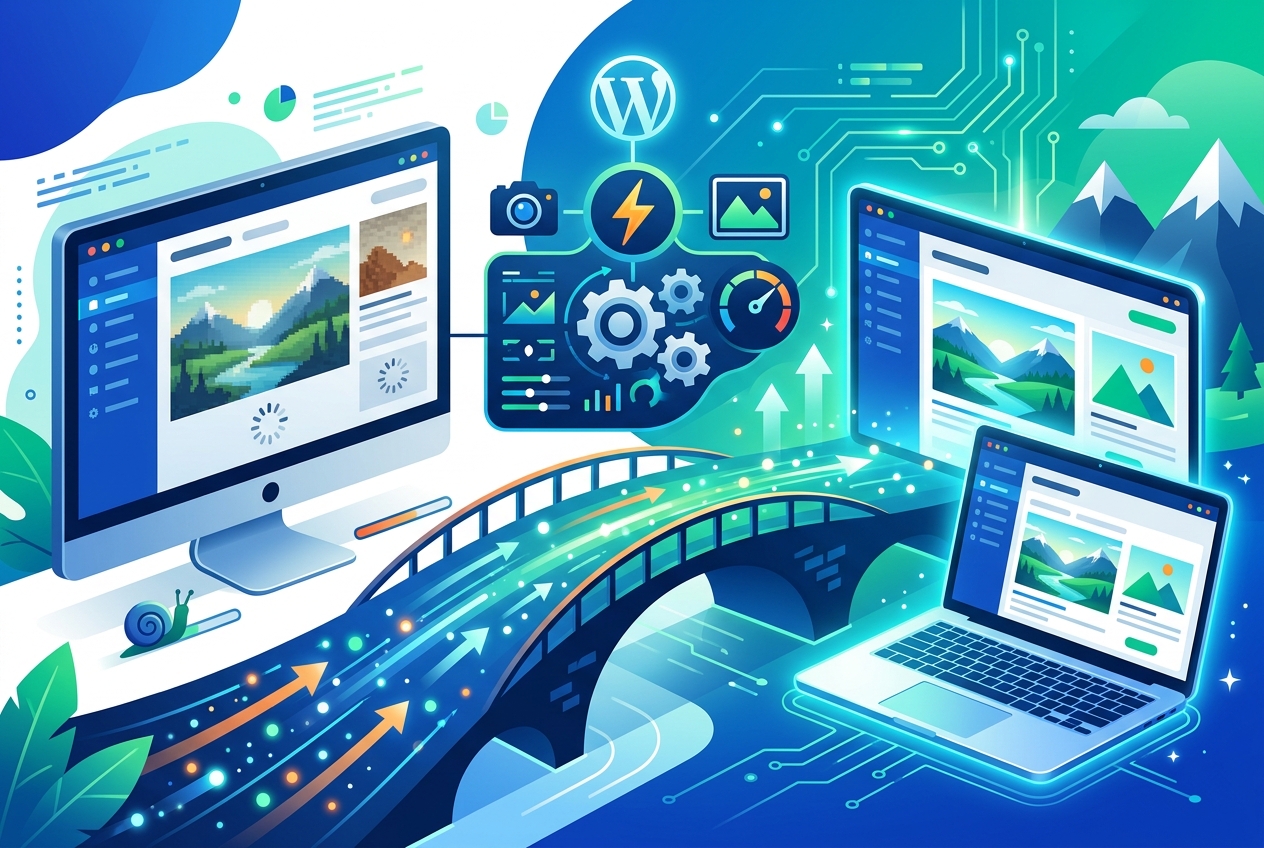
Image optimization is critical for WordPress websites. It directly affects your site’s speed, the user experience, and your SEO performance. At www.seos7.com, we know how important a fast website is. Large image files are a major cause of slow loading times. They can frustrate visitors and hurt your search engine rankings.
Imagine a visitor lands on your page, but it takes forever to load. They will probably leave. This increases your bounce rate, telling Google that your site doesn’t offer a good user experience, which can lead to lower rankings. Our platform helps you prevent this.
Optimizing images reduces file size without hurting visual quality. This makes loading times faster and improves website performance. It’s beneficial for everyone. Visitors get a better browsing experience, and search engines reward you with higher rankings. We’ve seen how image optimization can improve a website’s performance.
Here’s why image optimization is important:
- Improved Site Speed: Smaller image files load faster.
- Enhanced User Experience: A fast website keeps visitors engaged.
- Better SEO: Search engines like fast, user-friendly websites.
- Reduced Bandwidth Usage: Save on hosting costs with smaller image files.
- Increased Conversions: A good user experience can lead to more conversions.
At www.seos7.com, we provide a full image optimization service. Our platform has an Image Optimizer that creates alt text and title tags for every image on your site automatically. This makes your images visually appealing and search engine friendly. We help you refine images individually or in bulk with one click. It’s one way we help you improve your SEO.
Consider this table showing the impact of image optimization:
| Scenario | Loading Time | Bounce Rate | SEO Ranking |
|---|---|---|---|
| Unoptimized Images | 5+ seconds | High | Lower |
| Optimized Images | Under 3 seconds | Low | Higher |
The difference is clear. Image optimization is necessary for any WordPress website that wants to do well. Let us help you get the best image performance and get the most out of your website.
Key Image Optimization Techniques
Image optimization involves more than just reducing file sizes. It’s a multi-faceted process. Several techniques work together. These ensure your images load quickly while keeping their visual quality high. Let’s look at these techniques.
Choosing the Right Image Format
Selecting the correct file format is the first step to image optimization. Different formats suit different image types.
- JPEG: JPEGs work best for photographs because they use lossy compression, which shrinks the file size. Too much compression, though, can hurt image quality.
- PNG: PNGs suit graphics, logos, and images containing text. They use lossless compression, which keeps image quality intact. Plus, PNGs handle transparency well.
- WebP: WebP offers better compression and supports both lossy and lossless methods. WebP files often end up smaller than JPEGs or PNGs. Most current browsers support this format.
Here’s a quick comparison:
| File Format | Best Use | Compression Type | Pros | Cons |
|---|---|---|---|---|
| JPEG | Photographs | Lossy | Small file size, widely supported | Loss of quality with high compression |
| PNG | Graphics, Logos, Text | Lossless | Maintains image quality, supports transparency | Larger file size compared to JPEG |
Image Compression Techniques
Image compression reduces file size, which makes images load more quickly. Two main types of compression exist.
- Lossy Compression: This method discards some image data to reduce file size. Overdoing it can degrade image quality. JPEG relies on lossy compression.
- Lossless Compression: This method shrinks file size without losing image data. PNG relies on lossless compression.
Plenty of tools let you compress images. These tools let you change the compression level, so you can find the right balance between file size and image quality.
Image Resizing
Setting images to the correct dimensions matters. It’s inefficient to upload huge images only to display them smaller. Bandwidth gets used up unnecessarily. Instead, resize pictures to the largest display size your website requires. Doing so cuts down on file size and speeds up loading.
Say your blog post pictures show up at 800×600 pixels. Resize them to that size before you upload them.
Lazy Loading Explained
Lazy loading puts off loading images that aren’t on the screen. Pictures only load when a user scrolls near them. This greatly speeds up how fast the initial page loads. Pages packed with images especially benefit.
WordPress plugins offer lazy loading. Browsers also have built-in attributes that do the same thing.
Here’s what lazy loading does:
- Speeds up initial page load.
- Lowers bandwidth use.
- Makes the user experience better.
- Boosts SEO.
Using these image optimization tips can really help your website work better. Visitors will have a better experience. Search engine rankings may also improve.</
Key Features of Image Optimization Plugins
Choosing a WordPress image optimization plugin can feel overwhelming, given the many choices. Knowing which features matter most simplifies the decision. These features ensure effective image optimization and boost your website’s speed.
Automated Compression
Automated compression is a must-have. It automatically refines images as you upload them, saving time and energy. The plugin handles everything behind the scenes. You skip the chore of manually compressing each image.
Here are some benefits:
- Saves time.
- Optimizes all images.
- Maintains consistent quality.
Batch Image Improvement
Batch processing lets you improve existing images. This is especially helpful for sites already filled with unoptimized visuals. You can improve all images at once. This saves considerable time over doing them one by one.
Imagine a website containing hundreds of images. Manually improving each one could take hours. Batch processing lets you finish the job in minutes.
WebP Format Support
WebP offers better compression than JPEG and PNG. An image improvement plugin should work with WebP. This makes your images smaller while keeping their quality high.
WebP conversion shrinks file sizes considerably. Shorter loading times follow. User experience improves, too.
Lazy Loading for Faster Initial Load Times
Lazy loading postpones the loading of images that aren’t immediately visible. Images load only when a user scrolls near them. This speeds up how quickly a page initially loads. It’s particularly helpful for pages dense with images. Find a plugin providing this feature.
Lazy loading offers these advantages:
- Faster initial page load.
- Better user experience.
- Improved SEO.
Content Delivery Network (CDN) Integration
A CDN spreads your website’s content across many servers. This ensures quick access for users, no matter their location. Connecting to a CDN can further decrease image loading times. Seek a plugin compatible with well-known CDNs.
Here’s a table outlining key plugin features:
| Feature | Description | Benefit |
|---|---|---|
| Automatic Compression | Optimizes images upon upload | Saves time and effort |
| Bulk Optimization | Optimizes existing images in bulk | Efficiently optimizes large image libraries |
| WebP Conversion | Converts images to WebP format | Superior compression and image quality |
| Lazy Loading | Defers loading of off-screen images | Improves initial page load time |
| CDN Integration | Integrates with Content Delivery Networks | Faster content delivery worldwide |
Selecting a WordPress image optimization plugin requires feature consideration. The right plugin will boost your site’s performance. It will also create a better experience for visitors.
Top WordPress Plugins for Image Optimization
Several WordPress plugins provide image optimization. These tools automate the process, making it simpler to improve website performance. Here are some leading plugins, both free and paid. We’ll examine their features and advantages.
Free Image Optimization Plugins
Many free WordPress plugins can noticeably improve your site’s image performance. These plugins include compression, resizing, and lazy loading. They provide a good starting point for optimizing images without spending money.
- Smush: A well-known free plugin, Smush offers both lossy and lossless compression. It also features bulk optimization and lazy loading. Smush can automatically resize images and remove unneeded data.
- Optimole: Another strong free choice, Optimole provides automatic image optimization and a CDN for quicker image delivery. Optimole uses lossless optimization, reducing file size without a visible drop in quality.
- Lazy Load by WP Rocket: This plugin focuses on lazy loading. Lightweight and simple, it speeds up initial page load times and works with other plugins.
- WP-Optimize: An all-in-one optimization plugin, WP-Optimize provides image compression, database optimization, and caching. This plugin can improve overall website speed.
Premium WordPress Plugins
Paid plugins provide more sophisticated features and better performance. Many include WebP conversion, content delivery network (CDN) integration, and advanced compression methods. Consider them for sites demanding top-tier image handling.
- Imagify: This plugin provides three compression tiers: normal, aggressive, and ultra. It supports WebP and connects to CDNs.
- ShortPixel: This option provides lossy, lossless, and glossy compression, making it suitable for photographers. ShortPixel handles WebP and AVIF files.
- Optimole (Premium): The paid version includes unlimited image processing, a global CDN, and refined resizing.
Free Versus Paid Plugins
The right choice depends on your specific requirements and available funds. Free plugins offer a solid foundation with standard image handling. Paid plugins deliver more power and speed. For sites where image presentation is critical, the investment is often justified.
Here’s a comparison of free and paid plugin features:
| Feature | Free Plugins | Premium Plugins |
|---|---|---|
| Compression | Basic lossy and lossless | Advanced lossy, lossless, and glossy |
| WebP Conversion | Limited or not available | Generally supported |
| CDN Integration | Limited or not available | Often included |
| Bulk Optimization | Generally supported | Generally supported with more features |
| Lazy Loading | Often included | Often included |
| Support | Community support | Dedicated support |
| Pricing | Free | Paid subscription or one-time fee |
Key Considerations for Selecting an Image Optimization Plugin
When picking a WordPress image optimization plugin, several factors merit consideration:
- Features: Does the plugin have what you require? Look at compression, WebP conversion, lazy loading, and CDN integration.
- Ease of Use: Is the plugin simple to operate? An intuitive design saves time and frustration.
- Performance: How well does the plugin optimize images? Test its impact on your site’s speed.
- Support: Does the plugin have responsive support? Assistance proves helpful when issues arise.
- Pricing: Does the plugin fit within your budget? Think about the plugin’s total cost.
Careful consideration of these points helps you select the best WordPress image optimization plugin for your website. Site performance improves. User experience becomes better, too.
Smush: A Detailed Look
Smush is a WordPress plugin recognized for its simple design and effective image compression. It simplifies image improvement, making it suitable for both new and experienced WordPress users.
A key feature is automatic improvement. Smush automatically improves images when uploaded. This guarantees all new images are ready without manual work. This saves time and ensures consistent image improvement across your website.
Smush removes unneeded data from images, like metadata. This data adds to file size. Removing it reduces file size and improves loading times. The process reduces file size without harming image quality.
Smush also resizes images to speed up loading. It scales down large images to the right dimensions, preventing unnecessarily large files. This proves useful for those who upload high-resolution images. It makes sure images display at the correct size and that performance is good.
Smush provides bulk improvement, which lets users improve existing images in their media library. This is helpful for websites with many unoptimized images. It allows users to improve all images with a single click.
Key features of Smush:
- Automatic image improvement upon upload.
- Lossless compression to reduce file size.
- Image resizing to appropriate dimensions.
- Bulk improvement for existing images.
- Simple interface.
Smush helps WordPress users improve website performance and user experience. Its ease and effective improvement make it a common choice.
Here’s a table summarizing Smush’s features:
| Feature | Description | Benefit |
|---|---|---|
| Automatic Optimization | Improves images upon upload | Saves time and ensures consistent improvement |
| Lossless Compression | Reduces file size without quality loss | Improves loading times without sacrificing visual quality |
| Image Resizing | Resizes images to appropriate dimensions | Avoids serving unnecessarily large files |
| Bulk Optimization | Improves existing images in bulk | Efficiently improves large image libraries |
| User-Friendly Interface | Easy to use | Simplifies the image improvement process |
Optimole
Optimole optimizes images automatically using cloud servers. Images are adjusted as visitors request them. There’s no need to manually optimize each one.
A core component of Optimole is its global CDN. This network delivers images quickly to users, no matter their location. The CDN spreads images across many servers around the globe, cutting down on delays and improving load times.
Automatic scaling adjusts images to fit each user’s device and browser, creating the best viewing experience. Images are sized correctly and delivered in the right format, which shrinks file sizes and speeds up loading.
Optimole also converts images to WebP, a format that compresses files better than older formats. WebP supports both lossy and lossless compression. Optimole’s automatic conversion reduces file sizes while keeping images looking sharp.
Finally, lazy loading holds off on loading images that aren’t visible on the screen. Images appear only when a user scrolls to them. This speeds up the initial loading of the page, which is helpful for pages with lots of images.
Key features include:
- Automatic image adjustment as needed.
- A global CDN for quicker image delivery.
- Automatic scaling to fit user devices and browsers.
- WebP conversion for better compression.
- Lazy loading to speed up initial page load.
Optimole provides several features to boost website performance and improve user experience. Its cloud-based approach and automatic adjustments make it a popular choice.
Here’s a summary of Optimole’s features:
| Feature | Description | Benefit |
|---|---|---|
| Automatic Optimization | Adjusts images as needed | Saves time and keeps optimization consistent |
| Global CDN | Delivers images quickly to visitors worldwide | Speeds up loading no matter the location |
| Automatic Scaling | Fits images to the user’s device and browser | Creates the best viewing experience |
| WebP Conversion | Changes images to WebP format | Better compression and image quality |
| Lazy Loading | Holds off on loading off-screen images | Speeds up initial page load |
Lazy Load by WP Rocket
Lazy Load by WP Rocket focuses on lazy loading. This technique improves initial page load times by loading off-screen images only when they’re about to be viewed. This cuts down on the amount of data loaded at first.
The main advantage of Lazy Load by WP Rocket is faster page speeds. Loading images only when needed reduces the initial page load time. This makes a website feel faster and more responsive, especially for mobile users with slower internet.
This plugin is simple and lightweight. It needs very little setup. Just install and activate it, and lazy loading turns on automatically. This simplicity makes it a good option for users who want a fast, easy way to speed up their websites.
Lazy Load by WP Rocket works with many other plugins, including image and caching plugins. This means it can be used alongside other techniques for a full approach to website performance.
Key features include:
- Lazy loading of images to speed up initial page load.
- Lightweight and easy to use.
- Automatic activation after installation.
- Compatibility with other plugins.
- Faster website speed and better user experience.
Lazy Load by WP Rocket is a straightforward way to improve website speed and user experience. Its ease of use and compatibility make it a good addition to any WordPress site.
Here’s a summary of Lazy Load by WP Rocket’s features:
| Feature | Description | Benefit |
|---|---|---|
| Lazy Loading | Holds off on loading off-screen images | Speeds up initial page load |
| Lightweight | Doesn’t slow down the website much | Runs fast and efficiently |
| Easy to Use | Simple to install and activate | Needs very little setup |
| Compatibility | Works with other plugins | Allows for a complete optimization plan |
| Improved Speed | Reduces the amount of data loaded at first | Improves website speed and user experience |
WP-Optimize
WP-Optimize is a WordPress plugin with tools to improve website performance. It does more than just optimize images. It also cleans up databases and caches data. This makes it a central location for improving your WordPress site.
One standout feature is its image compression. It shrinks image file sizes without a noticeable loss in quality. This speeds up page loading and improves the visitor experience.
Besides compressing images, WP-Optimize caches pages. Caching saves static versions of your pages, serving them quickly to visitors. This reduces server load, leading to faster loading and better site performance.
WP-Optimize also includes database cleanup. WordPress databases can accumulate unnecessary data over time, slowing down your site. The plugin removes this data and refines database tables, boosting database performance and overall speed.
Key features:
- Image compression to reduce file size.
- Page caching to improve loading times.
- Database cleanup to refine database performance.
- Simple interface.
- Complete refinement solution.
WP-Optimize helps WordPress users improve site performance and the visitor experience. Its features and simple interface make it a popular choice for site refinement.
Here’s a summary of WP-Optimize’s features:
| Feature | Description | Benefit |
|---|---|---|
| Image Compression | Reduces file size of images | Improves page loading times |
| Page Caching | Stores static versions of web pages | Reduces server load and improves loading times |
| Database Cleanup | Refines and cleans up the database | Improves database performance and website speed |
| User-Friendly Interface | Easy to browse and use | Simplifies the refinement process |
| Complete Solution | A range of refinement features | A central location for website refinement |
SEOS7’s Approach to Image Optimization
Image refinement is a key part of SEO, improving both website performance and the visitor experience. SEOS7 offers a tool that simplifies image refinement, ensuring your images are ready for search engines.
The Image Optimizer tool automatically creates alt text and title tags for each image. These attributes are important for SEO. They help search engines understand image content and improve accessibility for visually impaired users.
The tool scans your website for images, finding those missing alt text and title attributes. This lets you quickly see where improvements can be made, ensuring no image is missed.
AI creates descriptive, keyword-focused tags with a click. This saves time and makes sure your tags are optimized for search engines. You can refine images one at a time or in groups, tailoring your strategy to your needs.
Benefits of the Image Optimizer:
- Automatic creation of alt text and title tags.
- Finds images missing SEO attributes.
- AI creates tags for better SEO.
- Refine images individually or in groups.
- Improved site performance and visitor experience.
Here’s how the Image Optimizer works:
- The tool scans your site for images.
- It finds images missing alt text and title tags.
- AI creates descriptive, keyword-focused tags.
- You review and approve the tags.
- You refine images one at a time or in groups.
The Image Optimizer helps improve your site’s SEO and visitor experience. It simplifies image refinement, making sure your images are ready for search engines.
Here’s a look at the benefits of the Image Optimizer:
| Feature | Description | Benefit |
|---|---|---|
| Automatic Tag Creation | AI creates alt text and title tags | Saves time |
| Image Scanning | Finds images missing attributes | Ensures no image is missed |
| Keyword-Aware Tags | Tags are optimized for search engines | Improves SEO |
| Bulk Refinement | Refine images in groups | Efficiently refines large image collections |
| Improved Accessibility | Alt text improves accessibility | Enhances visitor experience |
With SEOS7’s Image Optimizer, you can easily refine your images, improve your site’s performance, and enhance the visitor experience. Let us help you get the most out of your images and your website.
Using WordPress Plugins to Optimize Images: A Guide
Image optimization is key to a quick, efficient WordPress website. Plugins simplify this. This guide walks you through installing, setting up, and using these tools.
Step 1: Choosing an Image Optimization Plugin
The first step is picking the right plugin. Think about your needs and how much you want to spend. Examine what different plugins offer. Automatic compression, bulk processing, and WebP conversion are useful features to look for. User reviews can provide insight. Make sure the plugin works with your version of WordPress.
Keep these points in mind when choosing a plugin:
- Features: Does it have what you need?
- Ease of Use: Is it simple to use and set up?
- Compatibility: Will it work with your WordPress version and other plugins?
- Reviews: What do other users think?
- Pricing: Can you afford it?
Installing and Configuring Your Plugin
Installing a WordPress plugin is straightforward. Here’s how:
- Log in to your WordPress dashboard.
- Go to Plugins > Add New.
- Search for the plugin you selected.
- Click Install Now.
- After installation, click Activate.
You can also upload the plugin manually:
- Download the plugin’s ZIP file from the WordPress repository or the plugin developer’s website.
- Go to Plugins > Add New.
- Click Upload Plugin.
- Choose the ZIP file you downloaded.
- Click Install Now.
- After installation, click Activate.
After installation, configure the plugin settings. This step is key for the best image improvements. Settings will differ depending on the specific plugin you choose. However, most include options for compression level, image resizing, and WebP conversion.
Here’s a general guide to setting up your plugin:
- Go to the plugin’s settings page. You can usually find this under the Settings menu or within the Plugins menu.
- Adjust the compression level. Choose between lossy, lossless, or glossy compression. Think about the balance between file size and image appearance.
- Turn on image resizing. Specify the maximum width and height for images. This makes sure that large images are automatically adjusted.
- Turn on WebP conversion. This changes images to the WebP format, which usually compresses better.
- Set up lazy loading. Turning on lazy loading speeds up initial page loading.
- Save your settings.
Check the plugin’s documentation for complete instructions. This will help you set up the settings right.
Optimizing and Monitoring Images
Many plugins include bulk optimization. This feature lets you process existing images, which is helpful for sites carrying numerous unoptimized files. Here’s how to use it:
- Go to the plugin’s settings page.
- Find the bulk optimization option, often labeled “Bulk Smush” or “Bulk Optimize.”
- Click the button to begin.
- The plugin will process all images in your media library; this could take a while.
- Examine the results, noting the number of processed images and space saved.
Some plugins require you to run bulk optimization in stages to avoid overloading the server. Consult the plugin’s documentation for details.
Once your images are processed, track your site’s performance using tools like Google PageSpeed Insights and GTmetrix. These services assess your site’s speed and suggest improvements.
Consider these tips for keeping an eye on image processing:
- Use Google PageSpeed Insights to check your site’s speed, paying attention to the “Optimize images” suggestion.
- Use GTmetrix to assess your site’s performance, focusing on the “Optimize images” area.
- Track your site’s loading times with tools like Pingdom Website Speed Test.
- Watch your site’s bounce rate, as a high rate can point to slow loading.
- Observe your site’s search engine rankings; faster loading can boost them.
Adjusting Image Optimization Settings
After monitoring your site, adjust your image optimization settings for the best results. This might involve changing the compression level or toggling certain features.
Here are some possible adjustments:
- Compression Level: If images look blurry, reduce the compression. If loading times remain slow, increase it.
- Lazy Loading: Test your site’s speed with and without lazy loading enabled to see which setting works best.
- Image Resizing: Make sure images are resized to the correct dimensions, preventing delivery of unnecessarily large files.
- CDN: Consider using a Content Delivery Network to further accelerate image loading.
These steps will help you use WordPress plugins effectively to optimize images, improve site performance, and create a better experience for visitors.
| Step | Description | Action |
|---|---|---|
| 1 | Select a plugin | Choose a plugin based on features, ease of use, and compatibility |
| 2 | Install the plugin | Install and activate the plugin from the WordPress dashboard |
| 3 | Configure settings | Adjust compression level, enable WebP conversion, and configure lazy loading |
| 4 | Optimize images | Run bulk optimization to optimize existing images |
| 5 | Monitor performance | Use tools like Google PageSpeed Insights to monitor website speed |
| 6 | Make adjustments | Adjust settings based on monitoring results to optimize performance |
Choosing an Image Optimization Plugin
Selecting the correct WordPress plugin is key for image optimization. It’s the groundwork for a faster website. The right plugin makes optimization easier and ensures images are processed efficiently, speeding up loading and improving the user experience.
Before choosing a plugin, think about your specific needs. Ask yourself these questions:
- Budget: Do you want a free plugin, or are you willing to pay for a premium one?
- Optimization Level: Do you need basic compression, or more advanced features like WebP conversion and CDN integration?
- Media Library Size: Do you need a plugin that can handle bulk optimization?
- Technical Skill: Do you want a simple, easy-to-use plugin, or are you comfortable with more complex settings?
- Plugin Compatibility: Will the plugin work with your other plugins?
Once you know what you need, research the available plugins. Keep these points in mind:
- Ease of Use: Pick a plugin with a clear, simple interface that’s easy to use. A user-friendly plugin saves time and prevents headaches.
- Features: Make sure the plugin has the features you require, such as automatic compression, bulk optimization, WebP conversion, lazy loading, and CDN integration.
- Pricing: Consider the plugin’s cost. Free plugins might have limited features, while premium plugins usually offer more advanced options and better support.
- Compatibility: Ensure the plugin works with your version of WordPress and your other plugins. Incompatibility can cause problems and website errors.
- Reviews: Read what other users say about the plugin’s performance and reliability. Look at both positive and negative feedback.
Here’s a table summarizing what to consider:
| Factor | Description | Importance |
|---|---|---|
| Ease of Use | Intuitive interface and simple configuration | High |
| Features | Offers the features you need (compression, WebP, etc.) | High |
| Pricing | Fits your budget and offers good value | Medium |
| Compatibility | Works with your WordPress version and other plugins | High |
| Reviews | Positive user feedback and ratings | Medium |
Compare plugins based on these factors. Create a short list of potential plugins. Test each one in a staging environment. This lets you see how well they perform and whether they cause any conflicts, without affecting your live website.
By carefully considering your needs and these factors, you can select the right WordPress image optimization plugin. This will improve your website’s speed and provide a better experience for your visitors.
Installing and Configuring Image Optimization Plugins
Installing and setting up your chosen WordPress plugins are key steps. They guarantee effective image optimization. A correct setup makes the most of what the plugin can do. It also boosts your website’s speed.
First, install the plugin. There are two main ways to install.
- From the WordPress Plugin Directory: This is the easiest way. Go to your WordPress dashboard. Click “Plugins” then “Add New”. Search for the plugin by name. Click “Install Now” and then “Activate”.
- Uploading the Plugin File: Use this way if you have a premium plugin or one not in the directory. Download the plugin’s ZIP file. In your WordPress dashboard, go to “Plugins” then “Add New”. Click “Upload Plugin”. Choose the ZIP file and click “Install Now”. Then, activate the plugin.
After installation, configuration is vital. Go to the plugin’s settings page. You can usually find this in the “Settings” menu or within the “Plugins” menu. The settings will change based on the plugin. Some typical settings include:
- Compression Level: Most WordPress plugins provide different compression levels, from lossless to lossy. Lossless compression shrinks file size without hurting image quality. Lossy compression shrinks file size more, but may lower quality. Try different settings. Find a good mix of file size and how the image looks.
- Image Resizing: Set the plugin to resize large images automatically. Set maximum width and height sizes. This stops huge images from slowing your site.
- WebP Conversion: If the plugin supports WebP, turn this on. WebP compresses better. It gives better image quality than JPEG and PNG.
- Lazy Loading: Turn on lazy loading. This puts off loading images not on the screen. This speeds up how fast the page loads at first.
- Metadata Removal: Set the plugin to remove extra data from images. This shrinks file size.
Here’s a table that shows common settings:
| Setting | Description | Recommendation |
|---|---|---|
| Compression Level | How much compression is used on images | Try different settings to balance file size and quality |
| Image Resizing | Resizes large images automatically | Set maximum width and height sizes |
| WebP Conversion | Changes images to WebP format | Turn on if the plugin supports it |
| Lazy Loading | Waits to load images not on the screen | Turn on to speed up initial page load times |
| Metadata Removal | Removes extra data from images | Turn on to shrink file size |
Read the plugin’s guide carefully. This makes sure you know all the settings available. It also helps you set up the plugin right. Correct setup is key. It makes sure the WordPress plugins compress your images well. It also boosts your website’s speed.
Optimizing Your Existing WordPress Images
After installing and setting up your WordPress plugins, the next important thing is to compress your current images. Most websites collect many images over time. These images are often not compressed. This can really slow down a website. Most image compression WordPress plugins have a bulk compression feature. This makes it easier to compress all your existing images.
To start, go to your plugin’s settings page. Find an option called “Bulk Optimization,” “Bulk Smush,” or something similar. The name might be different. This option starts the process of compressing all images in your WordPress media library.
Before you start compressing all your images, think about these things:
- Back Up Your Website: Always back up your website before making big changes. This includes compressing all images. This way, you can fix your website if something goes wrong.
- Know How It Works: Compressing all images can take a while. The time depends on how many images you have. Don’t stop the process. This could mess up the compression or cause other problems.
- Check Plugin Settings: Double-check your plugin settings. Make sure they are set up right. This makes sure the compression process uses the settings you want on all images.
When you’re ready, click the button to start compressing all your images. The plugin will then go through your media library. It will compress each image based on your settings. This might mean compressing images, resizing them, changing them to WebP, and removing extra data.
During the compression, most WordPress plugins show how far along it is. They might show how many images are compressed. They might also show how much space was saved. Watch the progress. Make sure it’s going smoothly. If you see any mistakes, check the plugin’s guide. You can also ask the plugin developer for help.
After the compression is done, look at the results. Check how much space was saved. Also, check how it affected your website’s speed. Use website speed tools. These tools can check how fast your website loads. They can also show if there are other ways to compress it.
Here’s a table that shows the steps for compressing existing images:
| Step | Description | Action |
|---|---|---|
| 1 | Go to Plugin Settings | Find the plugin’s settings page in your WordPress dashboard |
| 2 | Start Bulk Compression | Click the button to start compressing all images |
| 3 | Watch Progress | Keep track of how the compression is going |
| 4 | Look at Results | Check how much space was saved and how the website performs |
| 5 | Adjust Settings | Change plugin settings if needed to get the best results |
By compressing all your images with the bulk compression feature of your chosen WordPress plugins, you can really boost your website’s speed. This makes the website better for users. It also helps your website rank higher in search results.
Step 4: Monitoring and Maintenance
Image optimization isn’t a one-time fix. It demands consistent monitoring to keep your site running well. Regular checks help spot problems and measure how well your image optimization is working.
Several tools can track website performance. They offer data on loading times and other metrics. Consider these options:
- Google PageSpeed Insights: This tool checks your site’s speed and suggests improvements. It pinpoints areas for optimization, including images.
- GTmetrix: Another option for website performance analysis, GTmetrix gives detailed loading time information and performance metrics. It also provides image optimization advice.
- Pingdom Website Speed Test: This tool tests loading times from different locations. This helps you find performance issues related to specific regions.
When tracking site performance, watch these metrics:
- Loading Time: How long it takes for your site to fully load. Aim for under three seconds.
- Page Size: The total size of your site’s files. Smaller pages load faster.
- Requests: The number of requests your site sends to the server. Fewer requests mean faster loading.
- Image Size: The size of your images. Smaller image files improve loading times.
Review these metrics regularly to find areas to improve. If loading times increase, find the cause. Unoptimized images could be the problem. Other culprits include slow server response or too many plugins.
Beyond tracking performance, maintain your image optimization approach. Update your WordPress plugins and adjust settings as needed. Plugin developers release updates with bug fixes, performance boosts, and new features. Installing these ensures you have the best version of your plugins.
Also, check your plugin settings regularly to make sure they’re still right for your site. As your site changes, so might your image optimization needs. Adjust settings accordingly. You might tweak compression or enable/disable features based on the images you use and your site’s overall performance.
Here’s a summary of monitoring and maintenance:
| Aspect | Description | Action |
|---|---|---|
| Performance Monitoring | Regularly monitor website loading times and performance metrics | Use tools like Google PageSpeed Insights and GTmetrix |
| Plugin Updates | Install plugin updates regularly | Ensure you’re using the latest version of your chosen plugins |
| Settings Adjustments | Periodically review and adjust plugin settings | Optimize settings based on your website’s evolving needs |
Consistent monitoring and maintenance keeps your site loading quickly. This creates a better user experience and boosts your search engine rankings.
More Ways to Optimize Images
Besides WordPress plugins, other steps can improve your image optimization. These focus on making images more accessible and speeding up delivery. They improve the user experience. These tips work with WordPress plugins for a complete approach to image optimization.
Descriptive File Names and Alt Text
An often overlooked aspect of image optimization is choosing descriptive file names. Before uploading an image to your WordPress website, rename the file using keywords that accurately describe the image. This helps search engines understand the image’s context, which boosts your website’s SEO. Instead of generic file names like “IMG_1234.jpg,” use descriptive names like “blue-widget-product-shot.jpg”.
Here are some tips for creating effective file names:
- Use relevant keywords.
- Separate words with hyphens.
- Keep file names short and concise.
- Avoid using special characters or spaces.
Alt text (alternative text) is another important element. It’s an HTML attribute describing an image. It’s displayed if the image can’t load and is used by screen readers, improving website accessibility. Search engines use alt text to understand the context, which helps them rank your website. When adding images to your WordPress website, always provide descriptive alt text.
Here are some tips for writing effective alt text:
- Describe the image accurately.
- Use relevant keywords.
- Keep alt text concise.
- Avoid keyword stuffing.
- Leave alt text empty for purely decorative images.
Image Optimization: CDNs and File Names
A Content Delivery Network (CDN) consists of servers that distribute your website’s content across many locations. This ensures quick access for users, no matter where they are. Using a CDN can noticeably decrease image loading times, which particularly helps websites reaching a global audience. CDNs save cached image versions on servers near users, reducing latency and improving loading speeds.
A CDN offers several benefits for image delivery:
- Faster loading times.
- Improved user experience.
- Reduced server load.
- Improved SEO.
- Increased website availability.
Implementing these tips can further refine image optimization. Website performance improves, and the user experience becomes more satisfying. These strategies complement WordPress plugins, creating a well-rounded approach to image handling.
Descriptive file names also play a role in image SEO. They give context to search engines and improve file organization. A well-named image helps search engines understand the image’s content, boosting your website’s SEO.
Avoid generic file names. Names such as “IMG_0001.jpg” or “screenshot1.png” offer no information. Search engines can’t understand what the image shows. Instead, use names that accurately describe the image. For example, name an image of a red widget “red-widget.jpg”.
Consider these best practices when naming files:
- Use Relevant Keywords: Add keywords related to the image. This helps search engines understand the image’s topic.
- Separate Words with Hyphens: Use hyphens to separate words. This makes the name easier to read. It also helps search engines understand the file name. For example, use “blue-widget.jpg” instead of “bluewidget.jpg”.
- Keep File Names Short and Concise: Aim for descriptive names that are short and easy to understand. Avoid overly long names. They can be hard to read. Some systems might also shorten them.
- Use Lowercase Letters: Use lowercase letters. This ensures consistency and avoids problems with case-sensitive servers.
- Avoid Special Characters and Spaces: Don’t use special characters or spaces. These can cause issues with some systems and make the file name difficult to read.
By choosing descriptive file names, you can improve your website’s SEO and manage your image files more easily. This simple step can positively affect your website’s performance.
Here’s a table summarizing image optimization tips:
| Tip | Description | Benefit |
|---|---|---|
| Descriptive File Names | Use descriptive keywords in image file names | Improves SEO and helps search engines understand image context |
| Alt Text for Images | Provide descriptive alt text for all images | Improves accessibility and SEO |
| Content Delivery Network (CDN) | Use a CDN to deliver images quickly | Faster loading times, improved user experience, and reduced server load |
Here’s a table showing the difference between generic and descriptive file names:
| Generic File Name | Descriptive File Name | Benefit |
|---|---|---|
| IMG_0001.jpg | red-widget-product.jpg | Provides context to search engines |
| screenshot2.png | wordpress-plugin-settings.png | Improves SEO and organization |
| image3.jpeg | best-image-optimization-techniques.jpeg | Enhances website’s overall performance |
Using Alt Text for Images
Alternative text, often called alt text, is key to image optimization. It boosts accessibility and SEO. Alt text gives a textual description of an image. This description appears if the image doesn’t load. Screen readers also use it, making your site more accessible to users with visual impairments.
Search engines use alt text to understand image content. Since they can’t “see” images, they rely on alt text to figure out what the image shows. This helps them index and rank your site. Strong alt text can raise your site’s visibility in search results. It can also bring more organic traffic.
Follow these guidelines for writing good alt text:
- Be Descriptive: Describe the image accurately and in enough detail. Make sure a user can understand what the image represents.
- Use Relevant Keywords: Add keywords related to the image’s topic. This helps search engines understand the image’s context.
- Be Concise: Keep your alt text short and direct. Aim for about 125 characters. This makes it easy to read. It also prevents truncation by some systems.
- Avoid Keyword Stuffing: Don’t overload your alt text with keywords. This looks like spam and can hurt your SEO. Instead, focus on a natural, accurate description.
- Leave Alt Text Empty for Decorative Images: If an image is just for decoration and doesn’t add meaning, leave the alt text blank. This tells screen readers to ignore it.
Here’s a table with examples of effective and ineffective alt text:
| Image | Bad Alt Text | Good Alt Text | Explanation |
|---|---|---|---|
| Image of a red widget | image | Red widget product shot | Good alt text describes the image accurately and uses relevant keywords. |
| Screenshot of WordPress plugin settings | screenshot | WordPress plugin settings panel | Good alt text provides context and helps search engines understand the image’s content. |
| Decorative border | border | (Empty) | Decorative images should have empty alt text so screen readers ignore them. |
Adding alt text to your images is a simple way to improve your site’s accessibility and SEO. Always provide descriptive alt text for every image. Your users and your search engine rankings will benefit.
Using a Content Delivery Network (CDN)
A Content Delivery Network (CDN) is a network of servers spread across different locations. It stores your website’s content temporarily. Then it delivers that content to users based on where they are located. Using a CDN greatly improves how fast images load. It also makes the overall user experience better. A CDN saves copies of your images on servers around the globe. When someone visits your site, the CDN sends the images from the server closest to them. This shortens the distance the data travels. This reduces delays and speeds up loading times.
There are many advantages to using a CDN for images:
- Reduced Latency: CDNs reduce latency by serving images from servers closer to users. This makes loading times faster.
- Improved Loading Times: Faster loading times improve user experience. They also lower bounce rates.
- Reduced Server Load: CDNs take the job of serving images away from your main server. This lightens the server load and improves site performance.
- Increased Bandwidth: CDNs handle large amounts of traffic. This keeps your site available, even when there are many visitors.
- Improved SEO: Faster loading times help your search engine ranking. A CDN can improve your site’s SEO.
When picking a CDN, think about these things:
- Global Coverage: Pick a CDN with servers in many places. This makes sure your content reaches users quickly, no matter where they are.
- Pricing: Think about the CDN’s pricing. Choose a plan that fits your budget and your site’s traffic.
- Features: Look for features like image improvements, WebP support, and Brotli compression. These can make image delivery even better.
- Support: Pick a CDN with good customer support. This means you can get help if you have problems.
- Integration: Make sure the CDN works easily with your WordPress site. Many WordPress plugins offer simple CDN integration.
This table shows the main benefits of using a CDN:
| Benefit | Description |
|---|---|
| Reduced Latency | Shortens the distance data has to travel |
| Improved Loading Times | Improves user experience and lowers bounce rates |
| Reduced Server Load | Takes image serving away from your main server |
| Increased Bandwidth | Handles large amounts of traffic |
| Improved SEO | Faster loading times improve search ranking |
Using a CDN is a worthwhile investment. It improves your site’s performance. It also makes the user experience better. Plus, it boosts your SEO. By sending images quickly to visitors everywhere, you create a faster, more engaging site.
Conclusion: Achieve a Faster WordPress Site Through Image Optimization
Image optimization is more than a technical detail. It’s a key element of a thriving WordPress website. Prioritizing image optimization means investing in a quicker, more engaging, and ultimately more successful online presence. At www.seos7.com, we recognize the vital role image optimization plays in reaching your SEO goals. We’ve made it a core component of our platform.
This guide covered techniques and tools for image improvement. We examined choosing the correct file format, using WordPress plugins, and implementing a CDN. The goal is balancing image quality and file size. This ensures images load rapidly while retaining their visual quality.
WordPress plugins simplify image improvement. They automate many associated tasks. This lets you concentrate on content creation. Select WordPress plugins that automatically compress, bulk process, and convert to WebP. Configure these plugins correctly to ensure effectiveness. Monitor website performance and adjust settings as needed.
Beyond WordPress plugins, remember descriptive file names and alt text. These improve accessibility and SEO. They help search engines interpret image content and rank your website appropriately.
At www.seos7.com, we provide a solution for image optimization. Our Image Optimizer automatically creates alt text and title tags for every image. This ensures images are visually appealing and search engine friendly. Optimize individually or in bulk with a single click. This is one way we help you dominate SEO.
Here’s a summary of image optimization’s benefits:
- Improved Site Speed: Faster loading leads to better user experience.
- Enhanced User Experience: A fast website keeps visitors engaged.
- Better SEO: Search engines favor fast, user-friendly websites.
- Reduced Bandwidth Usage: Save on hosting costs by serving smaller image files.
- Increased Conversions: A positive user experience can lead to more conversions.
We at www.seos7.com urge you to focus on image optimization. Use the tools and techniques discussed to create a faster, more successful WordPress website. Our platform helps you at every stage. We provide features that automate the process and offer data to track progress.
Ready to improve your image optimization? Automate Your SEO with www.seos7.com today!