
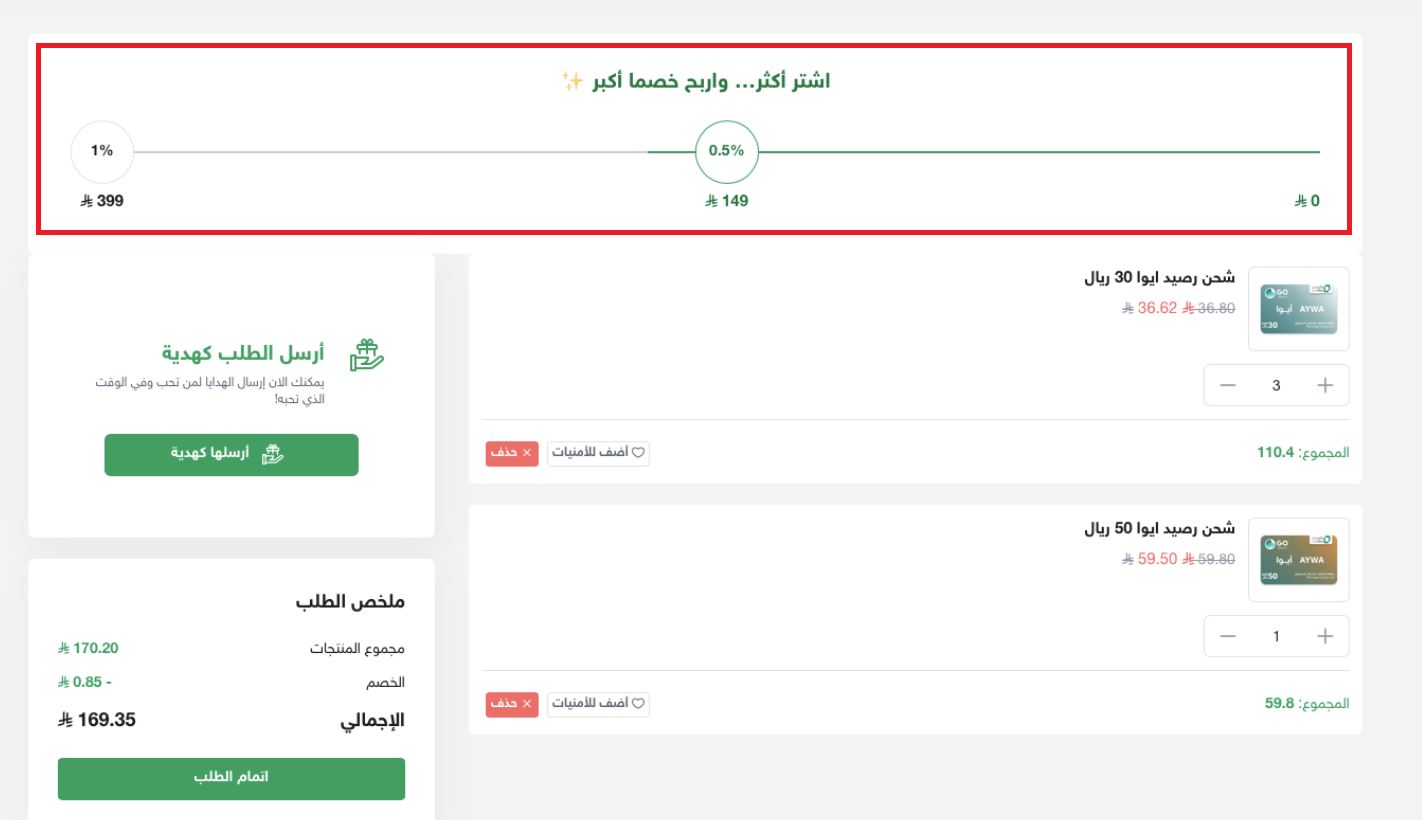
By the time a shopper reaches the cart page the hardest part is done: they found you, chose a product, and sit one click from paying. Growing that order is far cheaper than finding another customer, and cart offers do it automatically. You set one condition — "add a third item" or "spend over 300 SAR" — attach a discount, and Salla renders a progress bar in the cart showing how far the shopper is from the next reward.
The commercial effect is direct: higher average order value with no extra acquisition spend, faster movement of slow stock, and a concrete reason to check out now. This guide covers creating, managing and measuring a cart offer in Salla, then adds what the official documentation leaves out — how to price your tiers so extra revenue becomes extra profit.
A discount motivates, a coupon targets, and cart recovery rescues. Read the discount coupon guide to tell the two apart, and the abandoned carts guide to win back shoppers who left before paying.
What cart offers are and why they work
A cart offer is one promotion carrying several conditions and discount tiers, each applying automatically the moment the shopper meets it. The condition is either the total cart value or the number of products in the cart, and the reward is a percentage discount, a fixed amount, or a free product.
What makes it stronger than an ordinary discount is that it is visible while people shop. A progress bar on the cart and checkout pages shows the saving waiting one item away, changing the question from "should I buy this?" to "how much more do I add to unlock it?".
- Raises average order value: shoppers grow their own basket to reach the next tier.
- Lowers cost of sale: the extra revenue comes from a customer already on site.
- Clears inventory: tie the offer to item count to move slow-turning stock.
- Reduces hesitation: a visible saving is a reason to finish in this session.
- Applies automatically: no code to remember or paste at checkout.
The cart offers feature is currently limited to stores registered in Saudi Arabia.
The cart offers page
1. In your dashboard's main menu click Marketing, then Cart offers.
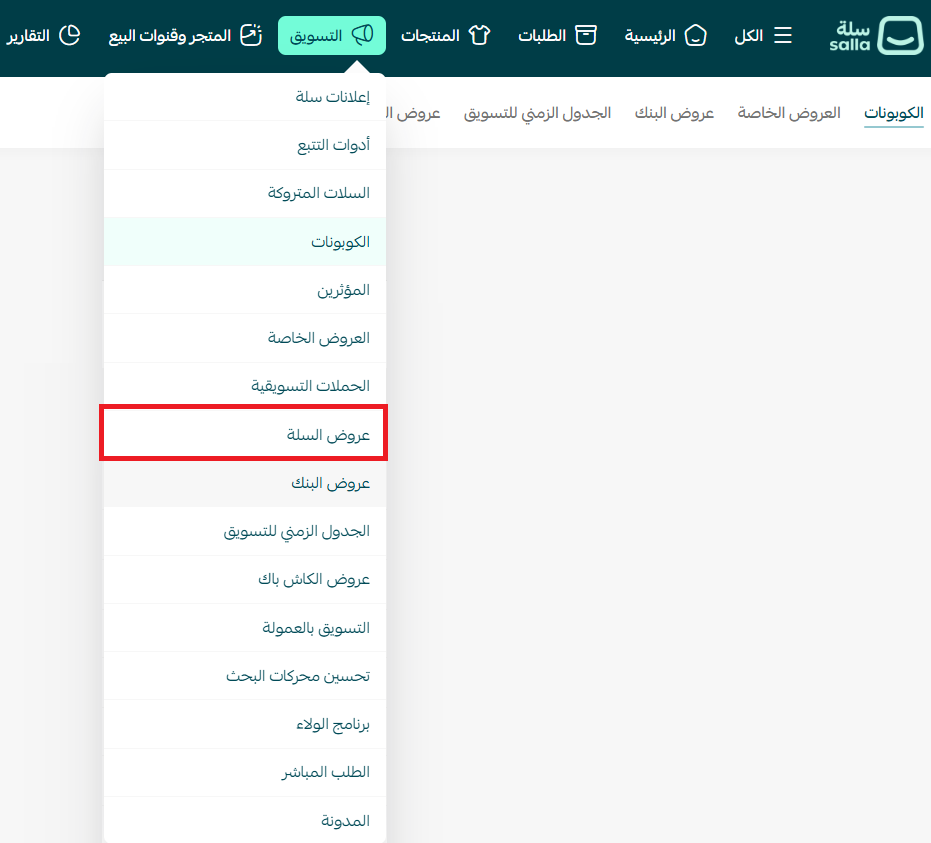
2. The cart offers page appears like this:
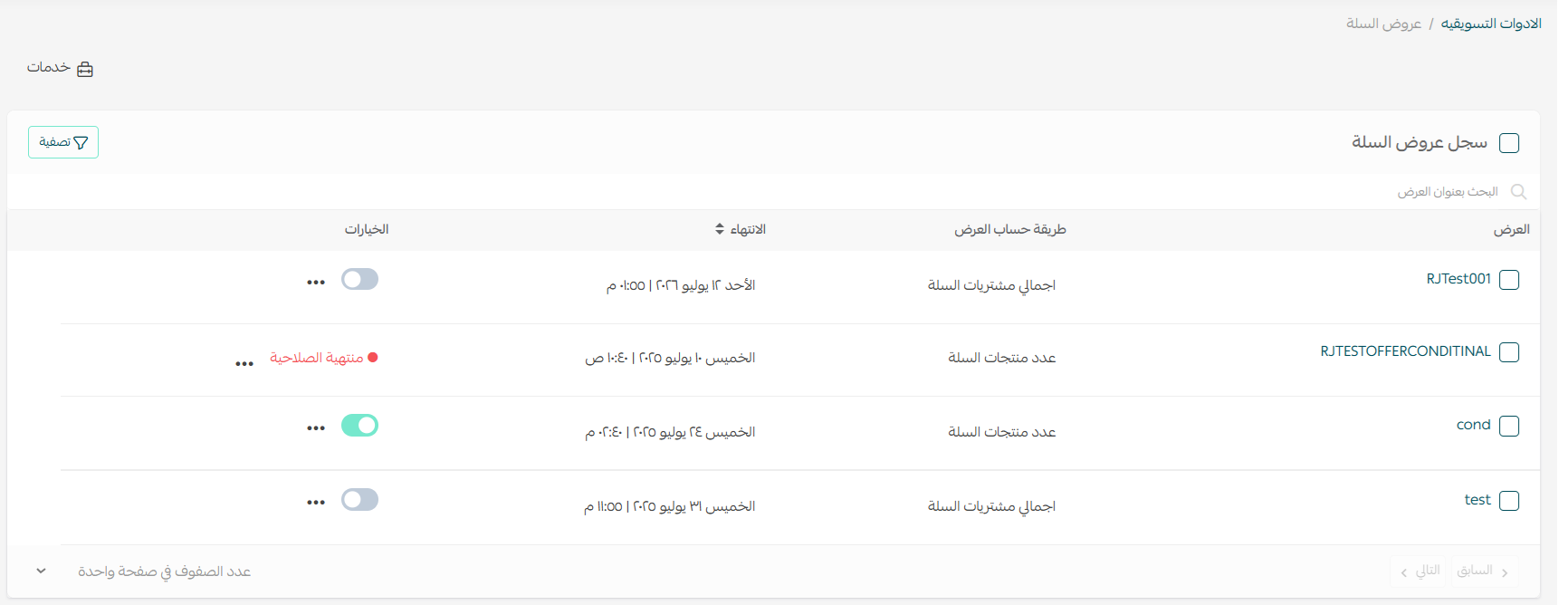
The page has three core components:
- Services button: opens the overall statistics for all cart offers.
- Filter button: narrows the list by status, calculation method and publish date.
- Cart offers log: a table for selecting offers to disable or delete in bulk.
Creating a cart offer step by step
1. On the cart offers page click Create cart offer, then enter the offer title. Keep it descriptive so you can recognise it later when you review performance.
2. Complete the offer data, which is split across three tabs.
Tab one: offer data
- Offer title: a required field.
- Calculation method: total cart amount, or number of products in the cart.
- Threshold: the minimum purchase value, or the required product count.
- Discount type: percentage, fixed amount, or free product.
- Tiers: up to three tiers within a single offer.
- Duration: the offer's start and end dates.
The "free product" option only appears on the final tier of an offer. Earlier tiers must be a percentage or a fixed-amount discount.
You can choose which market the offer applies to. All markets applies it everywhere in the store's base currency, converting automatically when the currency changes. A specific market limits it to one market and uses that market's currency for every value.
Tab two: offer conditions
Here you decide whether shoppers may stack a discount coupon on top of the offer. Not a cosmetic setting: allowing both can eat your margin twice on one order, especially in seasons when you are also handing out welcome coupons.
Tab three: publishing settings
Choose where the offer runs — store browser only, store app only, or both. A live summary panel sits beside the form so you can review every value before publishing.
How the shopper experiences the offer
Once the shopper opens the cart, the progress bar appears at the top of the page showing the available discounts and the distance to each one.
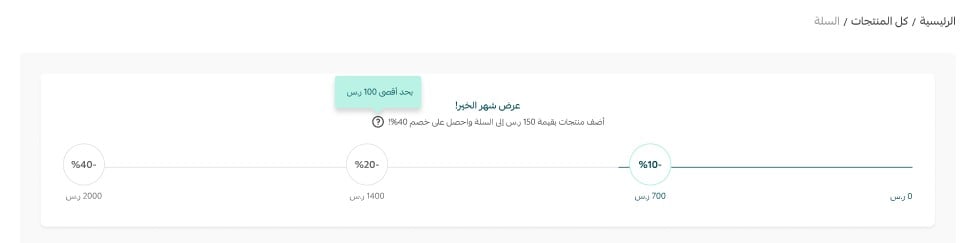
Each time a condition is met the shopper moves to the next discount, up to the maximum tier. The saving carries through to checkout as a clear line in the order summary, so the final price is never ambiguous.
Managing offers: disable, edit, delete
Disabling an offer: on the cart offers page select the offers you want to stop, then from the Status menu click Disabled.
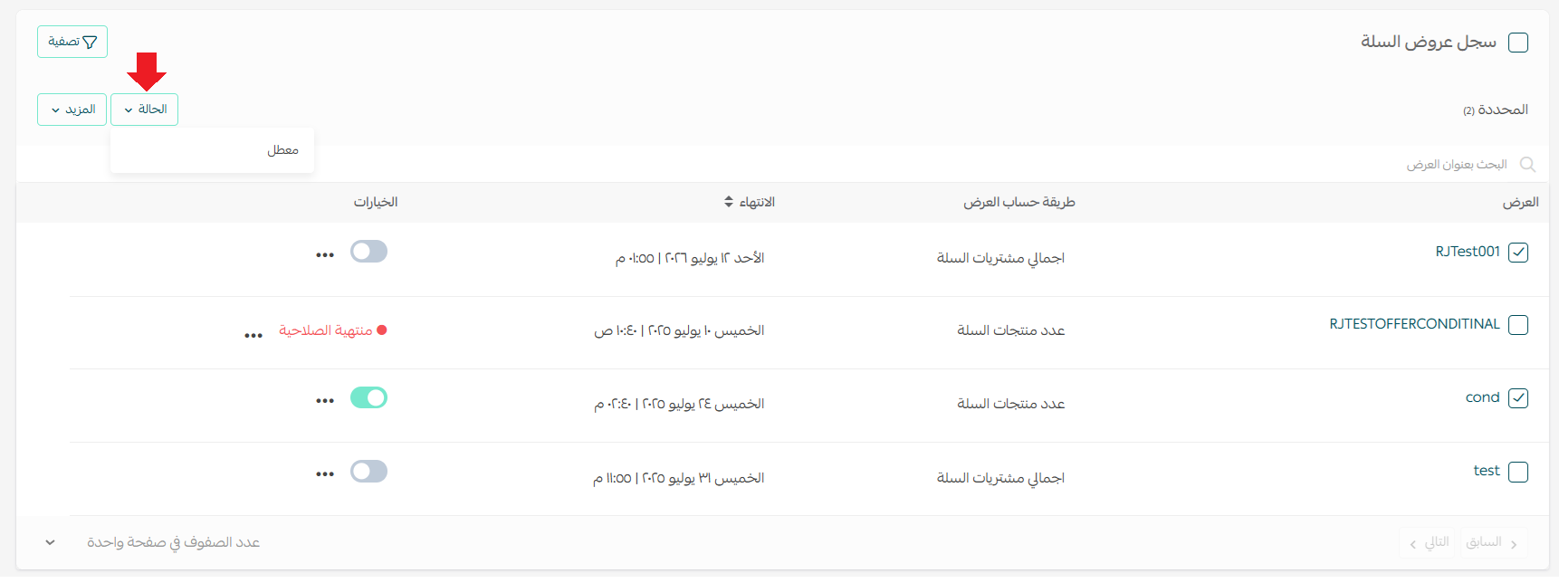
Deleting several offers: select the offers, then from the More menu click Delete.
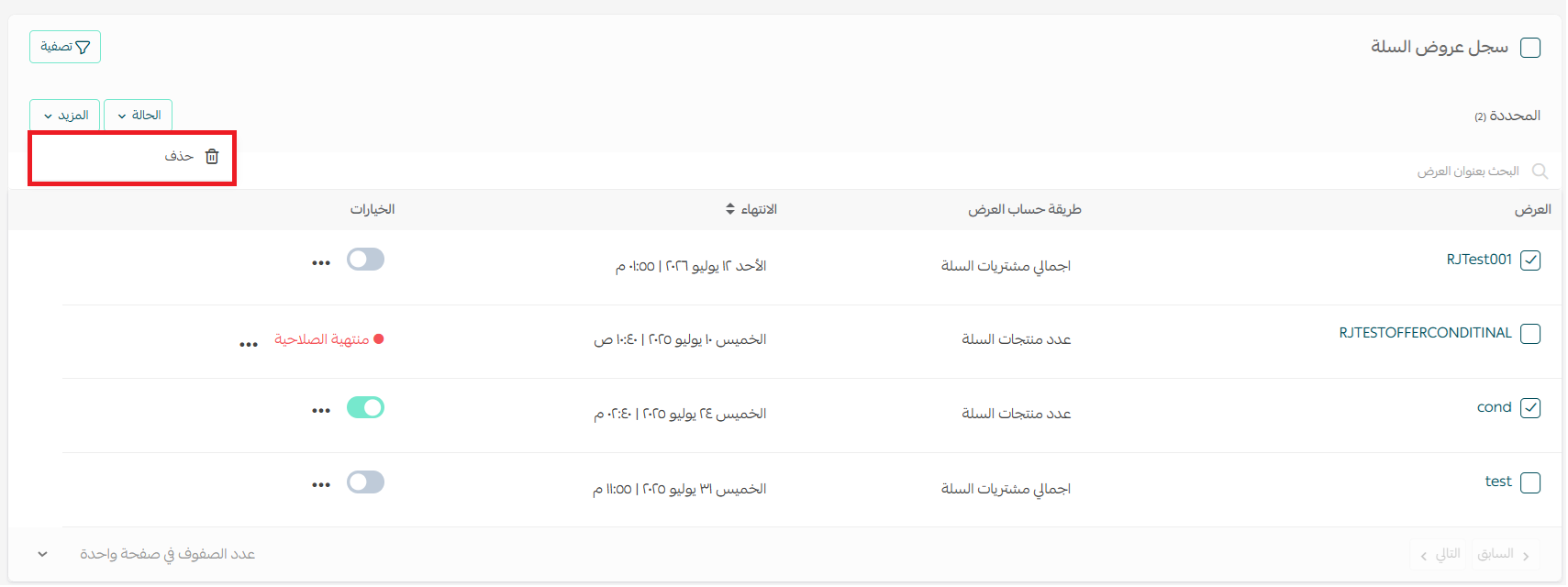
Editing or deleting a single offer: on the offer card click the three-dot button, then choose Edit or Delete.

If you plan to repeat the promotion next season, disabling keeps its setup and statistics so you can switch it back on instead of rebuilding it.
Searching and filtering offers
Search: type part of the offer name into the search box and press Enter.
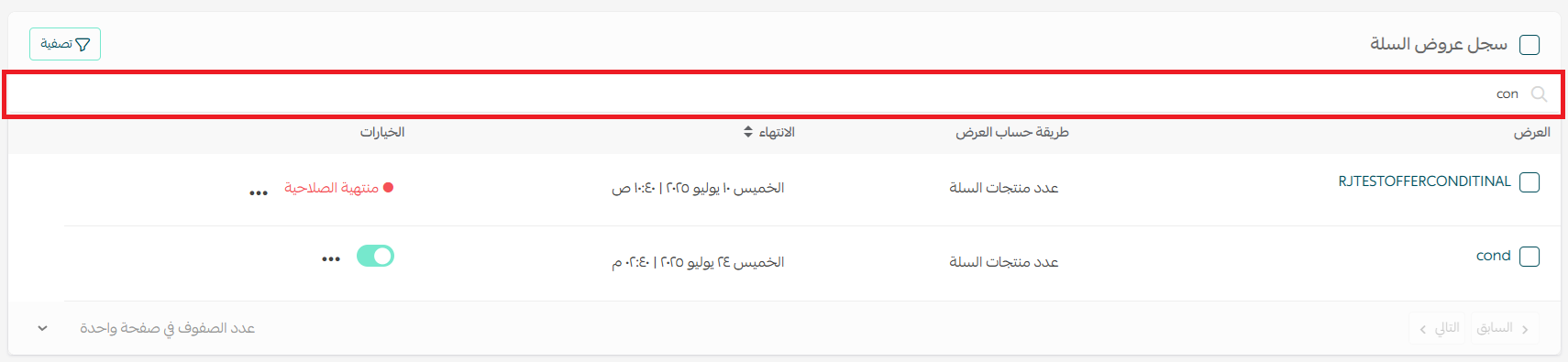
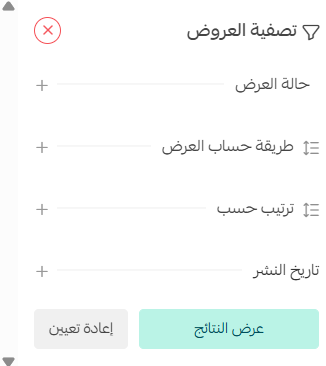
Filter: click the Filter button above the offers log.

Then pick the filters you need — status, calculation method, sort order, publish date — and click Show results.
Measuring offer performance
An offer you don't measure is one you can't improve. To review a single offer, open its details and click Statistics.
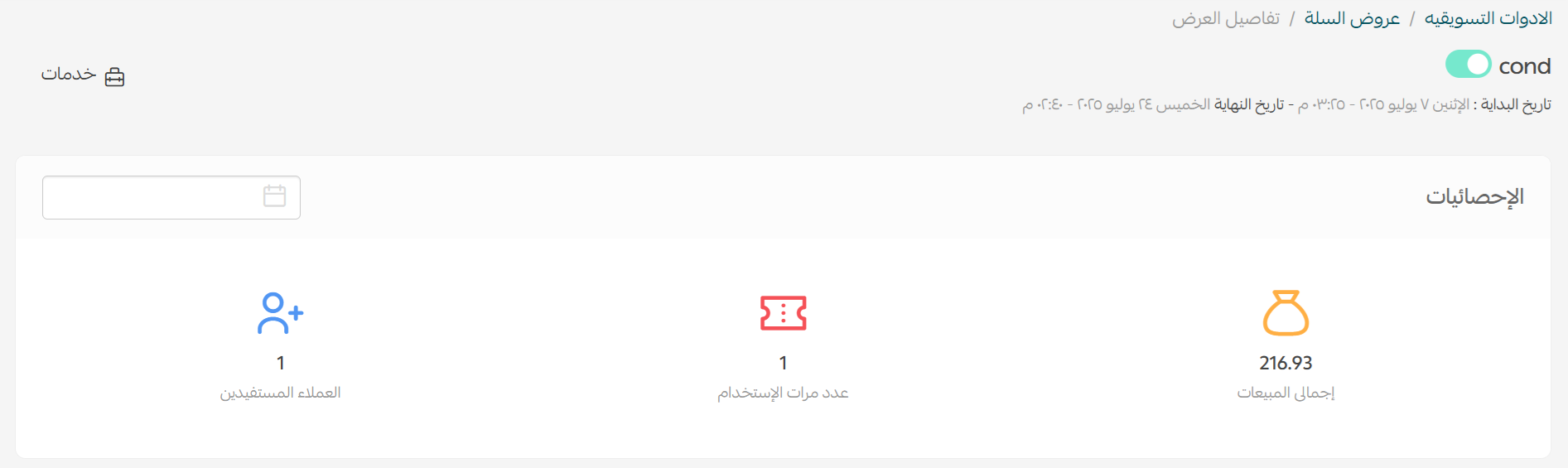
You'll see usage count, benefiting customers, offer sales and related orders. For the picture across every offer, click Services then Statistics.

The aggregated view shows total sales, usage count and benefiting customers, with a full report you can filter by date range.
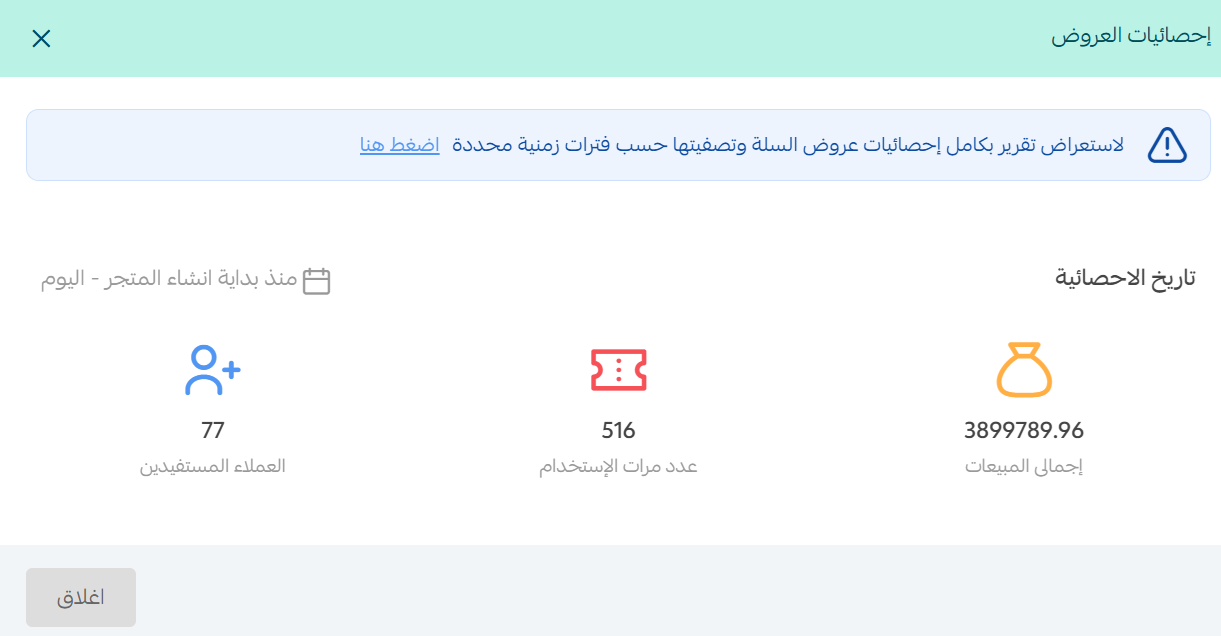
"Total offer sales" is flattering but incomplete. Compare average order value before and after, then subtract the discount you handed out. A successful offer raises net profit per order, not order count.
Ready-to-copy offer examples
Four proven scenarios you can lift and adapt to your own numbers:
- Quantity uplift on repeat purchases: a personal care store discounts orders of 3 units or more. Someone who came for one tube of toothpaste sees "save 15 SAR when you buy 3", adds two, and buys their next refill from you rather than a competitor.
- Seasonal tie-ins: during Eid or back-to-school, run "10% off when you buy 5 items or more" so the shopper consolidates a whole list with you instead of splitting it across stores.
- Launching new or stagnant products: tie the discount to cart value and spotlight a new item: "add the new fragrance and take 20 SAR off" — a first trial at almost zero marketing cost.
- A free product instead of a discount: after two items from the skincare range, show "add a third from the same range for free". This protects your listed prices and costs you the item, not a slice of revenue.
How to price your discount tiers
Most stores build a cart offer with arbitrary numbers, then wonder why revenue rose and profit didn't. These are the rules we apply with our clients:
- Set the first tier above your current average order: if your AOV is 250 SAR, the first tier belongs around 300. A tier customers already clear is a discount you pay for nothing.
- Keep each gap crossable with one product: with an average item price of 90 SAR, tiers at 300, 400 and 500 work; a jump from 300 to 800 reads as unreachable and gets ignored.
- Cap the discount using your margin, not your instinct: on a 40% gross margin, a 15% top tier gives away more than a third of the profit — fine if the basket genuinely grew, a loss if the shopper would have spent the same anyway.
- Fixed amounts read louder than percentages: "save 50 SAR" beats "save 8%" on small baskets; the reverse holds on high-value ones.
- Give the offer an end date: a permanent promotion becomes the new normal price and stops motivating anyone. Run it in defined windows and say when it ends.
- Fix the cart page first: a progress bar cannot rescue a slow page or a surprise shipping fee. Sort out delivery transparency and page speed before you lean on discounts.
The biggest mistake we see is running cart offers without a traffic plan. A discount improves what happens after the shopper arrives; it never brings a new one. At SEOS7 we start at the source — we analyze, optimize, maximize: earning search traffic to your product pages, then working the purchase path so it converts into higher-value orders. Explore Salla store SEO, or browse the case studies.
FAQ
How many cart offers can run at the same time?
Only one per time period, so conditions and discounts never conflict inside a shopper's cart. Plan your promotional calendar ahead to avoid overlapping seasons.
Which discount applies when the offer has several tiers?
The shopper gets the highest tier reached, and tiers never stack. With 5% at 200 SAR, 7% at 500 SAR and 15% at 1,000 SAR, a 700 SAR cart receives 7% only — not 12%. The same rule applies to fixed-amount tiers.
How does the free product appear in the cart?
The free product shows in the shopping cart with the word "free" next to its name, making it obvious it was added at no cost. Remember the free product option is only available on the offer's final tier.
What statuses can a cart offer have?
Four: Active, running now and visible to shoppers; Scheduled, not started yet; Disabled, stopped by you; and Expired, meaning its end date passed and it no longer shows to customers.
How is priority decided when other promotions exist?
You control it through the order of promotions on the discount management page, which governs cart offers, discount coupons and other promotions alike. Review the ordering before each season so discounts don't pile up on one order.
Want a higher average order value and more orders at once? SEOS7 combines earning search traffic with improving the purchase path inside your store. Request a free SEO audit for your Salla store — results within 48 hours, no strings attached.