
A customer added products to the cart and left without buying — frustrating, but not the end of the story. An abandoned cart is your closest sales opportunity: the customer showed clear purchase intent and got one step away from paying. This guide explains how to view abandoned carts in Salla, read their details, and send a reminder or a temporary discount to recover them, plus a practical strategy for turning these lost opportunities into completed orders.
Bringing traffic is half the equation; converting it is the other half. Read the discount coupon guide to design your recovery incentive, and the store SEO guide to earn the search traffic in the first place.
Viewing abandoned carts
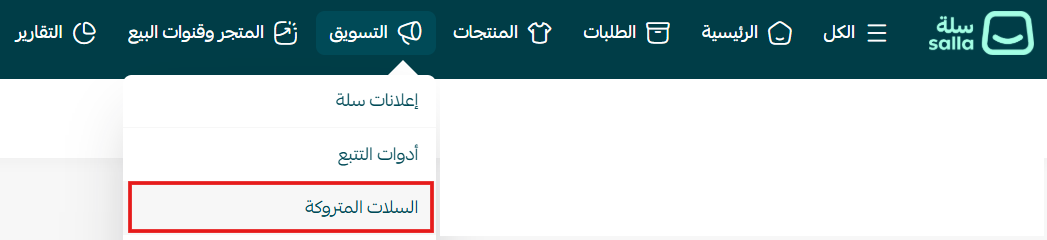
In the main menu click Marketing then Abandoned carts.
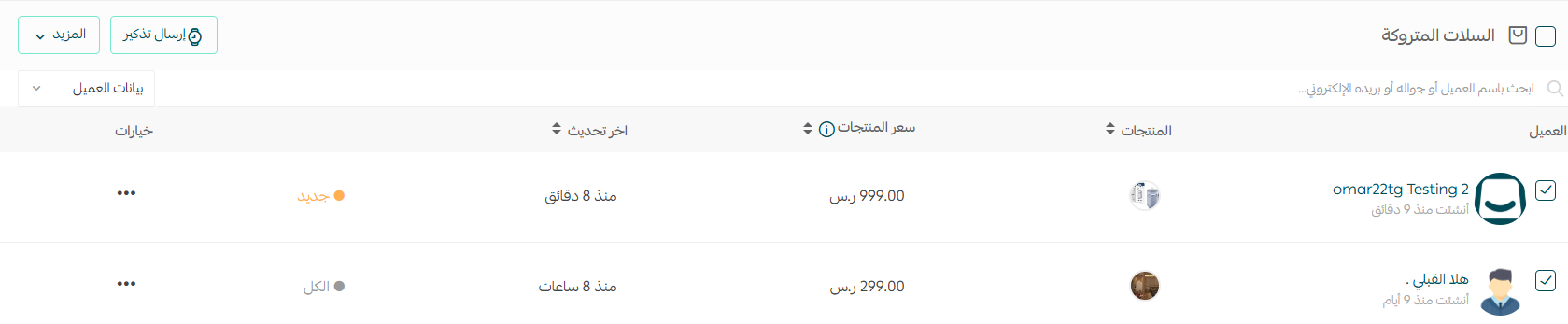
The abandoned carts page appears like this:
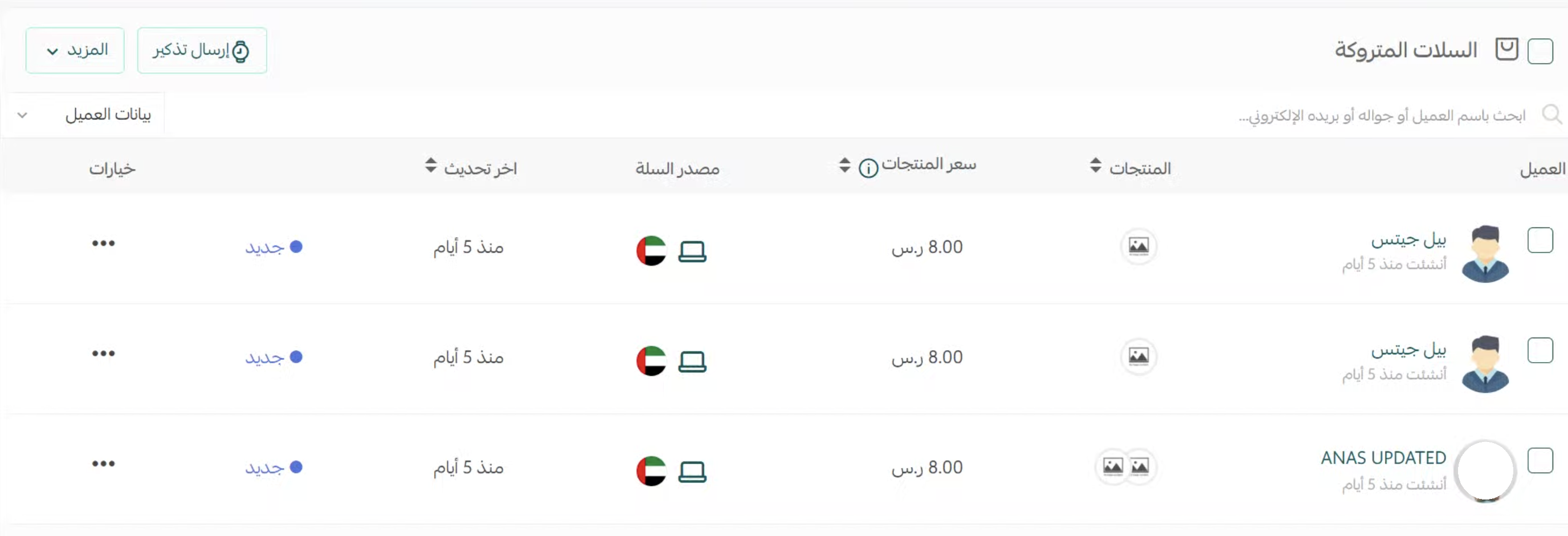
Cart statuses
Carts are classified by status: All, New, Reminder sent, Reminder failed, Scheduled, Went to store, Not updated, Order completed, and Hidden carts. Click any status to view the carts in it.

Abandoned cart details
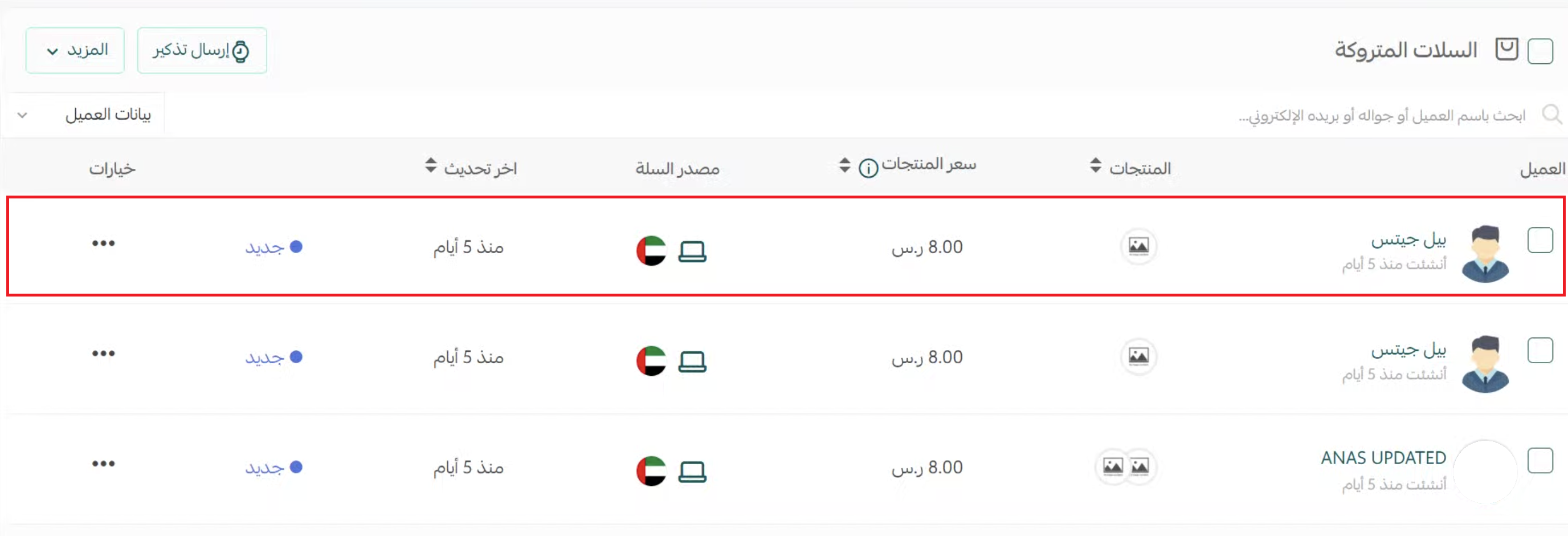
- Customer name: along with the date the cart was abandoned.
- Products and count: images of the first three products with an indicator for the rest; hovering shows the product name.
- Product price: the value of the in-stock products the customer added before leaving.
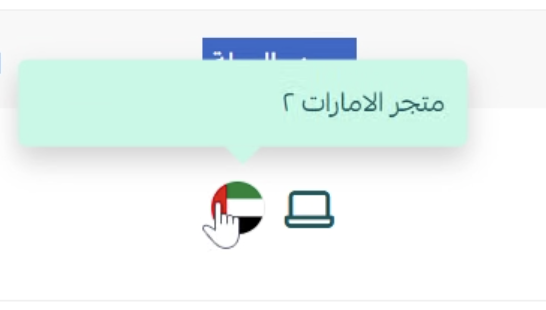
- Cart source: the market it was created from and the device type (desktop or mobile).
- Last update: the date of the last change in the cart's status.
- Status and options: the current status and the available actions.
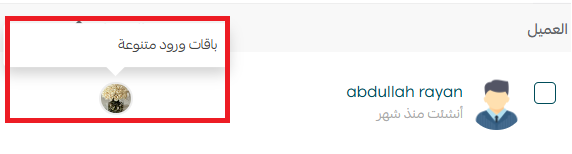
Products the customer added that later went out of stock won't appear.
Clicking the customer's name takes you to the cart page with fuller details:
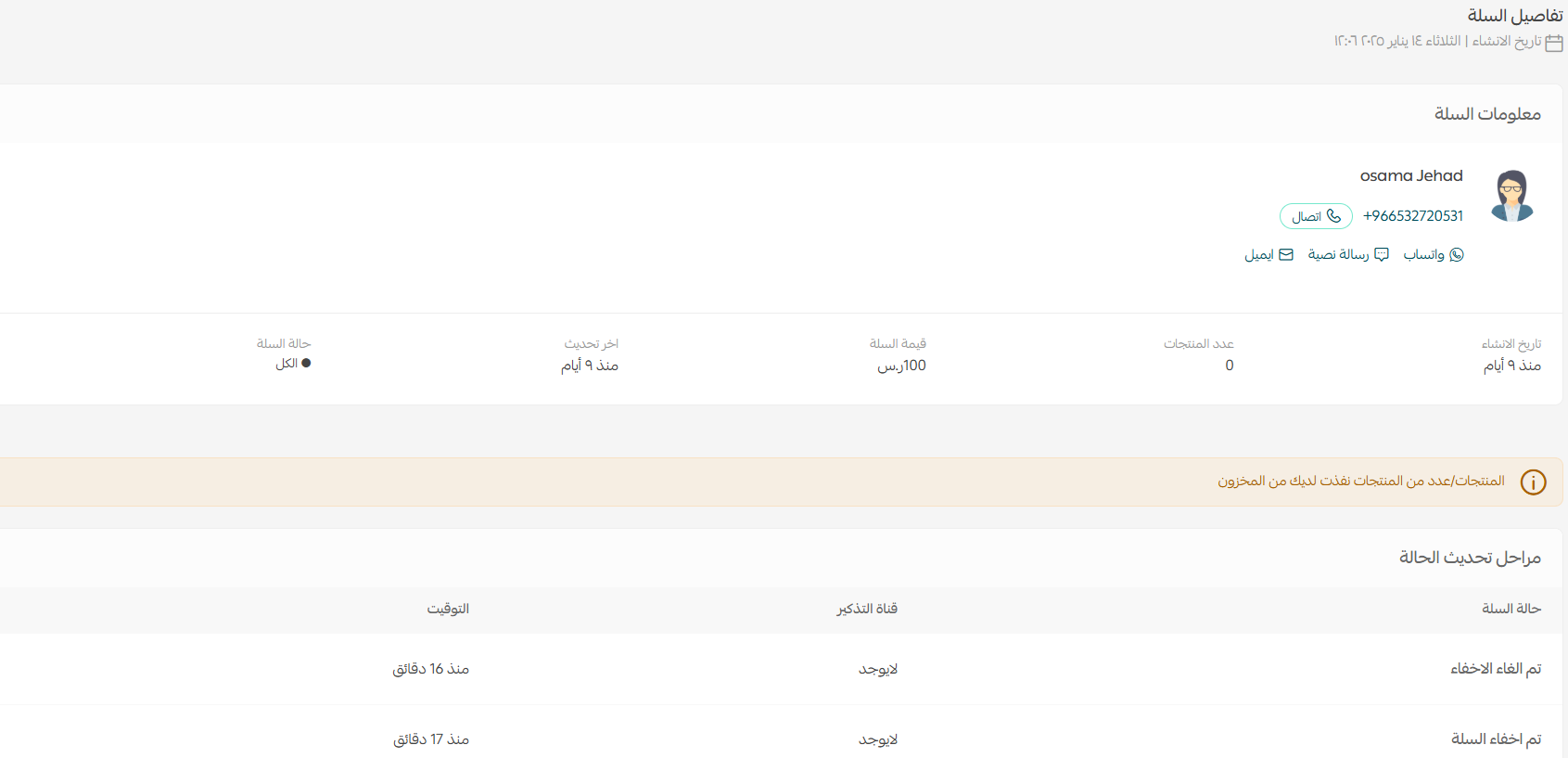
At the bottom of the page a table shows the status update stages: cart status, reminder channel, and timing.

Actions on a cart
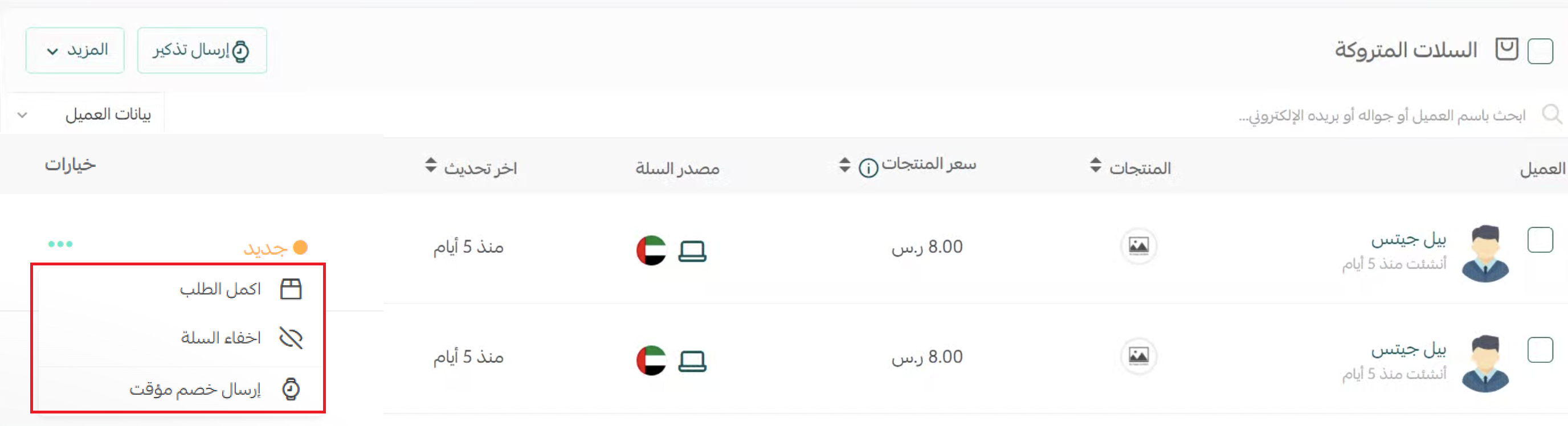
From the Options column you can act directly on the cart: complete the order on the customer's behalf, hide the cart, or send a temporary discount.
Recovery: reminders and temporary discounts
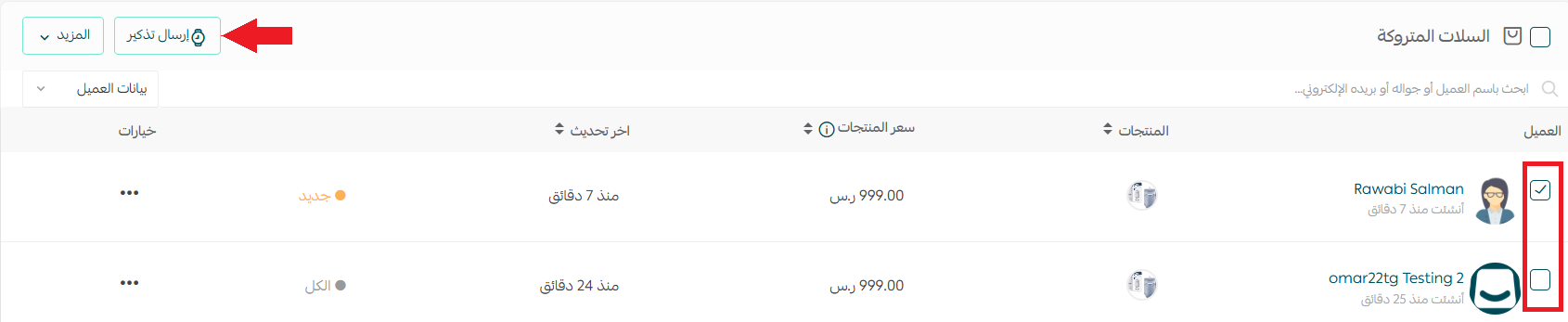
This is the step that turns a cart into an order. Select the carts you want, then click Send reminder.
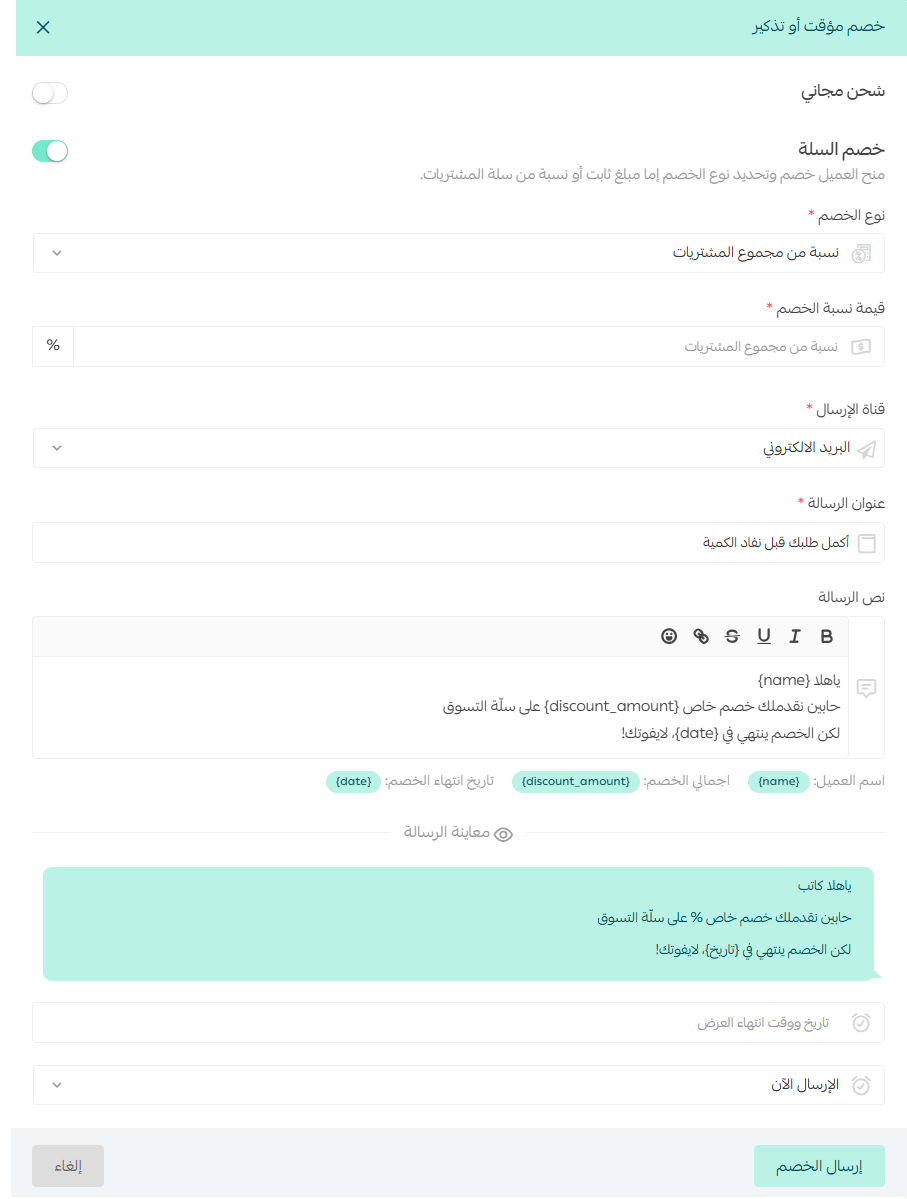
Then enter the temporary discount details and click Send discount.
Reminder settings
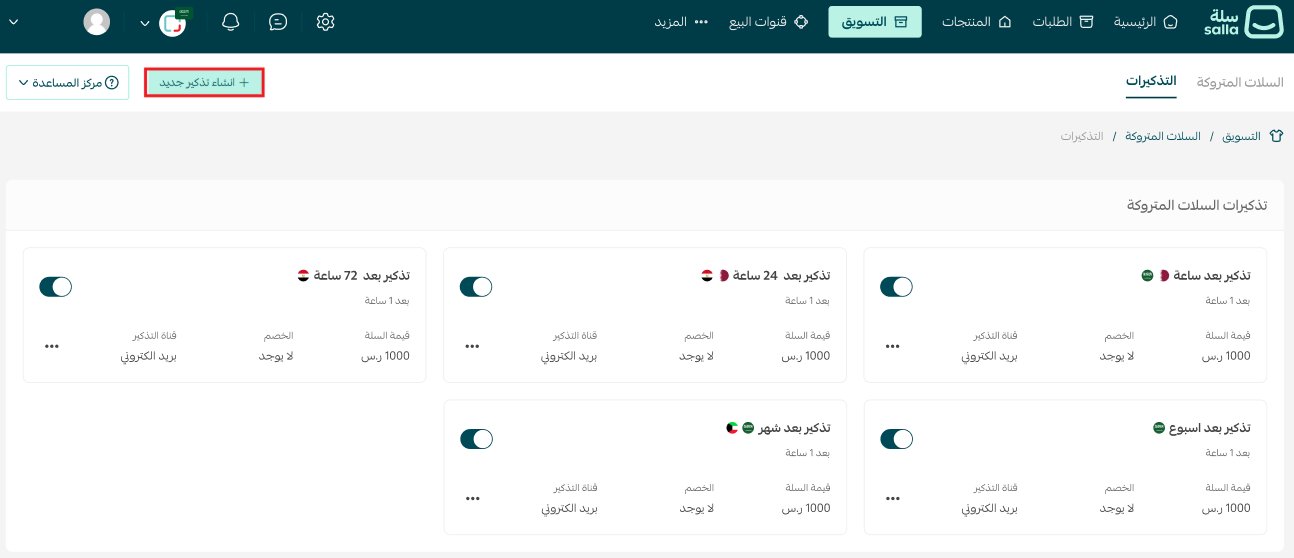
To customize how reminders work, on the reminder settings page click + Create new reminder, enter the data and customize the settings as you like — you can remind with or without a discount.
Filtering, search and sorting
To manage a large number of carts, use the display tools:
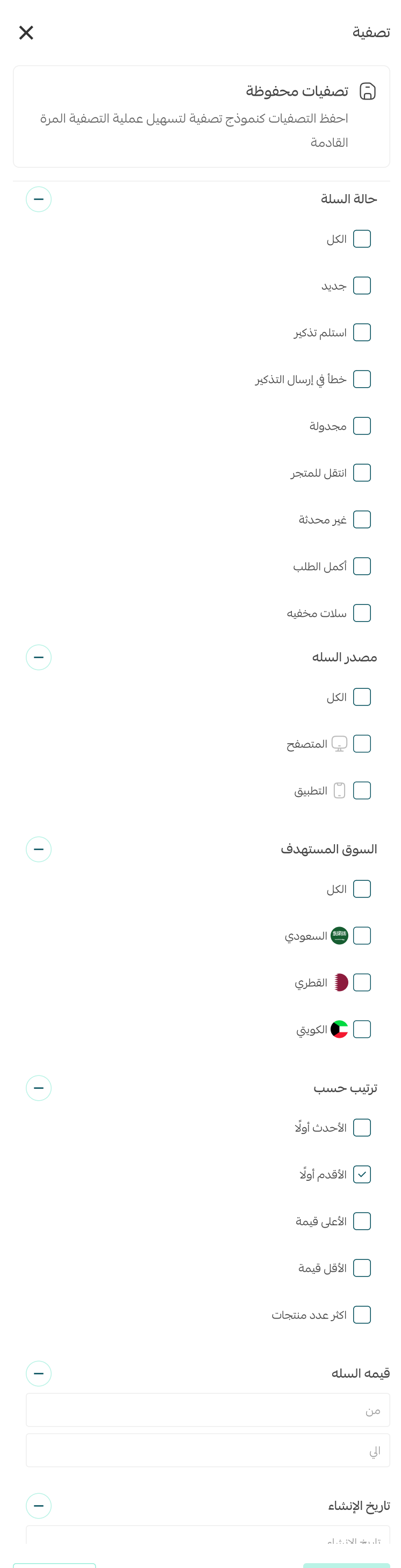
Filtering: from the filter button, set the status, source, value or creation date.

Search: search by customer name or by one of the cart's product names.

Sorting: sort by product count, cart value or last update, ascending or descending.

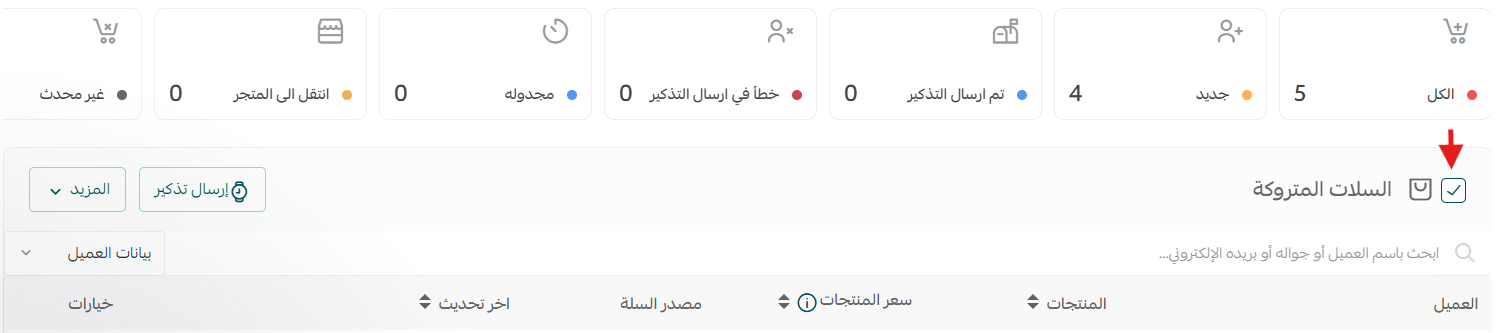
Select all: selects every cart in the category across all pages, not just the current page.
Hiding carts
1. Select the carts you want to hide.
2. Click More and choose Hide.
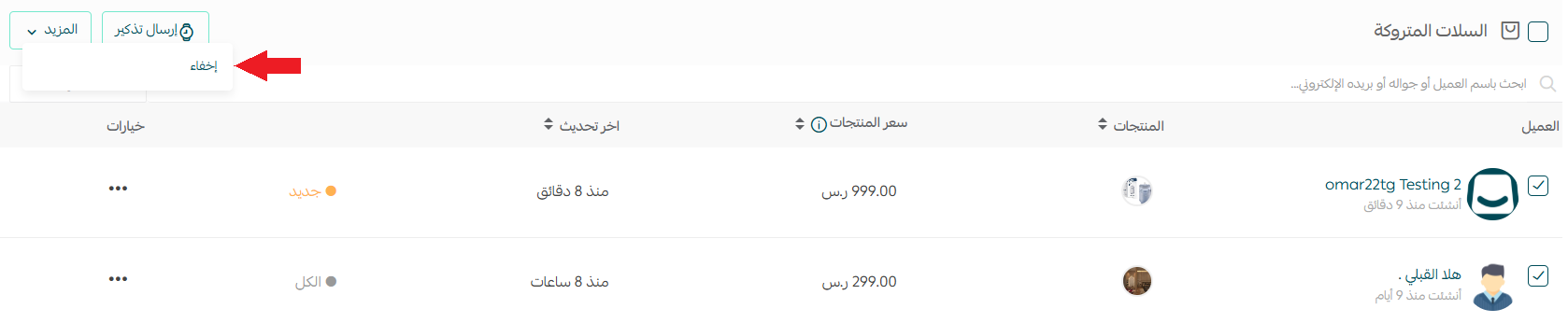
They'll then appear in the "Hidden carts" section.

To unhide, choose More then Show.

Exporting abandoned carts
On the abandoned carts page click Services then Export abandoned carts — the file will be sent to your store's email.

Cart recovery strategy
The tool alone isn't enough; timing and message are what recover the order. These are rules we apply:
- Timing beats discount: the first reminder within a few hours of abandonment gets the highest response.
- Escalate the incentive: start with a reminder without a discount, then a small discount for non-responders — don't give a discount in the first message, or customers learn to abandon carts on purpose.
- Short-lived temporary discount: time scarcity drives the decision now.
- Fix the cause, not the symptom: most abandonment comes from a surprise shipping cost, a complicated checkout, or a slow store — review those first.
- Measure the result: track your monthly recovered-cart rate to know what actually works.
At SEOS7 we bring search traffic and work on converting it into sales. Explore Salla store SEO, or browse the case studies.
FAQ
How long are abandoned carts kept?
Abandoned carts are stored in the system temporarily for around 3 months, after which they're deleted automatically — so act on them in time and don't delay recovery.
How long until a cart appears in abandoned carts?
A cart may take around an hour to appear on the page, so don't worry if you don't find it immediately after the customer leaves.
Do all carts a customer abandoned appear?
Only the customer's most recent cart appears. If they added products from the browser then added from the app, the app cart shows as the latest and the browser cart won't appear.
Do carts from Mahally and quick buy appear?
Abandoned carts from Mahally appear for enabled stores, while abandoned carts from quick buy don't appear.
Can I complete the order on the customer's behalf?
Yes, from the cart's "Options" column choose "Complete order" to turn the abandoned cart directly into an order — very useful with customers you've contacted by phone.
Have a lot of abandoned carts and want to convert them while also multiplying your traffic? The SEOS7 team combines earning search traffic with improving the purchase path. Request a free SEO audit for your Salla store — results within 48 hours, no strings attached.