
Discount coupons are one of the most powerful marketing tools in e-commerce: they attract customers and push them to complete a purchase, lift sales, and build brand loyalty. But their real power shows when used smartly — a well-designed coupon turns a hesitant visitor into a buyer without eating your margin. This guide explains how to create a discount coupon on Salla step by step, along with coupon groups and the local coupon, plus tips for a coupon strategy that actually sells.
Coupons work best when you already have visitors reaching your store. Combine them with improving your store's search visibility to earn search traffic, then convert it into sales with a coupon at the right moment.
The coupons page
In the main menu click Marketing then Coupons.
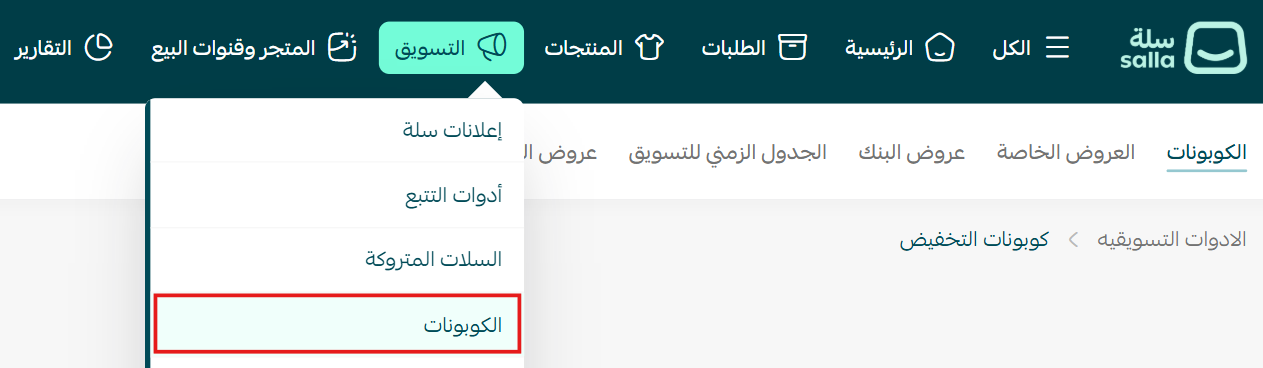
To create a discount coupon, click Create new coupon then Discount coupon.
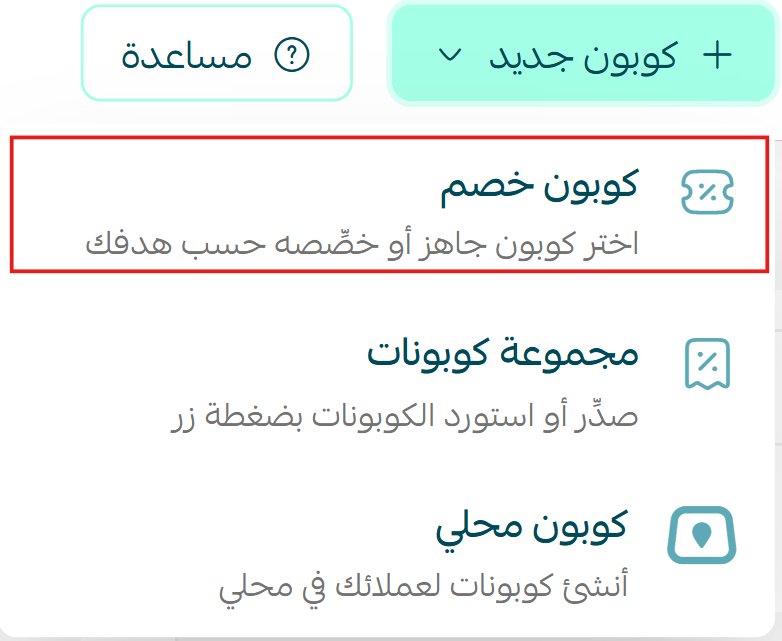
You'll be taken to the coupon templates page to pick a ready-made scenario that fits your goal (with full customization), or choose Custom coupon to build one from scratch.

Section 1: Basic information
These are the mandatory fields to publish the coupon:
1. Coupon name: comes with a default name you can easily customize.

2. Coupon code: comes with a default code; you can regenerate it automatically or customize it — Arabic or English letters and numbers, no spaces.

3. Discount type: a percentage discount (a percent off the amount) or a fixed amount. Enter the amount or percentage, then choose the currency.
Changing the currency applies to all amount fields (the coupon amount, the minimum and the maximum).
Section 2: Coupon conditions (optional)
Here you fully control how the coupon works and how it's customized:
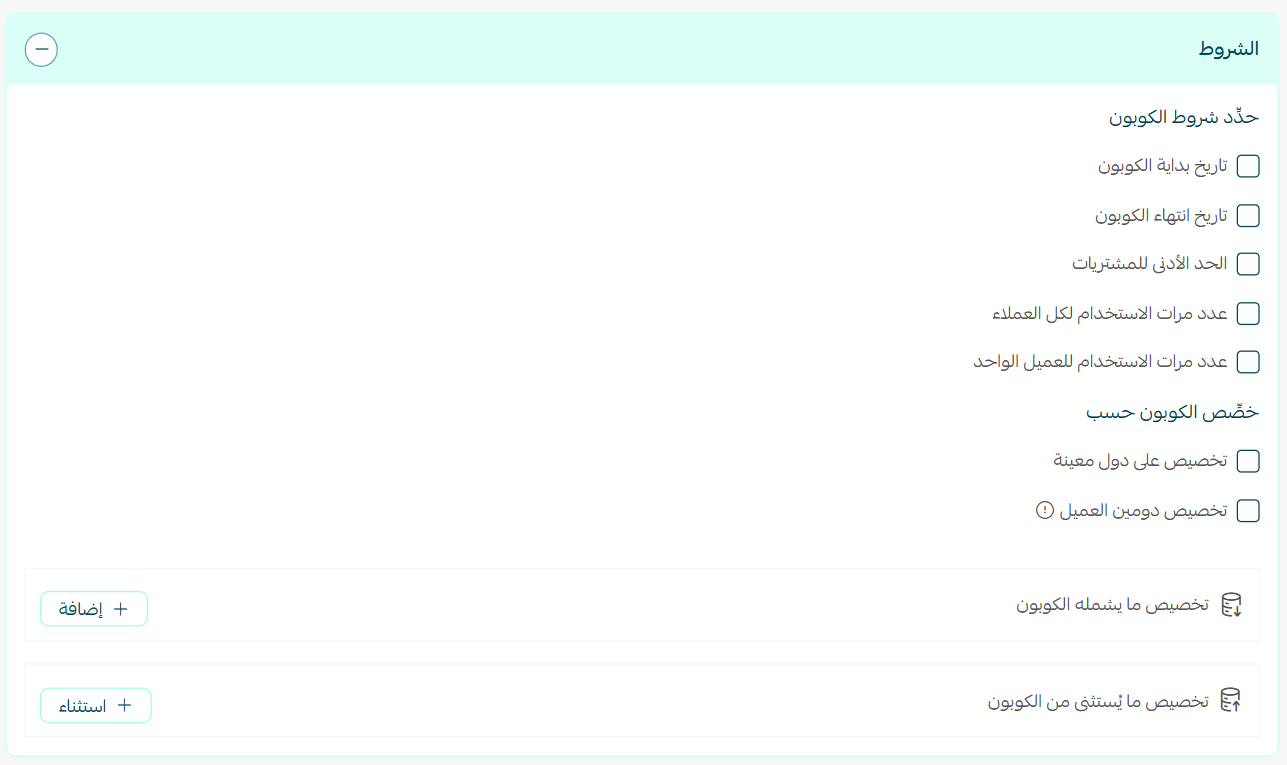
First: set the conditions
- Start date: set manually; if left empty, the creation date is used automatically.
- End date: leave it empty to keep the coupon open-ended.
- Minimum purchase: the lowest cart value the coupon applies to.
- Usage count for all customers: a total cap on how many times it can be used.
- Usage count per customer: how many times a single customer can use the same coupon.
Second: customize the coupon by specific countries, or by the customer's email domain (to restrict the coupon to a company or organization).
Third: what the coupon includes — products, categories, a customer group, a specific customer, or specific payment methods, so the coupon activates only on those elements.
Fourth: what the coupon excludes — it applies to the whole store except specific excluded elements (products, categories, a customer, payment methods…).
Section 3: Settings (optional)
Control how the coupon works and is used:
- Publishing channels: the store, the app, points of sale…
- Combine coupon with offers: activate the coupon alongside promotional offers.
- Free shipping with the coupon: grants free shipping or doesn't affect shipping cost.
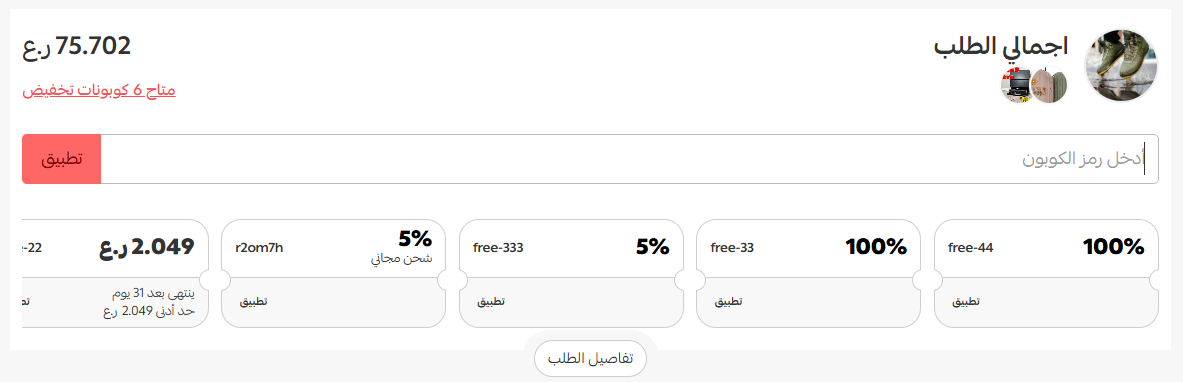
- Show the coupon at checkout and cart: the customer sees the coupons relevant to their order and applies one with a click, no manual entry (up to 15 coupons).
- Coupon for the next order: shows a discount code automatically on the "thank you for your purchase" page after checkout.
- Exclude discounted products: whether the discount includes already-discounted products.
- Marketing coupon: a coupon tied to a marketer that gives the customer a discount and the marketer a commission on a completed purchase.
Complete the data, then click Save to publish the coupon.
Creating a coupon group
This lets you create many coupons at once with the same data without repeating the setup — ideal for handing a unique coupon to each customer (school students, course members).
1. On the coupons page click Add then Coupon group.
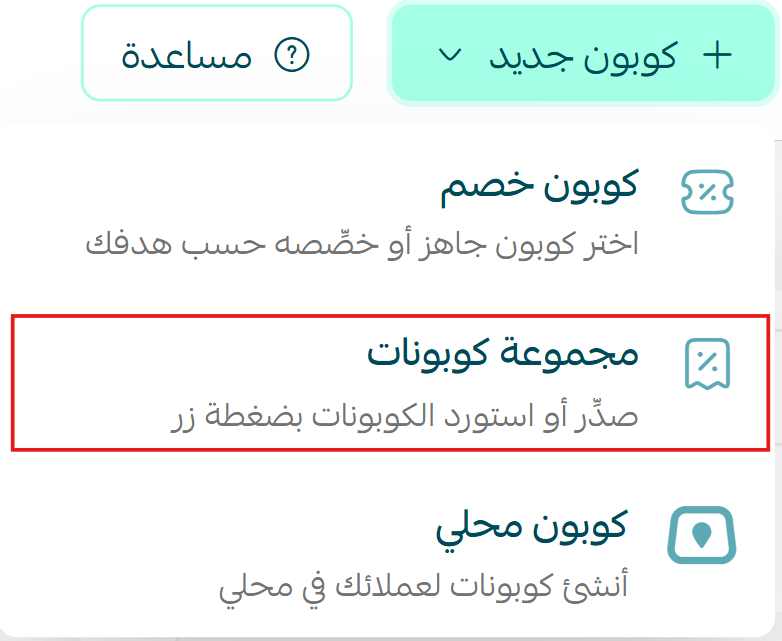
2. Enter the group name, choose the add method (auto-generate or import a file in xlsx or CSV format), the first letters of the coupon names (up to five, in English), and the number of coupons (careful: it can't be edited after saving), then complete the rest of the data as in the previous section and save.
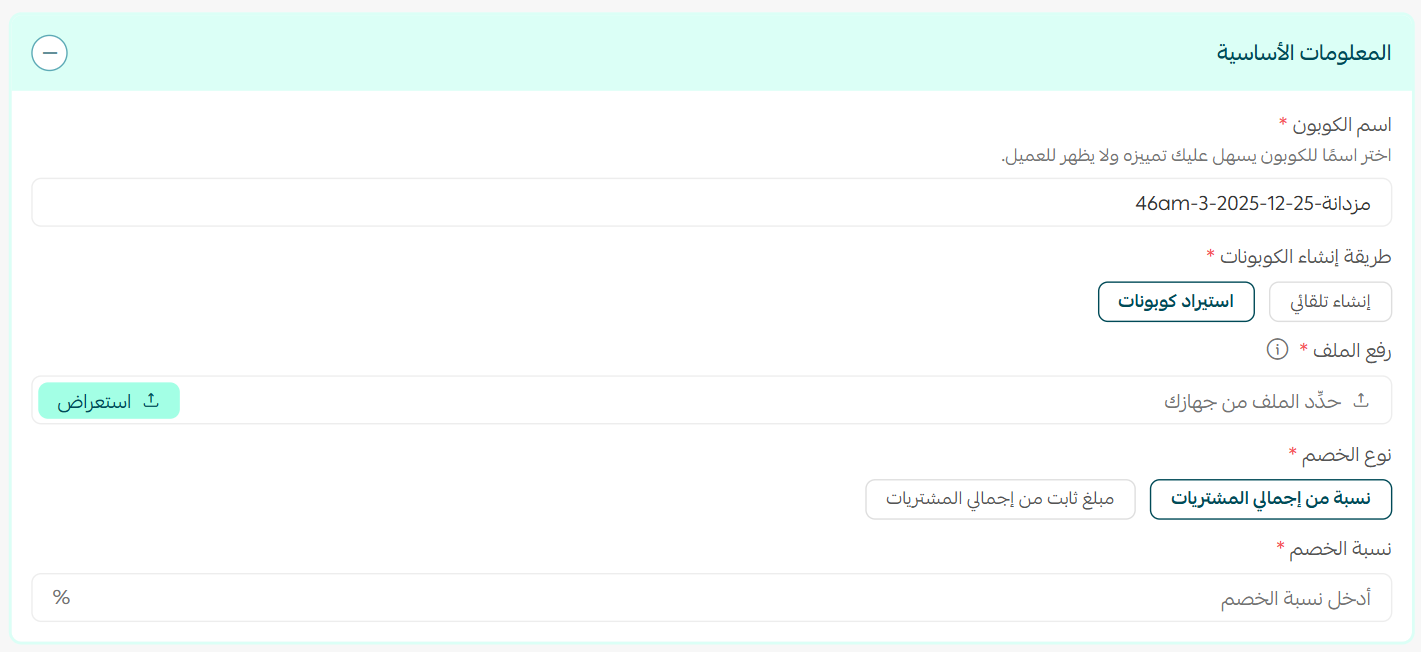
Creating a local coupon
The local coupon is the simplest type: a general coupon with no configuration complexity, applied to all products and orders with no inclusions, exclusions or customization.
1. On the coupons page click Create new coupon then Local coupon.
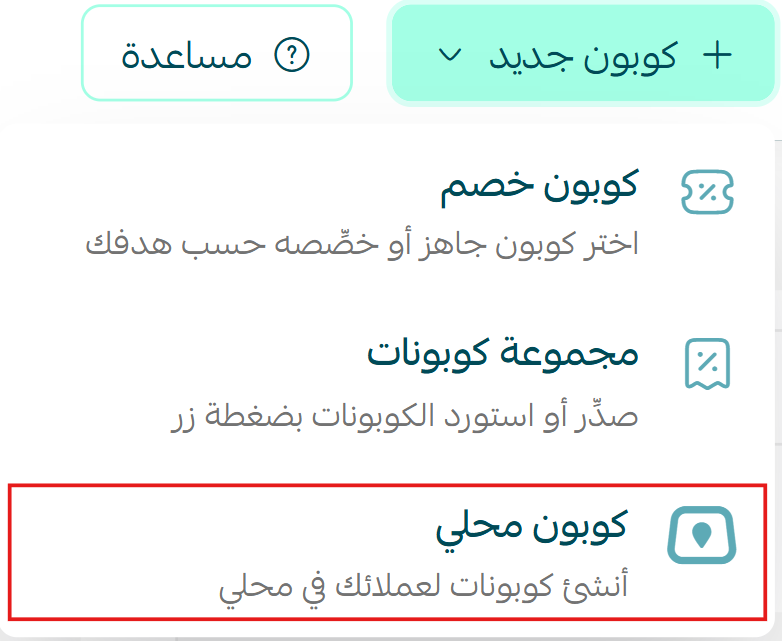
2. Complete the required data, then click Save.
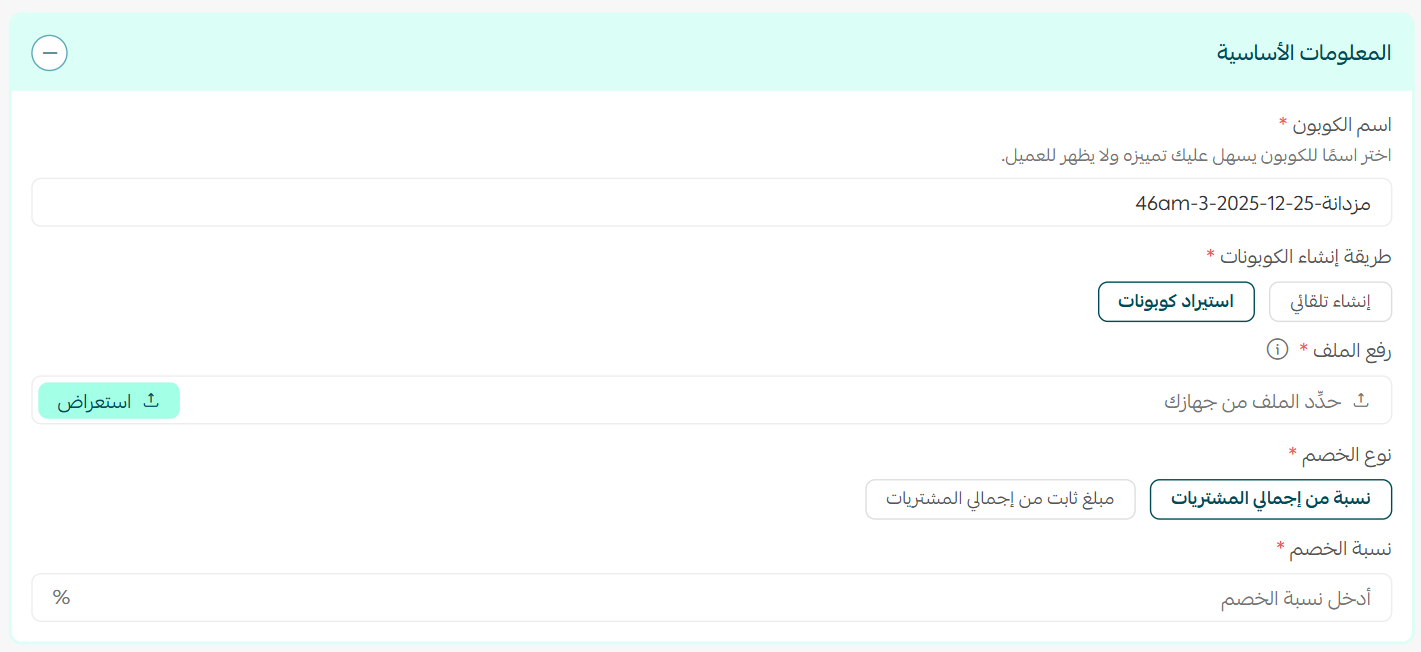
Local coupons are currently available only to stores in Saudi Arabia.
Tips for a smart coupon strategy
A coupon is double-edged: it lifts sales or eats your margin if used randomly. These are rules we apply for our clients:
- Tie it to a goal: abandoned-cart recovery, a first order, or a seasonal occasion — not a permanent discount customers come to expect.
- Set a minimum purchase: it raises average order value instead of cutting profit on small orders.
- Precise targeting: a coupon for a specific customer group converts higher than a blanket discount for everyone.
- Add a deadline and scarcity: a short expiry and limited uses create a reason to buy now.
- Measure the impact: track each coupon's stats to see what actually sells and repeat it.
At SEOS7 we bring you search traffic and help you convert it into sales. Explore Salla store SEO, or browse the case studies.
FAQ
What are the main uses of coupon groups?
Handing a unique coupon to each person instead of one coupon for everyone: like a school-uniform store giving each student at a contracted school their own coupon, or a trainer giving each trainee a coupon for their next course.
Can I import coupon codes from a ready file?
Yes, and this feature is for Special-plan stores. When creating a coupon group choose the "upload file" method and attach a file in xlsx or CSV format, then save.
How do I disable one coupon in a group?
After entering the coupon group, deselect the coupon you want to disable. You can also enable or disable the whole group from the coupons page.
Are there stats for each coupon within a group?
Yes, there are stats for each coupon individually, plus stats for the group as a whole, so you know each coupon's performance precisely.
What's the difference between a custom coupon and a local coupon?
A custom coupon gives full control (conditions, customization, inclusions and exclusions, advanced settings), while a local coupon is simple and fast, applied to the whole store with no customization — suitable for general discounts.
Getting visitors but conversion is weak? The SEOS7 team builds a strategy that combines earning search traffic and converting it into sales. Request a free SEO audit for your Salla store — results within 48 hours, no strings attached.