
Google Search Console (GSC) is your direct line to Google: a free tool that shows you exactly how the search engine sees your Salla store, which keywords bring you customers, and which pages get indexed versus which ones stumble. Without it you're working in the dark; with it you make decisions based on real numbers instead of guesswork.
This guide walks you through every stage: adding your store and verifying ownership via Salla's domain settings, submitting your sitemap, and reading the reports that actually move the needle. It also adds what the quick tutorials leave out — what each report means in practice, and how an SEO specialist reads it. At SEOS7 we live inside Search Console every day for our clients' stores, and this guide is the distillation of that experience.
If you haven't configured your SEO settings inside the Salla dashboard yet, start with the Salla store SEO guide first, then come back here to connect your store to Google and monitor results.
- What Google Search Console is and why you need it
- Stage 1: Verify domain ownership and add your store
- Stage 2: Make sure Google can find your pages
- Stage 3: Your store's mobile experience
- Stage 4: Submit your sitemap
- Stage 5: Monitor your store's performance
- Fixing a common problem and requesting re-indexing
- How an SEO specialist reads GSC reports
- FAQ
What Google Search Console is and why you need it
Google Search Console is a free service from Google that lets site owners understand how their stores perform in search and what actions improve their content's visibility to attract more relevant traffic. In short, it answers questions like: which keywords does my store appear for? How many clicks do I get? Which of my pages are indexed? And are there errors blocking my visibility?
Every serious Salla store has one reason enough to enable it: you can't improve what you don't measure. Search traffic isn't managed by guesswork, and GSC is the only free source of truth that comes from Google itself — not from a third-party tool.
Stage 1: Verify domain ownership and add your store
Before Google gives you your store's data, it needs to confirm you actually own it. The easiest reliable method for a Salla store is verifying via a DNS record in your dashboard's domain settings.
1. Go to the Google Search Console homepage, enter your store URL without https://, then click Continue.
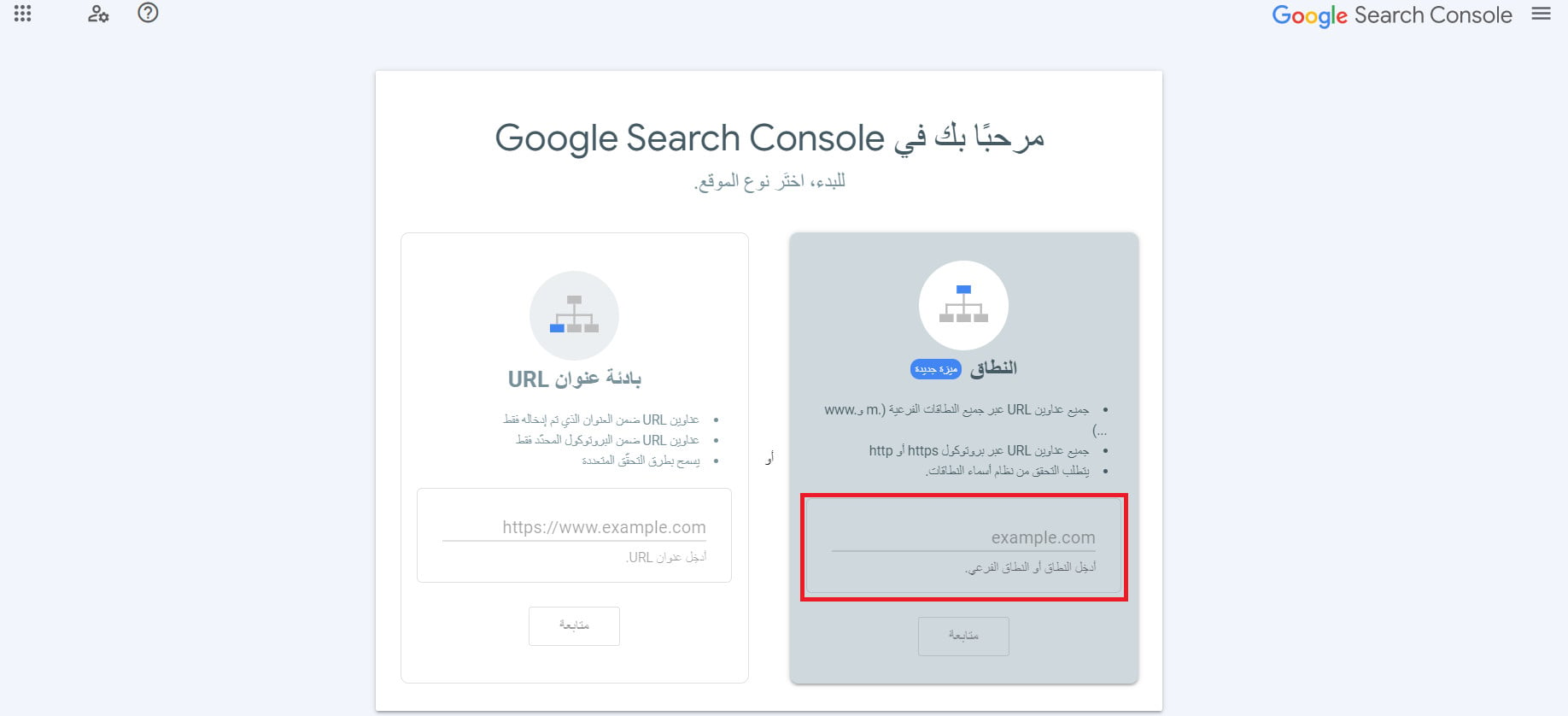
2. In a new tab, open your store dashboard to follow the domain verification steps.
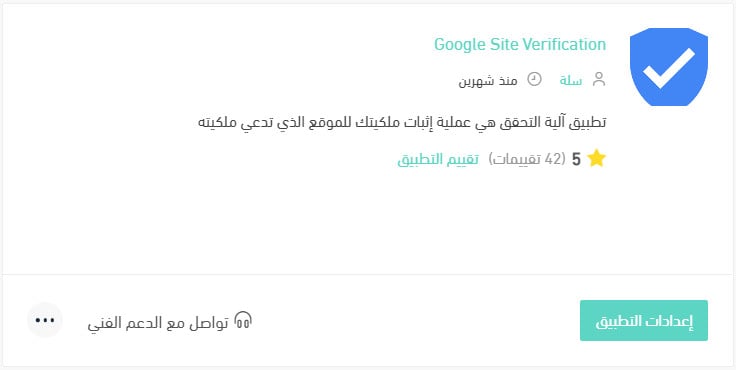
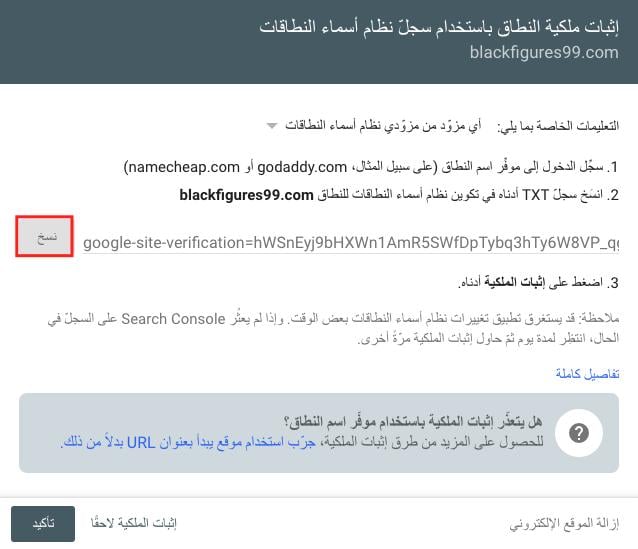
3. Back on the GSC setup page, click Copy to copy the verification record.
4. Go to your Salla store, and under the Store & Sales Channels tab click Store Domain.
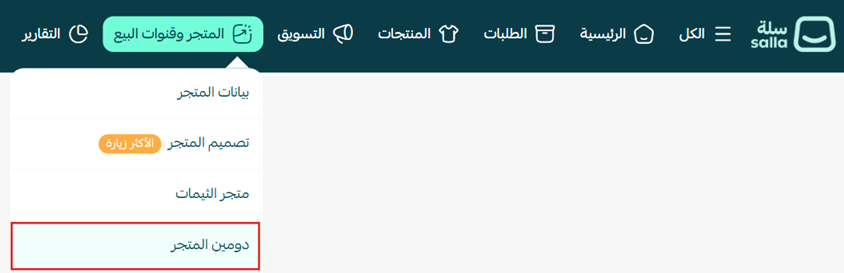
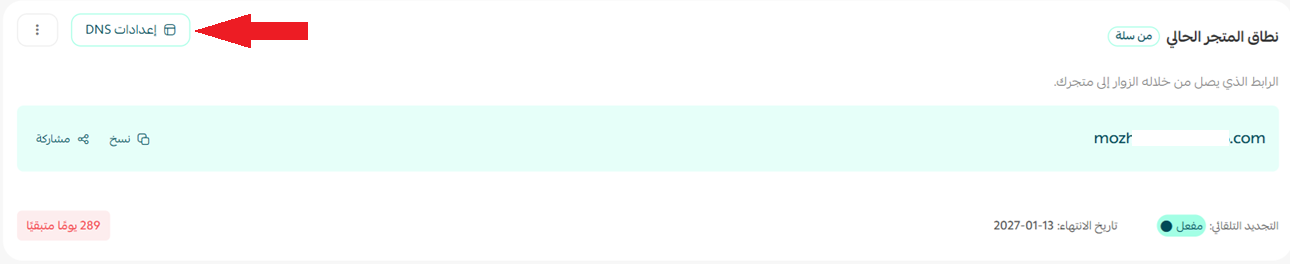
5. Click DNS settings.
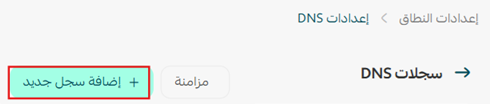
6. Click + Add new record to add the copied record.
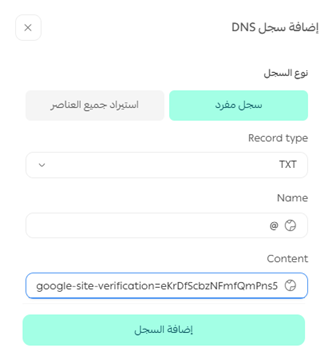
7. Enter the data (choose record type TXT and paste the copied value), then click Add record.
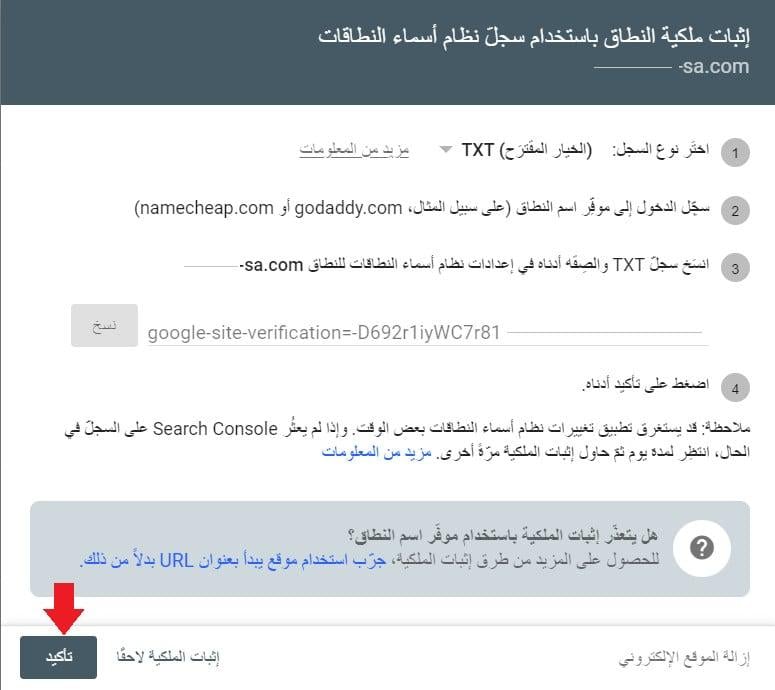
8. Return to GSC and click Verify.
Once GSC finishes verifying, you'll get a success message.
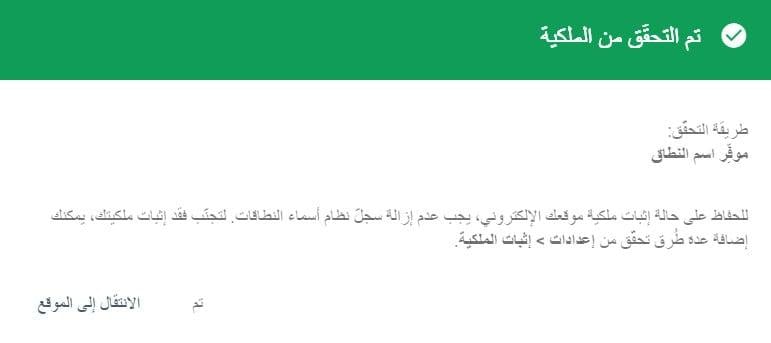
- A DNS record can take minutes to a few hours to propagate. If verification doesn't succeed immediately, wait a bit and retry.
- Domain-property verification covers your entire store: http, https and all subdomains — the option we recommend.
- Don't delete the TXT record after verifying; removing it revokes ownership later.
Stage 2: Make sure Google can find your pages
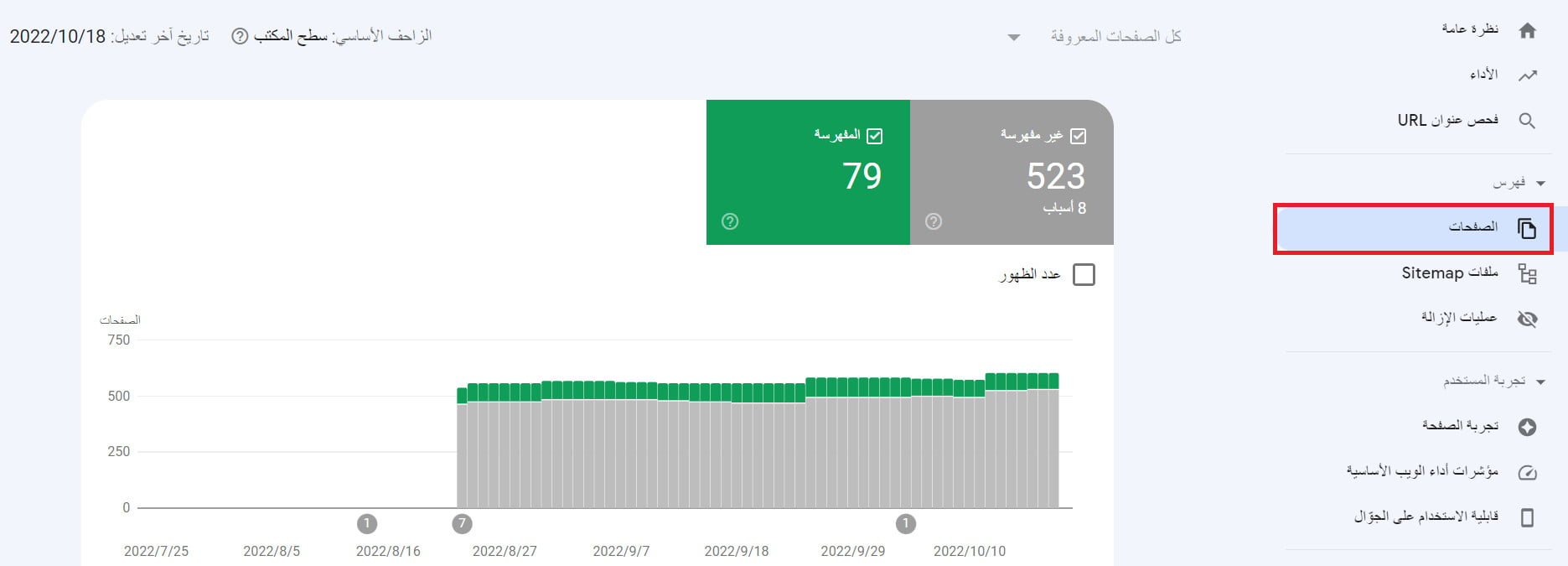
A great store Google can't read is useless. The indexing (Pages) report gives you an overview of every page Google indexed or tried to index, with reasons for anything excluded.
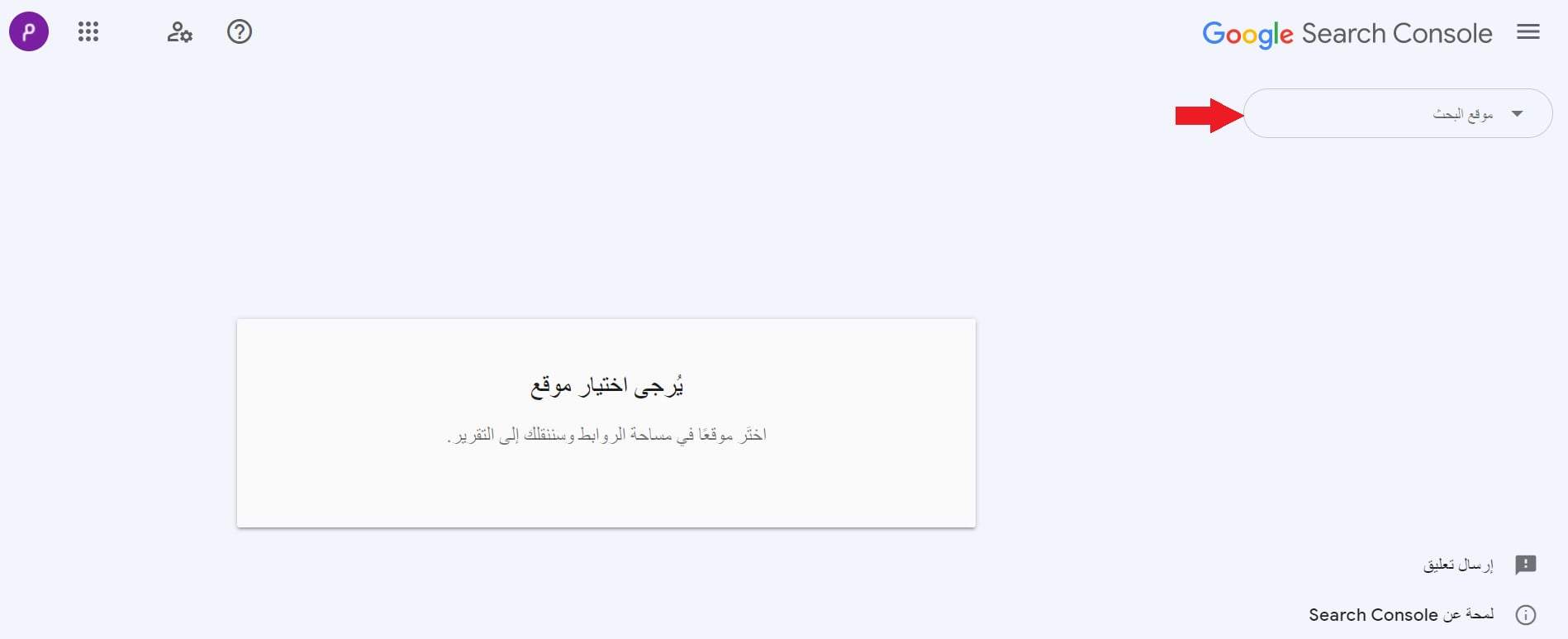
Go to the Indexing / Pages report in GSC and select your store to view its status.
The indexing page appears, showing indexed and non-indexed page counts and their reasons:
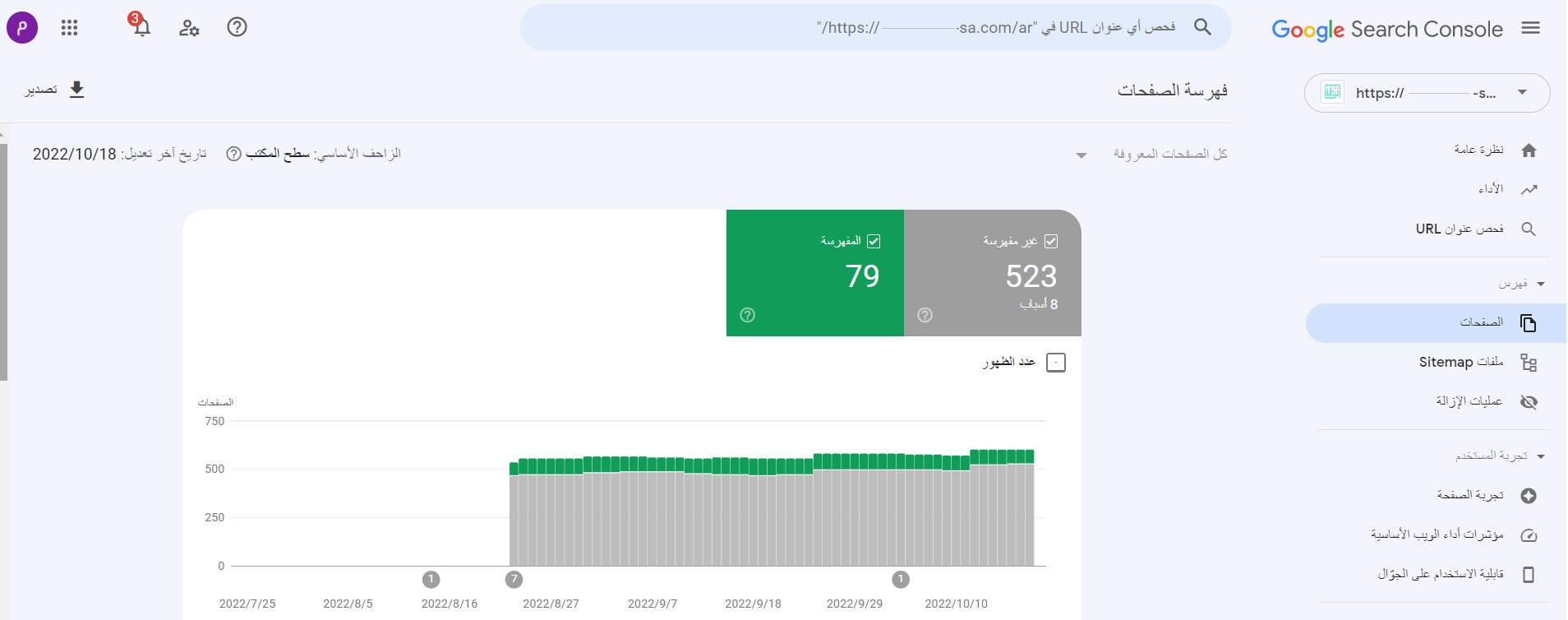
- Watch the indexed-pages count: it should grow as your store grows, not drop suddenly.
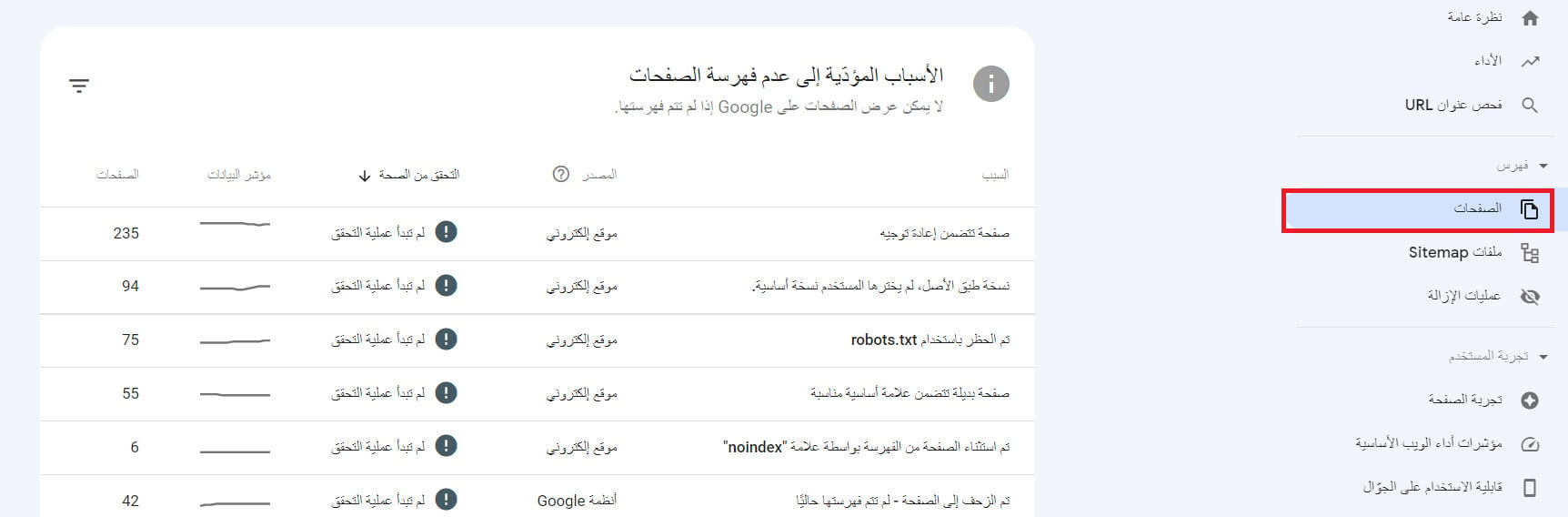
- Open the "not indexed" reasons and fix them by priority — the most serious is important product or category pages being excluded.
- "Crawled – currently not indexed" is Google's judgment about page quality — improve the content and originality, then request review again.
Stage 3: Your store's mobile experience
Most store buyers in Saudi Arabia and the Gulf browse on mobile, and Google indexes the mobile version first (mobile-first indexing). GSC used to offer a "Mobile Usability" report to catch mobile experience issues:
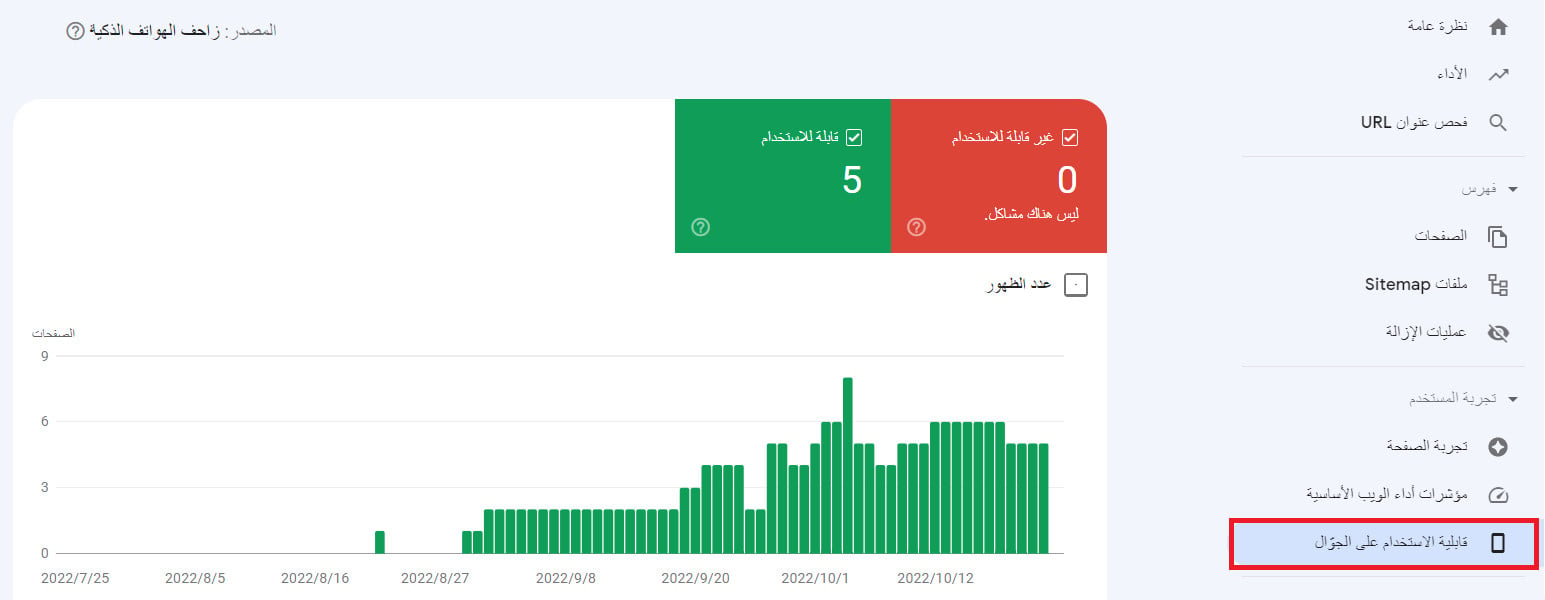
Google retired the standalone "Mobile Usability" report and moved mobile-experience evaluation into page-experience signals and load speed (Core Web Vitals). The practical rule hasn't changed: keep your store fast and easy to use on mobile — modern Salla themes are responsive by default — and monitor performance from the Core Web Vitals report in the next stage.
Stage 4: Submit your sitemap
Google can discover your pages without this step, but submitting your sitemap speeds discovery up considerably, especially for young stores.
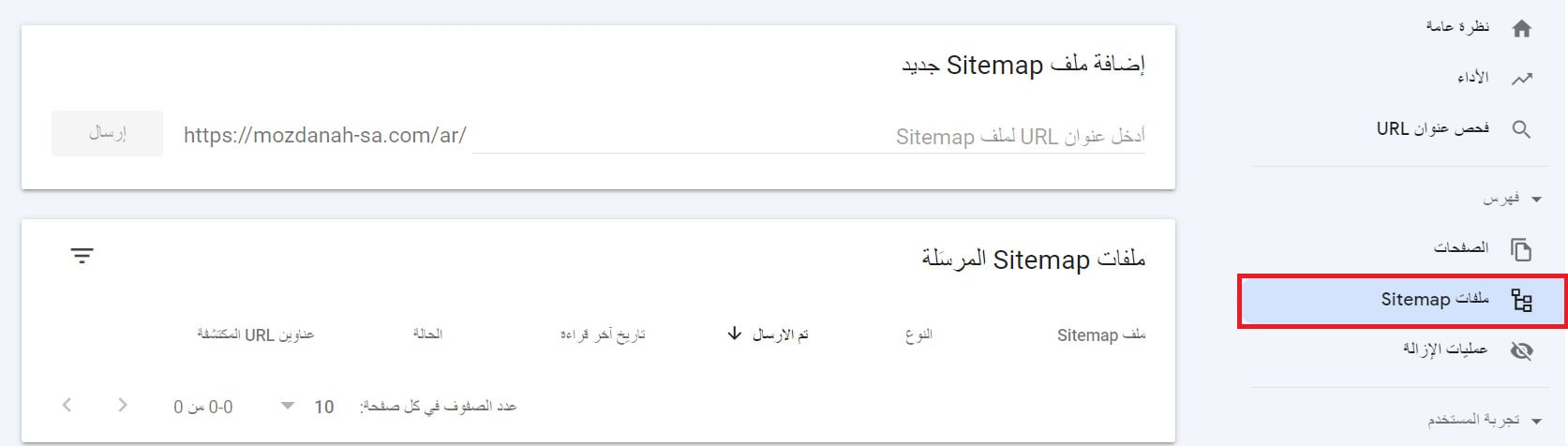
1. In the GSC side menu click Sitemaps, enter your store's sitemap URL, then click Submit.
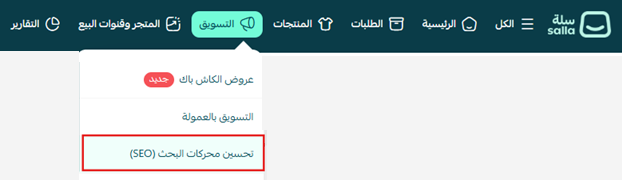
To get the sitemap URL from Salla: under the Marketing tab click SEO.
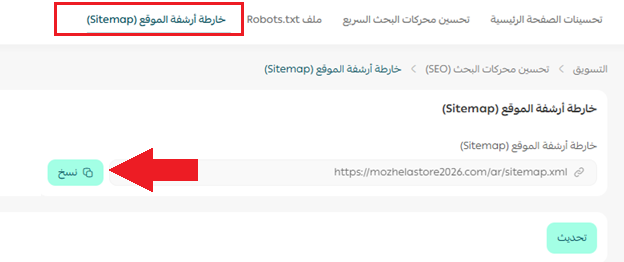
Then under Sitemap click Copy to copy the URL.
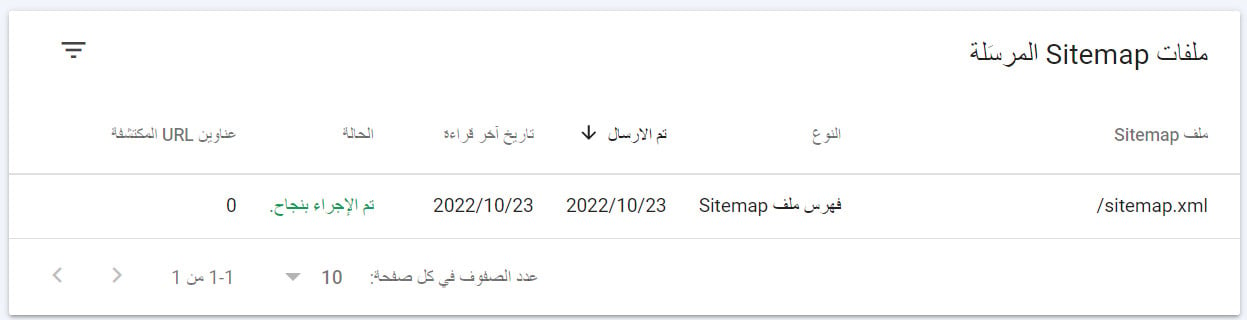
2. Return to GSC, paste the URL and click Submit — Google will re-check the file periodically for changes.
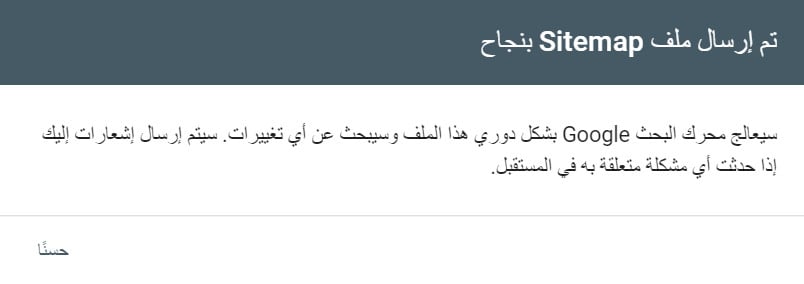
The sitemap appears in the list with a "Success" status:
Stage 5: Monitor your store's performance
Here's where the fun begins: turning data into decisions. These are the key reports you review regularly.
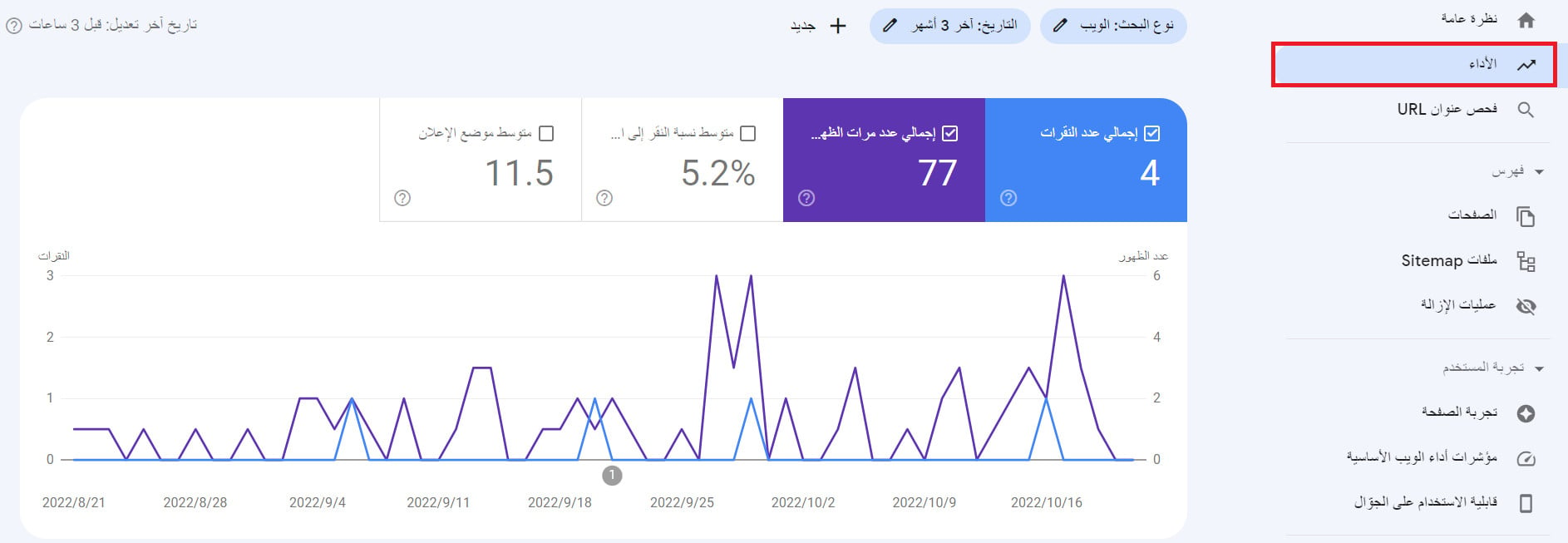
1. Performance report: shows clicks, impressions and average position, broken down by keywords, pages and countries.
2. Core Web Vitals report: measures your pages' performance based on real-usage (field) data.
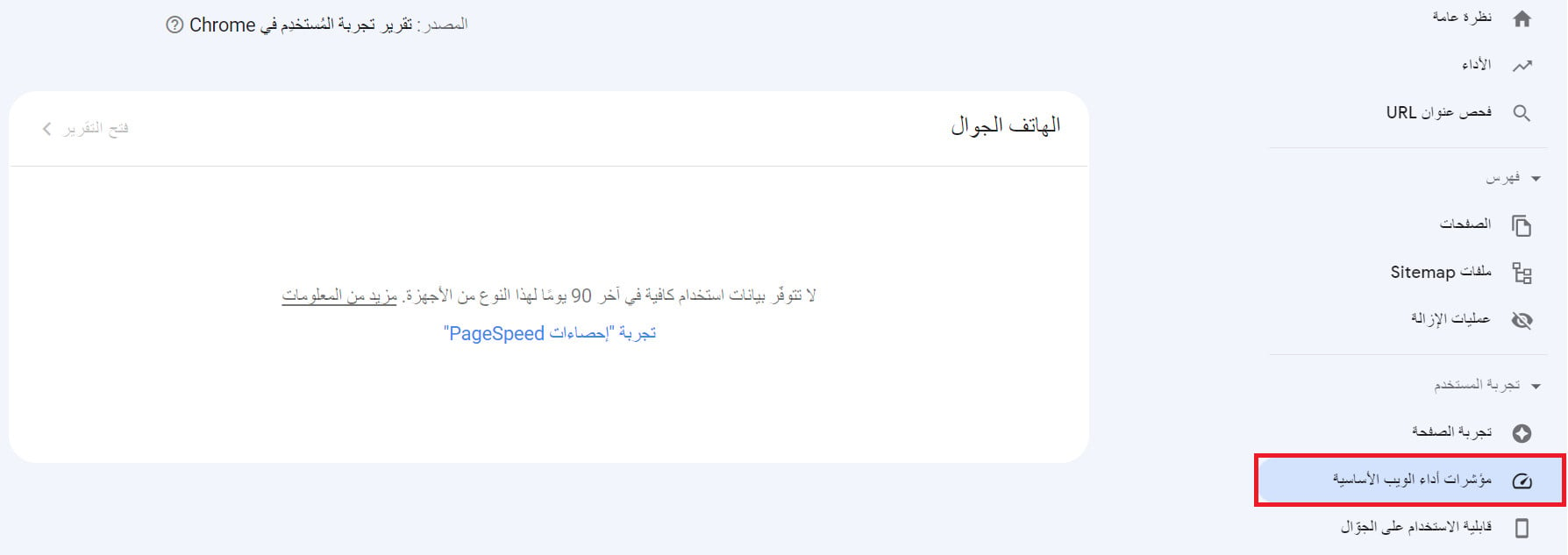
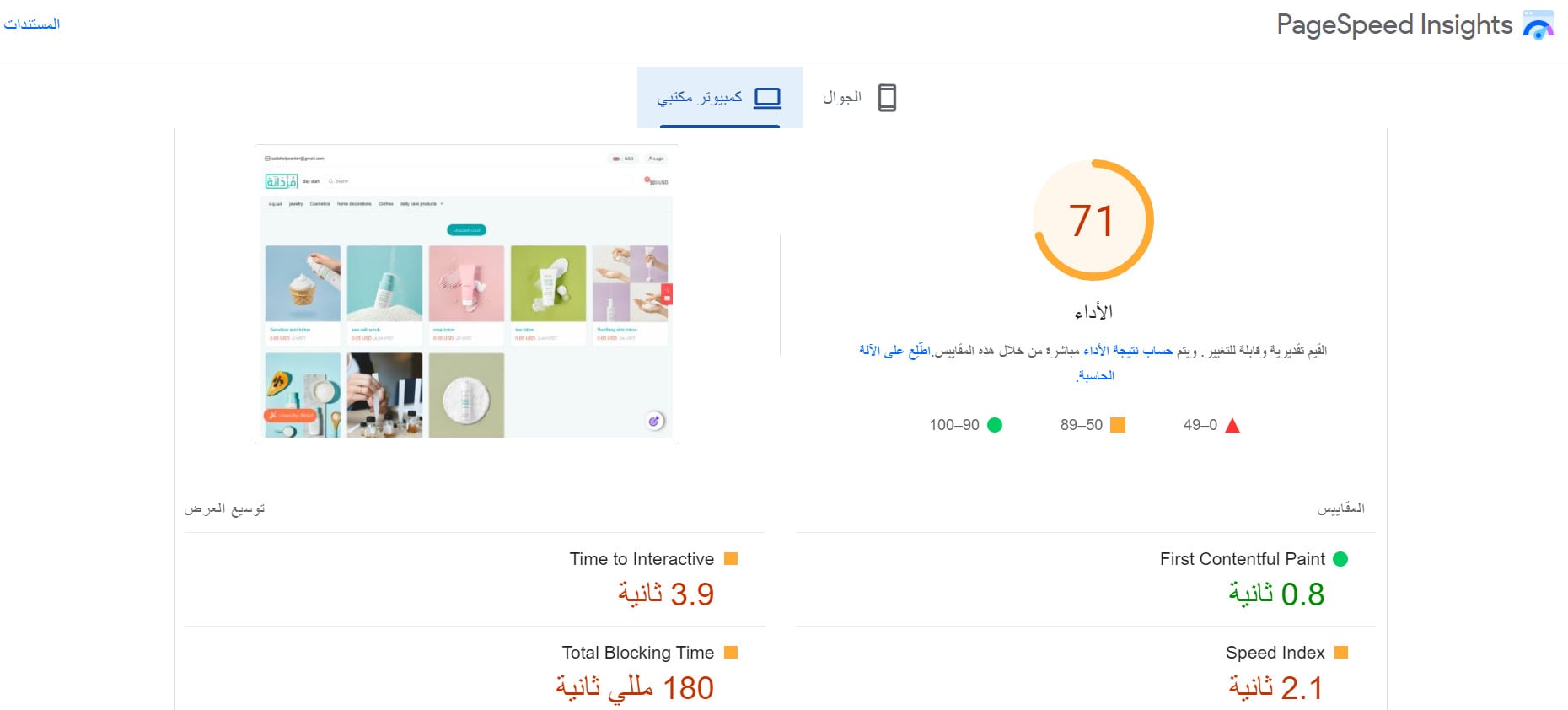
If there isn't enough data, use PageSpeed Insights to measure your pages' speed and diagnose what slows them down.
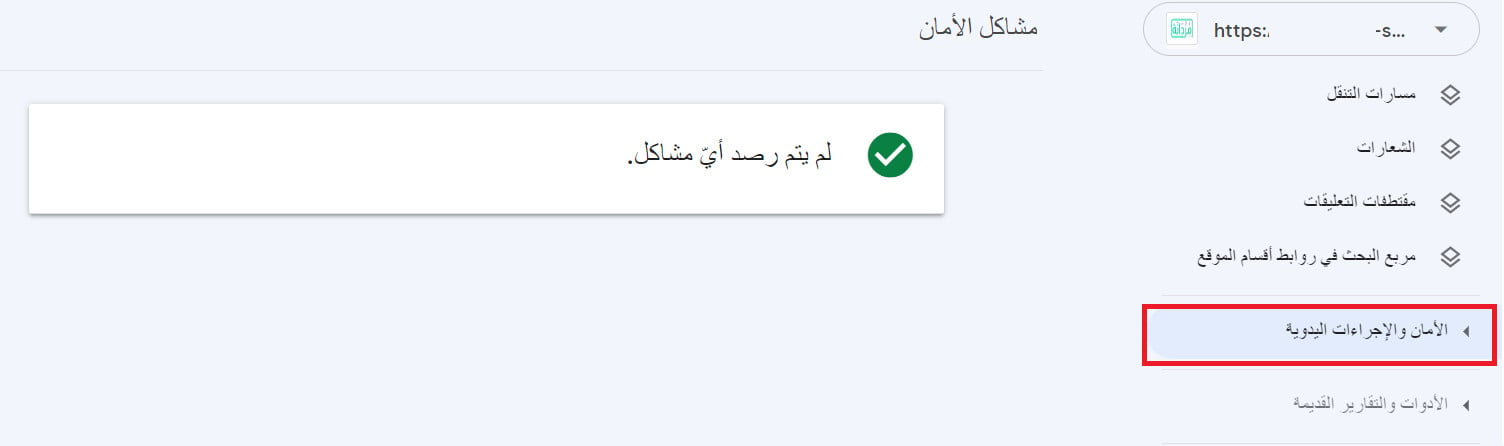
3. Security issues report: warns you if Google sees your store as possibly hacked or harmful to users.
4. Index coverage report: shows which pages are indexed and highlights any indexing problems.
5. Reviewing and fixing issues: go through the list of page errors and warnings.
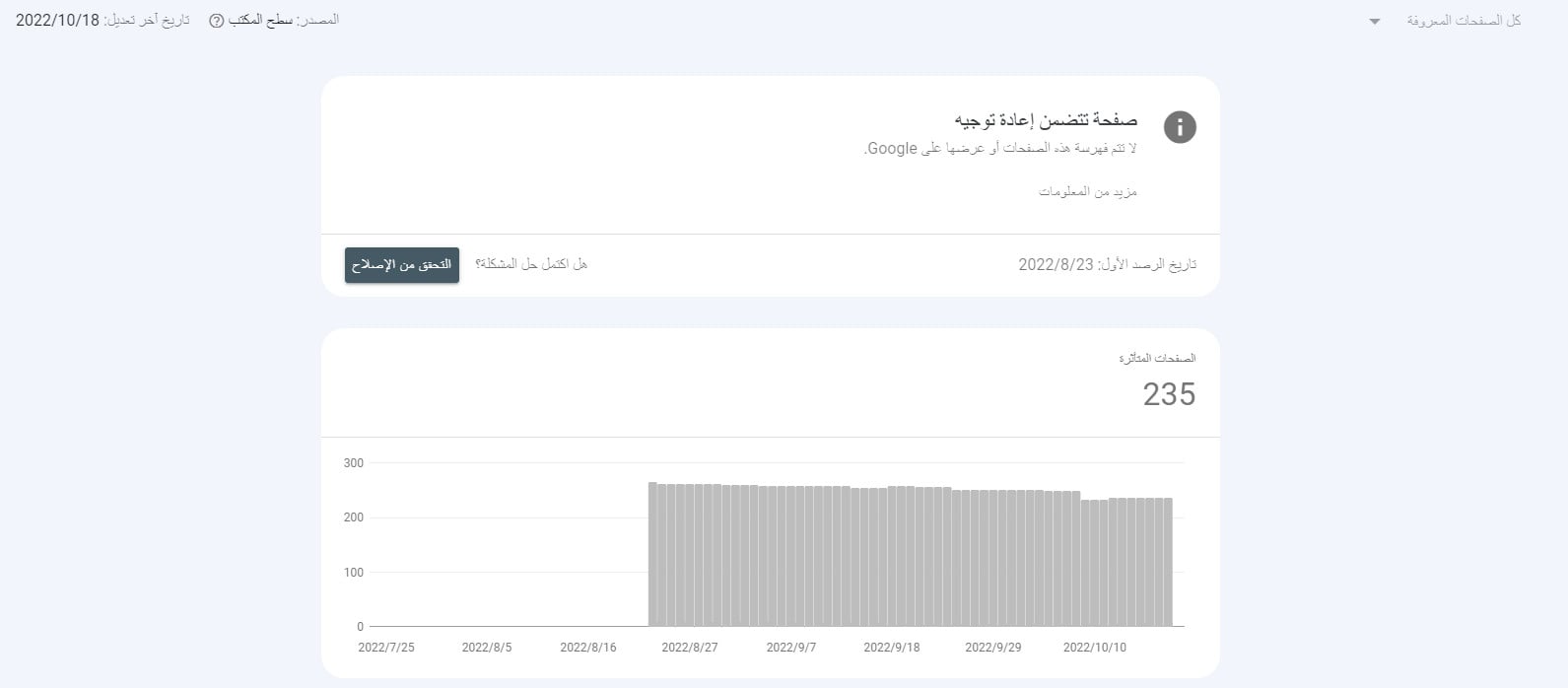
To fix any cause, click it to see its details, then address it:
Fixing a common problem and requesting re-indexing
One of the most common problems after launching a Salla store is a "store is not under maintenance" error or a stale result showing in search:
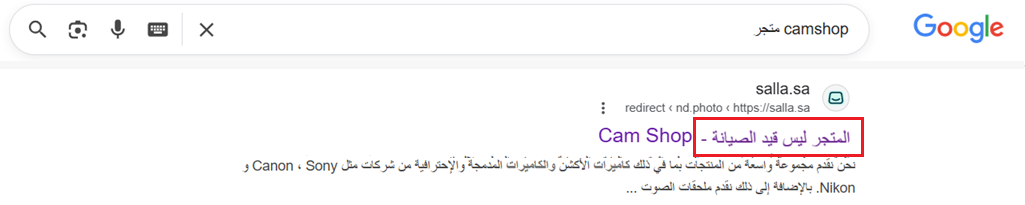
The fix: ask Google to re-visit and refresh the URL.
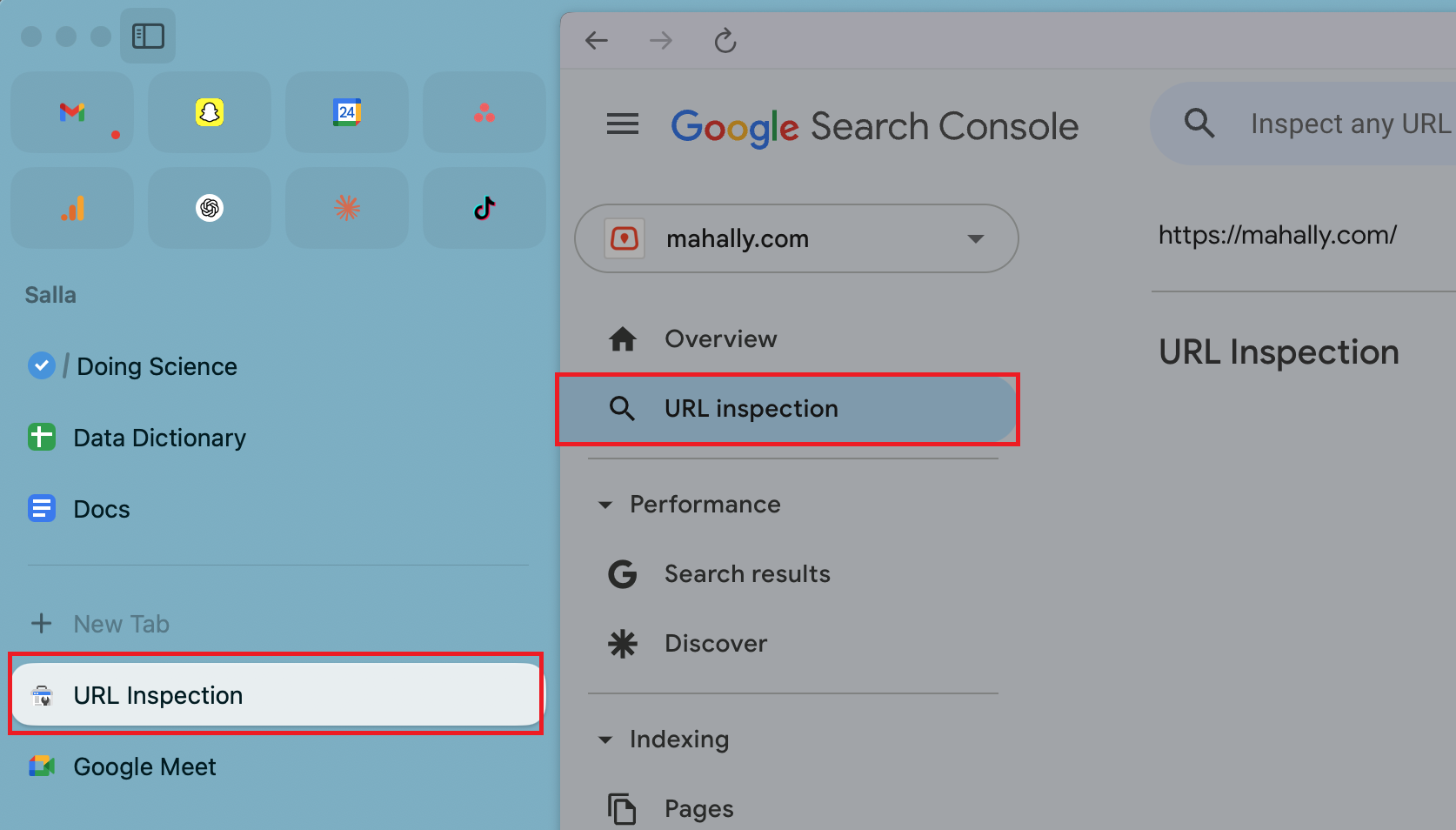
1. From the GSC main menu, choose URL inspection and enter the URL.
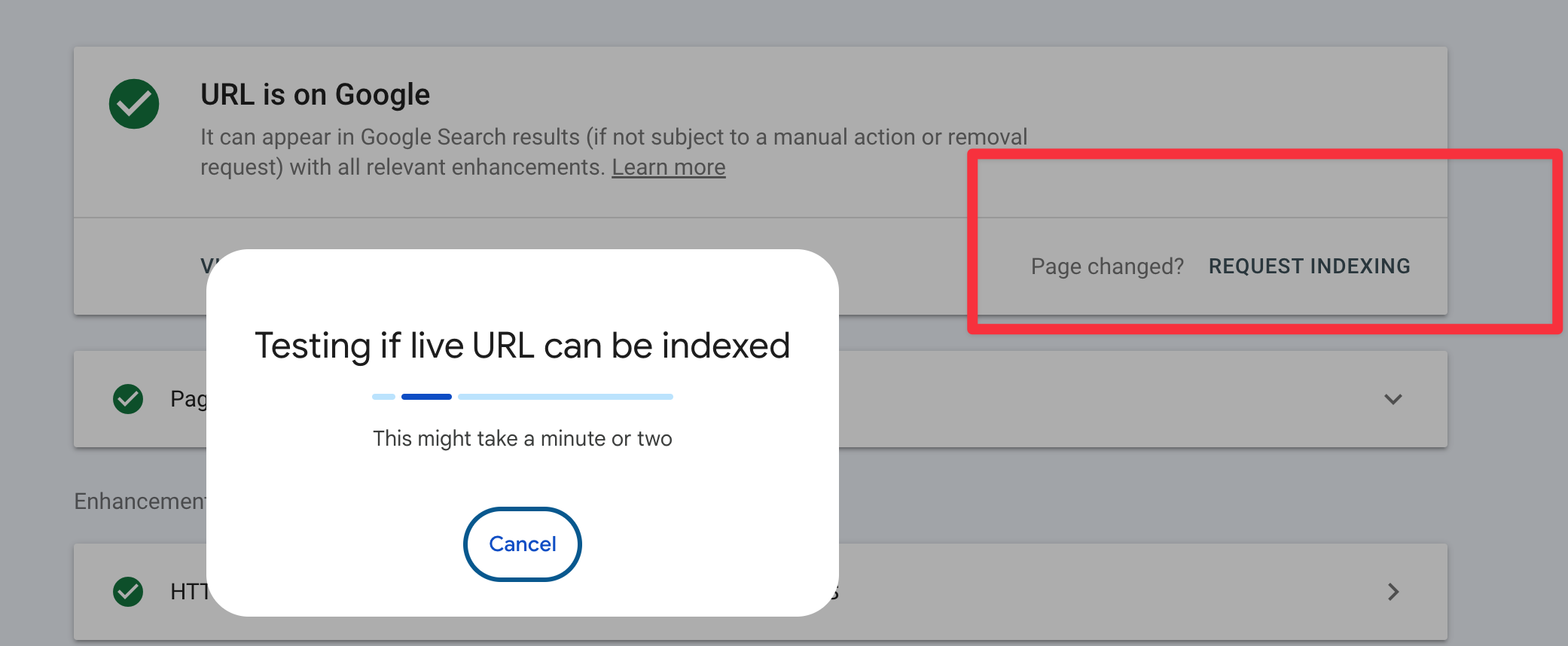
2. Click Request indexing to request re-indexing of the updated URL.
How an SEO specialist reads GSC reports
The difference between someone who "opens" GSC and someone who "reads" it is the decisions they walk away with. This is what we focus on at SEOS7 every week:
- Hunting near-wins: keywords where your store ranks positions 8–15 are your fastest opportunities — a small tweak lifts them to page one.
- The impressions-vs-clicks gap: a keyword with high impressions and low clicks means a weak title or description that needs rewriting.
- Chasing indexing errors: every excluded sales page is lost revenue — we fix those first, before anything else.
- Linking speed to sales: we watch load speed (Core Web Vitals) because delay costs you both rankings and conversions.
- A monthly report you understand: we turn these numbers into a clear story: what improved, why, and the next step.
This is our methodology: analyze, optimize, maximize. Browse case studies with real Search Console numbers, or explore our plans.
FAQ
Do I need to log into GSC every day?
No. If Google finds a new issue it will email you an alert. Reviewing your account roughly once a month, or when you make major changes to the store, is enough to confirm the data is stable and fix any errors.
Is Google Search Console really free?
Yes, completely free from Google with no subscription. All you need is a Google account and to verify your store's domain ownership once.
What's the difference between Search Console and Google Analytics?
Search Console focuses on your performance before the click: keywords, impressions, indexing, and site issues in search. Google Analytics focuses on visitor behavior after they arrive. The two are complementary, and the right starting point is Search Console.
Can I add more than one store to the same account?
Yes. From the property list click "+ Add property", enter the new store URL and complete the same verification steps. You can manage several stores from one account.
I submitted my sitemap but pages still aren't indexed — why?
Indexing takes time (days to weeks), and submitting the sitemap speeds it up but doesn't guarantee it. Make sure the pages have unique, useful content and aren't blocked in robots.txt, and watch the indexing report for exclusion reasons.
Connected your store to Google, but the numbers don't mean much without a plan? The SEOS7 team reads Search Console for you and turns it into growth. Request a free SEO audit for your Salla store — you'll get the results and an action plan within 48 hours, no strings attached.