
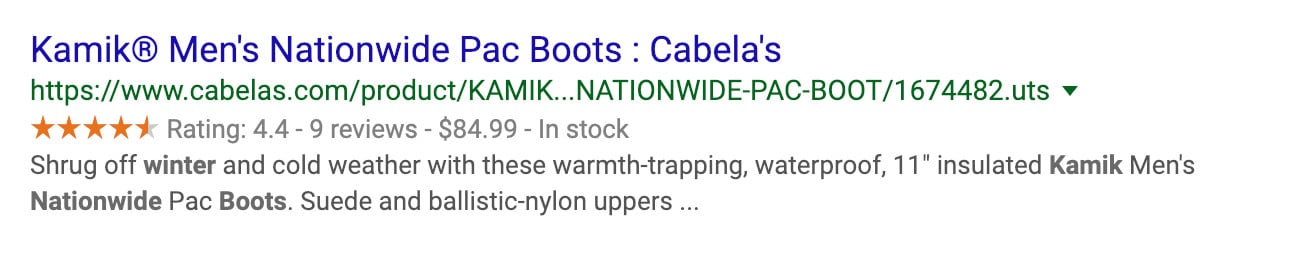
Structured data (Schema Markup) is the language you use to tell search engines exactly what your pages mean: that this number is a price, these stars are a rating, these are frequently asked questions. The visible payoff is rich snippets — the review stars, price and availability that show under your result in Google and clearly lift its click-through rate. This guide explains what structured data is, why it matters for your Salla store, and how to implement and test it step by step.
Modern Salla themes already output core structured data for product and store pages (Product, Breadcrumb, Organization). So the smartest first step is to validate what you already have with Google's Rich Results Test, then add the missing types (like LocalBusiness or FAQ) using the method below. This saves time and prevents duplicate markup.
What is structured data (Schema)?
Structured data is a type of code that defines the elements of a page's content. It isn't shown to the visitor, but search engines use it to understand exactly what's on the page. Imagine a page with a cooking recipe: a human instantly recognizes it as a recipe (ingredients, steps, prep time), but a search engine isn't human — and structured data is what tells it: "this content is a recipe."
The core idea is that it removes ambiguity. If the name "Chris Evans" appears on a page, Google can read it but may not know: do you mean the American actor, or the British broadcaster? And "Harry Potter" — the books, the films, or the character? Markup tells the search engine precisely what kind of information you're presenting.
Why it matters for your Salla store
Without markup, your pages are left to Google's interpretation — and it can misread them. With correct markup you gain two things:
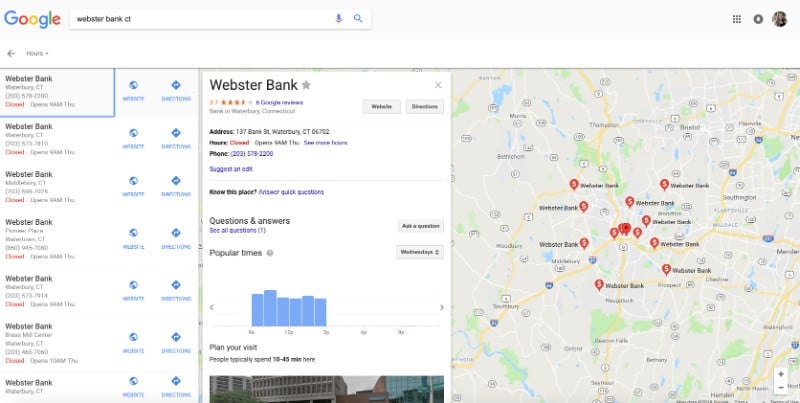
- Rich results that lift clicks: review stars, price and availability make your result stand out from competitors, raising click-through rate without changing your ranking.
- A clearer understanding of your store: Product, Organization and FAQ markup help Google classify your content and match it to the right searches.
Implementing markup via Google Tag Manager
The flexible way to add custom markup (like LocalBusiness) without editing your theme code is via Google Tag Manager. Here's an overview of the steps:
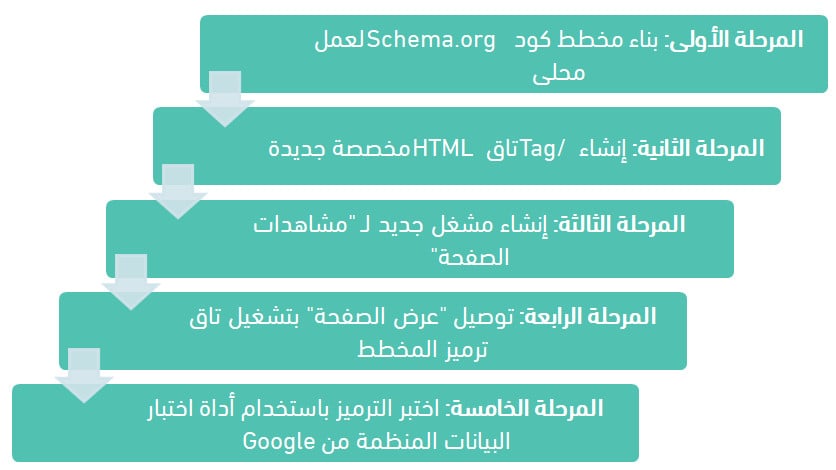
Stage 1: Build the markup code from a Schema generator
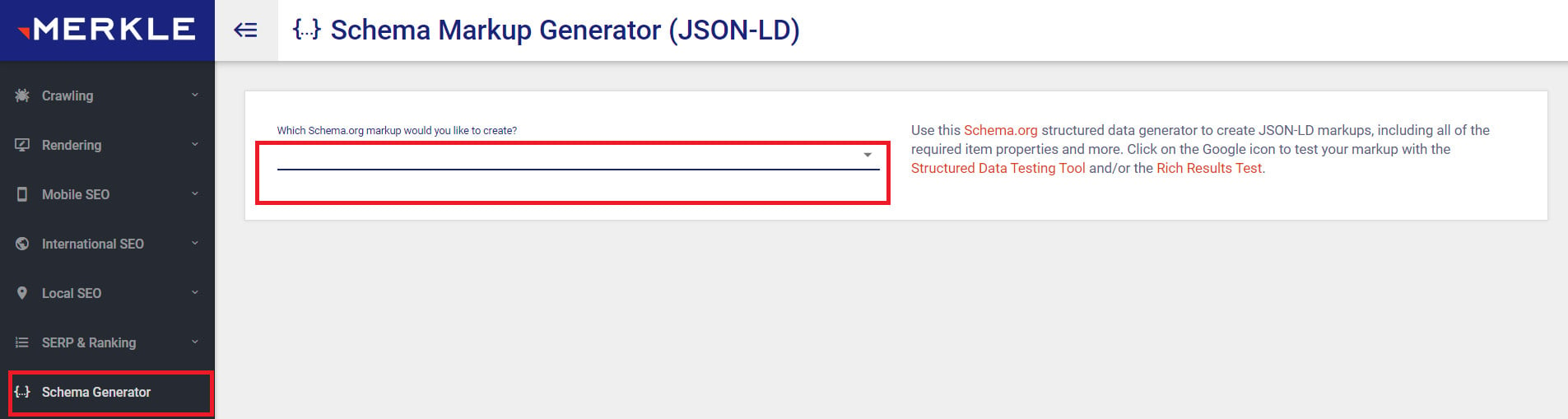
The fastest way to create the code is with a ready generator like the Merkle Schema Generator.
1. Open the generator, then choose the markup type you need (we'll use LocalBusiness).
2. Enter all the required information.
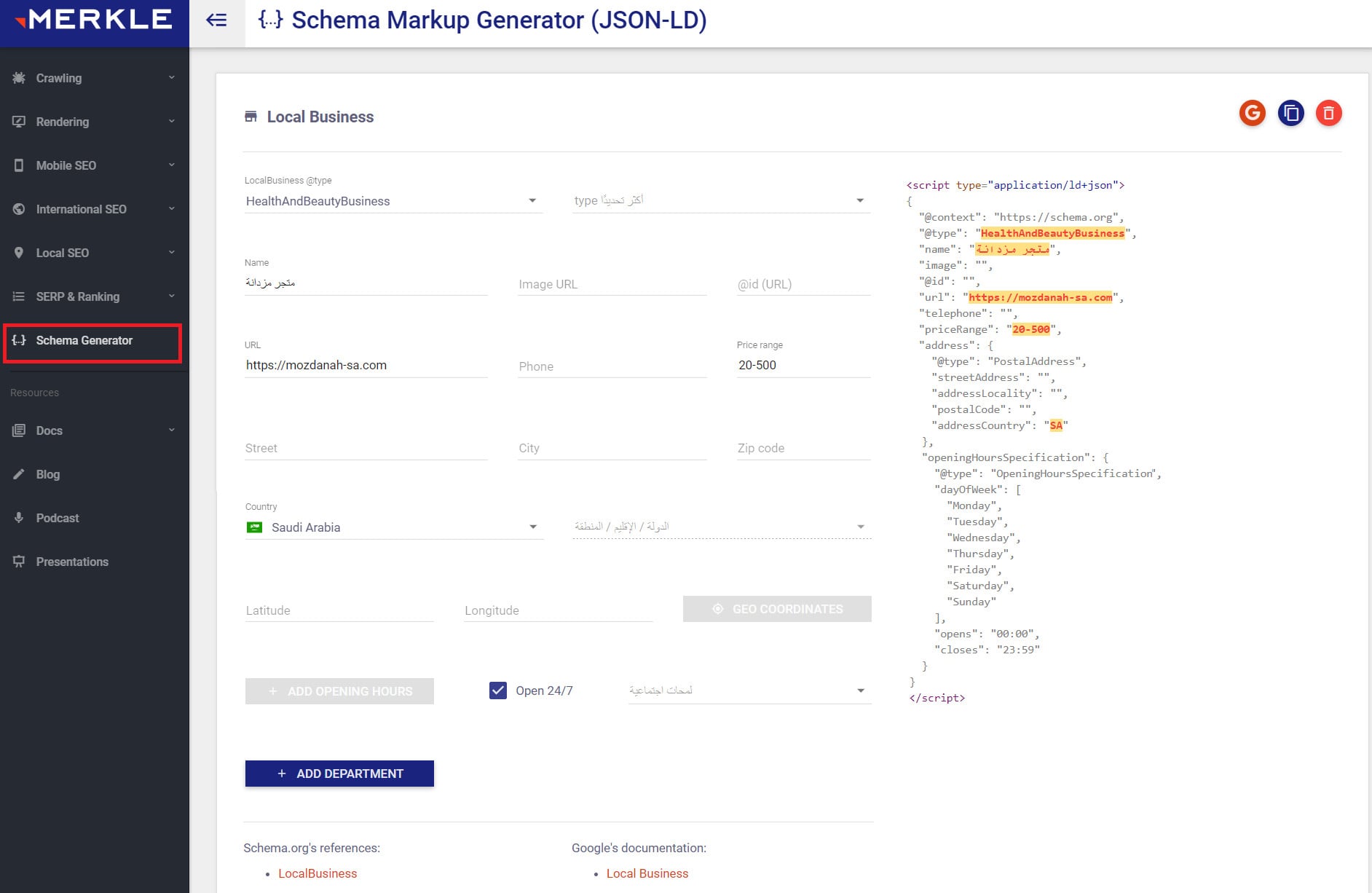
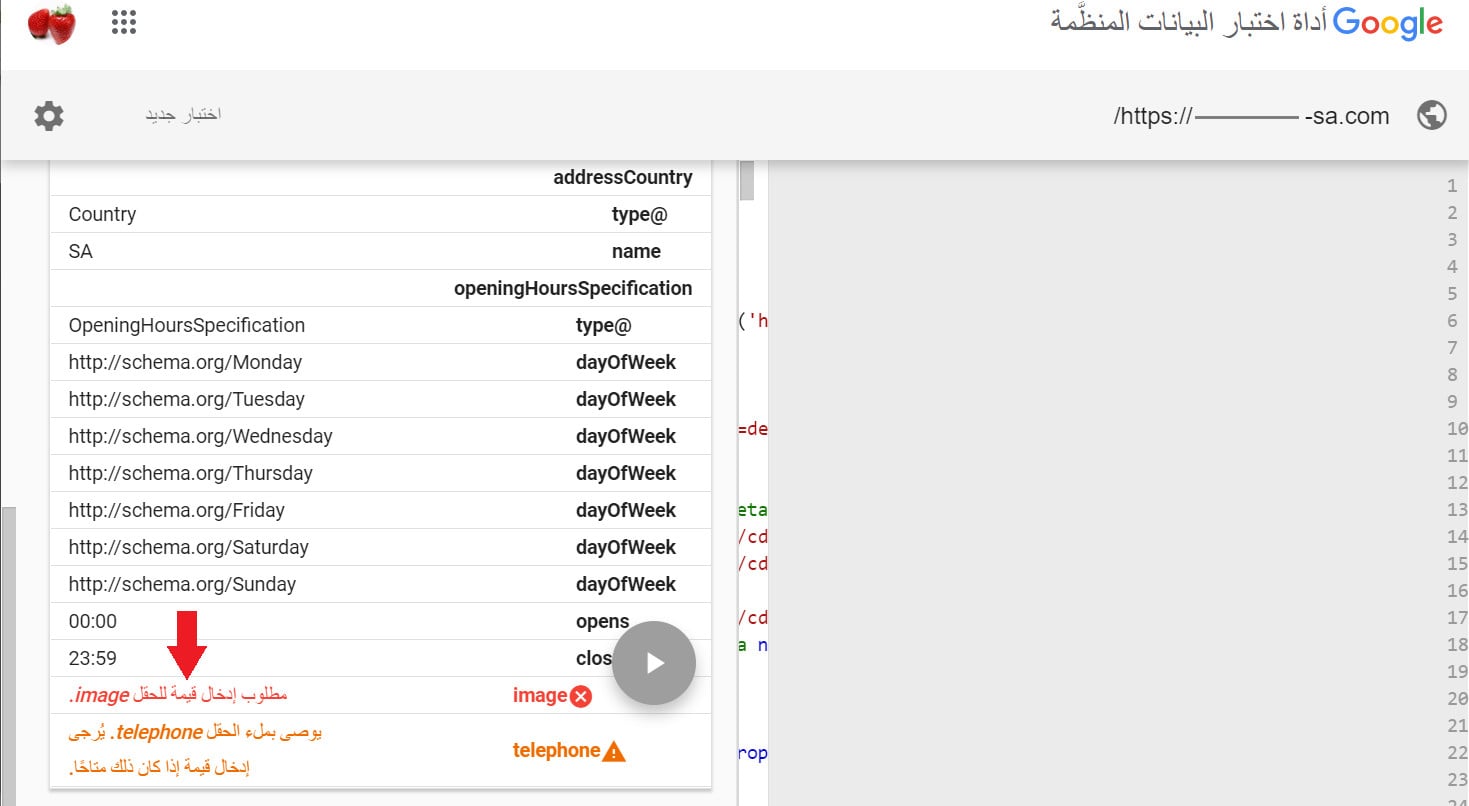
Make sure to enter the logo image URL (its absence causes an error at validation later), and it's best to enter a phone number so validation passes without errors.
3. Click (Copy) to copy the markup code.

Stage 2: Create a Custom HTML tag in Google Tag Manager
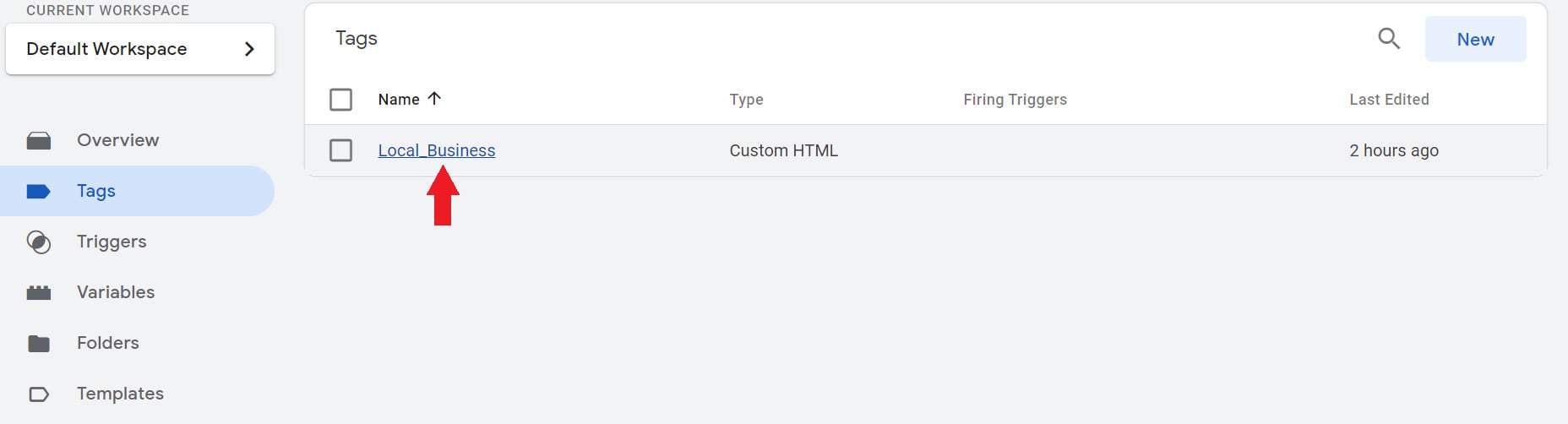
1. In your Google Tag Manager account (connected to your store), create a new tag and name it descriptively, e.g. Local_Business.
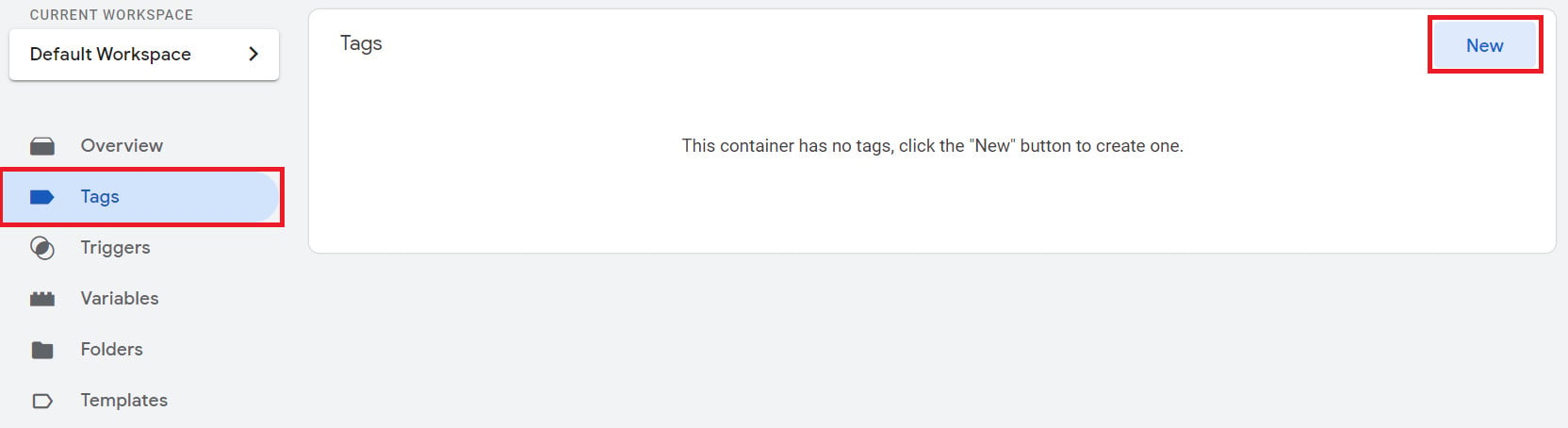
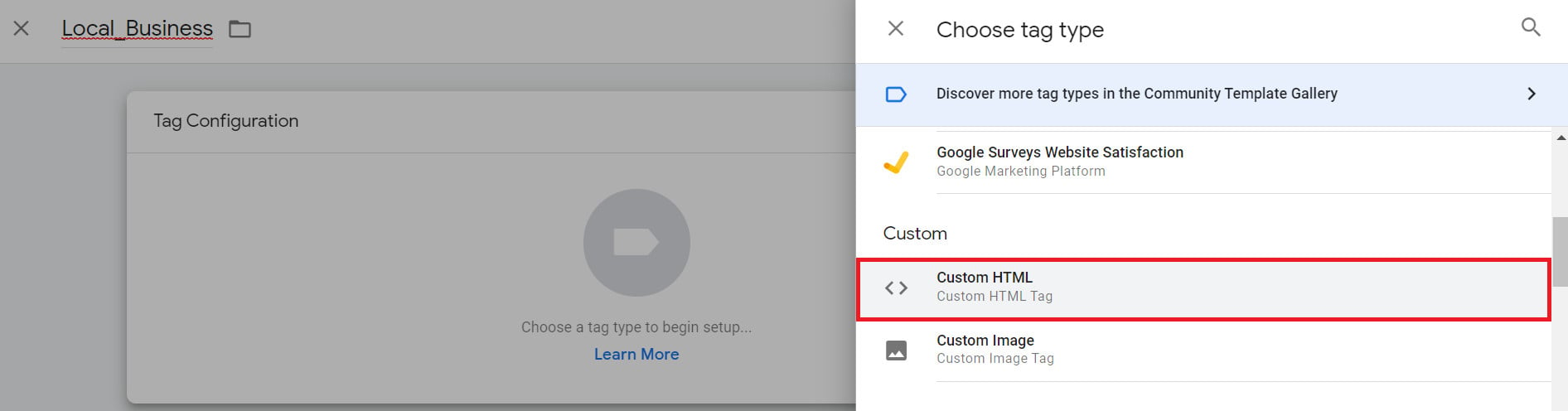
2. Choose Custom HTML as the tag type.
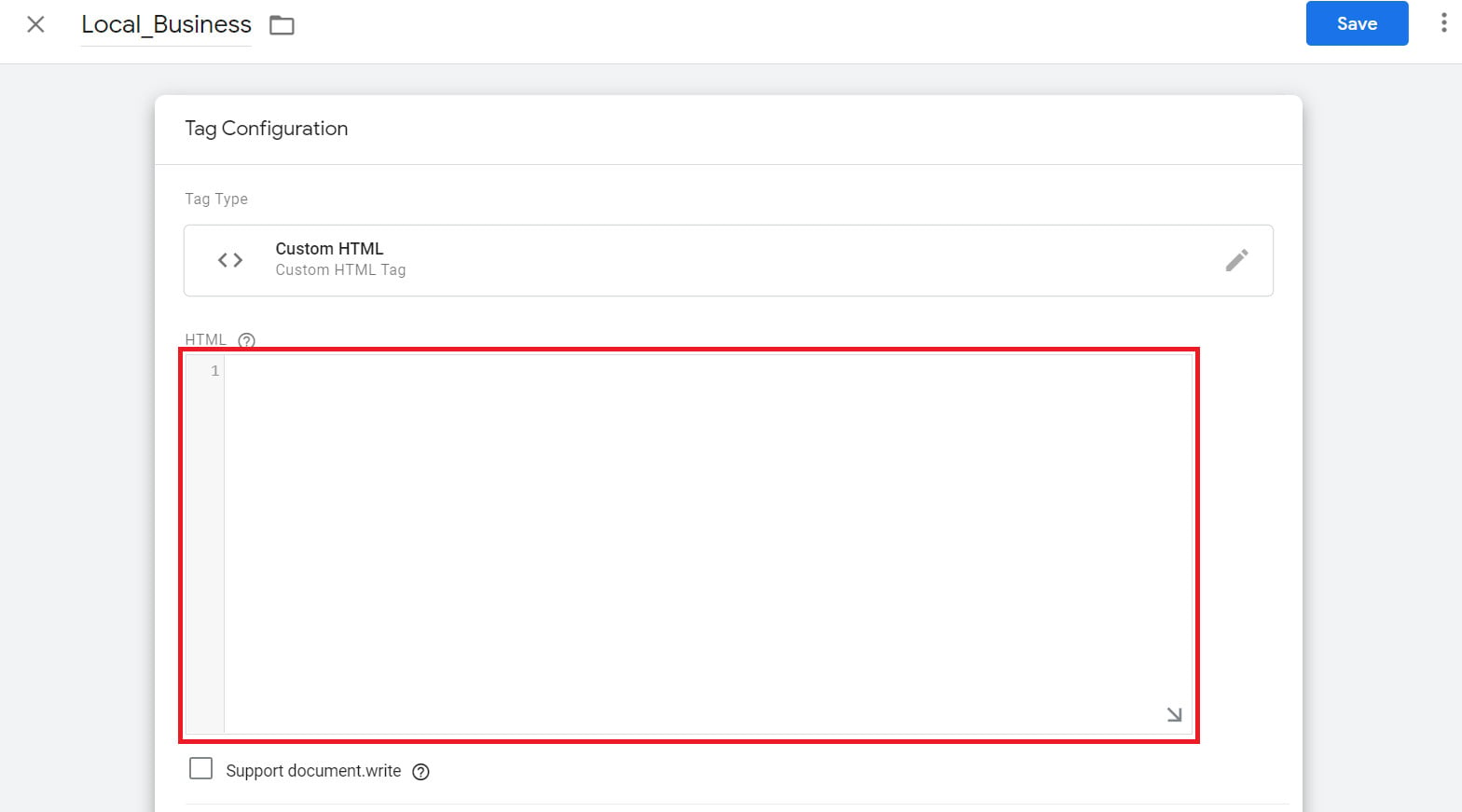
3. Paste the code you copied in stage one into the HTML box.
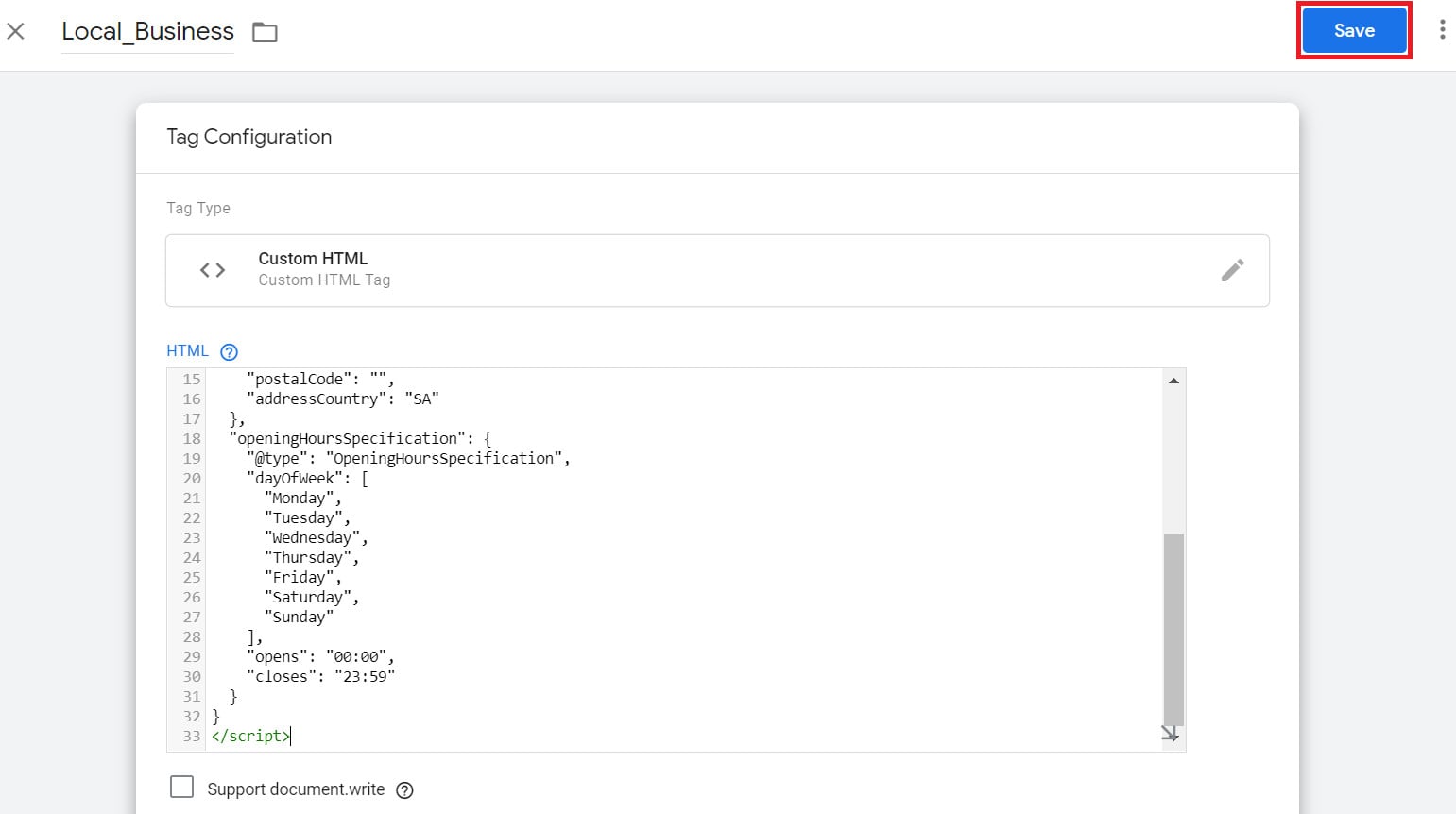
4. Save the tag by clicking Save.
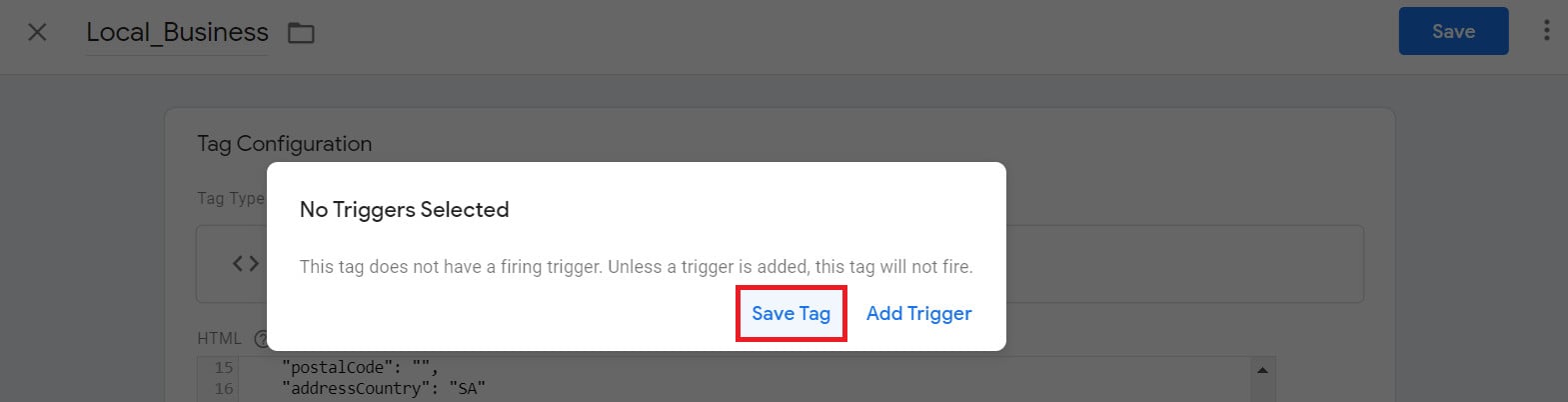
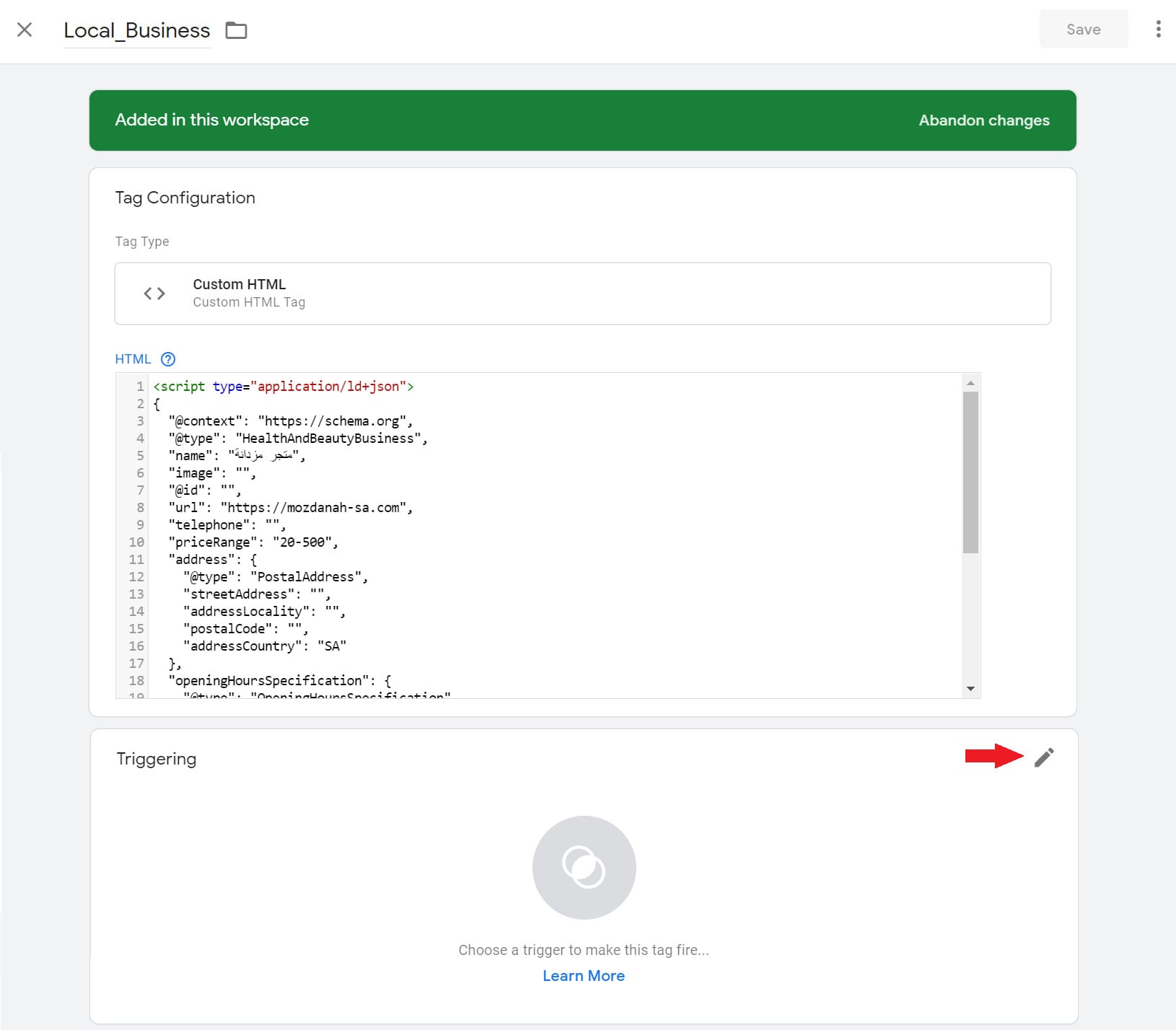
A "No triggers selected" message appears — continue and click Save Tag; we'll add the trigger next.
Stage 3: Create a "Page View" trigger
1. In the side menu click Triggers then New.
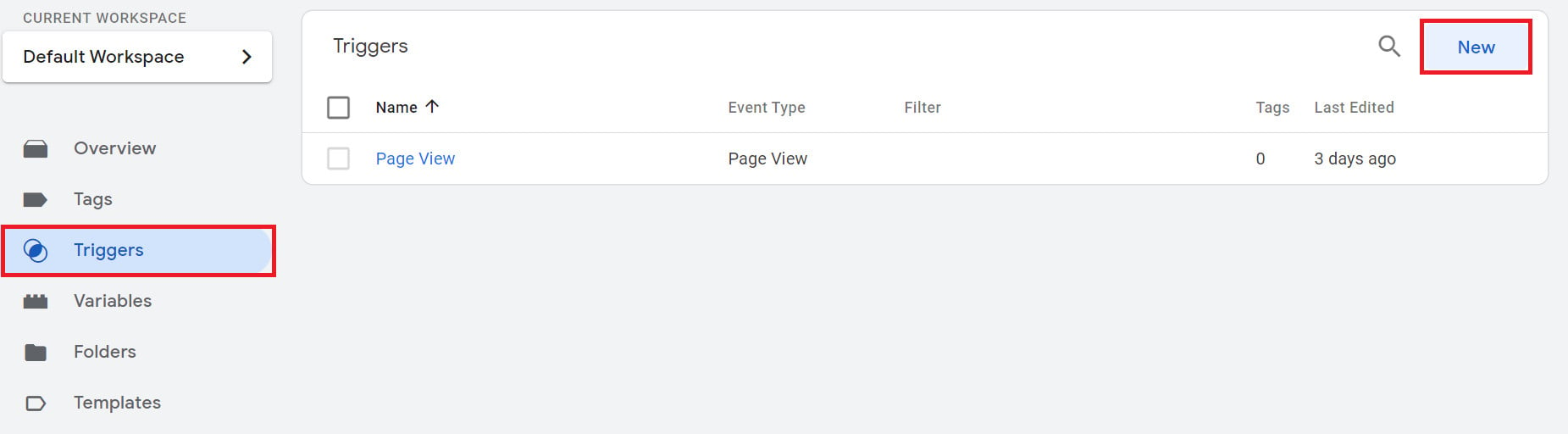
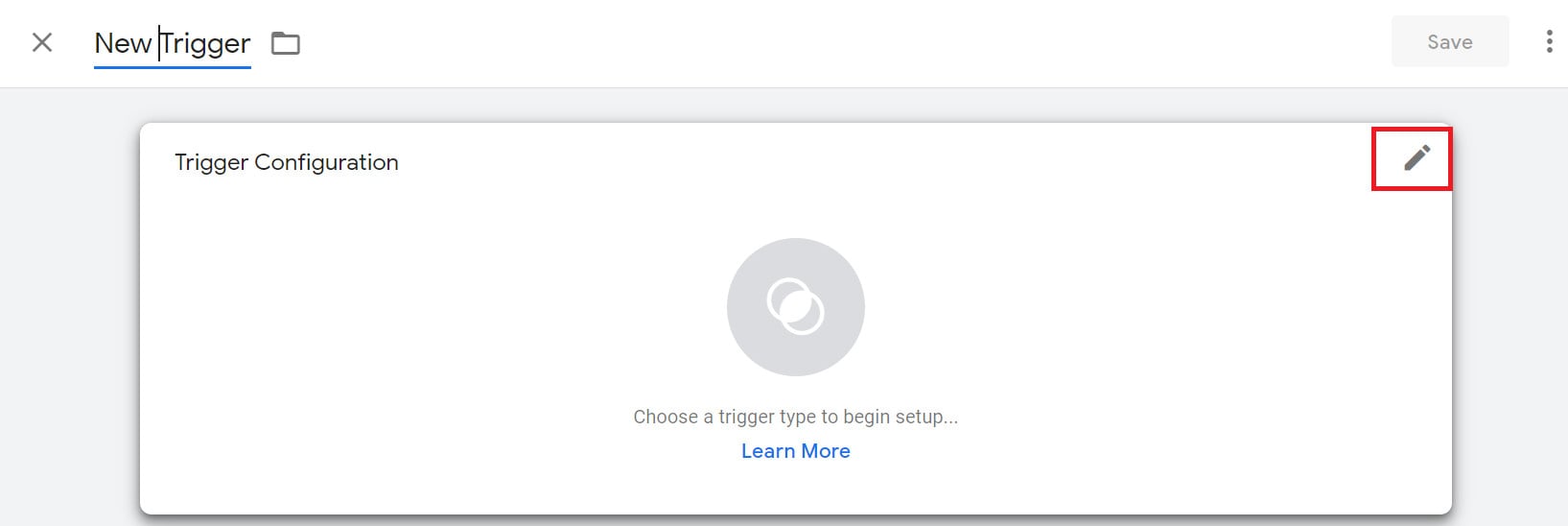
2. Name the trigger, then click the pencil icon to choose its type.
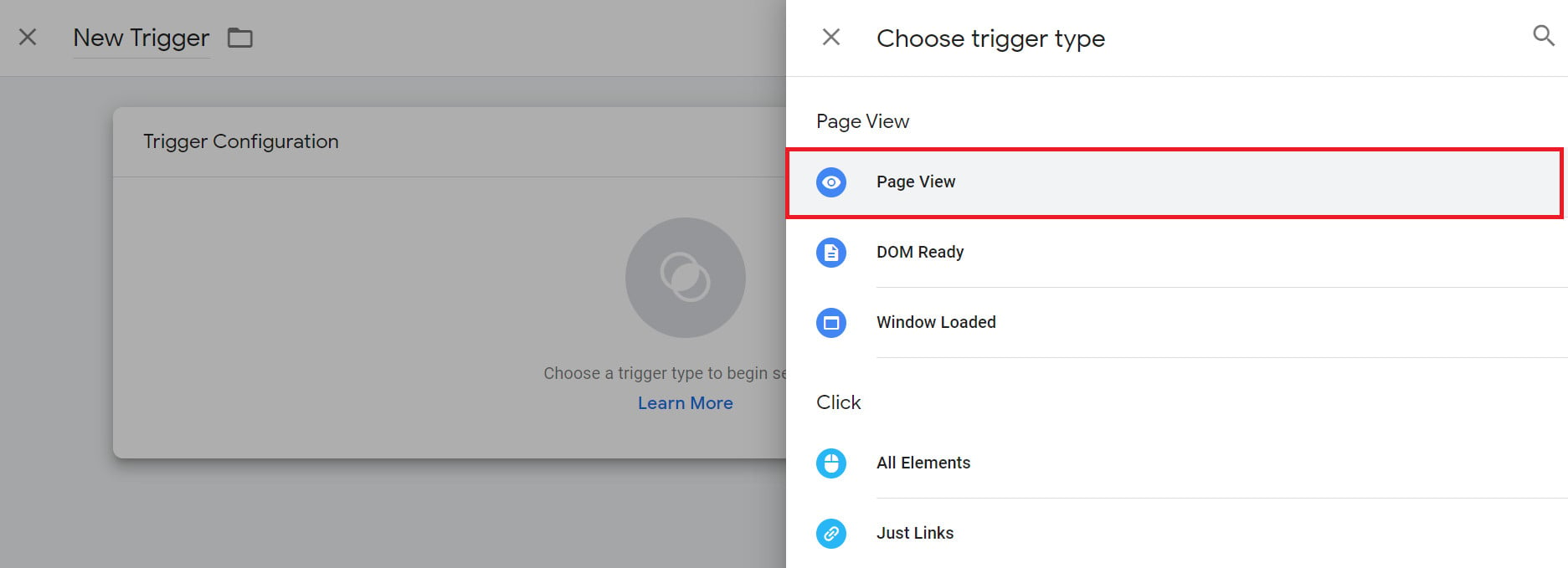
3. Choose Page View as the trigger type.
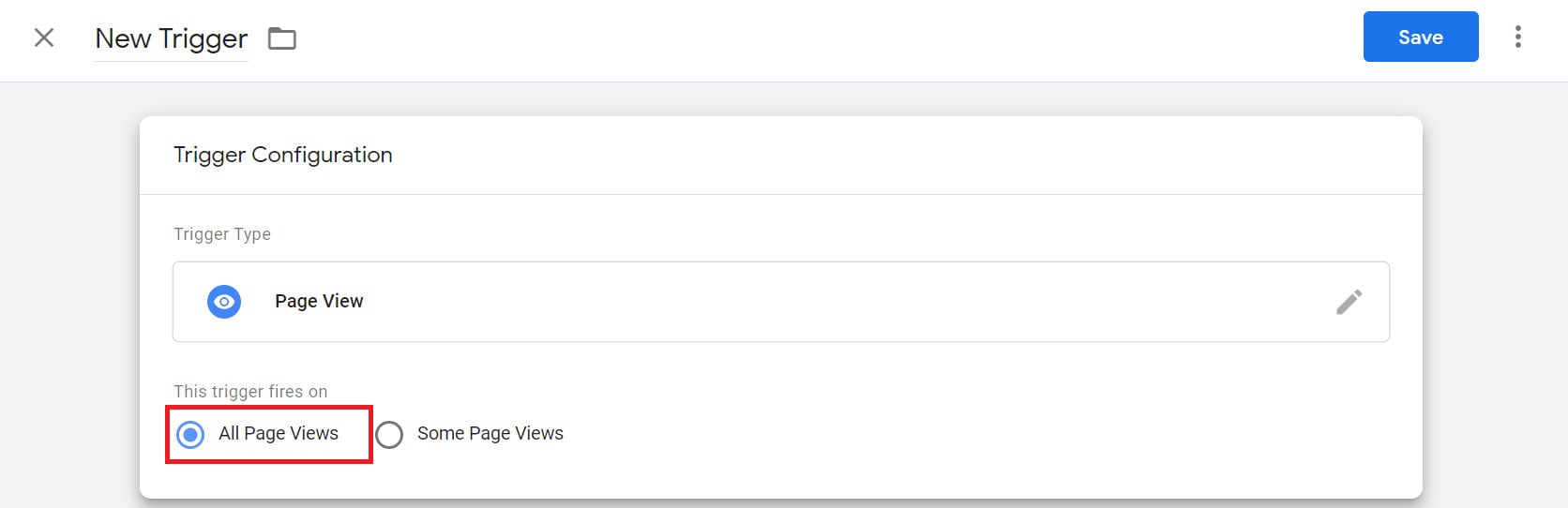
4. Set it to fire on all page views, then click Save.
Stage 4: Connect the trigger to the tag and publish
1. On the Tags page, click the tag you created in stage two.
2. In the tag's Triggers section, click the pencil icon.
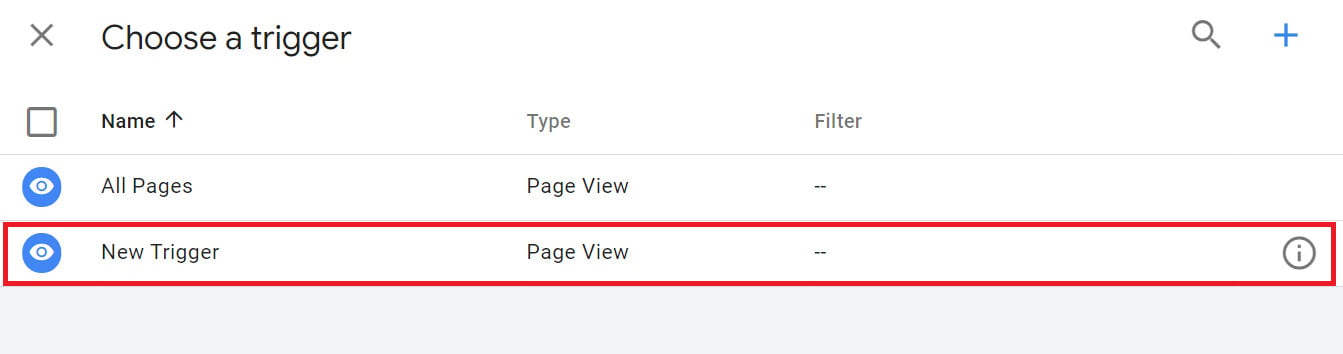
3. Select the trigger you created in stage three.
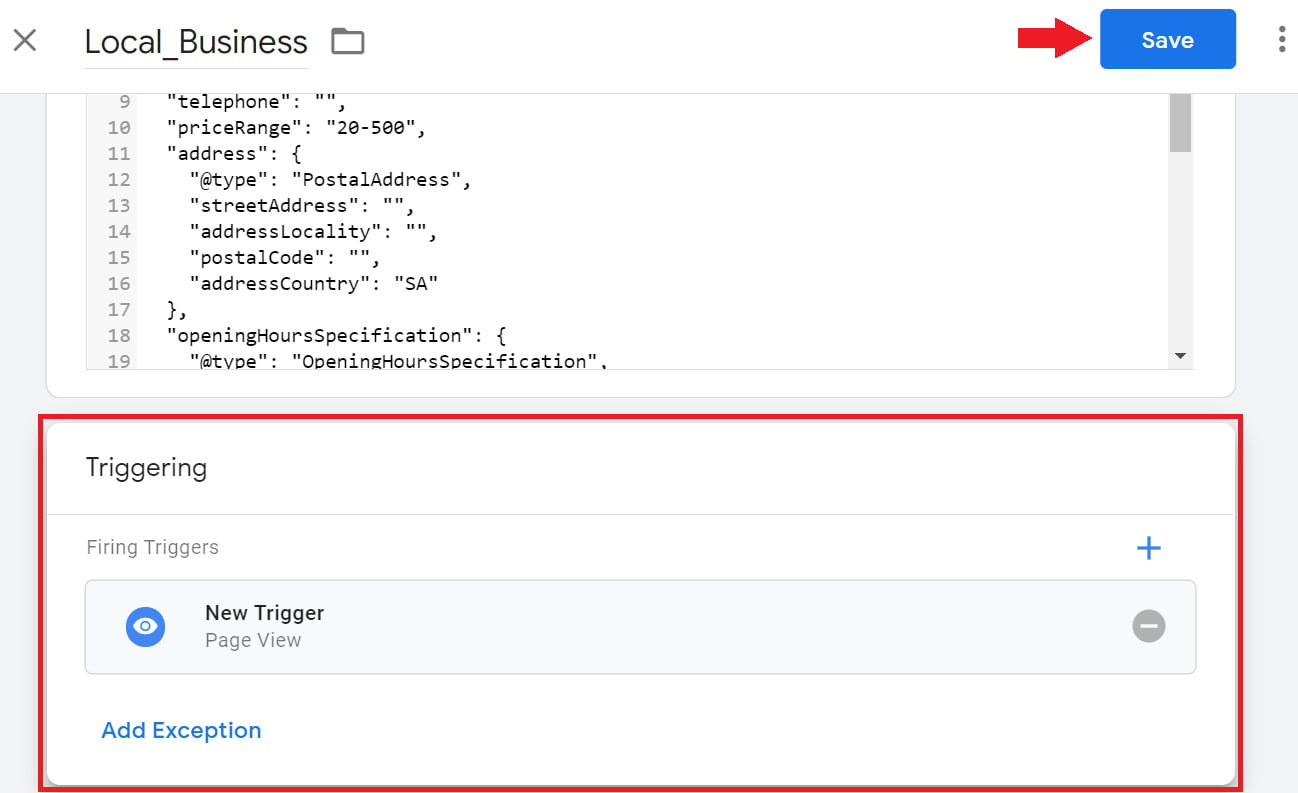
4. Once the trigger appears in the tag, click Save.
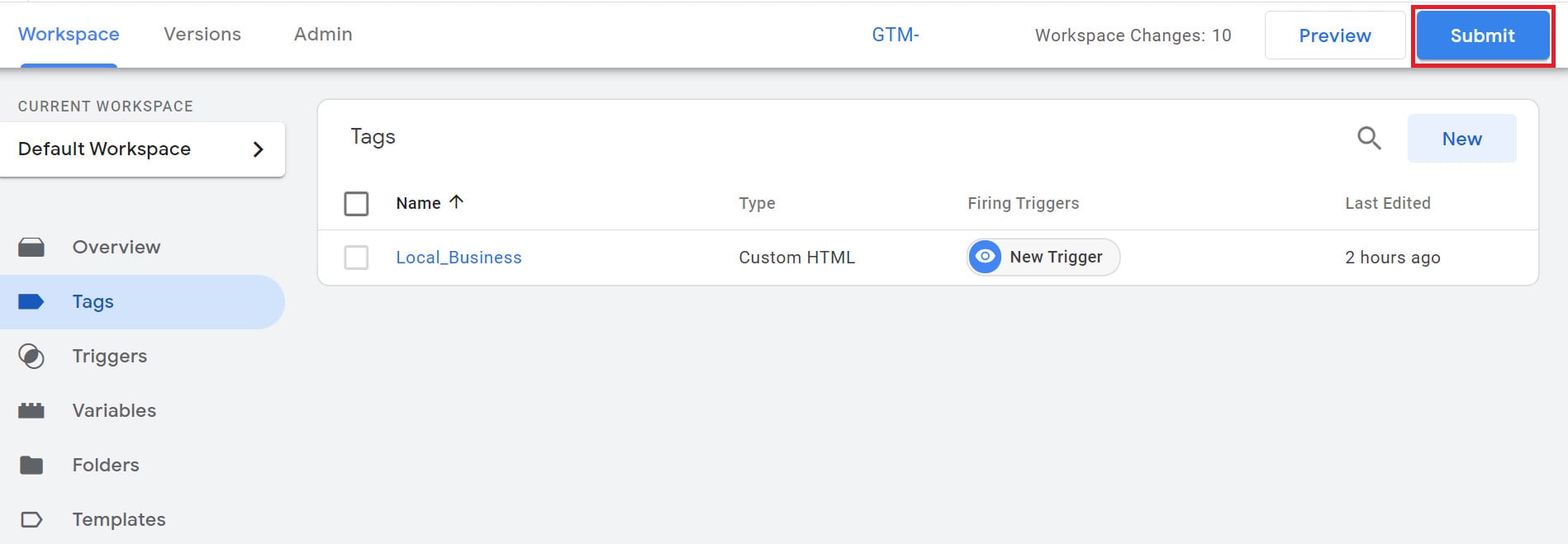
5. On the Tags page click Submit.
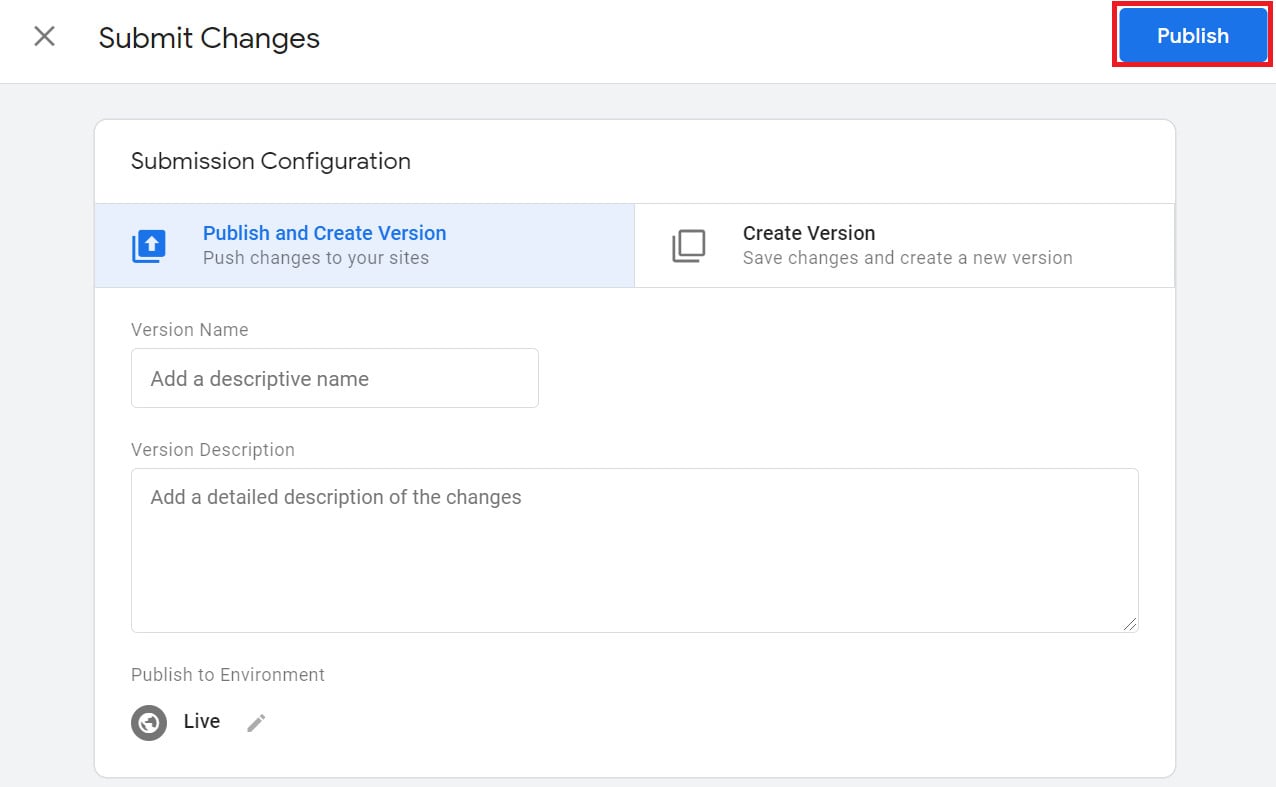
6. Click Publish.
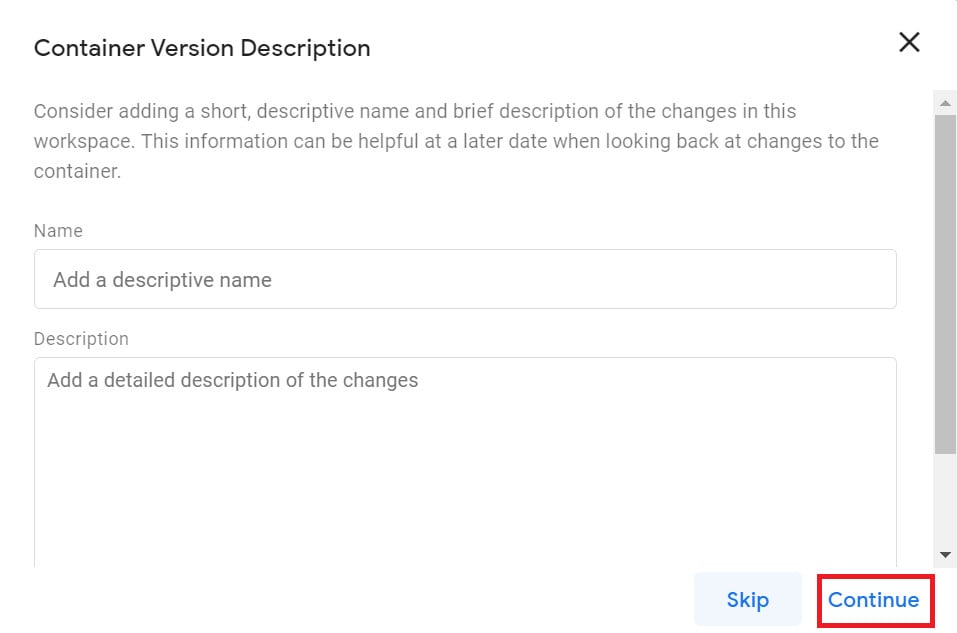
7. Add a description for the new version then click Continue.
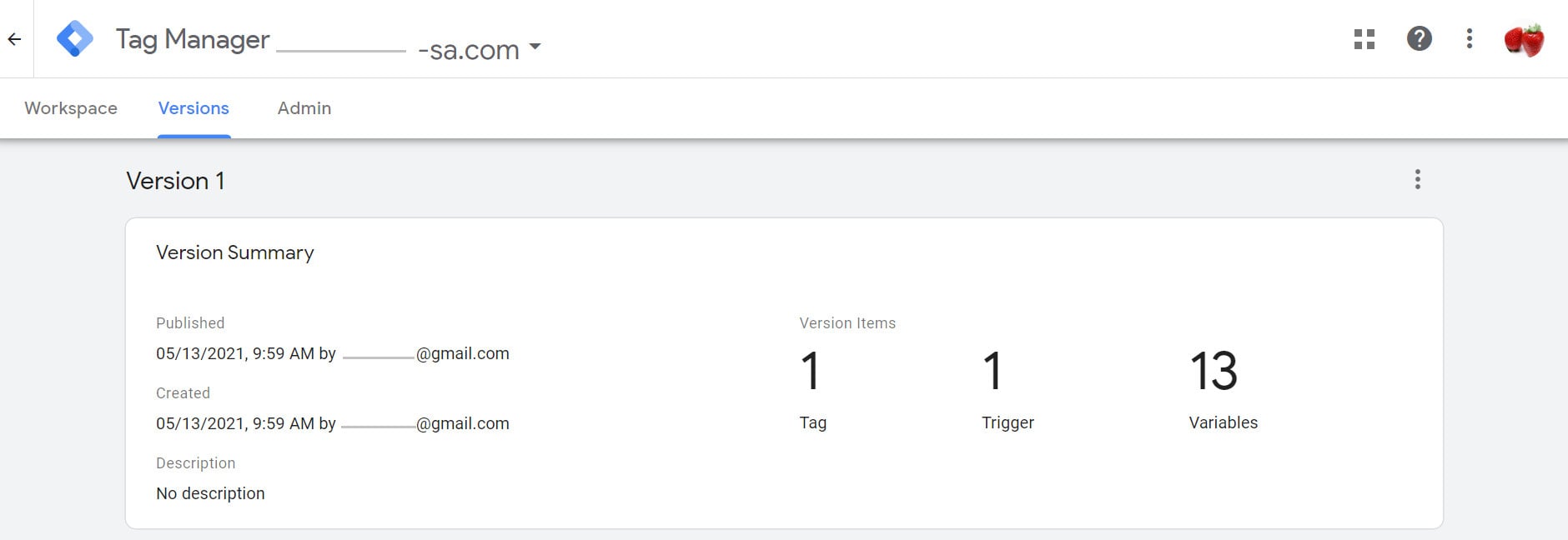
The tag is now published and active.
Testing and validating your markup
The last and most important step: test the markup to confirm it's valid before relying on it.
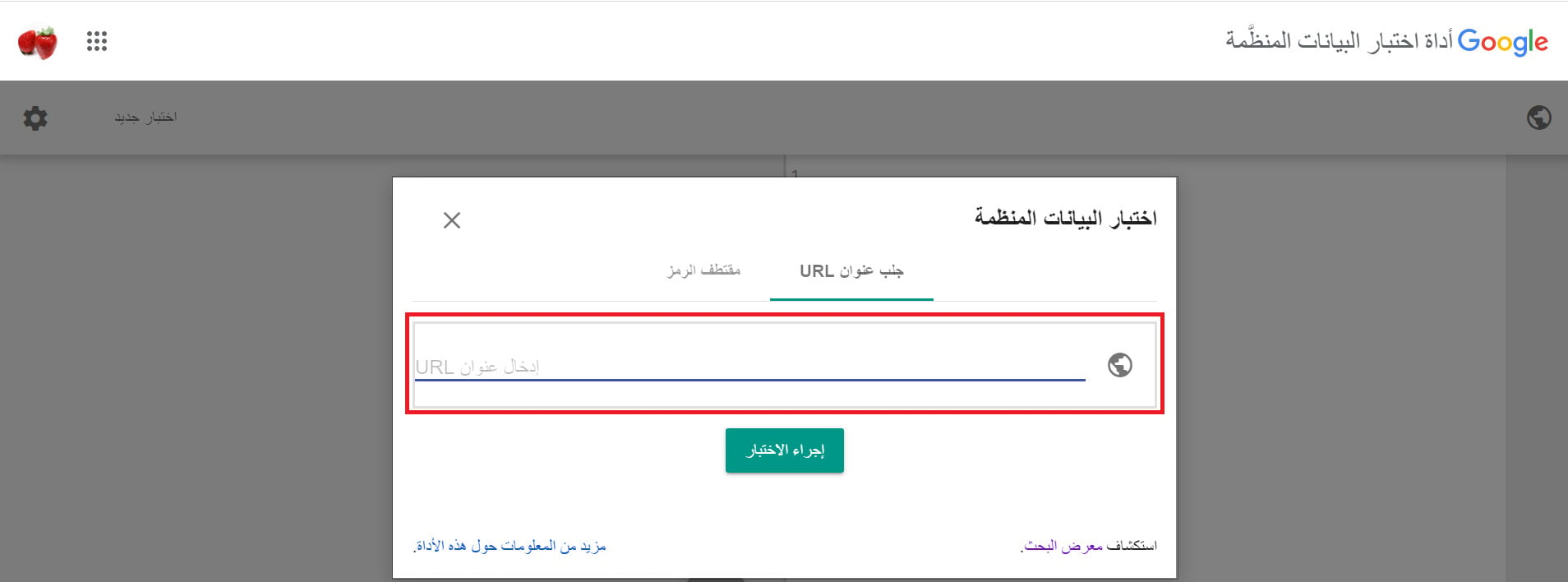
Google's old "Structured Data Testing Tool" is no longer the official tool. Today, use Rich Results Test from Google (search.google.com/test/rich-results) to see which rich results your page qualifies for, and the Schema Markup Validator from schema.org (validator.schema.org) for general markup validation.
Two kinds of notes may appear: a warning in orange (preferred but non-mandatory fields), and an error in red (missing required fields you must fix).
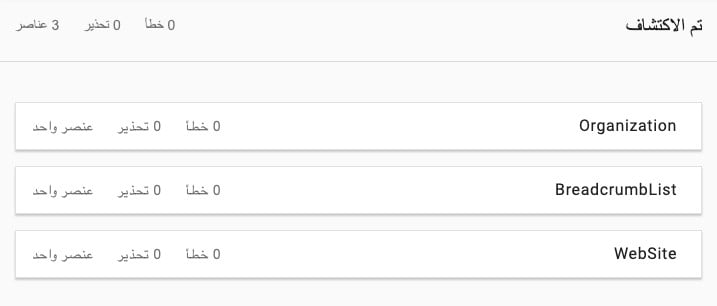
When the markup is error-free, the success window appears.
The schema types that matter for your store
Not every type is relevant to an online store. The most important for Salla stores:
- Product: the most important type — surfaces price, availability and ratings in the result.
- Organization / LocalBusiness: tells Google your store's identity, contact details and address.
- FAQPage: displays your questions and answers directly in the search result.
- BreadcrumbList: clarifies your page hierarchy and improves how the link looks in results.
- Article: for your blog articles.
Some example types: LocalBusiness, Product, Article, and HowTo (step-by-step instructions):


And here's what the markup looks like in JSON-LD: the context, the content type, and its parts (name, image, author…) are all defined.

Markup generators and validators
- JSON-LD Schema Generator by Merkle
- Google Structured Data Markup Helper
- Google Rich Results Test — to see which rich results your page qualifies for.
- Schema Markup Validator from schema.org — for general markup validation.
- The "Enhancements" reports in Google Search Console — to track markup errors across your whole site.
Markup is recognized by Google, Bing, Yahoo and Yandex.
The specialist's role in structured data
Markup is a precise field: a small mistake voids the entire rich result, and standards change. This is what we handle at SEOS7:
- Auditing what exists: we check the current theme's markup in Rich Results Test before adding anything.
- Product and review markup: to surface stars and price in the result and raise click-through rate.
- FAQ and BreadcrumbList: to capture more space on the results page.
- Fixing errors: we monitor the Enhancements reports in Search Console and fix every error blocking rich results.
This is our methodology: analyze, optimize, maximize. Explore Salla store SEO, or see the Google Search Console guide to track your markup results.
FAQ
What's the difference between structured data and Schema?
Structured data is the code you put on your site to help search engines return clearer results, and Schema is a type of that data defining entities, actions and relationships online — in practice the terms are used interchangeably.
Why is schema markup important?
Without markup, your page's information is left to Google's interpretation and may be misread. Markup tells the search engine the content type precisely and qualifies your pages for rich results (stars, price, FAQ) that raise click-through rate.
Does schema markup show to the visitor?
No, markup isn't shown on the page to the visitor; it's instructions read only by the search engine. Its effect shows in how your result appears on the search page (rich results).
Which search engines support Schema?
Markup is recognized and used by Google, Bing, Yahoo and Yandex. Other engines may use it to varying degrees.
Does the Salla theme add markup automatically?
Modern Salla themes output core structured data for product and store pages. So validate what you have first with the Rich Results Test, then add the missing types via Google Tag Manager as shown in this guide.
Want your products to show with review stars and price in Google's results, and your store's markup clean and error-free? The SEOS7 team audits, fixes and enhances your Salla store's markup. Request a free SEO audit for your store — results within 48 hours, no strings attached.