
Your store blog is the most powerful free content asset you have on Salla: every new article is an extra page that can rank, a meeting point with the buyer in the comparison stage before purchase, and a way to build trust in your brand. In our two previous guides we kept pointing to the blog as the engine for content that earns search traffic — here we explain everything about it step by step: from installing the app to writing your first article, managing categories, authors and settings, all the way to a strategy that makes your blog actually sell.
For the technical foundation, start with the Salla store SEO guide, and to measure results see the Google Search Console guide. The blog is the engine that feeds both with content.
- Why a store blog is an SEO tool, not a luxury
- 1. Installing the blog app
- 2. Accessing blog management
- 3. Writing a new article, step by step
- 4. Managing articles and bulk actions
- 5. Blog categories and optimizing them for search
- 6. Blog settings and showing it on your store
- 7. Authors, tags and related articles
- Beyond setup: a blog that ranks and sells
- FAQ
Why a store blog is an SEO tool, not a luxury
The store blog is an app that lets you create a blog for your store and write articles about your products and business, with the ability to categorize and manage them. But its real value is deeper: regular blogging tells Google your store is alive and active, catches the searcher in the "how do I choose" and "what's best" stage before they decide, and builds a strong reputation online that makes Google trust your store. The result: more search traffic, higher brand trust, and more sales.
- New pages targeting keywords your product and category pages don't cover.
- Content that answers customer questions and educates them — so they trust your expertise and buy from you.
- Internal links that guide the reader from the article to sales pages.
- A free platform for store news, new products, and seasonal offers.
1. Installing the blog app
The blog is a free app you enable from the app store.
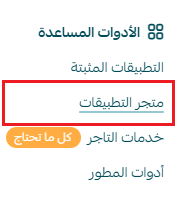
1. In the main menu click All, then under Helper tools click App Store.
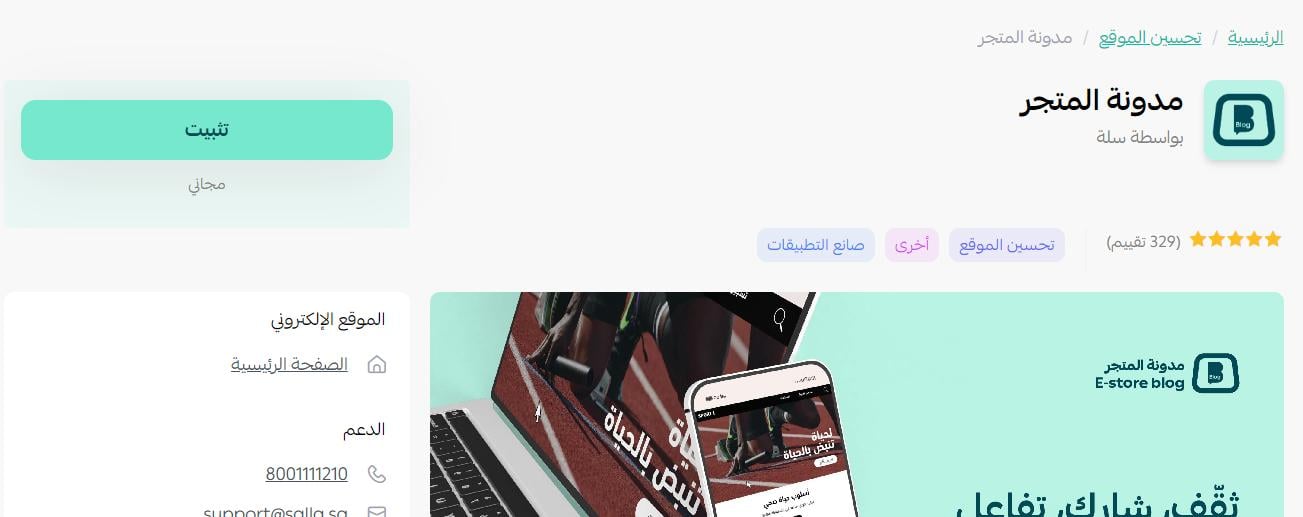
2. Search for the app using the search field.

3. On the app page, click Install.
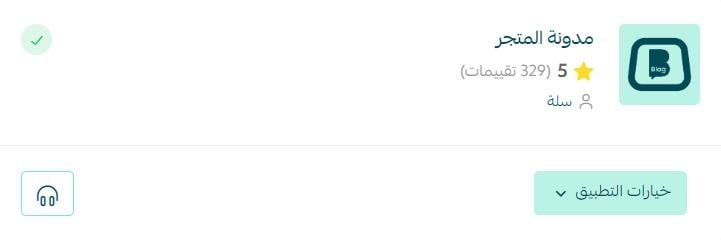
This completes the blog app installation.
2. Accessing blog management
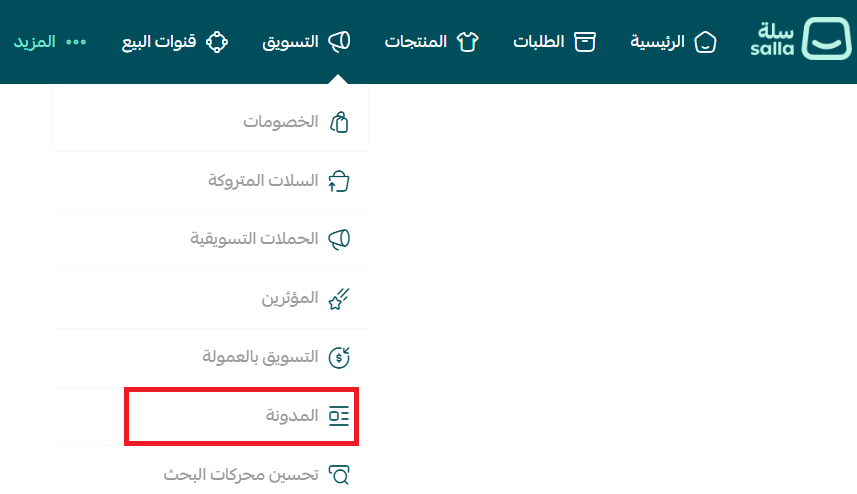
Under the Marketing tab click Blog to open the blog's main page.
3. Writing a new article, step by step
On the blog's main page click + New article, then fill in the following sections:
- Article title: short, catchy and expressive — phrase it the way a reader actually searches on Google.
- Promo text: a short line about the benefit to the reader or the pain point you solve; it appears under the title.
- Body (content): the article text, up to 6,000 characters, which you can format and enrich with images, video and links via the formatting bar.
- Cover image and author: pick an image that reflects the topic, and an author name from the list of authorized writers.
- Categories: assign the category the article belongs to for easier browsing.
- SEO optimization: add the page title and description including the most important keywords for the topic and your store's niche.
- Tags: add tags that help customers and search engines find the article quickly.
Then use Save (to keep it as a draft without publishing), Preview (to review it in a new tab before publishing), and finally Publish to show it on your blog page.
They're what Google shows in the search result. Write a title of 50–60 characters starting with your target keyword, and a description of 140–160 characters that sells the click. And don't forget internal linking: every article should lead the reader to a relevant category or product page.
4. Managing articles and bulk actions
From the Actions section on each article you can switch its status between Published and Unpublished, copy its link to share, view or delete its comments, and edit the title, promo title, author, categories, tags and content.
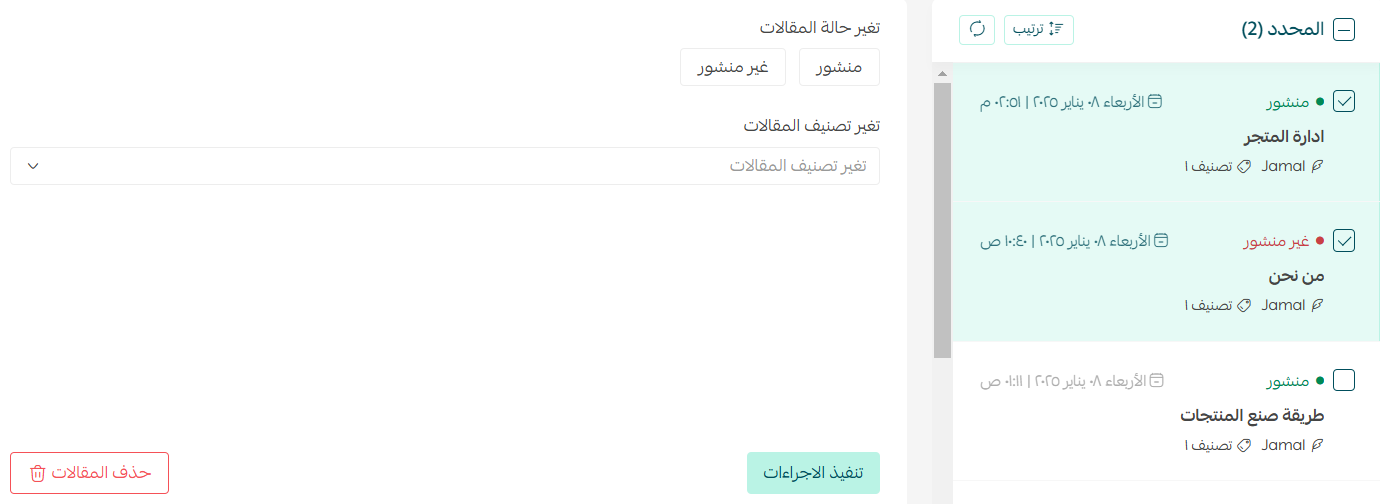
To manage several articles at once: select the articles you want, then from the Change article status section run a bulk action (change status, change category, or delete), and click Apply actions.
5. Blog categories and optimizing them for search
Categories organize your articles for readers and search engines alike, and each category is a page that can rank on its own.
1. From the tabs at the top of the page, click Blog categories.

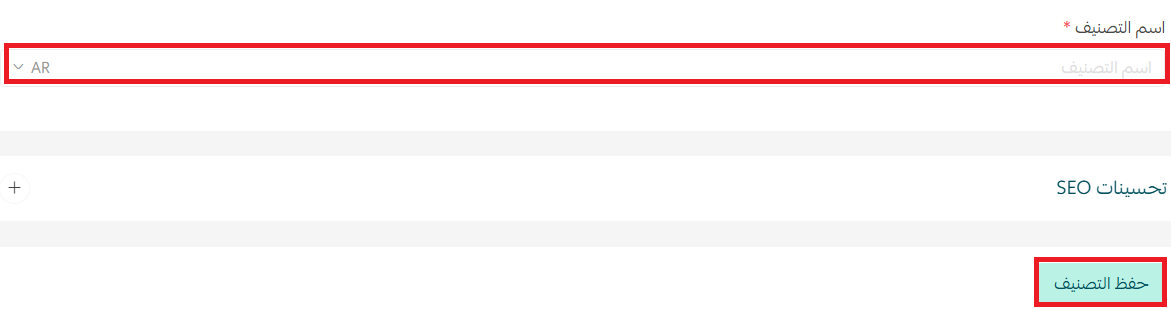
2. Click Add new category and write the category title.

3. Add the category name and click Save category.
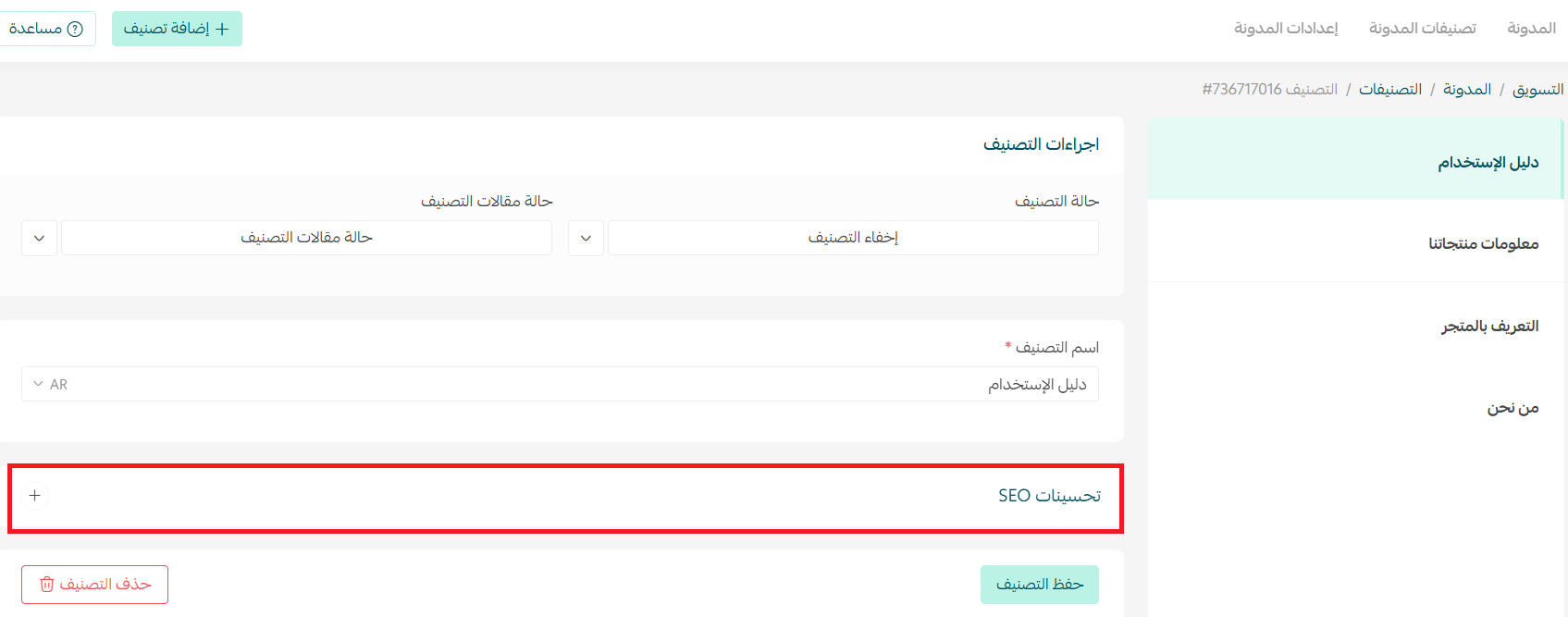
For each category you can control its visibility and its articles' visibility, and add its own SEO optimization. From the Category status section, click the arrow then Show category or Hide category.

And from the Category articles status section you control whether the category's articles are shown or hidden.

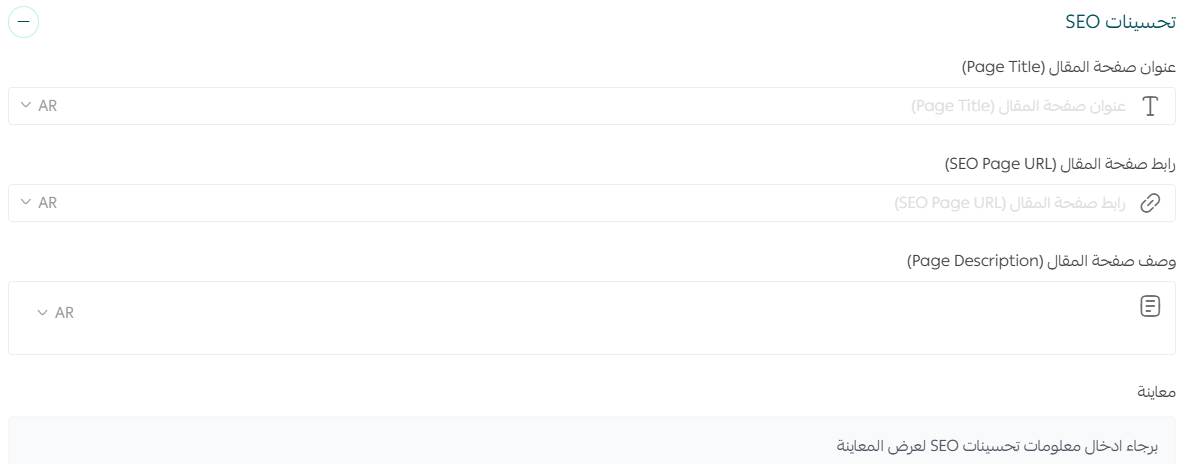
To optimize a category for search, select it then click the (+) next to "SEO optimization".
Then enter the category page title and description with your target keywords.
6. Blog settings and showing it on your store
From the tabs at the top of the page click Blog settings.

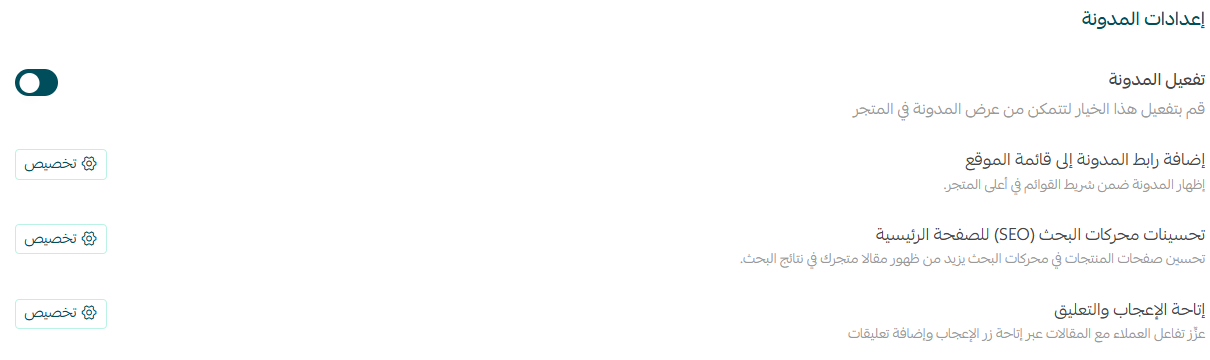
The settings include:
- Enable the blog: show or hide the blog in your store.
- Add blog link to the site menu: show the blog in the top navigation bar of your store.
- SEO optimization for the main page: the blog homepage title and description lift your articles' visibility in search.
- Enable likes and comments: let customers interact with the article via a like button and comments.
When the blog is enabled, its link appears at the bottom of your store page:

7. Authors, tags and related articles
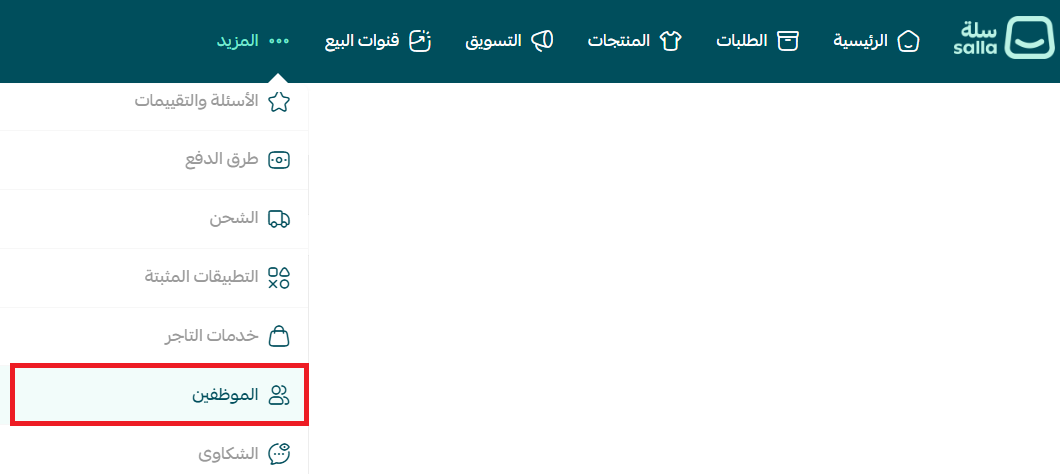
Adding an author: from the top tab choose More then Employees.
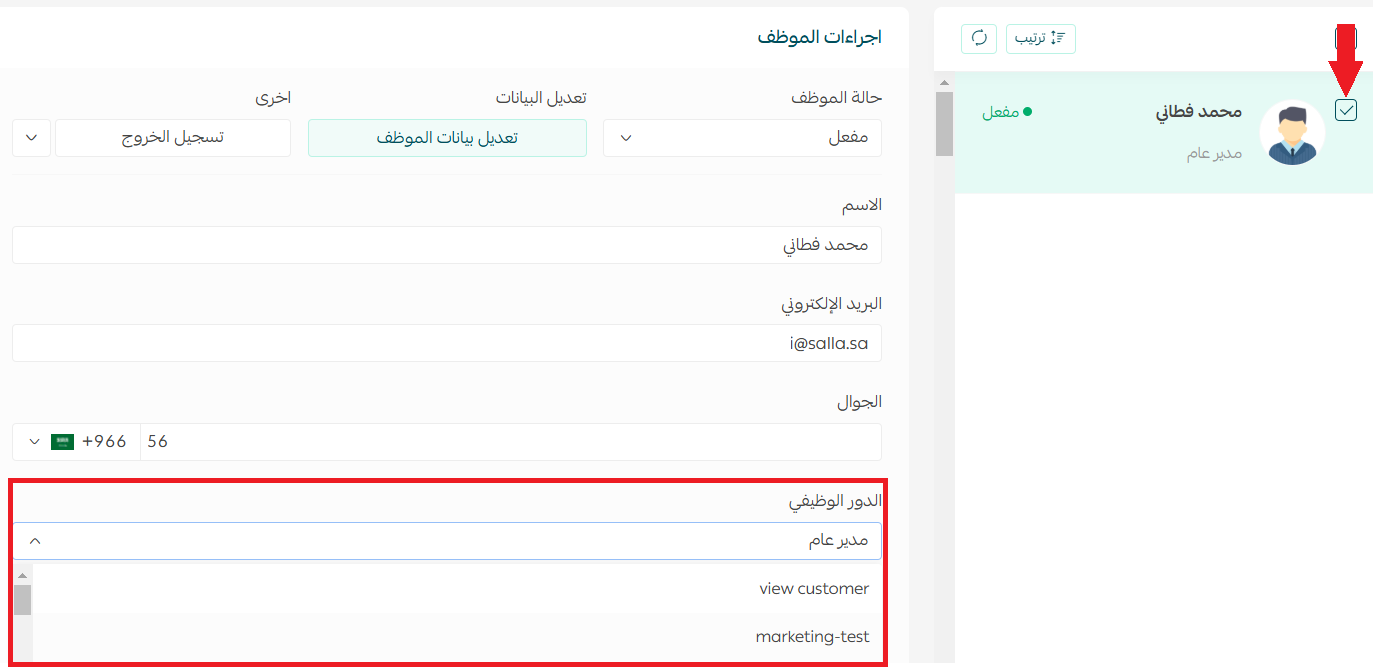
Select the employee, choose the appropriate role, then click Save to add them to the authors list.
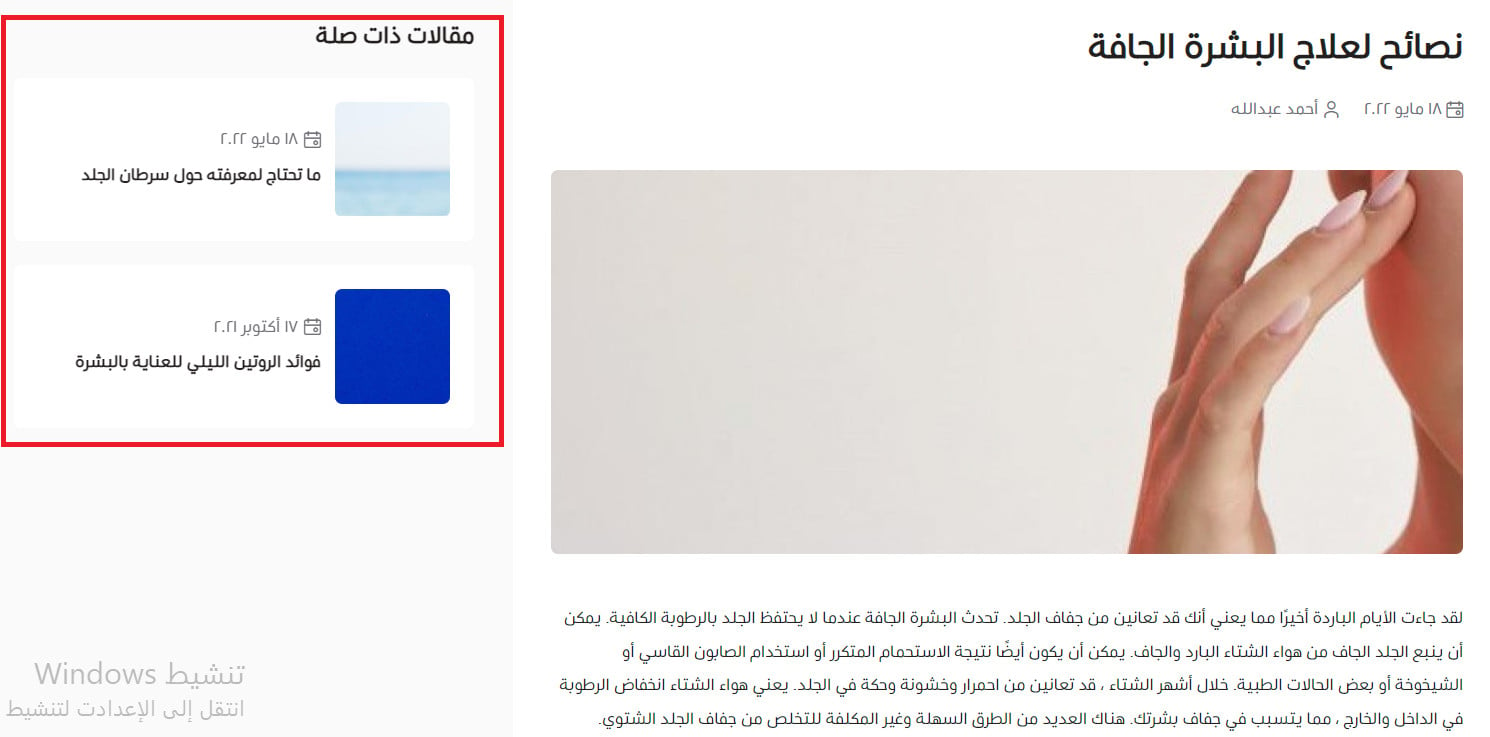
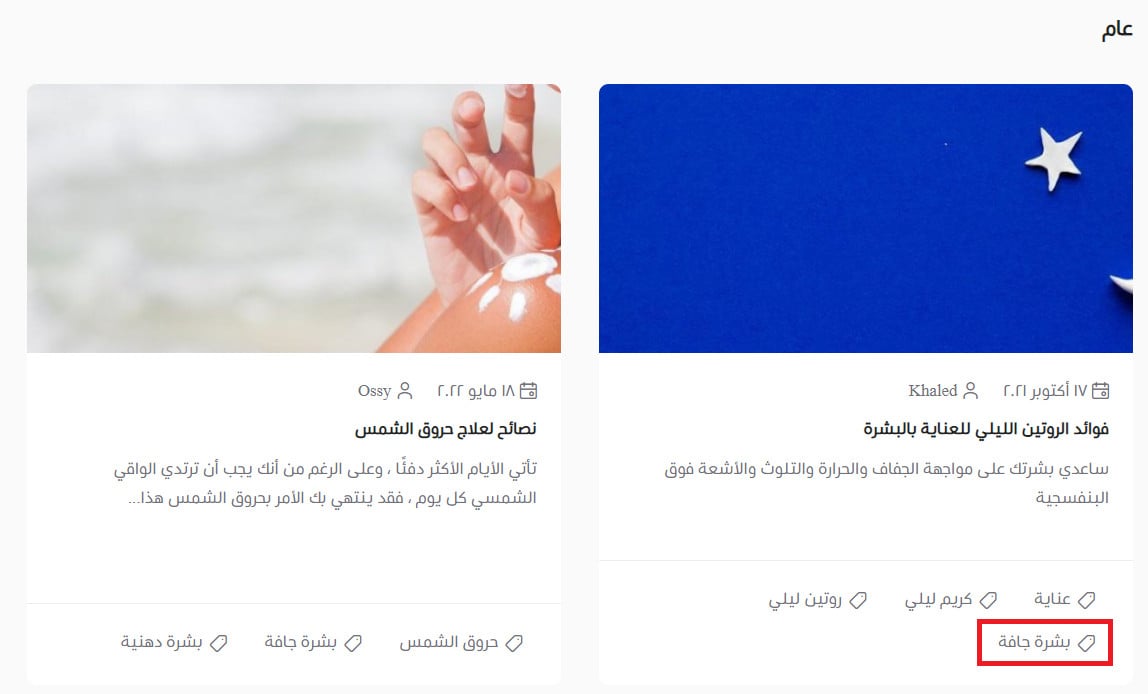
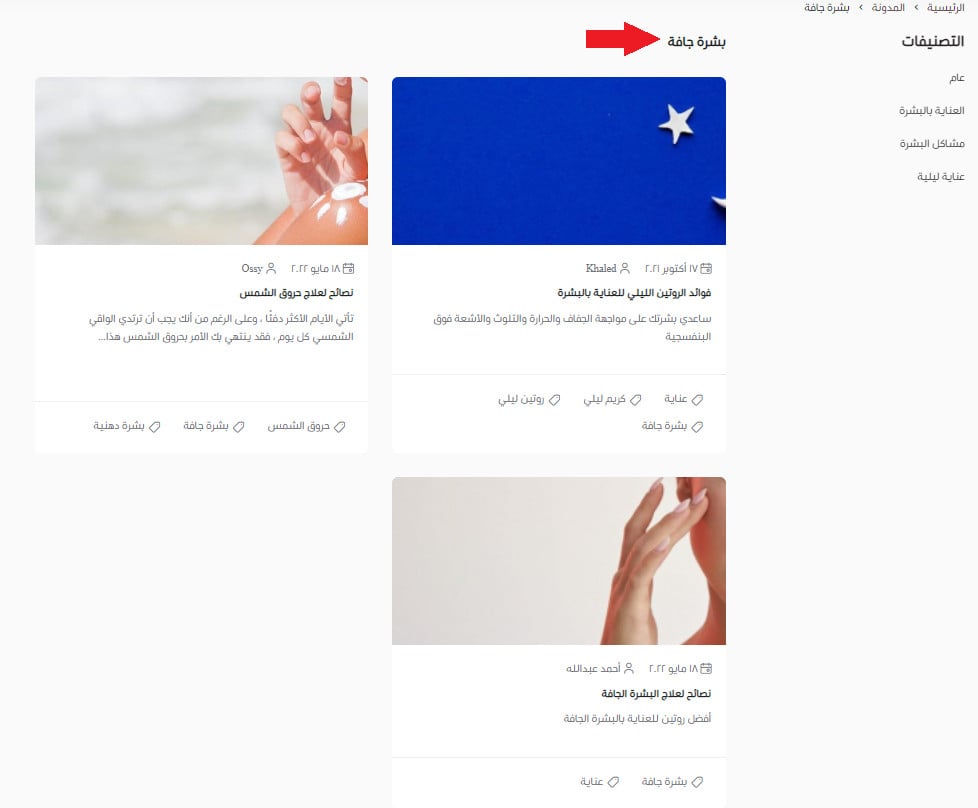
Tags and related articles: a "Related articles" section appears automatically when other articles share the same category or tags — a free internal link that increases the pages a reader views.
A reader can view a tag's articles by clicking it on the blog page, opening a page that gathers every article with that tag.
Beyond setup: a blog that ranks and sells
Installing the blog is easy; the hard part is writing content that ranks and sells. This is what we focus on at SEOS7 for our clients' blogs:
- Search-based topics: we pick article titles from what the buyer actually types ("best…", "how to choose…", "difference between…"), not from what we assume matters.
- Clear buying intent: every article catches the searcher in the comparison stage and leads them to a product or category.
- Deliberate internal linking: from the article to sales pages, and from categories to articles — distributing page authority intelligently.
- Quality and expertise (E-E-A-T): content that shows real domain expertise, so both reader and search engine trust it.
- Consistent publishing: a monthly plan tied to selling seasons instead of sporadic, aimless posting.
This is our methodology: analyze, optimize, maximize. Browse case studies with real numbers, or explore our content & SEO services and plans.
FAQ
Why is a blog important for my online store?
A blog improves your store's visibility in search through fresh content that brings traffic, educates your customers and answers their questions, and shows your expertise in your field so they're more inclined to buy from you — plus it's a free platform for store news and new products.
Is the blog app supported on all plans?
The blog app is free and supported on the Plus, Pro and Special plans. Enable it from the app store and start publishing right away.
How many characters are allowed in an article?
You can write the article body up to 6,000 characters, with the ability to format it and add images, video and links via the formatting bar.
When does the "Related articles" section appear?
It appears automatically when other articles share the same category or tags. It's a useful internal link that increases the number of pages a reader browses and improves SEO performance.
Is writing many articles enough to rank?
Volume alone isn't enough. Ranking needs topics built on keywords your customer searches, high-quality content, internal links to sales pages, and consistent publishing. One well-researched article beats ten untargeted ones.
Want a blog that earns search traffic and sells, not just pages that get published and forgotten? The SEOS7 team builds and executes a content plan based on keyword research. Request a free SEO audit for your Salla store — you'll get the results and an action plan within 48 hours, no strings attached.