
Adding products is the foundation of any successful online store: the product page is where the customer decides to buy, and it's also what competes for visibility on Google. Setting it up professionally — from the basic data to variants and SEO optimization — is the difference between a product that sells and ranks and one that disappears. This guide walks you through adding a physical (ready) product on Salla, step by step, with practical tips to make every product ready to sell and ready for search engines.
Once you've mastered adding products, boost their search visibility with the store SEO guide and the GTIN & MPN product-identifiers guide.
How to start adding a physical product
1. In the main menu click Products.

2. From the + Create new product menu choose Physical product.

1. Basic data
Enter the product's basic data, then click Save.
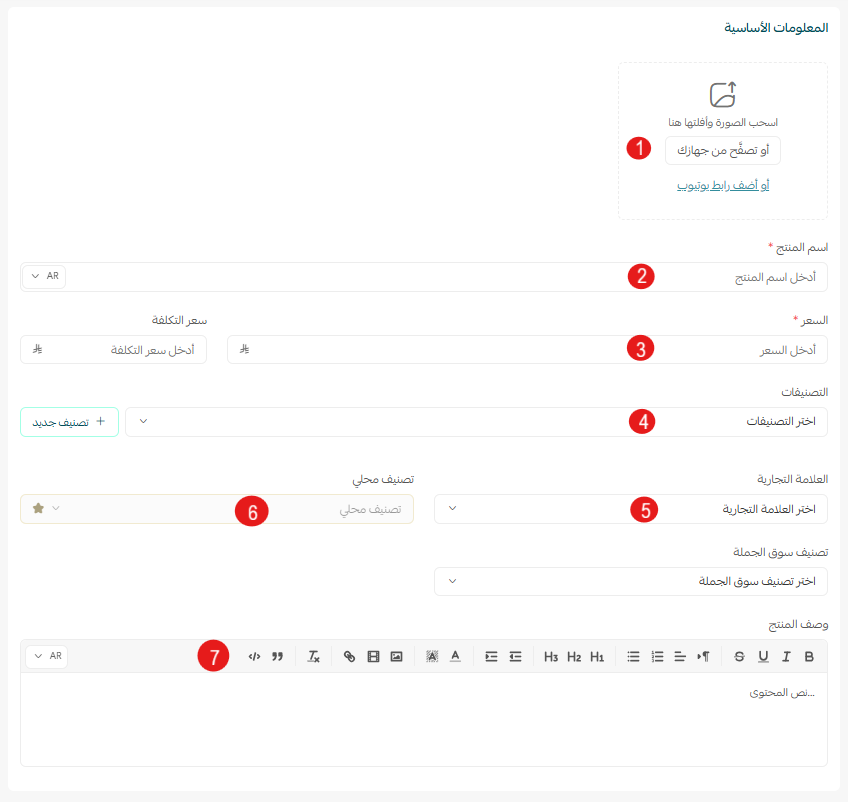
- Images: add one or more high-quality product images.
- Product name: the name shown to the customer — make it clear and phrased the way customers search.
- Price and cost price: the selling price, plus a cost price that helps you track net profit.
- Category: helps organize display and reports.
- Brand: choose the product's brand if it has one.
- Detailed description: formatted text that can include images, video and links.
The "Mahally" (local) and wholesale category feature is currently available only to stores in Saudi Arabia.
2. Advanced information
Here you control details that make a difference in display, experience and search:
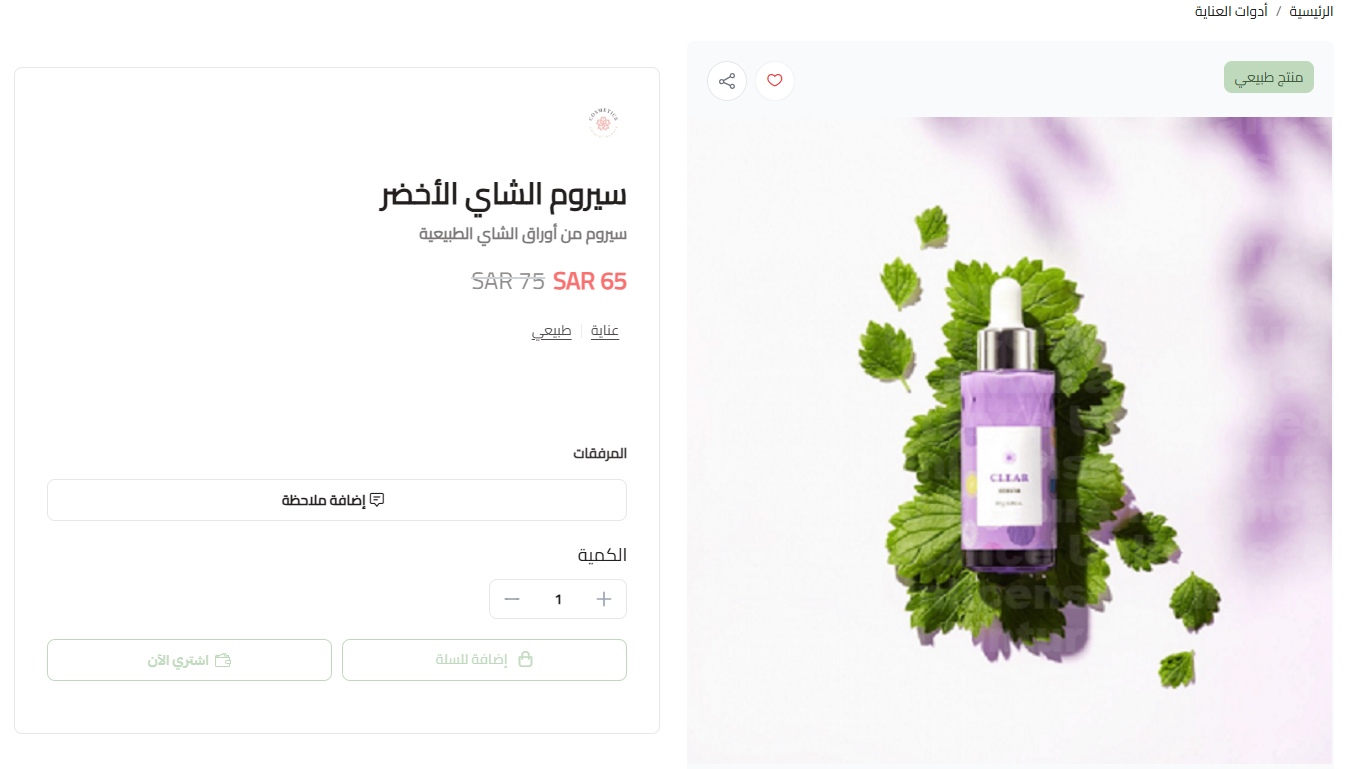
1. Subtitle: shows as a distinctive detail below the product name in the store.

2. Promo title: a phrase placed on the product image to draw attention to a feature or offer.
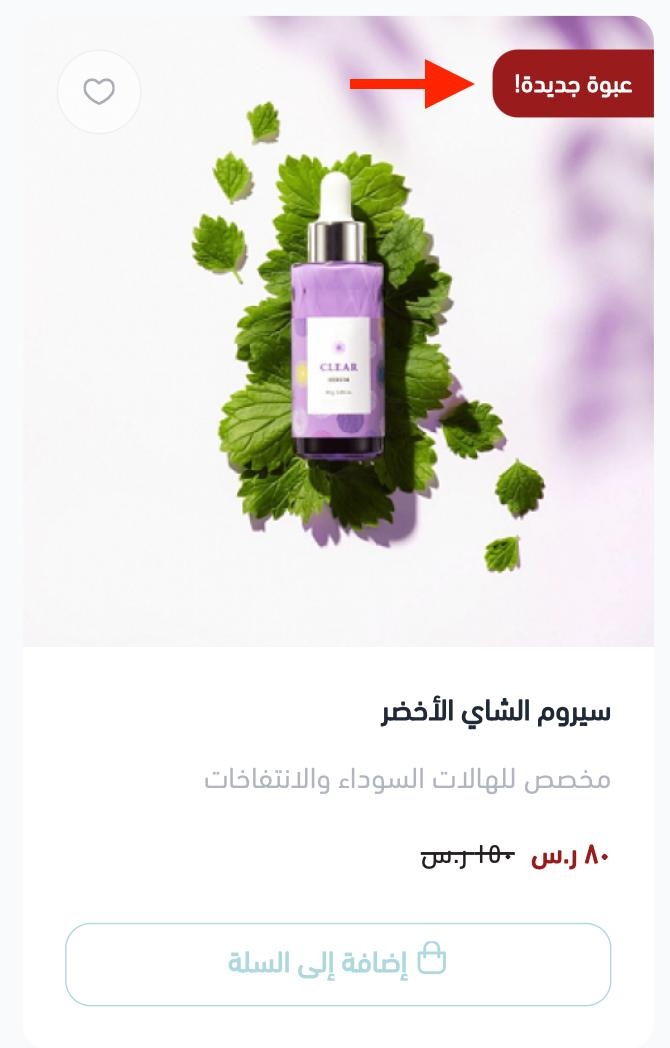
3. Discounted price and offer dates: enter the post-discount price and its start and end dates to run offers.
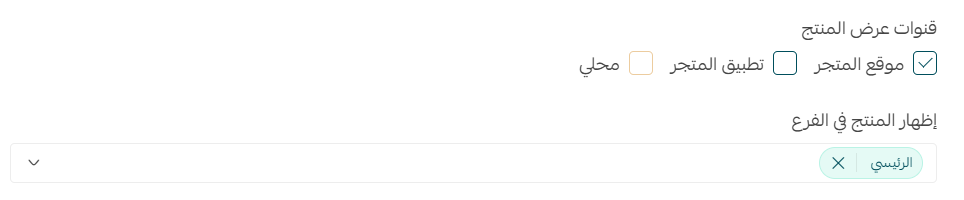
4. Display channels: control whether the product shows on the site, the app, or Mahally, and select branches.
5. Product requirements: useful options for custom orders.

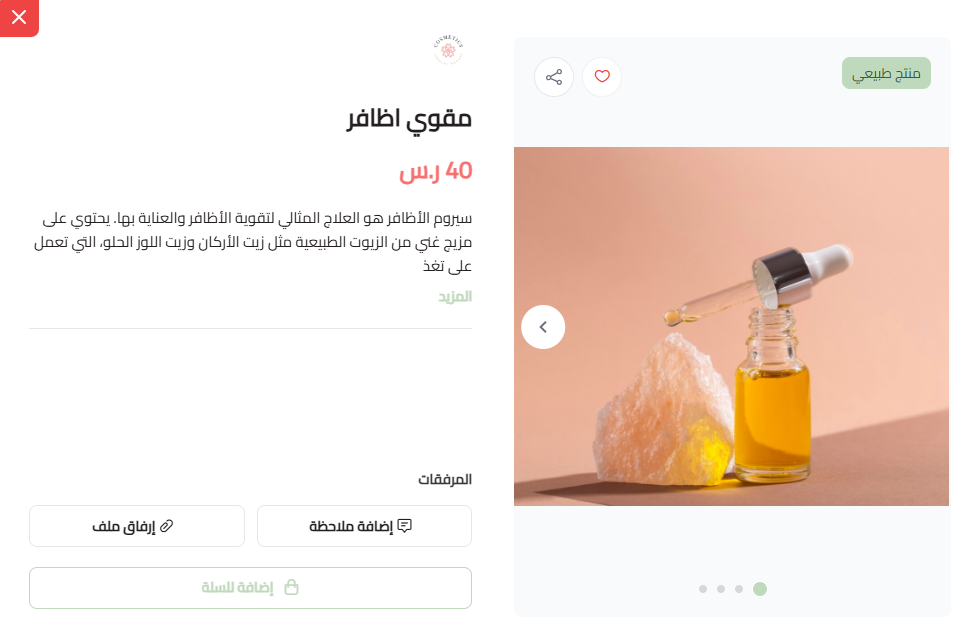
- Attach a file on order: for stores serving custom orders (an image on a cake, a design on a shirt).
- Write a note: lets the customer add instructions to personalize the order.
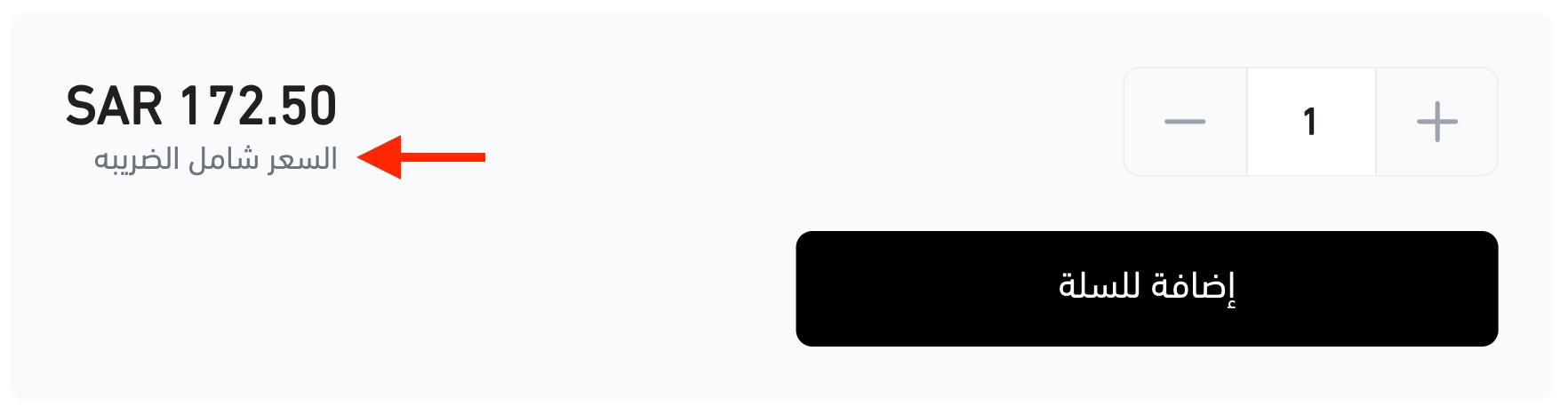
Is the product taxable: set this so the note appears to the customer next to the price.
6. Product tags: add several tags by typing a tag and clicking Add; they help customers discover similar products.

7. Shipping options: set whether the product requires shipping delivery or not.

Setting "no shipping required" doesn't mean you won't deliver the product — it means you won't need a shipping company; the customer goes straight to payment without the shipping-selection step.
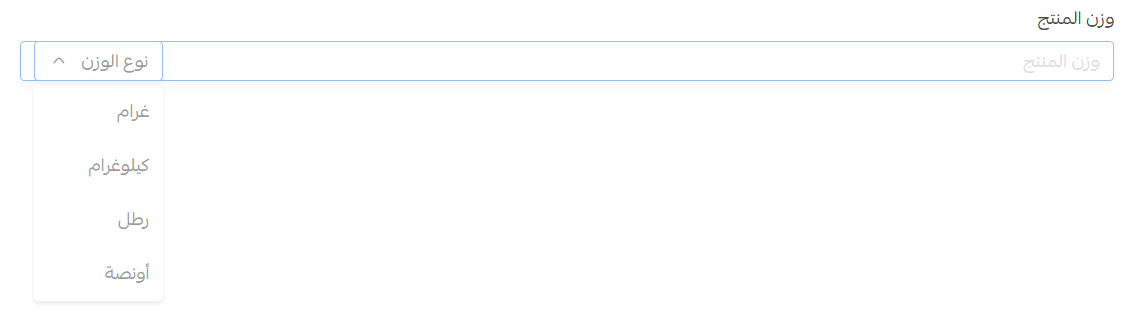
8. Product weight: required by some shipping companies that calculate cost by weight.
9. Maximum order quantity per customer: optional, to cap the quantity.

10. SKU, MPN and GTIN codes: the stock code for inventory management, and the product identifiers that help search engines and customers find your product.

11. Barcode: add a barcode per product to speed up selling at points of sale (Salla Point) and improve inventory management.

Product page SEO optimization
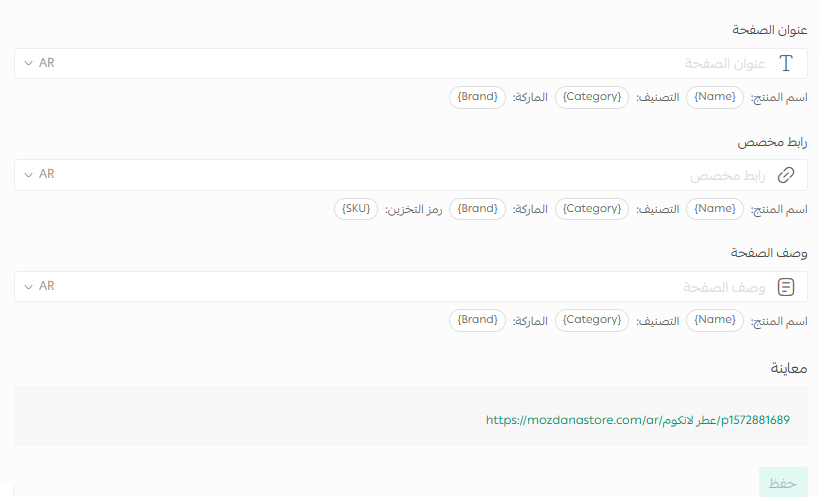
This section determines how your product appears on Google — don't leave it empty. Salla offers three fields:
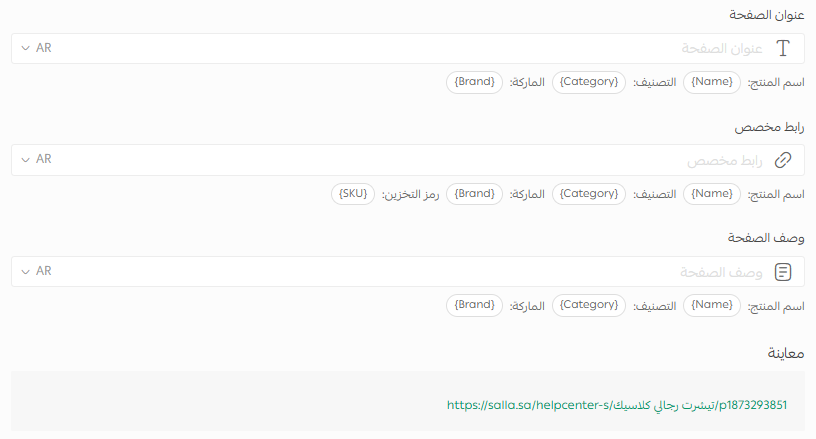
- Product page title: include the product name, category and brand, phrased the way customers search.
- Product page URL (SEO custom URL): customize it to include the product name, category, brand and stock code (SKU) to clearly distinguish the product.
- Product page description: a description including the product name, category and brand to improve indexing.
- Improves indexing accuracy in search engines.
- Distinguishes similar products easily.
- Makes it easier for customers to reach the product by searching the SKU.
The clearer your product URLs, the stronger your customer's experience and the better your store's results.
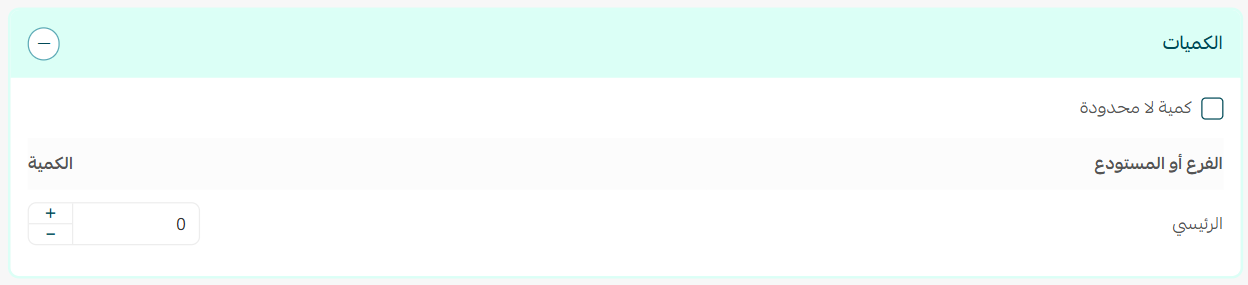
3. Quantities
Add the available quantity for the product; you can edit it and select branches.
4. Options (variants)
If your product has variants (sizes or colors), add them from the Options tab: choose a preset option or add a new one.
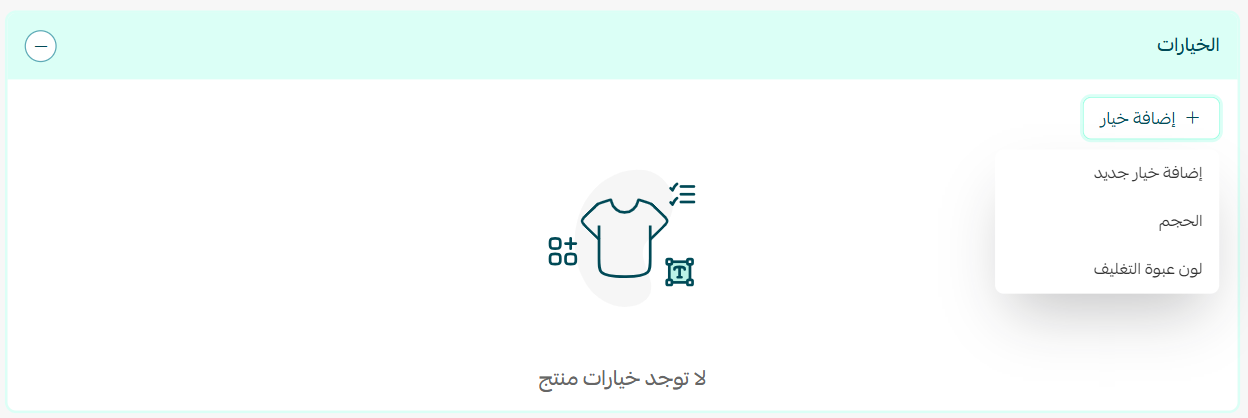
To add a new option: click Add new option, then enter its details.
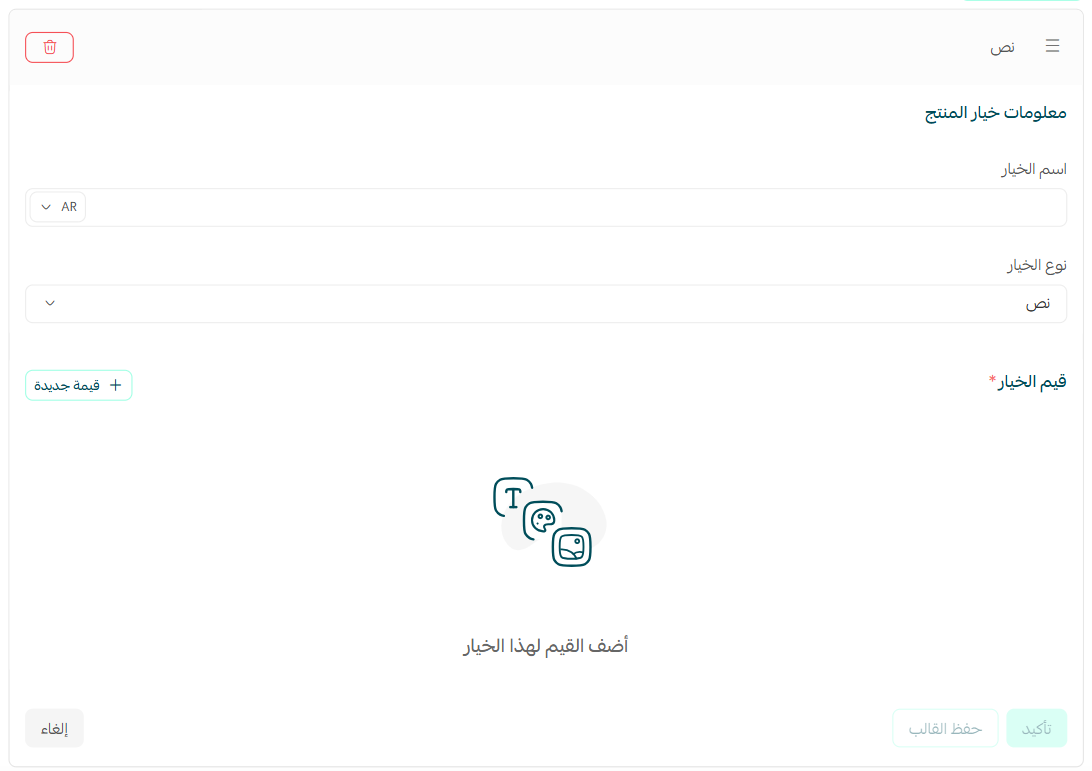
- Option name: such as "Size" or "Fabric color".
- Option type: text or color.
- Option values: such as "Medium, Small" or "Brown, Black", then click Confirm.
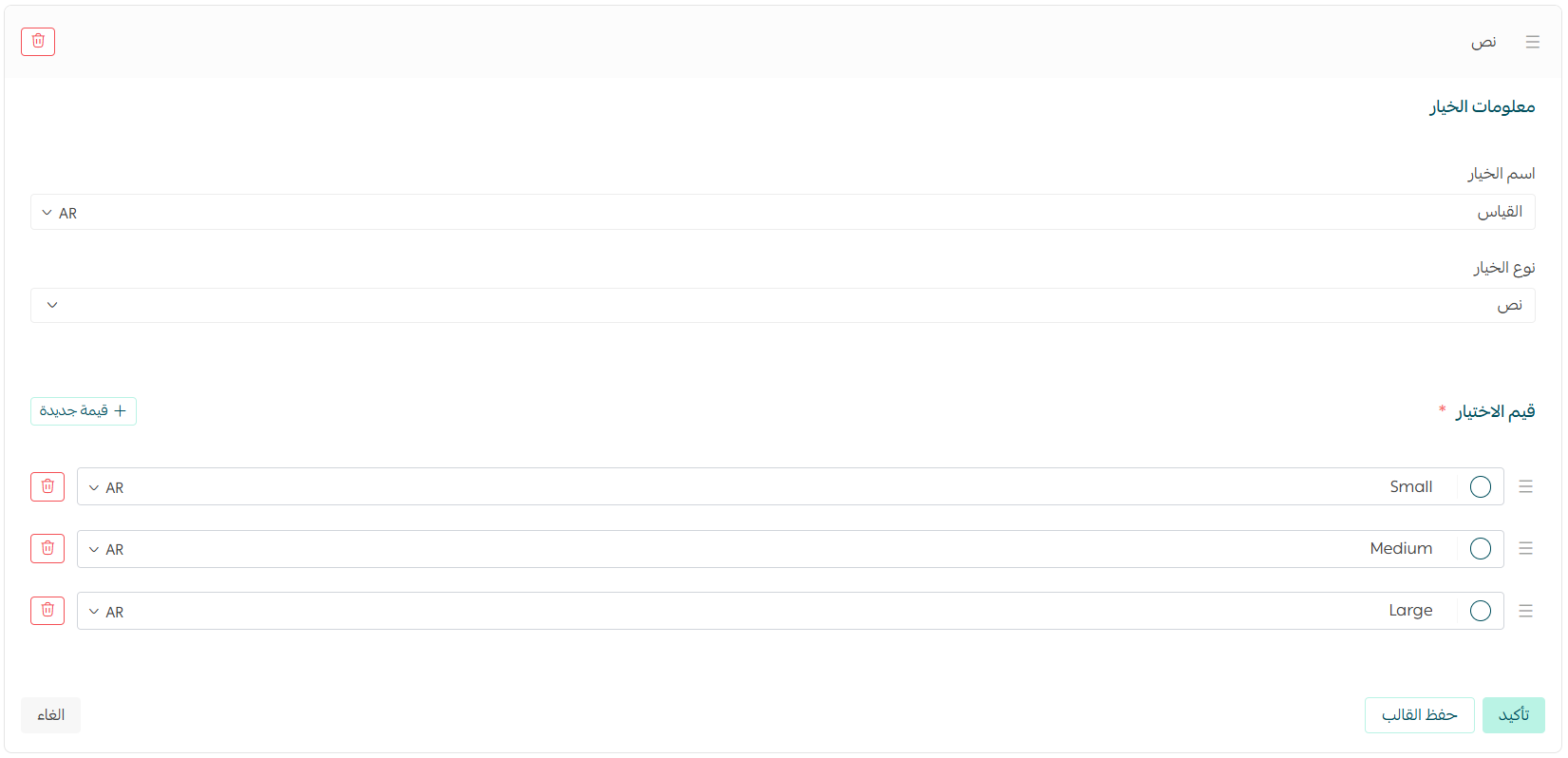
After adding options, from the more (+) icon next to quantities you can edit each option's quantity, duplicate an option and edit its copy, or delete an option from its details.
5. Custom fields
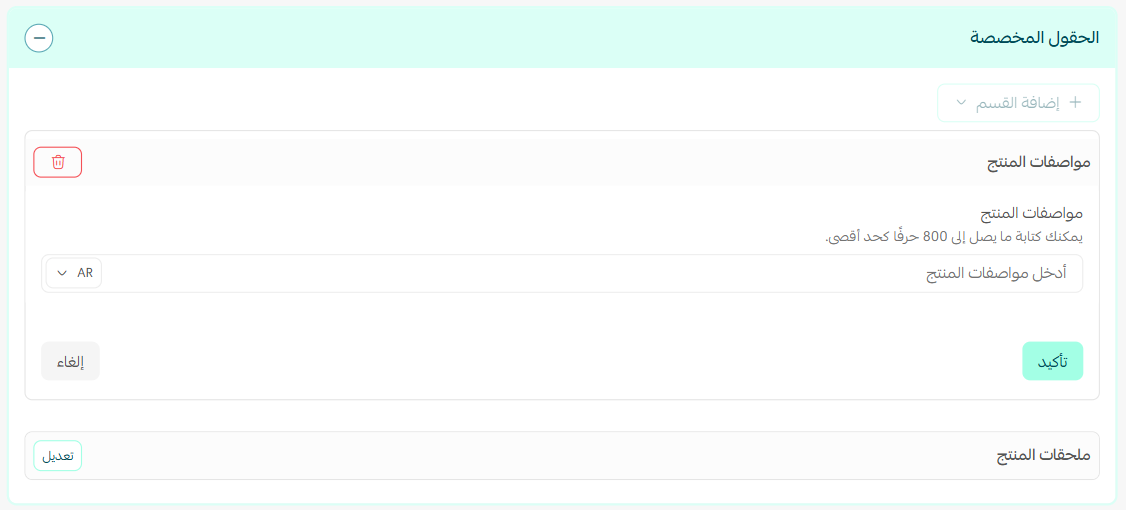
Custom fields let you add extra product data that shows to the customer on the product page — like packaging type and dimensions for a product bundle, in a separate field that highlights distinctive specs.
In the custom fields section click Add new section and choose the field type.

Then add the required field data.
Tips for a product page that sells and ranks
Correct setup is half the battle; the other half is writing each product to sell to both Google and the customer:
- A search-phrased title: start with the most important word the customer types, then the distinctive attribute (size, color, "original").
- A question-answering description: write a unique description that addresses the buyer's questions before they ask — don't copy the supplier's.
- Images with alt text: add an alt description to each image so search engines understand it and it appears in image search.
- Correct identifiers: enter the SKU and GTIN to improve visibility on Google and Google Shopping.
- Enable reviews: rating stars raise the click-through rate on your search result.
This is our methodology at SEOS7: analyze, optimize, maximize. Explore Salla store SEO, or browse the case studies.
FAQ
What's the difference between a physical product and other types?
A physical (ready) product is the material product shipped to the customer, and it's the most common. Salla supports other types like digital products, bookings, made-to-order services, and food & drinks, each with its own add form.
Should I fill in the SEO optimization section for every product?
We strongly recommend it. The product page title, description and URL are what Google reads and shows in the search result, and filling them with words customers search raises your product's visibility and earns search traffic.
Do I need to enter a GTIN and SKU for each product?
The SKU is useful for inventory management and distinguishing products, and the GTIN boosts your product's visibility in search engines and Google Shopping. Both are optional but strongly recommended — see the product identifiers guide for details.
How do I add different sizes and colors to a product?
From the Options tab, add a new option (like "Size" or "Color") and set its values, then edit each option's quantity and price. Each option has an independent quantity and can be duplicated or deleted.
What are custom fields for?
They let you add extra product data (like specs or packaging dimensions) in a separate section shown to the customer, to highlight important details outside the main description.
Added your products but want them to rank and actually sell? The SEOS7 team optimizes your Salla product pages for visibility and conversion. Request a free SEO audit for your store — results within 48 hours, no strings attached.